Search in MAUI DataGrid (SfDataGrid)
7 Jul 202612 minutes to read
The SfDataGrid control allows you to search the data displayed within the datagrid. You can search the data using the built-in search UI or programmatically.
UI Searching
The SfDataGrid allows you to enable searching support by setting the AllowSearching property to true. By enabling this property, the built-in search UI is displayed above the DataGrid, allowing users to search the data.
<ContentPage.BindingContext>
    <local:ViewModel  x:Name ="viewModel"/>
</ContentPage.BindingContext>

<syncfusion:SfDataGrid x:Name="dataGrid"
                       ItemsSource="{Binding Orders}"
                       AllowSearching="True">
</syncfusion:SfDataGrid>
OrderInfoRepository viewModel = new OrderInfoRepository();
SfDataGrid dataGrid = new SfDataGrid();
dataGrid.ItemsSource = viewModel.Orders;
dataGrid.AllowSearching = true;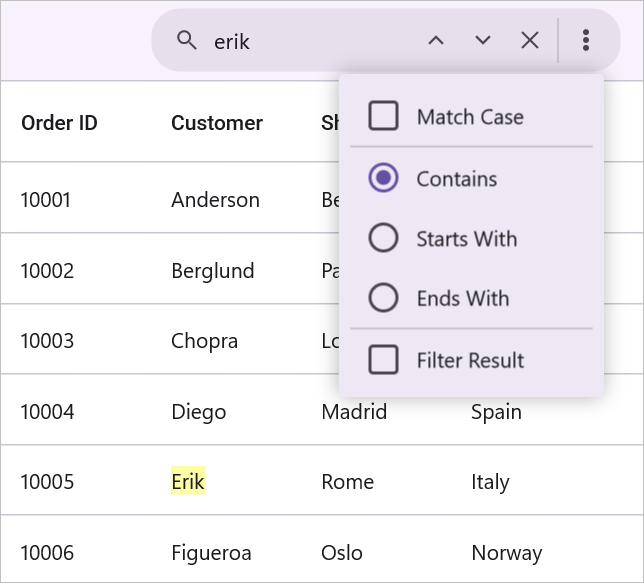
Settings Option
The built-in search UI has a settings icon that offers options for searching, such as filtering, pattern matching, and case sensitivity. You can hide this icon by setting the DataGridSearchToolbarView.ShowMoreOptions property to false.
<ContentPage.Resources>
    <Style TargetType="datagrid:DataGridSearchToolbarView">
        <Setter Property="ShowMoreOptions" Value="False"/>
    </Style>
</ContentPage.Resources>

<syncfusion:SfDataGrid x:Name="dataGrid"
                       ItemsSource="{Binding Orders}"
                       AllowSearching="True">
</syncfusion:SfDataGrid>
Navigation Between Search Results
The navigation icons in the built-in search bar allow users to move to the next or previous search result. You can change the visibility of the navigation icons using the DataGridSearchToolbarView.ShowNavigationButtons property.
<ContentPage.Resources>
    <Style TargetType="datagrid:DataGridSearchToolbarView">
        <Setter Property="ShowNavigationButtons" Value="False"/>
    </Style>
</ContentPage.Resources>

<syncfusion:SfDataGrid x:Name="dataGrid"
                       ItemsSource="{Binding Orders}"
                       AllowSearching="True">
</syncfusion:SfDataGrid>
Clear Search via UI
You can clear the search results by clicking the clear icon in the search bar. You can hide the clear icon by setting the DataGridSearchToolbarView.ShowClearButton property to false.
<ContentPage.Resources>
    <Style TargetType="datagrid:DataGridSearchToolbarView">
        <Setter Property="ShowClearButton" Value="False"/>
    </Style>
</ContentPage.Resources>

<syncfusion:SfDataGrid x:Name="dataGrid"
                       ItemsSource="{Binding Orders}"
                       AllowSearching="True">
</syncfusion:SfDataGrid>
Appearance
Customize the SearchToolbarView
You can customize the DataGridSearchToolbarView using the following DataGridStyle properties:
- SearchToolbarViewStroke: Sets the border color of the SearchToolbarView.
- SearchToolbarViewStrokeThickness: Sets the border thickness of the SearchToolbarView.
- SearchToolbarViewBackground: Sets the background color of the SearchToolbarView.
<syncfusion:SfDataGrid x:Name="dataGrid"
                       ItemsSource="{Binding Orders}"
                       AllowSearching="True">
    <syncfusion:SfDataGrid.DefaultStyle>
        <syncfusion:DataGridStyle SearchToolbarViewBackground="Yellow"
                                  SearchToolbarViewStroke="Brown"
                                  SearchToolbarViewStrokeThickness="2"/>
    </syncfusion:SfDataGrid.DefaultStyle>
</syncfusion:SfDataGrid>
SfDataGrid dataGrid = new SfDataGrid();
OrderInfoViewModel viewModel = new OrderInfoViewModel();
dataGrid.ItemsSource = viewModel.Orders;
dataGrid.AllowSearching = true;
var defaultStyle = new DataGridStyle()
{
SearchToolbarViewBackground = Colors.Yellow,
SearchToolbarViewStroke = Colors.Brown,
SearchToolbarViewStrokeThickness = 2
};
dataGrid.DefaultStyle = defaultStyle;
this.Content = dataGrid;Customize the Search bar
You can customize the SearchBar using the following DataGridStyle properties:
- SearchBarBackground: Sets the background color of the search bar.
- SearchBarTextColor: Sets the text color of the search bar.
- SearchBarTextFontSize: Sets the font size of the search bar text.
- SearchBarTextFontFamily: Sets the font family of the search bar text.
- SearchBarTextFontAttributes: Sets the font attributes of the search bar text.
<syncfusion:SfDataGrid x:Name="dataGrid"
                       ItemsSource="{Binding Orders}"
                       AllowSearching="True">
    <syncfusion:SfDataGrid.DefaultStyle>
        <syncfusion:DataGridStyle SearchbarTextColor="Blue"
                                  SearchbarBackground="Yellow"
                                  SearchbarTextFontAttributes="Bold"
                                  SearchbarTextFontSize="18"
                                  SearchbarTextFontFamily="Roboto"/>
    </syncfusion:SfDataGrid.DefaultStyle>
</syncfusion:SfDataGrid>
SfDataGrid dataGrid = new SfDataGrid();
OrderInfoViewModel viewModel = new OrderInfoViewModel();
dataGrid.ItemsSource = viewModel.Orders;
dataGrid.AllowSearching = true;
var defaultStyle = new DataGridStyle()
{
SearchbarTextColor = Colors.Blue,
SearchbarBackground = Colors.Yellow,
SearchbarTextFontAttributes = FontAttributes.Bold,
SearchbarTextFontSize = 18,
SearchbarTextFontFamily = "Roboto"
};
dataGrid.DefaultStyle = defaultStyle;
this.Content = dataGrid;Programmatic Searching
The SfDataGrid allows you to search the data using the SearchController.Search method.
this.dataGrid.SearchController.Search(entry.Text);
Filtering
Filtering can be enabled for the search results by setting the SearchController.AllowFiltering property to true.
this.dataGrid.SearchController.AllowFiltering = true;
this.dataGrid.SearchController.Search(entry.Text);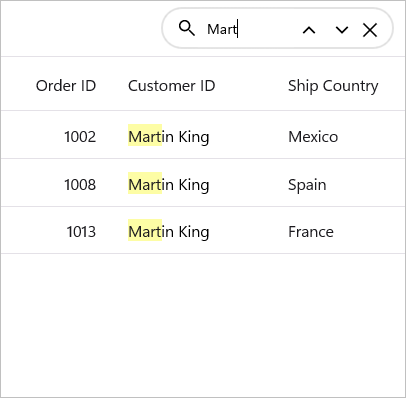
You can search the data with case-sensitivity by setting the SearchController.AllowCaseSensitive property to true.
this.dataGrid.SearchController.AllowCaseSensitive = true;Search with Pattern Matching
You can customize the type of search for the SearchController by using the SearchType property. The available search types are StartsWith, Contains, and EndsWith. The following code snippet demonstrates how to set the search type to StartsWith.
this.dataGrid.SearchController.SearchType = DataGridSearchType.StartsWith;Navigating Cells Based on Search Text
The SfDataGrid allows navigation between search results programmatically using the SearchController.FindNext and SearchController.FindPrevious methods.
this.dataGrid.SearchController.FindNext("SearchText");
this.dataGrid.SearchController.FindPrevious("SearchText");
Clear Search Programmatically
You can clear the search by using the SearchController.ClearSearch method.
this.dataGrid.SearchController.ClearSearch();Customize the Appearance of Highlight Text
You can customize the appearance of searched text by using the SearchTextColor, SearchTextBackground, SearchHighlightTextColor, and SearchHighlightTextBackground properties. You can also customize the background color of search-matched cells using the SearchCellBackground property.
<ContentPage.Content>
    <syncfusion:SfDataGrid ItemsSource="{Binding Orders}">
        <syncfusion:SfDataGrid.DefaultStyle>
            <syncfusion:DataGridStyle SearchTextColor="Black"
                                      SearchTextBackground="LightBlue"
                                      SearchHighlightTextColor="Black"
                                      SearchHighlightTextBackground="LightGreen"
                                      SearchCellBackground="LightPink"/>
        </syncfusion:SfDataGrid.DefaultStyle>
    </syncfusion:SfDataGrid>
</ContentPage.Content>
Search Customization
The SfDataGrid processes search operations in the DataGridSearchController class. You can change the default search behaviors by creating a custom class that overrides the DataGridSearchController class and setting it to the SfDataGrid.SearchController property.
this.dataGrid.SearchController = new CustomDataGridSearchController(this.dataGrid);
public class CustomDataGridSearchController : DataGridSearchController
{
    public CustomDataGridSearchController(Syncfusion.Maui.DataGrid.SfDataGrid dataGrid)
        : base(dataGrid)
    {
    }
}
Search Only a Specific Column
You can search only a specific column by overriding the SearchCell method of the DataGridSearchController. In the SearchCell method, you can perform a search for the column you want to apply based on the MappingName.
In the following code snippet, all columns except the Customer column are excluded from the search.
public class CustomDataGridSearchController : DataGridSearchController
{
    public CustomDataGridSearchController(Syncfusion.Maui.DataGrid.SfDataGrid dataGrid) : base(dataGrid)
    {
    }
    protected override bool SearchCell(DataColumnBase column, object record, bool ApplySearchHighlightBrush)
    {
        if (column.DataGridColumn?.MappingName == "Customer")
            return base.SearchCell(column, record, ApplySearchHighlightBrush);
        return false;
    }
}
Obtain the Search Records
You can get the records by using the GetSearchRecords method of the DataGridSearchController. This method returns a list of search records. The following code snippet demonstrates how to get the search records.
var records = this.dataGrid.SearchController.GetSearchRecords();