How can I help you?
ReadOnly Properties in WPF PropertyGrid
7 May 20216 minutes to read
We can display the readonly properties with its value editor in the non editable state by default. If we want to change any property as readonly, it can be achieved by attributes and event in the PropertyGrid.
ReadOnly properties using attributes
We can change the properties as read only by using the ReadOnly or Editable attributes. When the property is marked ReadOnly as true or Editable as false, the PropertyGrid will not allow the user to edit the property values.
public class Employee {
    public string Name { get; set; }
    public string ID { get; set; }
    [ReadOnly(true)]
    public DateTime DOB { get; set; }
    [Editable(false)]
    public int Experience { get; set; }
}

public class ViewModel {
    public object SelectedEmployee { get; set; }
    public ViewModel() {
        SelectedEmployee = new Employee()
        {
            Name = "John",
            ID = "381",
            DOB = new DateTime(1995, 12, 24),
            Experience = 5;
        };
    }
}<syncfusion:PropertyGrid SelectedObject="{Binding SelectedEmployee}" SortDirection="{x:Null}"
x:Name="propertyGrid1">
<syncfusion:PropertyGrid.DataContext>
<local:ViewModel></local:ViewModel>
</syncfusion:PropertyGrid.DataContext>
</syncfusion:PropertyGrid>PropertyGrid propertyGrid1 = new PropertyGrid();
propertyGrid1.DataContext = new ViewModel();
propertyGrid1.SetBinding(PropertyGrid.SelectedObjectProperty, new Binding("SelectedEmployee"));
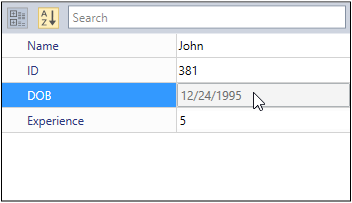
propertyGrid1.SortDirection = null;Here, the DOB and Experience are readonly properties by the attributes.
NOTE
If you use both the
ReadOnlyattribute andEditableattribute, theReadOnlyattribute will have higher priority.
Click here to download the sample that showcases the ReadOnly support using attribute.
Change properties as readonly at runtime
We can change the properties as read only without using the attributes at runtime by handling the AutoGeneratingPropertyGridItem event with AutoGeneratingPropertyGridItemEventArgs.ReadOnly property.
When AutoGeneratingPropertyGridItemEventArgs.ReadOnly property value sets as true, the property will be classified as read only, then the PropertyGrid will not allow the user to edit the property values. The Default value of AutoGeneratingPropertyGridItemEventArgs.ReadOnly property is false.
using System;
using System.ComponentModel;
using System.ComponentModel.DataAnnotations;

public class Employee {
    public string Name { get; set; }
    public string ID { get; set; }
    public DateTime DOB { get; set; }
    public int Experience { get; set; }
}

public class ViewModel {
    public object SelectedEmployee { get; set; }

    public ViewModel() {
        SelectedEmployee = new Employee()
        {
            Name = "John",
            ID = "381",
            DOB = new DateTime(1995, 12, 24),
            Experience = 5;
        };
    }
}<syncfusion:PropertyGrid AutoGeneratingPropertyGridItem="PropertyGrid1_AutoGeneratingPropertyGridItem"
SelectedObject="{Binding SelectedEmployee}"
x:Name="propertyGrid1">
<syncfusion:PropertyGrid.DataContext>
<local:ViewModel></local:ViewModel>
</syncfusion:PropertyGrid.DataContext>
</syncfusion:PropertyGrid>PropertyGrid propertyGrid1 = new PropertyGrid();
propertyGrid1.DataContext = new ViewModel();
propertyGrid1.SetBinding(PropertyGrid.SelectedObjectProperty, new Binding("SelectedEmployee"));
propertyGrid1.AutoGeneratingPropertyGridItem += PropertyGrid1_AutoGeneratingPropertyGridItem;private void PropertyGrid1_AutoGeneratingPropertyGridItem(object sender, AutoGeneratingPropertyGridItemEventArgs e) {
// Change 'DOB' property as readonly
if (e.DisplayName == "DOB") {
e.ReadOnly = true;
}
}
Here, the DOB property non-editable.
Click here to download the sample that showcases the ReadOnly support using AutoGeneratingPropertyGridItem event.