Create and modify annotations in Blazor PDF Viewer
17 Jul 20266 minutes to read
The PDF Viewer annotation tools let you add, edit, and manage markups across documents. This page provides an overview. It includes quick navigation to each annotation type and describes the common creation and modification workflows.
Quick navigation to annotation types
The following pages describe each annotation type in detail, with both UI steps and code examples.
Text Markup annotations:
- Highlight: Highlight annotation
- Strikethrough: Strikethrough annotation
- Underline: Underline annotation
- Squiggly: Squiggly annotation
Shape annotations:
- Line: Line annotation
- Arrow: Arrow annotation
- Rectangle: Rectangle annotation
- Circle: Circle annotation
- Polygon: Polygon annotation
Measurement annotations:
- Distance: Distance annotation
- Perimeter: Perimeter annotation
- Area: Area annotation
- Radius: Radius annotation
- Volume: Volume annotation
Other annotations:
- Redaction: Redaction annotation
- Free Text: Free text annotation
- Ink (Freehand): Ink annotation
- Stamp: Stamp annotation
- Sticky Notes: Sticky notes annotation
Each annotation type page includes both UI steps and programmatic examples specific to that type.
Create annotations
Create via UI
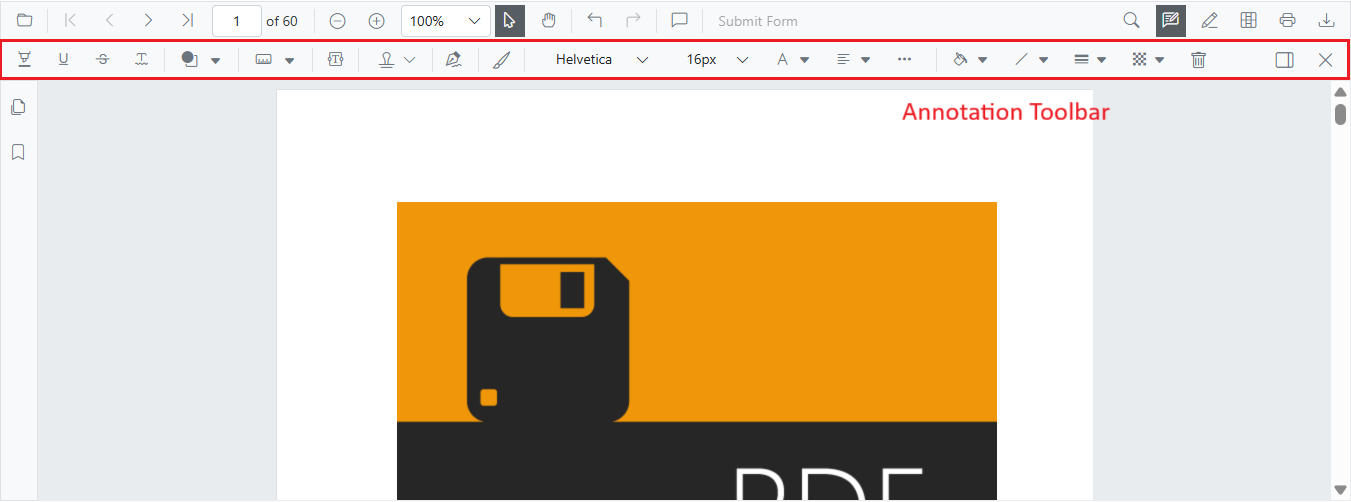
- Open the annotation toolbar in the PDF Viewer.
- Choose the required tool (for example, Shape, Free text, Ink, Stamp, Redaction).
- Click or drag on the page to place the annotation.
Note:
- When pan mode is active and a shape or stamp tool is selected, the viewer switches to text select mode automatically.
- Property pickers in the annotation toolbar let users choose color, stroke color, thickness, and opacity while drawing.
Create programmatically
Creation patterns vary by type. Refer to the individual annotation pages for tailored code.
Example: creating a Rectangle annotation using AddAnnotationAsync.
@using Syncfusion.Blazor.Buttons
@using Syncfusion.Blazor.SfPdfViewer

<SfButton OnClick="@AddShapeAnnotationAsync">Add Shape Annotation</SfButton>
<SfPdfViewer2 Width="100%" Height="100%" DocumentPath="@DocumentPath" @ref="@Viewer" />

@code {
    private SfPdfViewer2 viewer;
    private string DocumentPath { get; set; } = "wwwroot/Data/Shape_Annotation.pdf";

    private async Task AddShapeAnnotationAsync(MouseEventArgs args)
    {
        // PdfAnnotation defines the annotation to add.
        // Bound specifies the rectangle on the page in points (1 point = 1/72 inch), measured from the page's top-left corner.
        PdfAnnotation annotation = new PdfAnnotation();
        // Set the shape annotation type. Supported values include Rectangle, Line, Arrow, Circle, and Polygon.
        annotation.Type = AnnotationType.Rectangle;
        // Page numbers start from 0. So, if set to 0 it represents page 1.
        annotation.PageNumber = 0;

        // Bound of the rectangle annotation
        annotation.Bound = new Bound();
        annotation.Bound.X = 200;
        annotation.Bound.Y = 150;
        annotation.Bound.Width = 300;
        annotation.Bound.Height = 100;
        // Add rectangle annotation
        await Viewer.AddAnnotationAsync(annotation);
    }
}
Refer to the individual annotation pages for enabling draw modes from UI buttons and other type-specific creation samples (text markup, free text, ink, stamp, sticky notes, and measurement annotations).
Modify annotations
Modify via UI
Use the annotation toolbar after selecting an annotation. The available properties vary by annotation type.
-
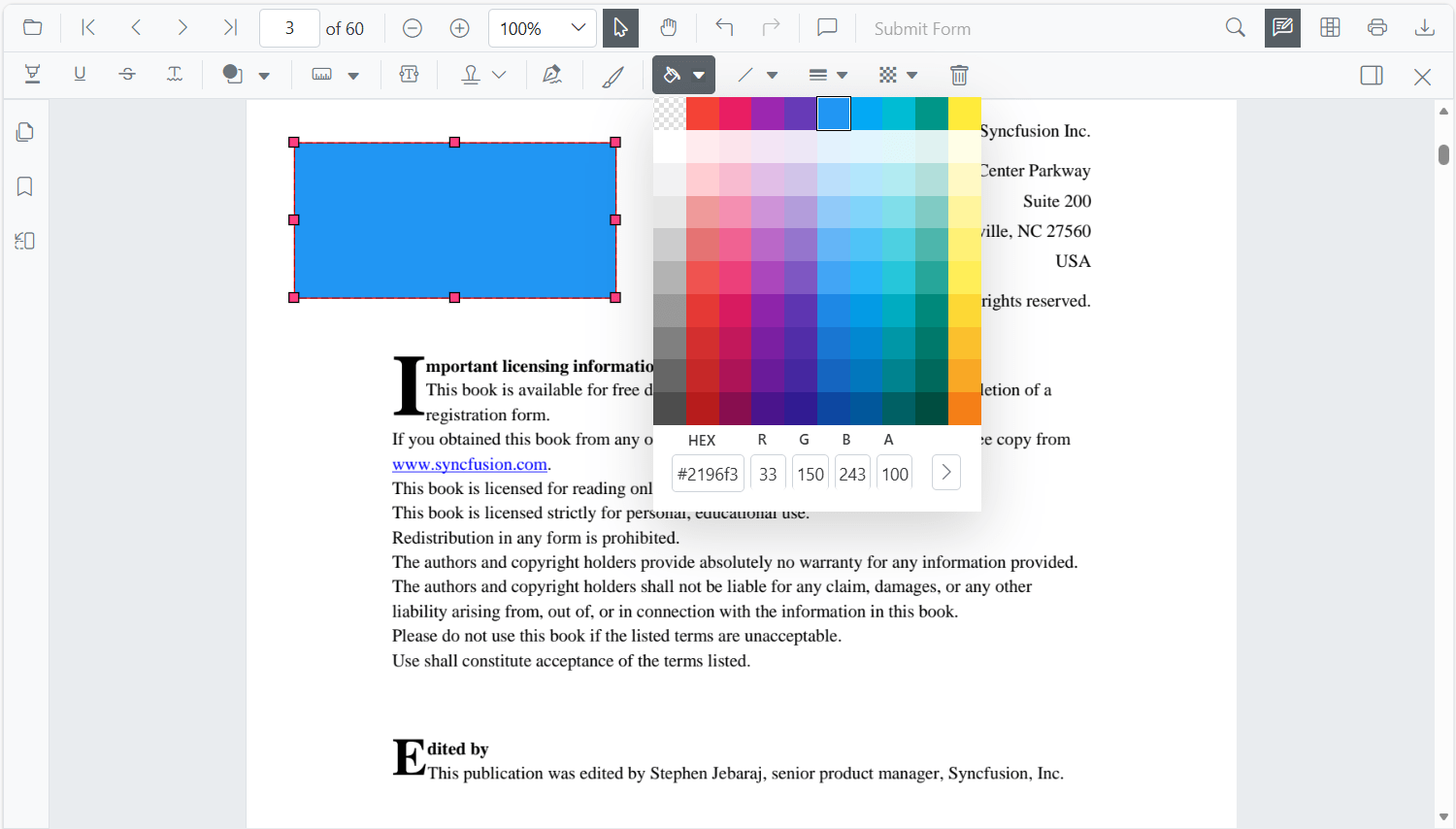
Edit color: change the fill or text color (where applicable).
-
Edit stroke color: change the border or line color (shape and line types).

-
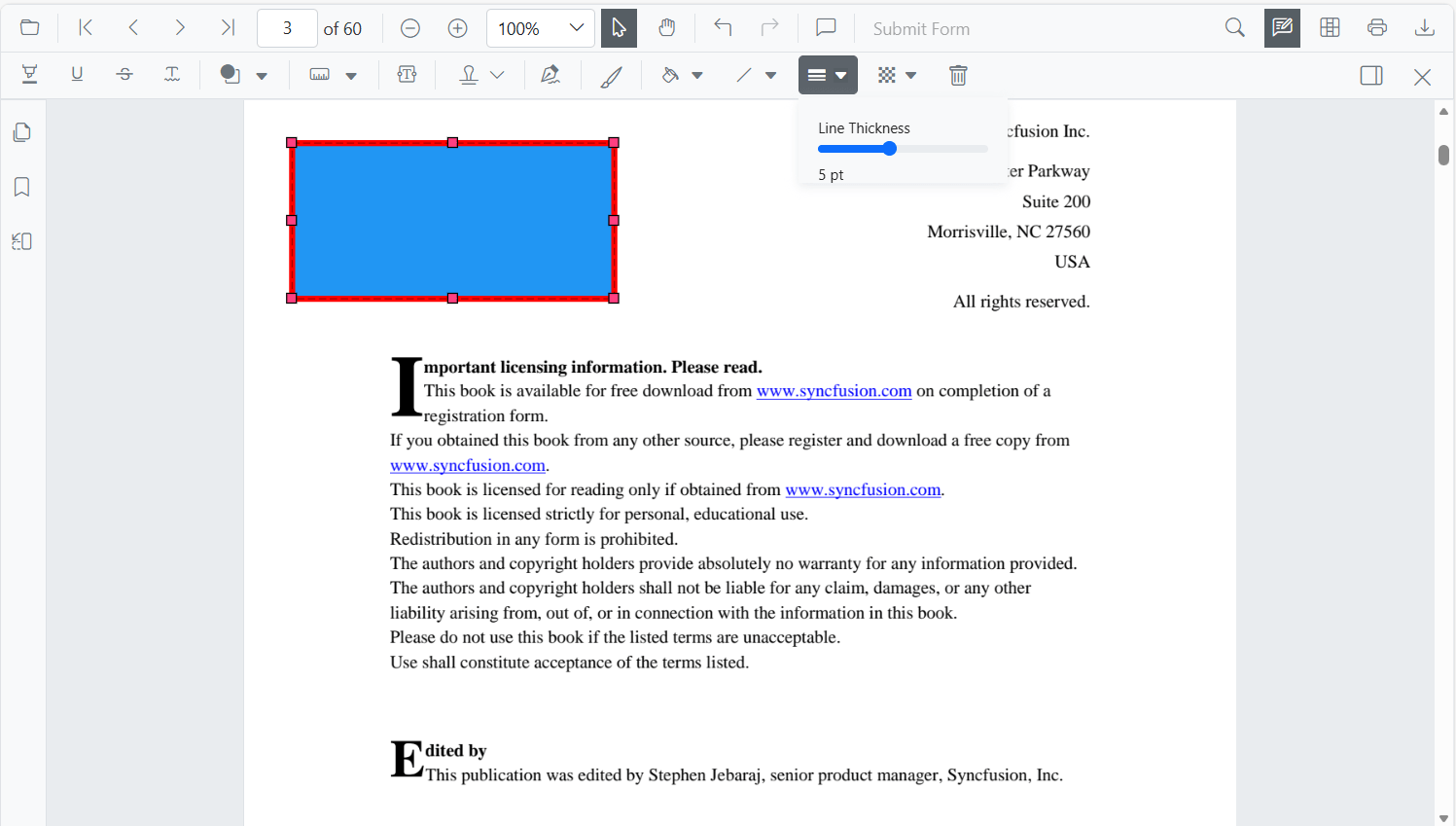
Edit thickness: change the border or line thickness.
-
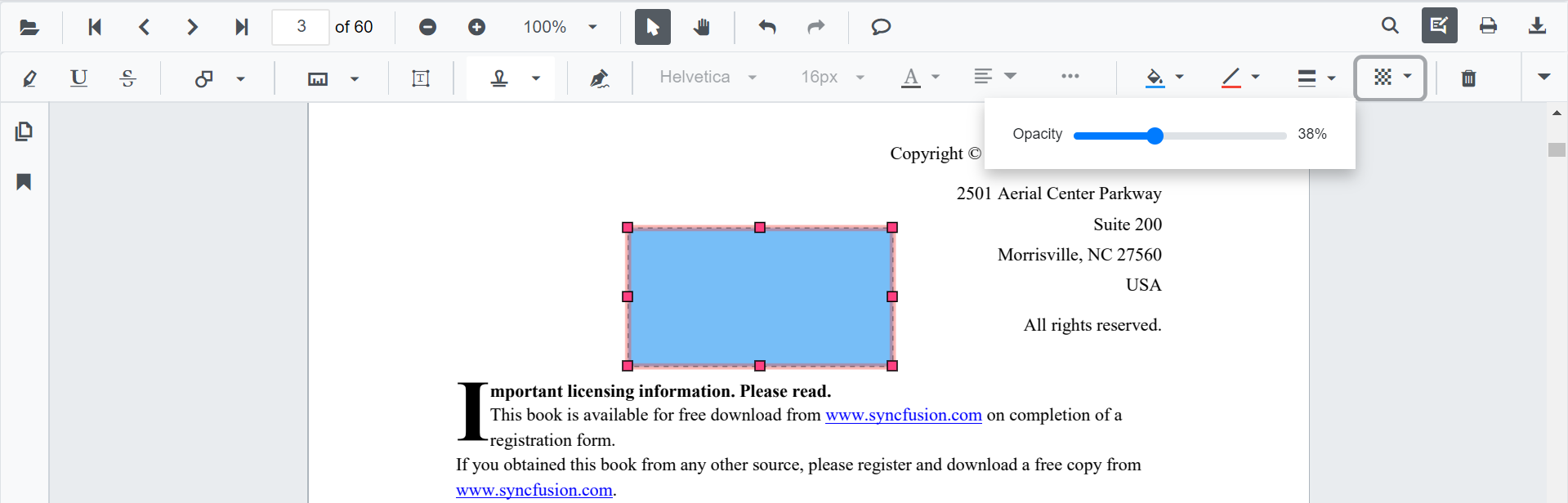
Edit opacity: change transparency (0 fully transparent to 1 fully opaque).
Additional options, such as Line Properties for line and arrow annotations, are available from the right-click context menu (Properties), where supported.
Modify programmatically
Use EditAnnotationAsync to apply changes to an existing annotation. Common flow:
- Locate the target annotation from
GetAnnotationsAsync(). For a single page, use the overloadGetAnnotationsOnPageAsync(pageNumber). - Update the desired properties (
FillColor,StrokeColor,Thickness,Opacity). - Call
EditAnnotationAsyncwith the modified object. If the annotation is not found on the current document, the call returns without applying changes.
The following example edits a Rectangle (shape) annotation. For type-specific properties (line endings, stamp position, sticky note bounds, etc.), see the corresponding annotation type page.
@using Syncfusion.Blazor.Buttons
@using Syncfusion.Blazor.SfPdfViewer

<SfButton OnClick="@EditShapeAnnotationAsync">Edit Shape Annotation</SfButton>
<SfPdfViewer2 Width="100%" Height="100%" DocumentPath="@DocumentPath" @ref="@Viewer" />

@code {
    private SfPdfViewer2 viewer;
    private string DocumentPath { get; set; } = "wwwroot/Data/Shape_Annotation.pdf";

    private async Task EditShapeAnnotationAsync(MouseEventArgs args)
    {
        // Get annotation collection
        List<PdfAnnotation> annotationCollection = await Viewer.GetAnnotationsAsync();
        if (annotationCollection == null || annotationCollection.Count == 0)
        {
            // No annotations to edit. Exit early.
            return;
        }
        // Select the annotation to edit
        PdfAnnotation annotation = annotationCollection[0];
        // Change the fill color of rectangle annotation (hex string, e.g., "#FFFF00")
        annotation.FillColor = "#FFFF00";
        // Change the stroke color of rectangle annotation (hex string, e.g., "#0000FF")
        annotation.StrokeColor = "#0000FF";
        // Change the thickness of rectangle annotation (border or line width in points)
        annotation.Thickness = 3;
        // Change the Opacity (0 to 1) of rectangle annotation
        annotation.Opacity = 0.5;
        // Edit the rectangle shape annotation
        await Viewer.EditAnnotationAsync(annotation);
    }
}
For type-specific creation and edit examples (for example, editing line endings, moving stamps, or updating sticky note bounds), see the corresponding annotation type page linked above.