Rectangle Annotation (Shape) in Blazor PDF Viewer
14 Aug 20269 minutes to read
Rectangle annotations let you highlight regions, group content, or draw callout boxes on PDFs for reviews and markups. The Blazor SfPdfViewer supports adding rectangles from the toolbar, customizing their appearance, editing or deleting them in the UI, and exporting them with the document.
Enable Rectangle Annotation in the Viewer
Rectangle annotations are available by default in the Blazor SfPdfViewer component with the annotation toolbar enabled. The following example shows the minimum component setup:
@using Syncfusion.Blazor.SfPdfViewer

<SfPdfViewer2 DocumentPath="@DocumentPath"
              Width="100%"
              Height="100%">
</SfPdfViewer2>

@code {
    private string DocumentPath { get; set; } = "wwwroot/Data/PDF_Succinctly.pdf";
}
Ensure the sample PDF is placed in the
wwwroot/Data/folder of your Blazor app, and thatSfPdfVieweris registered inProgram.cs. Refer to the Blazor getting started guide for setup details.
Add Rectangle Annotation
Add Rectangle Annotation Using the Toolbar
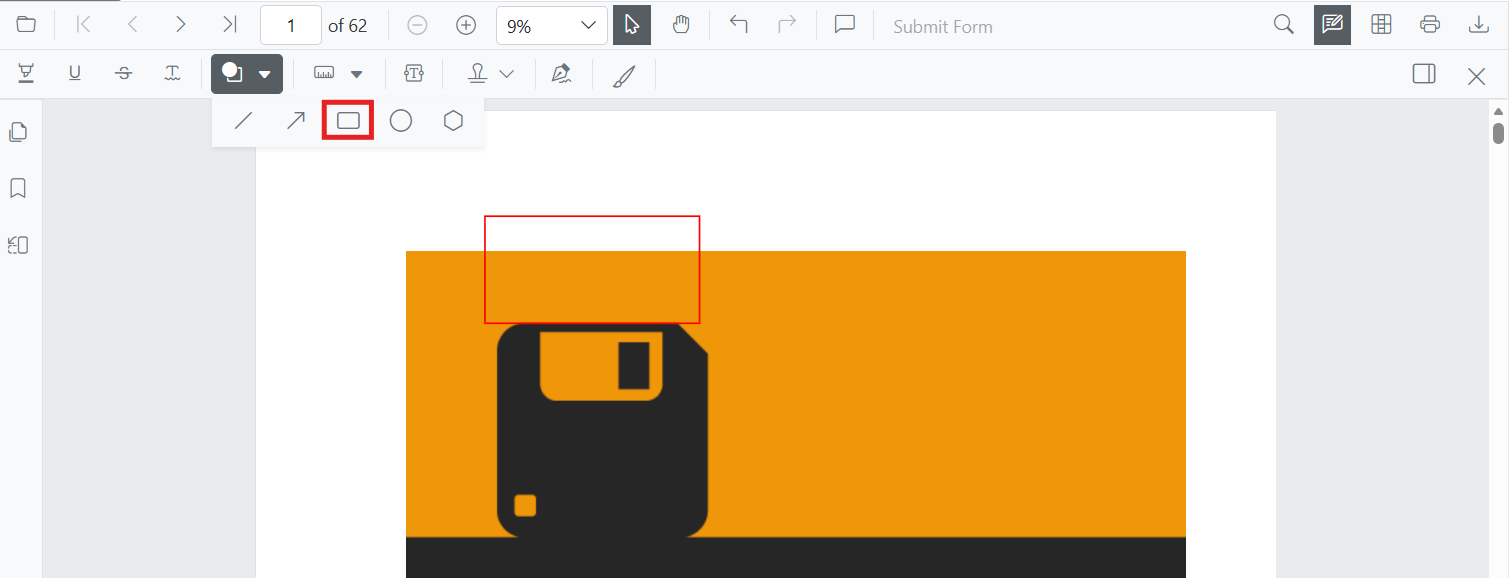
Rectangle annotations can be added from the annotation toolbar:
- Select Edit Annotation in the viewer toolbar to open the annotation toolbar.
- Select Shape Annotation to open the shape list.
- Choose Rectangle to enable rectangle drawing mode.
- Click and drag on the PDF page to draw the rectangle.

When the viewer is in Pan mode and a shape drawing mode is activated, the viewer switches to Text Select mode.
Enable Rectangle Annotation Mode
Switch the viewer into rectangle drawing mode using SetAnnotationModeAsync.
@using Syncfusion.Blazor.Buttons
@using Syncfusion.Blazor.SfPdfViewer

<SfButton OnClick="OnClick">Rectangle Annotation</SfButton>
<SfPdfViewer2 DocumentPath="@DocumentPath"
              @ref="viewer"
              Width="100%"
              Height="100%">
</SfPdfViewer2>

@code {
    private SfPdfViewer2 viewer;
    private async void OnClick(MouseEventArgs args)
    {
        await viewer.SetAnnotationModeAsync(AnnotationType.Rectangle);
    }
    private string DocumentPath { get; set; } = "wwwroot/Data/PDF_Succinctly.pdf";
}
Add Rectangle Annotation Programmatically
Use the AddAnnotationAsync method to add a rectangle annotation at a specific location. Ensure the document is loaded and the component reference is available before invoking this method.
@using Syncfusion.Blazor.Buttons
@using Syncfusion.Blazor.SfPdfViewer

<SfButton OnClick="@AddRectangleAsync">Add Rectangle Annotation</SfButton>
<SfPdfViewer2 Width="100%" Height="100%" DocumentPath="@DocumentPath" @ref="@Viewer" />

@code {
    private SfPdfViewer2 viewer;
    private string DocumentPath { get; set; } = "wwwroot/Data/Shape_Annotation.pdf";

    private async void AddRectangleAsync(MouseEventArgs args)
    {
        PdfAnnotation annotation = new PdfAnnotation();
        // Set the Rectangle annotation type
        annotation.Type = AnnotationType.Rectangle;
        // Page numbers start from 0. So, if set to 0 it represents page 1.
        annotation.PageNumber = 0;

        // Bound of the rectangle annotation
        annotation.Bound = new Bound();
        annotation.Bound.X = 200;
        annotation.Bound.Y = 480;
        annotation.Bound.Width = 150;
        annotation.Bound.Height = 75;
        // Add rectangle annotation
        await Viewer.AddAnnotationAsync(annotation);
    }
}
Customize Rectangle Annotation Appearance
Configure default rectangle appearance (fill color, stroke color, thickness, opacity) during control initialization using RectangleSettings. These settings apply when rectangles are created from the toolbar or programmatically.
@using Syncfusion.Blazor.SfPdfViewer

<SfPdfViewer2 @ref="@viewer"
              DocumentPath="@DocumentPath"
              RectangleSettings="@RectangleSettings"
              Width="100%"
              Height="100%">
</SfPdfViewer2>

@code {
    private SfPdfViewer2 viewer;
    private string DocumentPath { get; set; } = "wwwroot/Data/PDF_Succinctly.pdf";

    PdfViewerRectangleSettings RectangleSettings = new PdfViewerRectangleSettings
    {
        FillColor = "yellow",
        Opacity = 0.9,
        StrokeColor = "#ff6a00",
        Thickness = 2
    };
}
Manage Rectangle Annotation (Edit, Move, Resize, Delete)
Edit Rectangle Annotation
Edit Rectangle Annotation (UI)
- Select a rectangle to view resize handles.
- Drag any side/corner to resize; drag inside the shape to move it.
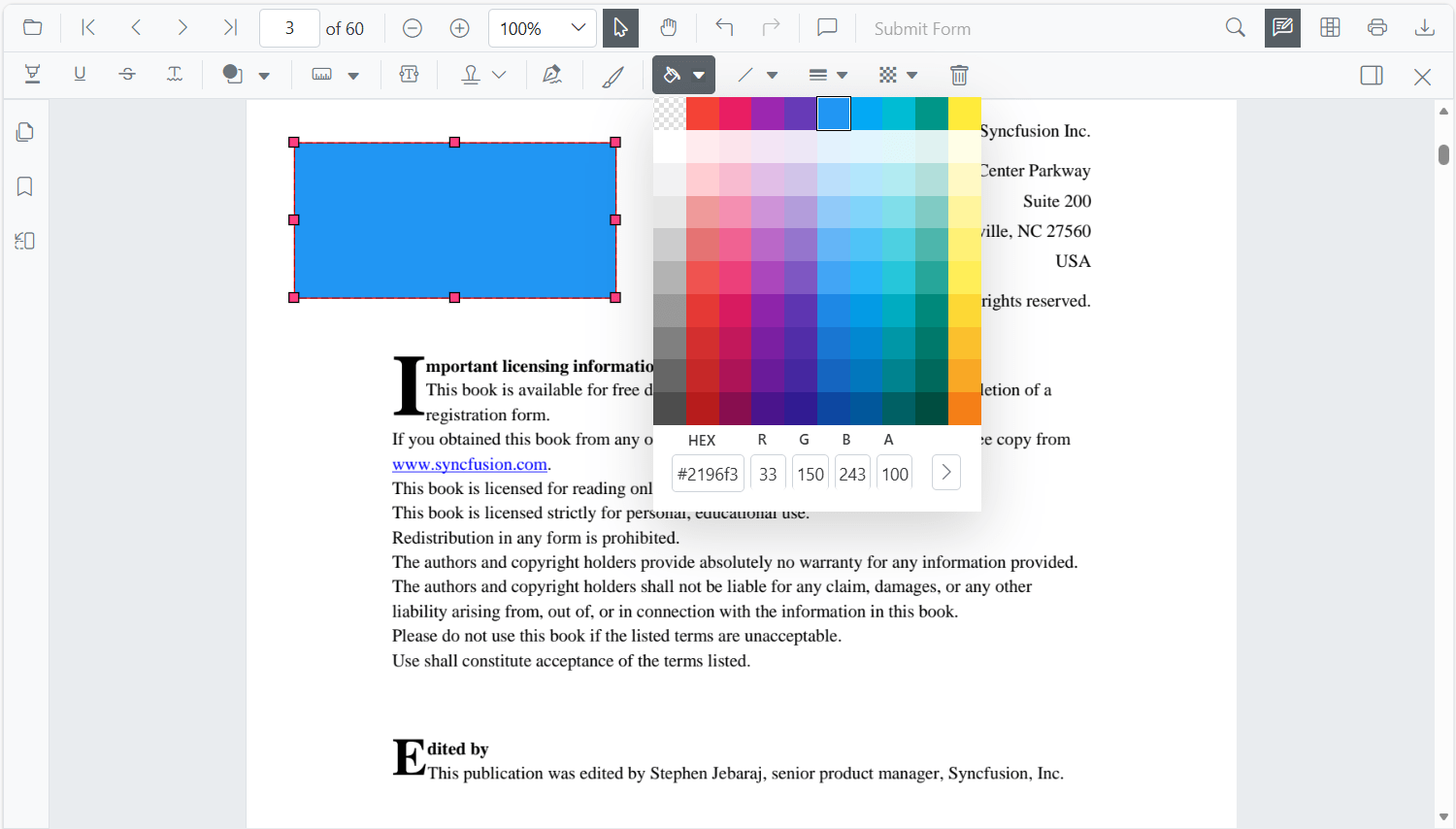
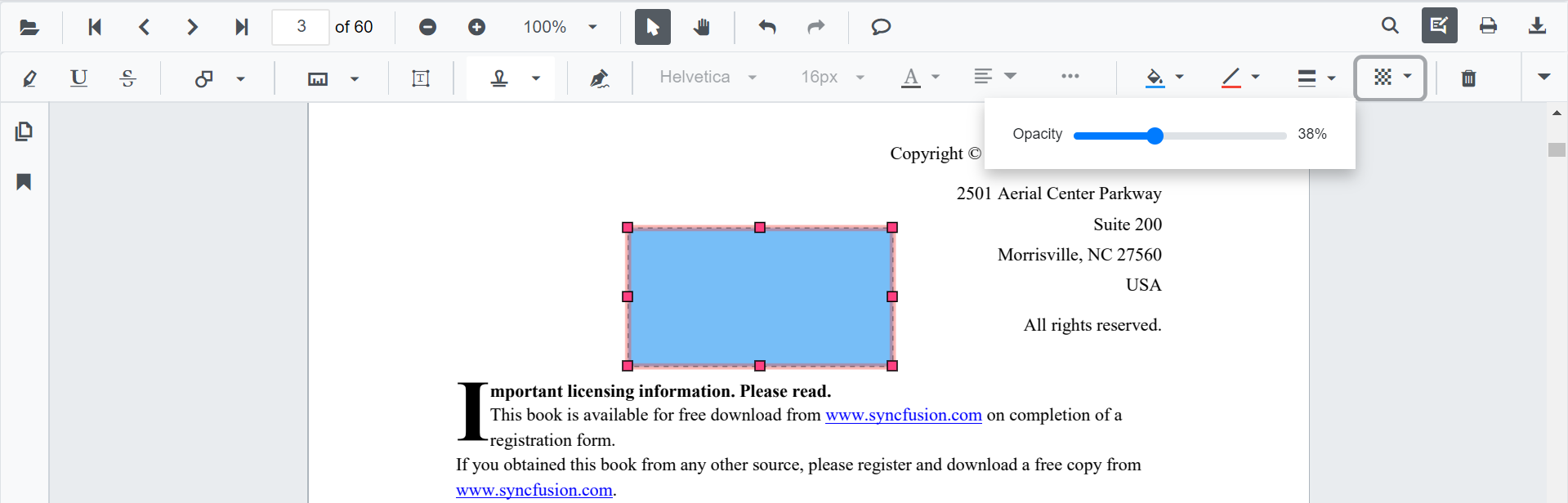
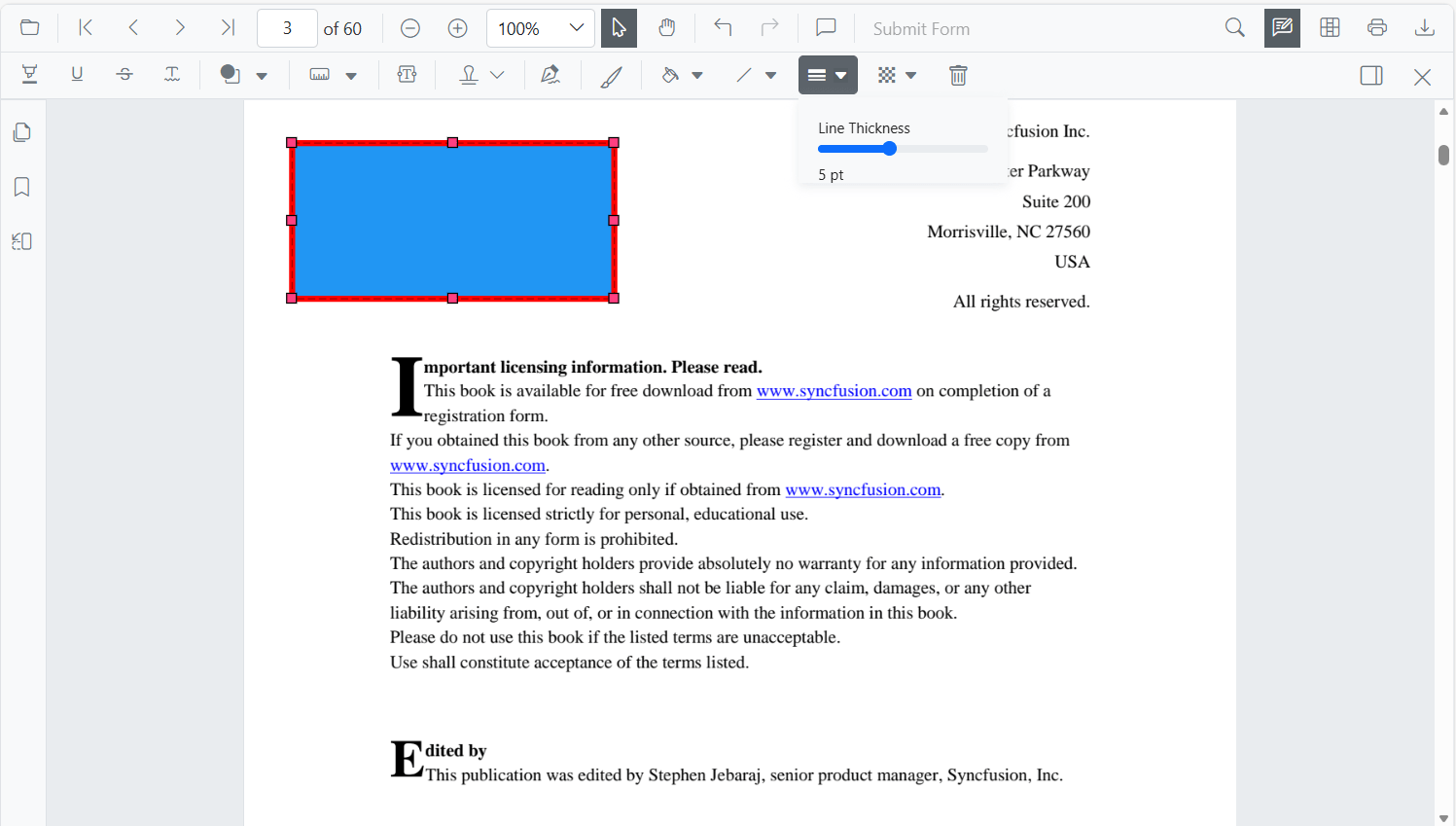
- Edit fill, stroke, thickness, and opacity using the annotation toolbar.
Use the following annotation toolbar tools to modify:
-
Edit Fill Color tool
-
Edit Stroke Color tool

-
Edit Opacity slider
-
Edit Thickness slider
Edit Rectangle Annotation Programmatically
Modify an existing rectangle annotation programmatically using EditAnnotationAsync. Retrieve the target annotation from GetAnnotationsAsync and update the desired properties before submitting the edit.
@using Syncfusion.Blazor.Buttons
@using Syncfusion.Blazor.SfPdfViewer

<SfButton OnClick="@EditRectangleAsync">Edit Rectangle Annotation</SfButton>
<SfPdfViewer2 Width="100%" Height="100%" DocumentPath="@DocumentPath" @ref="@Viewer" />

@code {
    private SfPdfViewer2 viewer;
    private string DocumentPath { get; set; } = "wwwroot/Data/Shape_Annotation.pdf";

    private async void EditRectangleAsync(MouseEventArgs args)
    {
        // Get annotation collection
        List<PdfAnnotation> annotationCollection = await Viewer.GetAnnotationsAsync();
        // Select the rectangle annotation to edit
        PdfAnnotation annotation = annotationCollection[0];
        // Change the fill color of rectangle annotation
        annotation.FillColor = "#FFFF00";
        // Change the stroke color of rectangle annotation
        annotation.StrokeColor = "#0000FF";
        // Change the thickness of rectangle annotation
        annotation.Thickness = 2;
        // Change the opacity (0 to 1) of rectangle annotation
        annotation.Opacity = 0.9;
        // Edit the rectangle annotation
        await Viewer.EditAnnotationAsync(annotation);
    }
}
Delete Rectangle Annotation
The PDF Viewer supports deleting existing annotations through the UI and API.
See Delete Annotation for full behavior and workflows.
Comments
Use the Comments panel to add, view, and reply to threaded discussions linked to rectangle annotations. It provides a dedicated interface for collaboration and review within the PDF Viewer.
Add Multiple Rectangle Annotations with Properties
Set properties for individual rectangle annotations by passing values directly during AddAnnotationAsync.
@using Syncfusion.Blazor.Buttons
@using Syncfusion.Blazor.SfPdfViewer

<SfButton OnClick="@AddMultipleRectanglesAsync">Add Multiple Rectangles</SfButton>
<SfPdfViewer2 Width="100%" Height="100%" DocumentPath="@DocumentPath" @ref="@Viewer" />

@code {
    private SfPdfViewer2 viewer;
    private string DocumentPath { get; set; } = "wwwroot/Data/Shape_Annotation.pdf";

    private async void AddMultipleRectanglesAsync(MouseEventArgs args)
    {
        // Rectangle 1
        PdfAnnotation annotation1 = new PdfAnnotation();
        annotation1.Type = AnnotationType.Rectangle;
        annotation1.PageNumber = 0;
        annotation1.Bound = new Bound()
        {
            X = 200,
            Y = 480,
            Width = 150,
            Height = 75
        };
        annotation1.Opacity = 0.9;
        annotation1.StrokeColor = "#ff6a00";
        annotation1.FillColor = "#ffff00";
        annotation1.Author = "User 1";

        // Rectangle 2
        PdfAnnotation annotation2 = new PdfAnnotation();
        annotation2.Type = AnnotationType.Rectangle;
        annotation2.PageNumber = 0;
        annotation2.Bound = new Bound()
        {
            X = 380,
            Y = 480,
            Width = 120,
            Height = 60
        };
        annotation2.Opacity = 0.85;
        annotation2.StrokeColor = "#ff1010";
        annotation2.FillColor = "#ffe600";
        annotation2.Author = "User 2";

        // Add both rectangles
        await Viewer.AddAnnotationAsync(annotation1);
        await Viewer.AddAnnotationAsync(annotation2);
    }
}
Disable Rectangle Annotation
Disable rectangle annotations (along with all other shape annotations, such as Line, Arrow, Circle, and Polygon) using the EnableShapeAnnotation property.
@using Syncfusion.Blazor.SfPdfViewer

<SfPdfViewer2 DocumentPath="@DocumentPath"
              EnableShapeAnnotation="false"
              Width="100%"
              Height="100%">
</SfPdfViewer2>

@code {
    private string DocumentPath { get; set; } = "wwwroot/Data/PDF_Succinctly.pdf";
}
Handle Rectangle Annotation Events
The PDF viewer provides annotation life-cycle events that notify when Rectangle annotations are added, modified, selected, or removed.
For the full list of available events and their descriptions, see Annotation Events
Export and Import
The PDF Viewer supports exporting and importing annotations. For details on supported formats and workflows, see Export and Import annotations.