Add Radius Annotations in Blazor PDF Viewer
17 Aug 202610 minutes to read
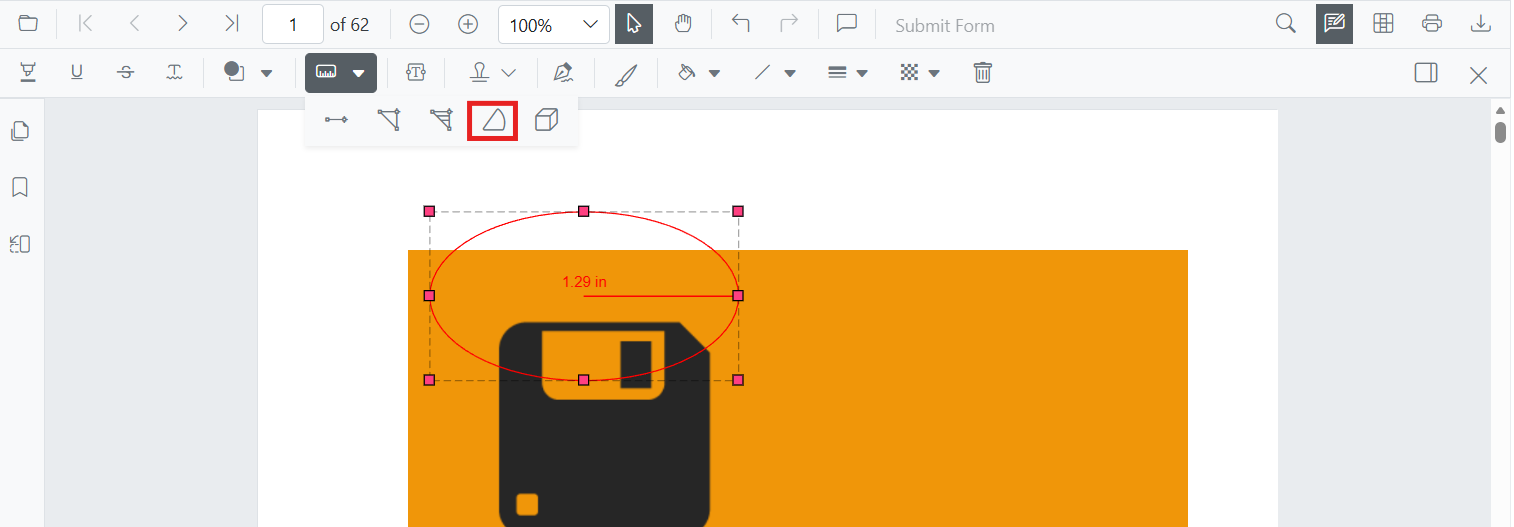
Radius measurement annotations allow users to draw circular regions and calculate the radius visually.
Enable Radius Annotation
The SfPdfViewer component supports Radius measurement annotations by default. To enable the annotation toolbar and measurement functionality, simply add the SfPdfViewer component to your Blazor page:
@using Syncfusion.Blazor.SfPdfViewer

<SfPdfViewer2 DocumentPath="@DocumentPath"
              EnableAnnotationToolbar="true"
              Width="100%"
              Height="100%">
</SfPdfViewer2>

@code {
    private string DocumentPath { get; set; } = "wwwroot/Data/PDF_Succinctly.pdf";
}
Add Radius Annotation
Add Radius Annotation Using the Toolbar
- Click the Edit Annotation button in the SfPdfViewer toolbar. A secondary toolbar appears below it.
- Click the Measurement Annotation dropdown. A list of measurement annotation types appears.
- Select Radius to enter Radius measurement mode.
- Click on the page to place the center point of the circle, then drag to set the radius, and release the mouse to finalize the shape.

If Pan mode is active, selecting the Radius tool automatically switches the viewer into Radius drawing mode.
Enable Radius Annotation Mode
Programmatically switch the viewer into Radius mode using SetAnnotationModeAsync.
@using Syncfusion.Blazor.SfPdfViewer
@using Syncfusion.Blazor.Buttons

<SfButton OnClick="EnableRadiusMode">Enable Radius Mode</SfButton>
<SfPdfViewer2 DocumentPath="@DocumentPath"
              @ref="viewer"
              Width="100%"
              Height="100%">
</SfPdfViewer2>

@code {
    private SfPdfViewer2 viewer;
    private string DocumentPath { get; set; } = "wwwroot/Data/PDF_Succinctly.pdf";

    private async Task EnableRadiusMode(MouseEventArgs args)
    {
        await viewer.SetAnnotationModeAsync(AnnotationType.Radius);
    }
}
Exit Radius Annotation Mode
Switch back to the default mode by calling SetAnnotationModeAsync with annotation type None.
@using Syncfusion.Blazor.SfPdfViewer
@using Syncfusion.Blazor.Buttons

<SfButton OnClick="ExitRadiusMode">Exit Radius Mode</SfButton>
<SfPdfViewer2 DocumentPath="@DocumentPath"
              @ref="viewer"
              Width="100%"
              Height="100%">
</SfPdfViewer2>

@code {
    private SfPdfViewer2 viewer;
    private string DocumentPath { get; set; } = "wwwroot/Data/PDF_Succinctly.pdf";

    private async Task ExitRadiusMode(MouseEventArgs args)
    {
        await viewer.SetAnnotationModeAsync(AnnotationType.None);
    }
}
Add Radius Annotation Programmatically
Use the AddAnnotationAsync API to add a radius annotation.
@using Syncfusion.Blazor.SfPdfViewer
@using Syncfusion.Blazor.Buttons

<SfButton OnClick="AddRadius">Add Radius</SfButton>
<SfPdfViewer2 DocumentPath="@DocumentPath"
              @ref="viewer"
              Width="100%"
              Height="100%">
</SfPdfViewer2>

@code {
    private SfPdfViewer2 viewer;
    private string DocumentPath { get; set; } = "wwwroot/Data/PDF_Succinctly.pdf";

    private async Task AddRadius(MouseEventArgs args)
    {
        PdfAnnotation annotation = new PdfAnnotation
        {
            Type = AnnotationType.Radius,
            PageNumber = 1
        };
        annotation.Bound = new Bound
        {
            X = 200,
            Y = 630,
            Width = 90,
            Height = 90
        };
        await viewer.AddAnnotationAsync(annotation);
    }
}
Customize Radius Annotation Appearance
Configure default properties — fill color, stroke color, thickness, opacity, and measurement unit — using the RadiusSettings property.
RadiusSettingsis applied only at component initialization. To change defaults at runtime, update the bound object and re-render the viewer (for example, by toggling a render flag).
Available PdfViewerRadiusSettings members include FillColor, StrokeColor, Thickness, Opacity, MeasurementUnit, and LeaderLineStyle.
@using Syncfusion.Blazor.SfPdfViewer

<SfPdfViewer2 DocumentPath="@DocumentPath"
              @ref="viewer"
              Width="100%"
              Height="100%"
              RadiusSettings="@RadiusSettings">
</SfPdfViewer2>

@code {
    private SfPdfViewer2 viewer;
    private string DocumentPath { get; set; } = "wwwroot/Data/PDF_Succinctly.pdf";

    private PdfViewerRadiusSettings RadiusSettings = new PdfViewerRadiusSettings
    {
        FillColor = "yellow",
        StrokeColor = "orange",
        Opacity = 0.6,
        Thickness = 2
    };
}
Manage Radius Annotation
Move Radius Annotation
Drag inside the circle to reposition the entire annotation on the page.
Reshape Radius Annotation
Drag the edge handle (the circumference) to adjust the radius size. The center point remains fixed.
Edit Radius Annotation
Edit Radius Annotation (UI)
Select the Radius annotation first — the annotation toolbar appears below the main toolbar. Use it to change:
-
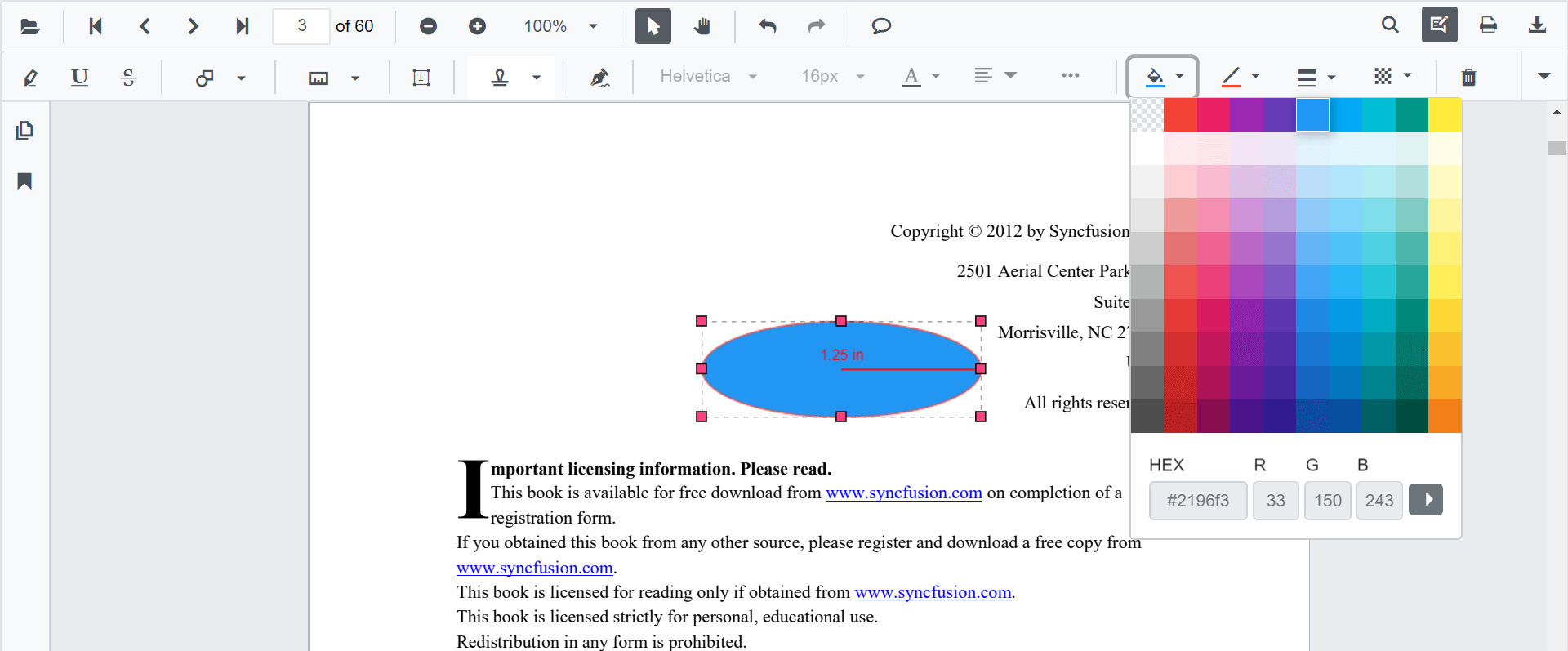
Fill Color: pick a new color with the Edit Color tool.
-
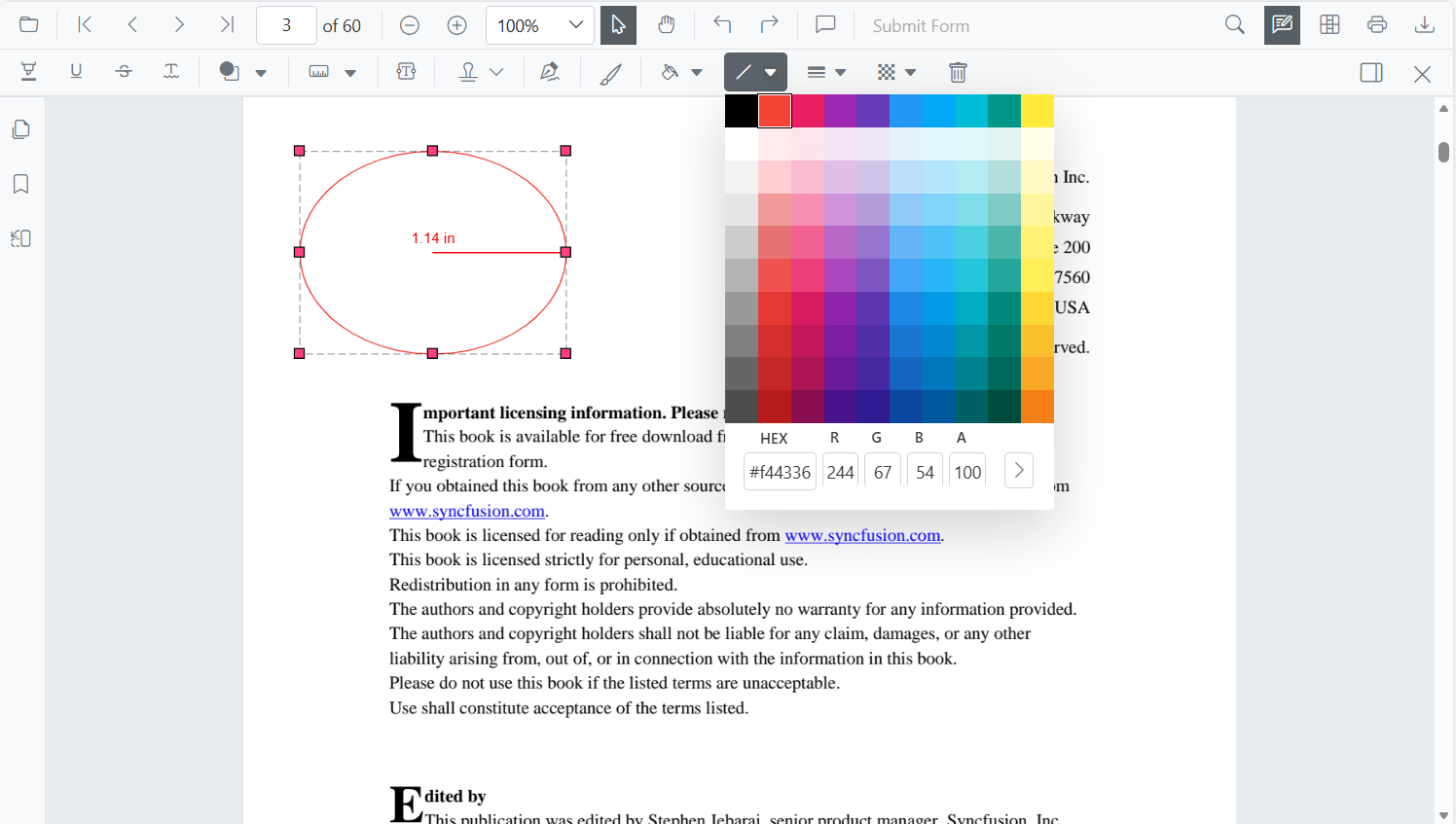
Stroke Color: change the line color with the Edit Stroke Color tool.
-
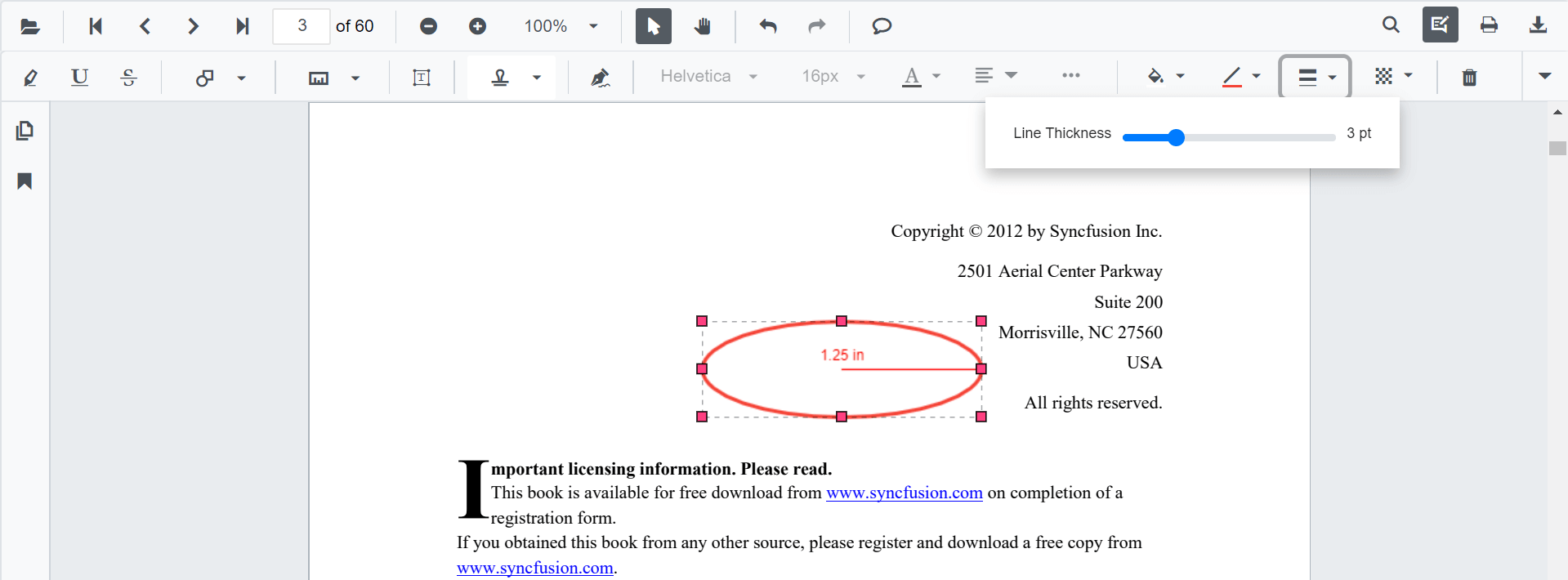
Thickness: adjust the line width with the Edit Thickness tool.
-
Opacity: change transparency with the Edit Opacity tool.

-
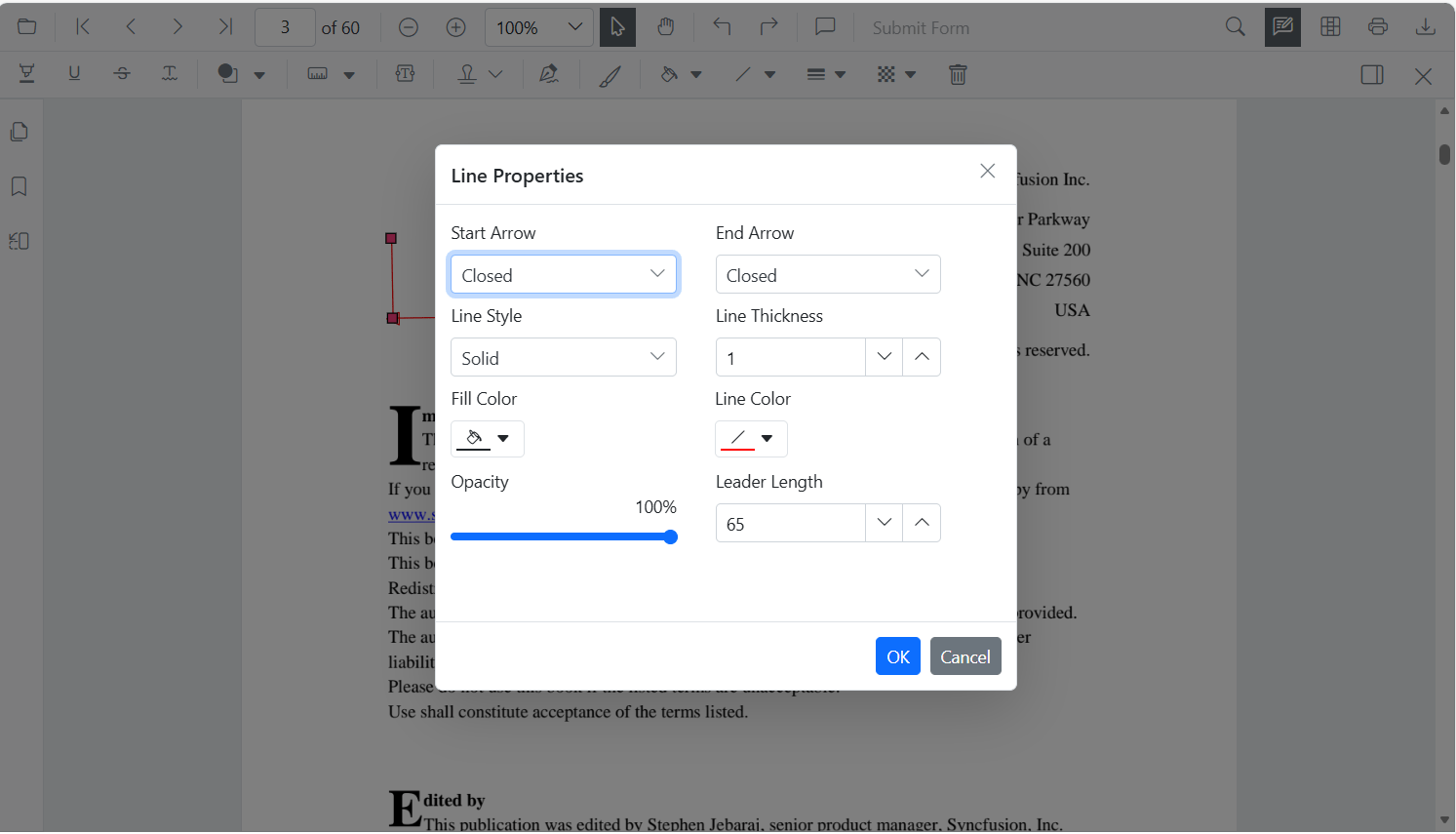
Line properties: change the leader style (line only, with arrows, or full dimension lines) with the Edit Property tool.
Edit Radius Annotation Programmatically
Update properties and call EditAnnotationAsync.
@using Syncfusion.Blazor.SfPdfViewer
@using Syncfusion.Blazor.Buttons

<SfButton OnClick="EditRadiusProgrammatically">Edit Radius</SfButton>
<SfPdfViewer2 DocumentPath="@DocumentPath"
              @ref="viewer"
              Width="100%"
              Height="100%">
</SfPdfViewer2>

@code {
    private SfPdfViewer2 viewer;
    private string DocumentPath { get; set; } = "wwwroot/Data/PDF_Succinctly.pdf";

    private async Task EditRadiusProgrammatically(MouseEventArgs args)
    {
        List<PdfAnnotation> annotationCollection = await viewer.GetAnnotationsAsync();

        if (annotationCollection == null || annotationCollection.Count == 0)
        {
            return;
        }

        PdfAnnotation target = annotationCollection
            .FirstOrDefault(a => a.Type == AnnotationType.Radius);

        if (target == null)
        {
            return;
        }

        target.StrokeColor = "#0000FF";
        target.Thickness = 2;
        target.Opacity = 0.8;

        await viewer.EditAnnotationAsync(target);
    }
}
Delete Radius Annotation
Delete a Radius annotation through the UI (right-click → Delete, click Delete on the annotation toolbar, or press the Delete key while the annotation is selected) or programmatically:
@code {
    private async Task DeleteFirstRadius()
    {
        List<PdfAnnotation> annotations = await viewer.GetAnnotationsAsync();
        PdfAnnotation target = annotations.FirstOrDefault(a => a.Type == AnnotationType.Radius);
        if (target != null)
        {
            await viewer.DeleteAnnotationAsync(target);
        }
    }
}
For additional deletion patterns, see Delete Annotation.
Set Properties While Adding an Individual Annotation
Pass per-annotation values directly when calling AddAnnotationAsync.
@using Syncfusion.Blazor.SfPdfViewer
@using Syncfusion.Blazor.Buttons

<SfButton OnClick="AddStyledRadius">Add Styled Radius</SfButton>
<SfPdfViewer2 DocumentPath="@DocumentPath"
              @ref="viewer"
              Width="100%"
              Height="100%">
</SfPdfViewer2>

@code {
    private SfPdfViewer2 viewer;
    private string DocumentPath { get; set; } = "wwwroot/Data/PDF_Succinctly.pdf";

    private async Task AddStyledRadius(MouseEventArgs args)
    {
        PdfAnnotation annotation = new PdfAnnotation
        {
            Type = AnnotationType.Radius,
            PageNumber = 1,
            FillColor = "orange",
            Opacity = 0.6,
            StrokeColor = "pink",
            Thickness = 2
        };
        annotation.Bound = new Bound
        {
            X = 200,
            Y = 630,
            Width = 90,
            Height = 90
        };
        await viewer.AddAnnotationAsync(annotation);
    }
}
Scale Ratio and Units
The Scale Ratio controls how many page units equal one real-world unit. Open it from the context menu of any measurement annotation to recalibrate.

Supported CalibrationUnit values: Inch, Millimeter, Centimeter (Cm), Point, Pica, and Feet.

ScaleRatiomust be greater than0. The default value is1.
Set Default Scale Ratio During Initialization
Configure scale defaults using MeasurementSettings.
@using Syncfusion.Blazor.SfPdfViewer

<SfPdfViewer2 @ref="@viewer"
              DocumentPath="@DocumentPath"
              MeasurementSettings="@MeasurementSettings"
              Height="100%"
              Width="100%">
</SfPdfViewer2>

@code {
    private SfPdfViewer2 viewer;
    private string DocumentPath { get; set; } = "wwwroot/Data/PDF_Succinctly.pdf";

    private PdfViewerMeasurementSettings MeasurementSettings = new PdfViewerMeasurementSettings
    {
        ScaleRatio = 2,
        ConversionUnit = CalibrationUnit.Cm
    };
}
Handle Radius Annotation Events
Listen to annotation life-cycle events (Added, Modified, Selected, Removed) and use the AnnotationEventArgs payload — which includes the affected PdfAnnotation, the page number, and the action that triggered the event.
For the full list of events and their payloads, see Annotation Events.
Export and Import
Radius measurements are exported and imported with the rest of the annotations in JSON or XFDF format. You can programmatically export and import these annotations using the ExportAnnotationAsync and ImportAnnotationAsync methods.
For the full export/import workflow and additional formats, see Export and Import Annotations.