Strikethrough Annotation in Blazor PDF Viewer
14 Aug 202611 minutes to read
This guide explains how to enable, apply, customize, and manage Strikethrough text markup annotations in the Syncfusion Blazor SfPdfViewer component.
Enable Strikethrough Annotation in the Viewer
Strikethrough is enabled by default. To use the annotation toolbar, add the SfPdfViewer component to your Blazor page:
@using Syncfusion.Blazor.SfPdfViewer

<SfPdfViewer2 DocumentPath="@DocumentPath"
              Width="100%"
              Height="100%">
</SfPdfViewer2>

@code {
    private string DocumentPath { get; set; } = "wwwroot/Data/PDF_Succinctly.pdf";
}
Disable TextMarkup Annotation
To disable all text markup annotations (including strikethrough) so they do not appear in the toolbar or context menu, set EnableTextMarkupAnnotation="false":
@using Syncfusion.Blazor.SfPdfViewer

<SfPdfViewer2 DocumentPath="@DocumentPath"
              EnableTextMarkupAnnotation="false"
              Width="100%"
              Height="100%">
</SfPdfViewer2>

@code {
    private string DocumentPath { get; set; } = "wwwroot/Data/PDF_Succinctly.pdf";
}
Add Strikethrough Annotation
Add Strikethrough Annotation Using the Toolbar
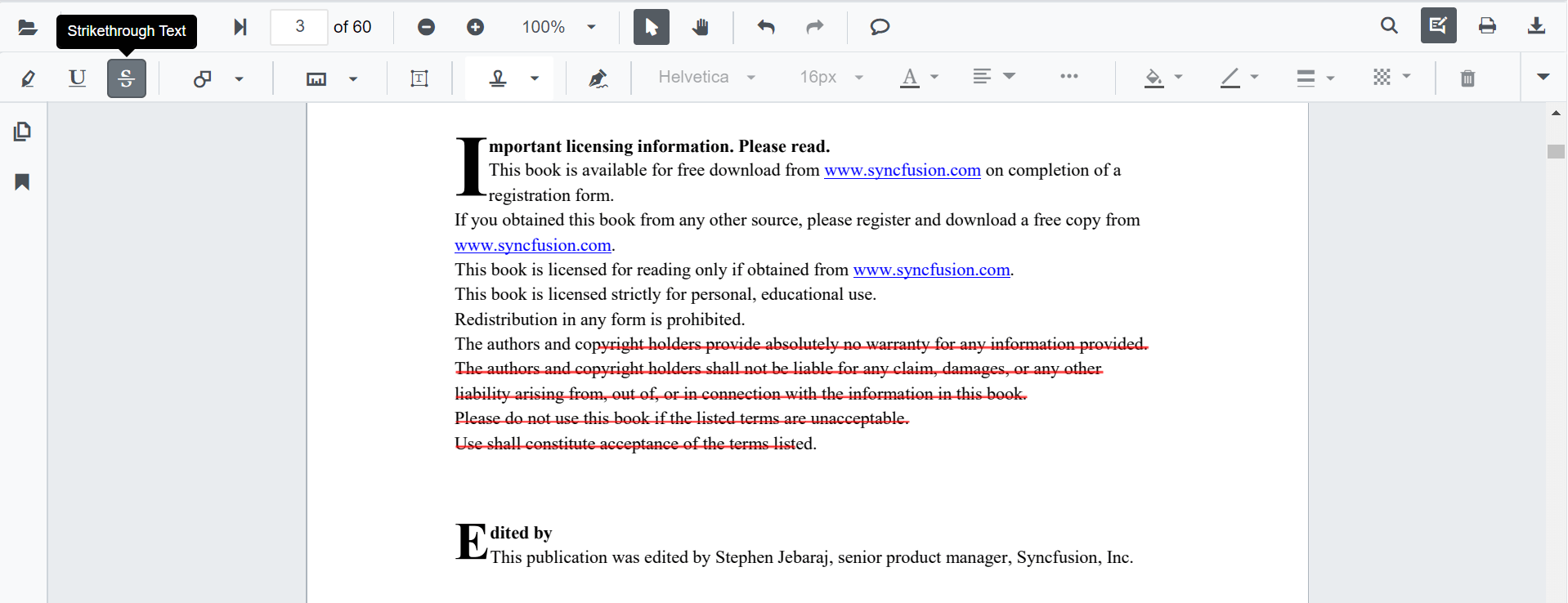
- Click the Edit Annotation button in the SfPdfViewer toolbar. An annotation toolbar appears below the main toolbar.
- Select the Strikethrough button in the annotation toolbar to enable strikethrough mode.
- Select the text in the document to add the strikethrough annotation.
- Alternatively, select the text first and then click Strikethrough to apply it.
- If Pan Mode is active, the viewer automatically switches to Text Selection mode.
Apply Strikethrough Annotation Using the Context Menu
- Select text in the document.
- Right-click the selected text region.
- Choose Strikethrough from the context menu.

Enable Strikethrough Annotation Mode Programmatically
Switch the viewer into strikethrough mode using SetAnnotationModeAsync.
@using Syncfusion.Blazor.SfPdfViewer
@using Syncfusion.Blazor.Buttons

<SfButton OnClick="EnableStrikethroughMode">Strikethrough</SfButton>
<SfPdfViewer2 DocumentPath="@DocumentPath"
              @ref="Viewer"
              Width="100%"
              Height="100%">
</SfPdfViewer2>

@code {
    private SfPdfViewer2 Viewer;
    private string DocumentPath { get; set; } = "wwwroot/Data/PDF_Succinctly.pdf";

    private async Task EnableStrikethroughMode(MouseEventArgs args)
    {
        await Viewer.SetAnnotationModeAsync(AnnotationType.Strikethrough);
    }
}
Exit Strikethrough Annotation Mode
Switch back to normal mode using:
private async Task DisableStrikethroughMode()
{
    await Viewer.SetAnnotationModeAsync(AnnotationType.None);
}
Add Strikethrough Annotation Programmatically
Use AddAnnotationAsync() to insert a strikethrough at a specific location.
@using Syncfusion.Blazor.Buttons
@using Syncfusion.Blazor.SfPdfViewer

<SfButton OnClick="@AddStrikethrough">Add Strikethrough</SfButton>
<SfPdfViewer2 Width="100%" Height="100%" DocumentPath="@DocumentPath" @ref="@Viewer" />

@code {
    private SfPdfViewer2 Viewer;
    private string DocumentPath { get; set; } = "wwwroot/Data/PDF_Succinctly.pdf";

    private async Task AddStrikethrough(MouseEventArgs args)
    {
        PdfAnnotation annotation = new PdfAnnotation
        {
            Type = AnnotationType.Strikethrough,
            // PageNumber is 0-based in the SfPdfViewer API
            PageNumber = 0,
            Color = "#ff00ff",
            Opacity = 0.9,
            Bounds = new List<Bound>
            {
                new Bound { X = 97, Y = 110, Width = 350, Height = 14 }
            }
        };
        await Viewer.AddAnnotationAsync(annotation);
    }
}
Customize Strikethrough Annotation Appearance
Configure default strikethrough settings such as color and opacity using StrikethroughSettings.
@using Syncfusion.Blazor.SfPdfViewer

<SfPdfViewer2 @ref="@Viewer"
              DocumentPath="@DocumentPath"
              StrikethroughSettings="@StrikethroughSettingsModel"
              Height="100%"
              Width="100%">
</SfPdfViewer2>

@code {
    private SfPdfViewer2 Viewer;
    private string DocumentPath { get; set; } = "wwwroot/Data/PDF_Succinctly.pdf";

    private PdfViewerStrikethroughSettings StrikethroughSettingsModel = new PdfViewerStrikethroughSettings
    {
        Color = "#ff00ff",
        Opacity = 0.9
    };
}
After changing the default color and opacity using the Edit Color and Edit Opacity tools, those values become the new defaults for subsequent annotations.
Manage Strikethrough Annotation (Edit, Delete)
Edit Strikethrough Annotation
Edit Strikethrough Annotation Appearance Using the UI
Use the annotation toolbar:
- Edit Color tool to change the strikethrough color.
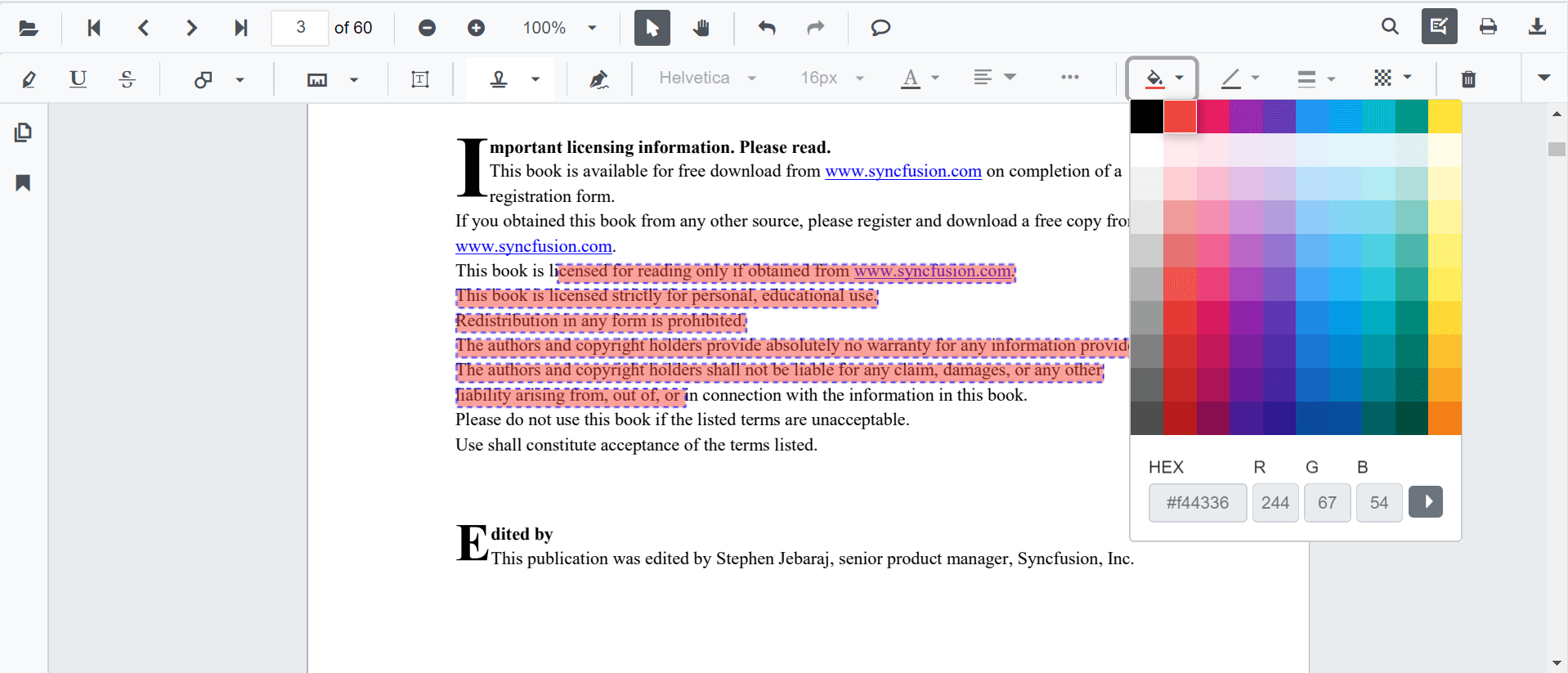
- Edit Opacity slider to adjust the transparency.

Edit Strikethrough Annotation Programmatically
Modify an existing strikethrough programmatically using EditAnnotationAsync().
@using Syncfusion.Blazor.Buttons
@using Syncfusion.Blazor.SfPdfViewer

<SfButton OnClick="@EditStrikethrough">Edit Strikethrough</SfButton>
<SfPdfViewer2 Width="100%" Height="100%" DocumentPath="@DocumentPath" @ref="@Viewer" />

@code {
    private SfPdfViewer2 Viewer;
    private string DocumentPath { get; set; } = "wwwroot/Data/PDF_Succinctly.pdf";

    private async Task EditStrikethrough(MouseEventArgs args)
    {
        // Get the annotation collection
        List<PdfAnnotation> annotationCollection = await Viewer.GetAnnotationsAsync();
        if (annotationCollection is null || annotationCollection.Count == 0)
        {
            return;
        }
        // Select the first strikethrough annotation on the first page
        PdfAnnotation annotation = annotationCollection
            .FirstOrDefault(a => a.Type == AnnotationType.Strikethrough && a.PageNumber == 0)
            ?? annotationCollection[0];
        // Change the color of the strikethrough annotation to red
        annotation.Color = "#ff0000";
        // Change the opacity to 80% (0.8)
        annotation.Opacity = 0.8;
        await Viewer.EditAnnotationAsync(annotation);
    }
}
Delete Strikethrough Annotation
The SfPdfViewer supports deleting existing annotations through both the UI and the API. To delete from the UI, select the strikethrough and press Delete or use the Delete tool on the annotation toolbar.
To delete programmatically, use DeleteAnnotationAsync():
@using Syncfusion.Blazor.Buttons
@using Syncfusion.Blazor.SfPdfViewer

<SfButton OnClick="@DeleteStrikethrough">Delete Strikethrough</SfButton>
<SfPdfViewer2 Width="100%" Height="100%" DocumentPath="@DocumentPath" @ref="@Viewer" />

@code {
    private SfPdfViewer2 Viewer;
    private string DocumentPath { get; set; } = "wwwroot/Data/PDF_Succinctly.pdf";

    private async Task DeleteStrikethrough(MouseEventArgs args)
    {
        // Get the annotation collection
        List<PdfAnnotation> annotationCollection = await Viewer.GetAnnotationsAsync();
        if (annotationCollection is null || annotationCollection.Count == 0)
        {
            return;
        }
        // Select the first strikethrough annotation on the first page
        PdfAnnotation annotation = annotationCollection
            .FirstOrDefault(a => a.Type == AnnotationType.Strikethrough && a.PageNumber == 0)
            ?? annotationCollection[0];
        // Delete the specified annotation
        await Viewer.DeleteAnnotationAsync(annotation);
    }
}
Add Multiple Strikethrough Annotations with Custom Properties
To add several strikethrough annotations with different colors and positions in one operation, call AddAnnotationAsync() for each PdfAnnotation. This is an extension of the Add Strikethrough Programmatically example.
@using Syncfusion.Blazor.Buttons
@using Syncfusion.Blazor.SfPdfViewer

<SfButton OnClick="@AddMultipleStrikethroughs">Add Multiple Strikethroughs</SfButton>
<SfPdfViewer2 Width="100%" Height="100%" DocumentPath="@DocumentPath" @ref="@Viewer" />

@code {
    private SfPdfViewer2 Viewer;
    private string DocumentPath { get; set; } = "wwwroot/Data/PDF_Succinctly.pdf";

    private async Task AddMultipleStrikethroughs(MouseEventArgs args)
    {
        // Strikethrough 1 - Yellow on the first page (index 0)
        await Viewer.AddAnnotationAsync(new PdfAnnotation
        {
            Type = AnnotationType.Strikethrough,
            PageNumber = 0,
            Color = "#ffff00",
            Opacity = 0.9,
            Bounds = new List<Bound>
            {
                new Bound { X = 100, Y = 150, Width = 320, Height = 14 }
            }
        });

        // Strikethrough 2 - Red on the first page (index 0)
        await Viewer.AddAnnotationAsync(new PdfAnnotation
        {
            Type = AnnotationType.Strikethrough,
            PageNumber = 0,
            Color = "#ff1010",
            Opacity = 0.9,
            Bounds = new List<Bound>
            {
                new Bound { X = 110, Y = 220, Width = 300, Height = 14 }
            }
        });
    }
}
Handle Strikethrough Annotation Events
The SfPdfViewer provides annotation life-cycle events that fire when strikethrough annotations are added, modified, selected, or removed. Subscribe to events through the PdfViewerEvents tag.
@page "/strikethrough-events"
@using Syncfusion.Blazor.SfPdfViewer

<SfPdfViewer2 DocumentPath="@DocumentPath"
              Height="100%"
              Width="100%">
    <PdfViewerEvents AnnotationAdded="@OnAnnotationAdded"
                     AnnotationRemoved="@OnAnnotationRemoved"
                     AnnotationPropertiesChanged="@OnAnnotationPropertiesChanged" />
</SfPdfViewer2>

@code {
    private string DocumentPath { get; set; } = "wwwroot/Data/PDF_Succinctly.pdf";

    private async Task OnAnnotationAdded(AnnotationAddEventArgs args)
    {
        if (args.AnnotationType == AnnotationType.Strikethrough)
        {
            // Strikethrough was added
        }
    }

    private async Task OnAnnotationRemoved(AnnotationRemoveEventArgs args)
    {
        if (args.AnnotationType == AnnotationType.Strikethrough)
        {
            // Strikethrough was removed
        }
    }

    private async Task OnAnnotationPropertiesChanged(AnnotationPropertiesChangeEventArgs args)
    {
        if (args.AnnotationType == AnnotationType.Strikethrough)
        {
            // Strikethrough color or opacity changed
        }
    }
}
For the full list of available events and their descriptions, see Annotation Events.
Export and Import
The SfPdfViewer supports exporting and importing annotations as JSON or XFDF, allowing you to save annotations as a separate file or load existing annotations back into the viewer. For full details on supported formats and steps to export or import annotations, see Export and Import Annotations.