Add Distance Annotations in Blazor PDF Viewer
17 Aug 202610 minutes to read
Distance is a measurement annotation used to measure the length between two points on a PDF page. Use it for precise reviews, markups, or engineering measurements.
Enable Distance Annotation
The SfPdfViewer component supports Distance measurement annotations by default. To enable the annotation toolbar and measurement functionality, simply add the SfPdfViewer component to your Blazor page:
@using Syncfusion.Blazor.SfPdfViewer

<SfPdfViewer2 DocumentPath="@DocumentPath"
              Width="100%"
              Height="100%">
</SfPdfViewer2>

@code {
    private string DocumentPath { get; set; } = "wwwroot/Data/PDF_Succinctly.pdf";
}
Add Distance Annotation
Add Distance Annotation Using the Toolbar
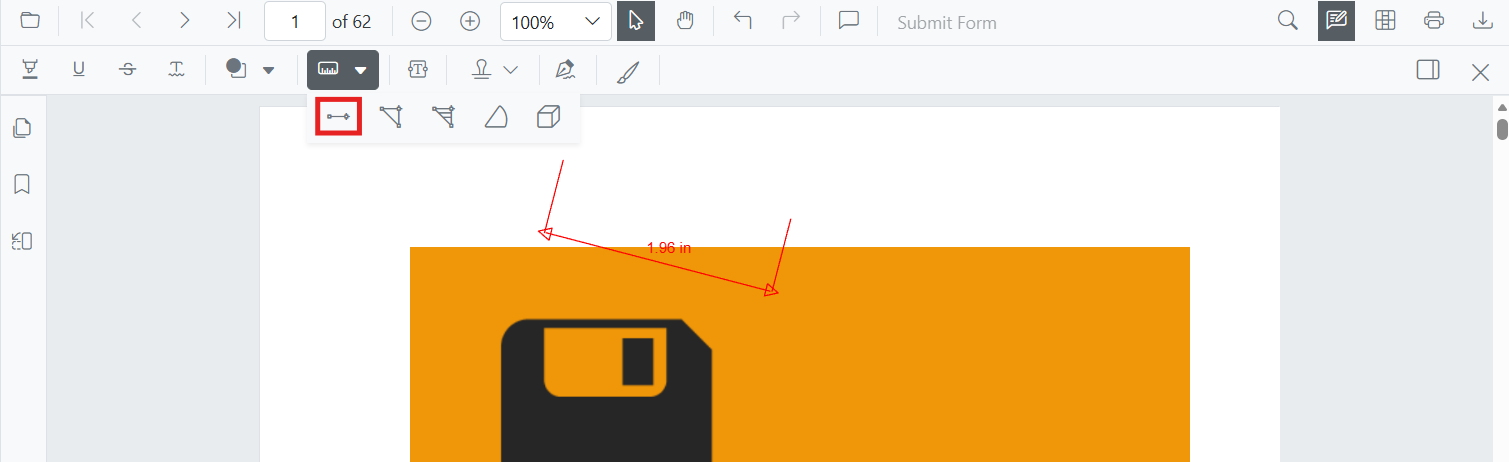
- Click the Edit Annotation button in the SfPdfViewer toolbar. A secondary toolbar appears below it.
- Click the Measurement Annotation dropdown. A list of measurement annotation types appears.
- Select Distance to enter Distance measurement mode.
- Click on the page to set the start point, then click again to set the end point.

If Pan mode is active, choosing a measurement tool switches the viewer into the appropriate interaction mode for a smoother workflow.
Enable Distance Annotation Mode Programmatically
Switch the viewer into Distance mode from code by calling SetAnnotationModeAsync.
@using Syncfusion.Blazor.SfPdfViewer
@using Syncfusion.Blazor.Buttons

<SfButton OnClick="OnClick">Distance Measurement</SfButton>
<SfPdfViewer2 DocumentPath="@DocumentPath"
              @ref="viewer"
              Width="100%"
              Height="100%">
</SfPdfViewer2>

@code {
    private SfPdfViewer2 viewer;
    private string DocumentPath { get; set; } = "wwwroot/Data/PDF_Succinctly.pdf";

    private async Task OnClick(MouseEventArgs args)
    {
        await viewer.SetAnnotationModeAsync(AnnotationType.Distance);
    }
}
Exit Distance Annotation Mode
Switch back to the default mode by calling SetAnnotationModeAsync with annotation type None.
@code {
    private async Task ExitDistanceMode()
    {
        await viewer.SetAnnotationModeAsync(AnnotationType.None);
    }
}
Add Distance Annotation Programmatically
Use AddAnnotationAsync() to add a Distance measurement by providing exactly two VertexPoints.
A Distance annotation requires exactly two vertices — the first is the start, the second is the end. Supplying more or fewer produces undefined behavior.
@using Syncfusion.Blazor.Buttons
@using Syncfusion.Blazor.SfPdfViewer

<SfButton OnClick="@AddDistance">Add Distance Annotation</SfButton>
<SfPdfViewer2 Width="100%" Height="100%" DocumentPath="@DocumentPath" @ref="@Viewer" />

@code {
    private SfPdfViewer2 Viewer;
    private string DocumentPath { get; set; } = "wwwroot/Data/PDF_Succinctly.pdf";

    private async Task AddDistance(MouseEventArgs args)
    {
        PdfAnnotation annotation = new PdfAnnotation();
        annotation.Type = AnnotationType.Distance;
        annotation.PageNumber = 0;
        annotation.VertexPoints = new List<VertexPoint>
        {
            new VertexPoint() { X = 200, Y = 230 },
            new VertexPoint() { X = 350, Y = 230 }
        };
        await Viewer.AddAnnotationAsync(annotation);
    }
}
Customize Distance Annotation Appearance
Configure the default Distance style — fill color, stroke color, thickness, and opacity — using the DistanceSettings property.
@using Syncfusion.Blazor.SfPdfViewer

<SfPdfViewer2 @ref="@viewer"
              DocumentPath="@DocumentPath"
              DistanceSettings="@DistanceSettings"
              Height="100%"
              Width="100%">
</SfPdfViewer2>

@code {
    private SfPdfViewer2 viewer;
    private string DocumentPath { get; set; } = "wwwroot/Data/PDF_Succinctly.pdf";

    private PdfViewerDistanceSettings DistanceSettings = new PdfViewerDistanceSettings
    {
        FillColor = "blue",
        StrokeColor = "green",
        Thickness = 2,
        Opacity = 0.6
    };
}
Manage Distance Annotation
Move Distance Annotation
Drag the body of the measurement to reposition it on the page.
Resize Distance Annotation
Drag the end handles to adjust the length, or change VertexPoints programmatically.
Edit Distance Annotation
Edit Distance Annotation Appearance (UI)
Select the Distance annotation first — the annotation toolbar appears below the main toolbar. Use it to change:
-
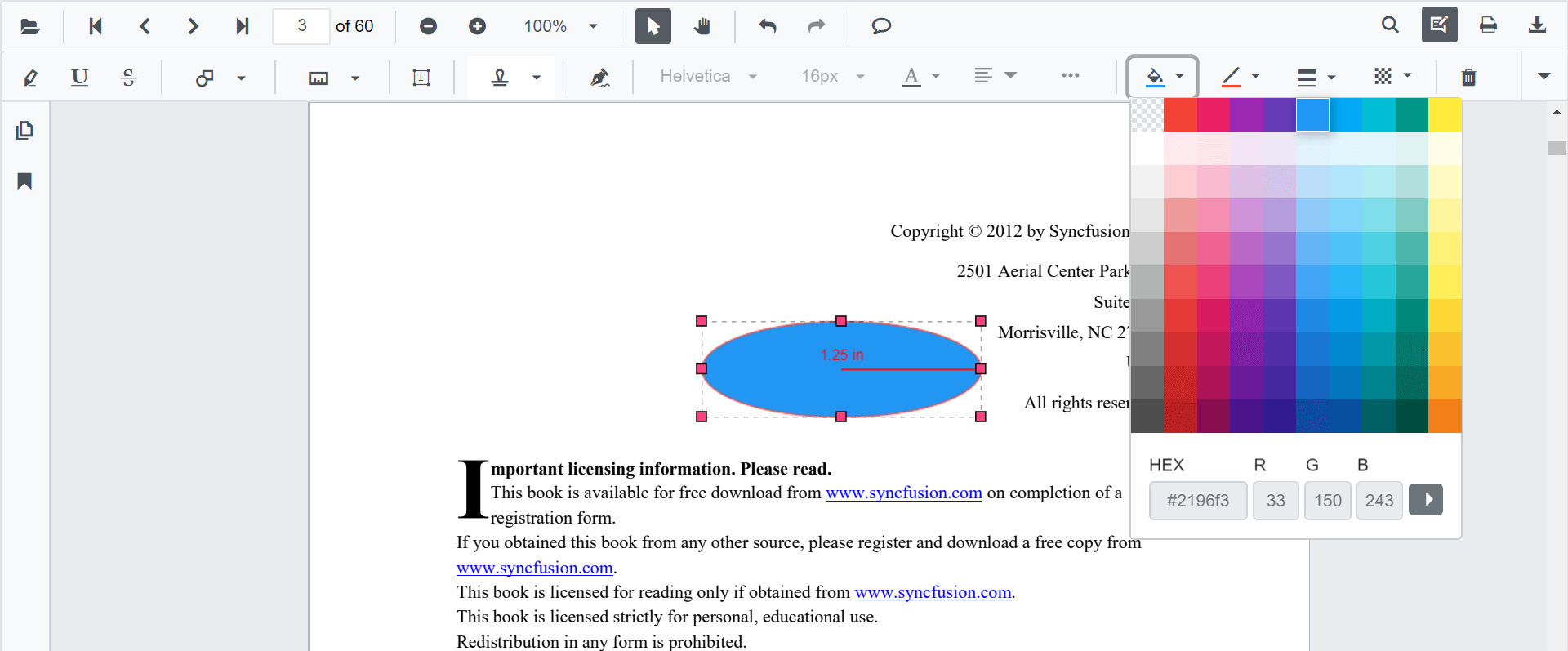
Fill Color: pick a new color with the Edit Color tool.
-
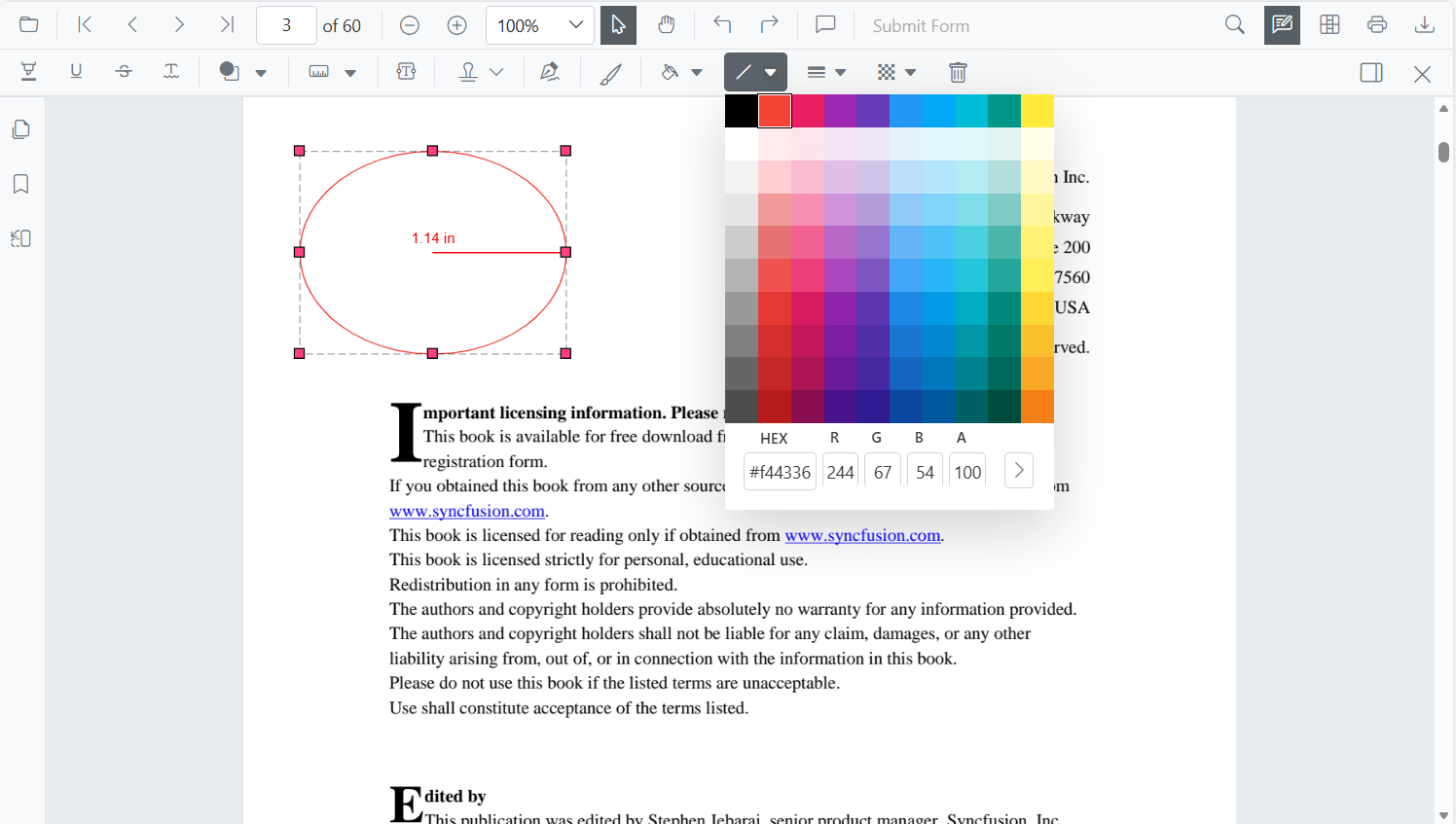
Stroke Color: change the line color with the Edit Stroke Color tool.
-
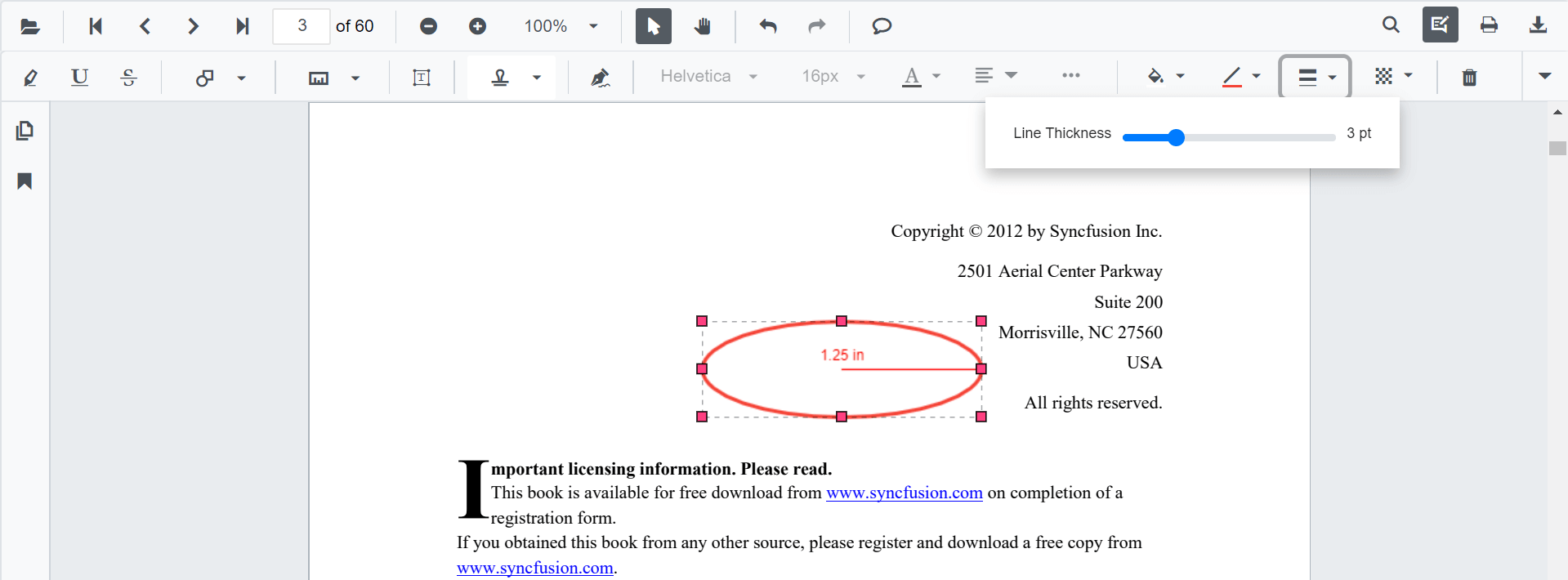
Thickness: adjust the line width with the Edit Thickness tool.
-
Opacity: change transparency with the Edit Opacity tool.

-
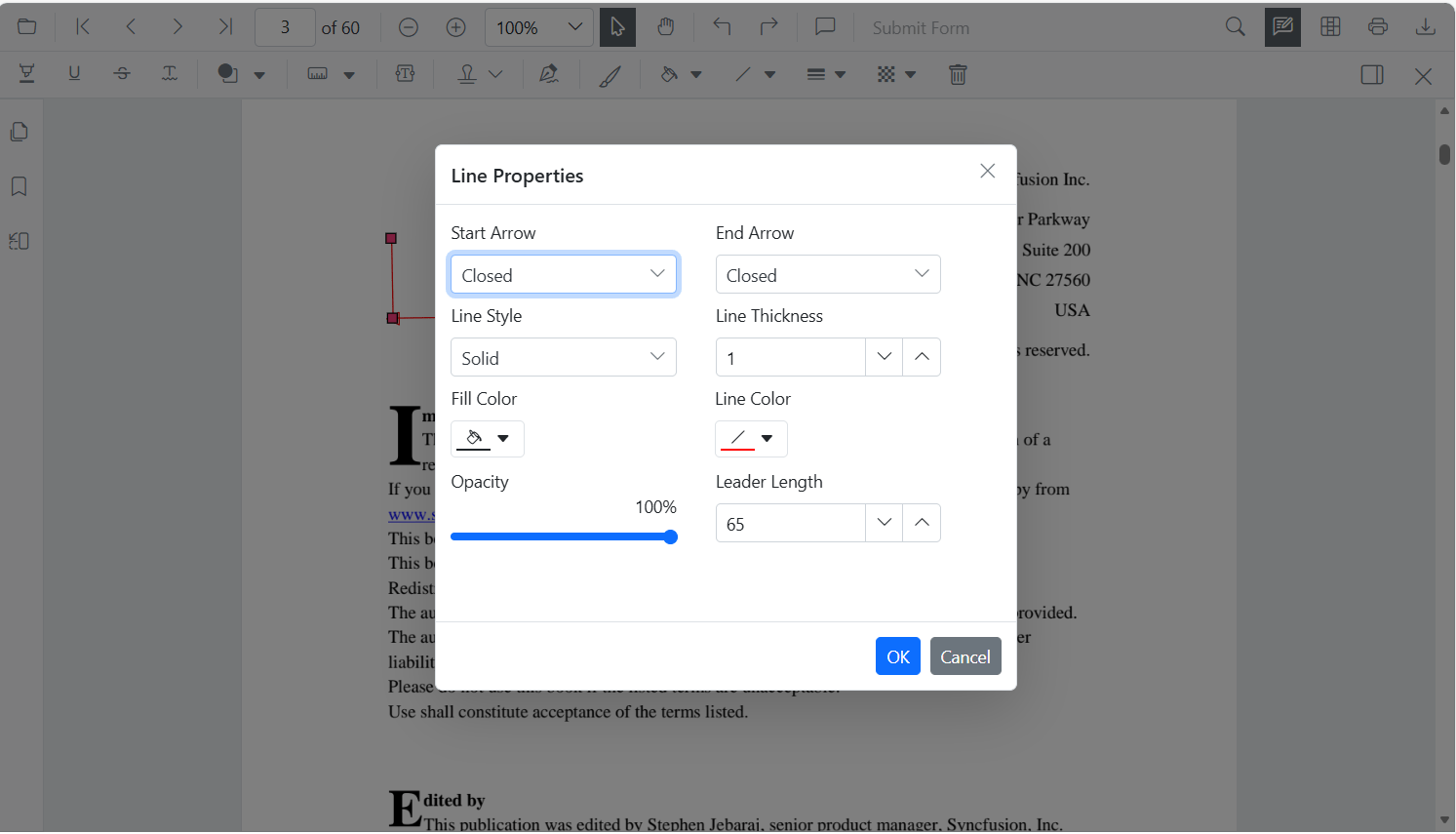
Line properties: change the leader style (line only, with arrows, or full dimension lines) with the Edit Property tool.
Edit Distance Annotation Programmatically
Modify an existing Distance annotation programmatically using EditAnnotationAsync(). The example below expects PDF_Succinctly.pdf to already contain a Distance annotation; replace the filter with one that matches your data.
@using Syncfusion.Blazor.Buttons
@using Syncfusion.Blazor.SfPdfViewer

<SfButton OnClick="@EditDistance">Edit Distance Annotation</SfButton>
<SfPdfViewer2 Width="100%" Height="100%" DocumentPath="@DocumentPath" @ref="@Viewer" />

@code {
    private SfPdfViewer2 Viewer;
    private string DocumentPath { get; set; } = "wwwroot/Data/PDF_Succinctly.pdf";

    private async Task EditDistance(MouseEventArgs args)
    {
        // Get the annotations on the current document
        List<PdfAnnotation> annotationCollection = await Viewer.GetAnnotationsAsync();

        // Guard against an empty collection
        if (annotationCollection == null || annotationCollection.Count == 0)
        {
            return;
        }

        // Pick the first Distance annotation (replace with your own selection logic)
        PdfAnnotation annotation = annotationCollection
            .FirstOrDefault(a => a.Type == AnnotationType.Distance);

        if (annotation == null)
        {
            return;
        }

        // Update the style
        annotation.StrokeColor = "#0000FF";
        annotation.Thickness = 2;
        annotation.FillColor = "#FFFF00";
        annotation.Opacity = 0.8;
        annotation.LeaderLength = 8;

        // Apply the changes
        await Viewer.EditAnnotationAsync(annotation);
    }
}
For the full set of PdfAnnotation members, see the PdfAnnotation API reference.
Delete Distance Annotation
Delete a Distance annotation through the UI (right-click → Delete, click Delete on the annotation toolbar, or press the Delete key while the annotation is selected) or programmatically:
@code {
    private async Task DeleteFirstDistance()
    {
        List<PdfAnnotation> annotations = await Viewer.GetAnnotationsAsync();
        PdfAnnotation target = annotations.FirstOrDefault(a => a.Type == AnnotationType.Distance);
        if (target != null)
        {
            await Viewer.DeleteAnnotationAsync(target);
        }
    }
}
For more deletion patterns, see Delete Annotation.
Set Default Properties During Initialization
Apply defaults for Distance using the DistanceSettings property.
@using Syncfusion.Blazor.SfPdfViewer

<SfPdfViewer2 @ref="@viewer"
              DocumentPath="@DocumentPath"
              DistanceSettings="@DistanceSettings"
              Height="100%"
              Width="100%">
</SfPdfViewer2>

@code {
    private SfPdfViewer2 viewer;
    private string DocumentPath { get; set; } = "wwwroot/Data/PDF_Succinctly.pdf";

    PdfViewerDistanceSettings DistanceSettings = new PdfViewerDistanceSettings
    {
        FillColor = "blue",
        StrokeColor = "green",
        Opacity = 0.6
    };
}
Add Distance Annotation Programmatically with Custom Properties
Override the default style for a single Distance annotation by setting properties directly on the PdfAnnotation instance before adding it.
@using Syncfusion.Blazor.Buttons
@using Syncfusion.Blazor.SfPdfViewer

<SfButton OnClick="@AddStyledDistance">Add Styled Distance</SfButton>
<SfPdfViewer2 Width="100%" Height="100%" DocumentPath="@DocumentPath" @ref="@Viewer" />

@code {
    private SfPdfViewer2 Viewer;
    private string DocumentPath { get; set; } = "wwwroot/Data/PDF_Succinctly.pdf";

    private async Task AddStyledDistance(MouseEventArgs args)
    {
        PdfAnnotation annotation = new PdfAnnotation();
        annotation.Type = AnnotationType.Distance;
        annotation.PageNumber = 0;
        annotation.VertexPoints = new List<VertexPoint>
        {
            new VertexPoint() { X = 220, Y = 260 },
            new VertexPoint() { X = 360, Y = 260 }
        };
        annotation.StrokeColor = "#059669";
        annotation.Opacity = 0.9;
        annotation.FillColor = "#D1FAE5";
        annotation.Thickness = 2;
        await Viewer.AddAnnotationAsync(annotation);
    }
}
Scale Ratio and Units
The Scale Ratio controls how many page units equal one real-world unit. Open it from the context menu of any measurement annotation to recalibrate.
Set Default Scale Ratio During Initialization
Configure scale defaults using MeasurementSettings. The default ScaleRatio is 1; values must be greater than 0.
@using Syncfusion.Blazor.SfPdfViewer

<SfPdfViewer2 @ref="@viewer"
              DocumentPath="@DocumentPath"
              MeasurementSettings="@MeasurementSettings"
              Height="100%"
              Width="100%">
</SfPdfViewer2>

@code {
    private SfPdfViewer2 viewer;
    private string DocumentPath { get; set; } = "wwwroot/Data/PDF_Succinctly.pdf";

    private PdfViewerMeasurementSettings MeasurementSettings = new PdfViewerMeasurementSettings
    {
        ScaleRatio = 2,
        ConversionUnit = CalibrationUnit.Cm
    };
}
Handle Distance Annotation Events
Listen to the annotation life-cycle with the Added, Modified, Selected, and Removed events. The handler receives an AnnotationEventArgs payload that includes the affected PdfAnnotation, the page number, and the action that triggered the event.
For the full list of events and their payloads, see Annotation Events.
Export and Import
Distance measurements are exported and imported with the rest of the annotations in JSON or XFDF format. You can programmatically export and import these annotations using the ExportAnnotationAsync and ImportAnnotationAsync methods.
For the full export/import workflow and additional formats, see Export and Import Annotations.