Free text annotations in Blazor PDF Viewer
14 Aug 202612 minutes to read
The SfPdfViewer component provides options to add, edit, and delete free text annotations.
Adding a free text annotation to the PDF document
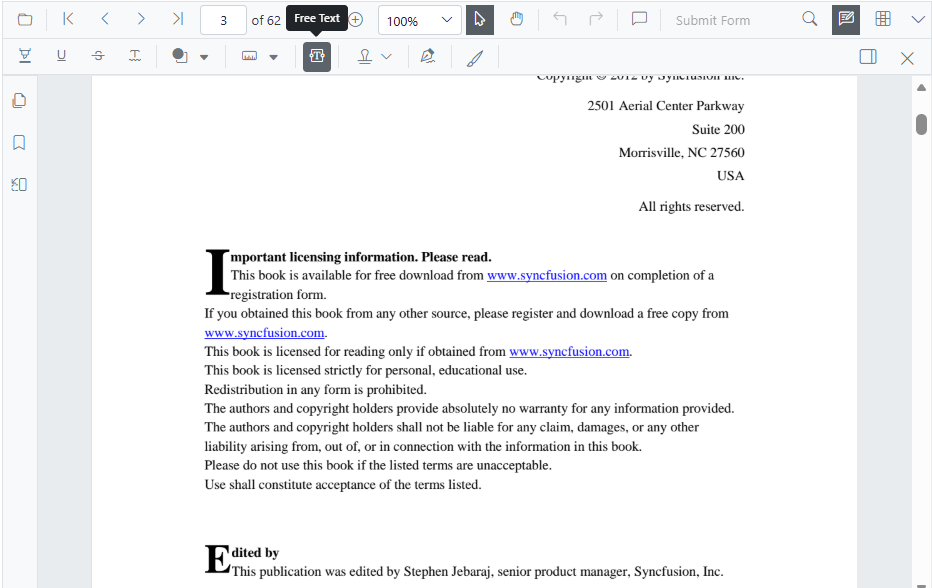
Free text annotations can be added using the annotation toolbar.
- Click the Edit Annotation button in the SfPdfViewer toolbar. The annotation toolbar appears.
- Select the Free Text Annotation button to enable Free Text Annotation mode.
- Click anywhere on the page to add text to the PDF document.
When Free Text Annotation mode is enabled from Pan, the viewer automatically switches to Text Select mode.
@using Syncfusion.Blazor.Buttons
@using Syncfusion.Blazor.SfPdfViewer

<SfButton OnClick="OnClick">Free Text</SfButton>
<SfPdfViewer2 @ref="viewer" DocumentPath=@DocumentPath Height="100%" Width="100%" ></SfPdfViewer2>

@code {
    private SfPdfViewer2? viewer;
    private string DocumentPath { get; set; } = "wwwroot/Data/PDF_Succinctly.pdf";

    private async Task OnClick(MouseEventArgs args)
    {
        await viewer.SetAnnotationModeAsync(AnnotationType.FreeText);
    }
}
Editing the properties of free text annotation
The following properties of a free text annotation can be modified from the annotation toolbar: font family, font size, font style, font color, text alignment, fill color, border (stroke) color, border thickness, and opacity. Use the Font Family, Font Size, Font Color, Text Align, Font Style, Edit Color, Edit Stroke Color, Edit Thickness, and Edit Opacity tools to change these settings.
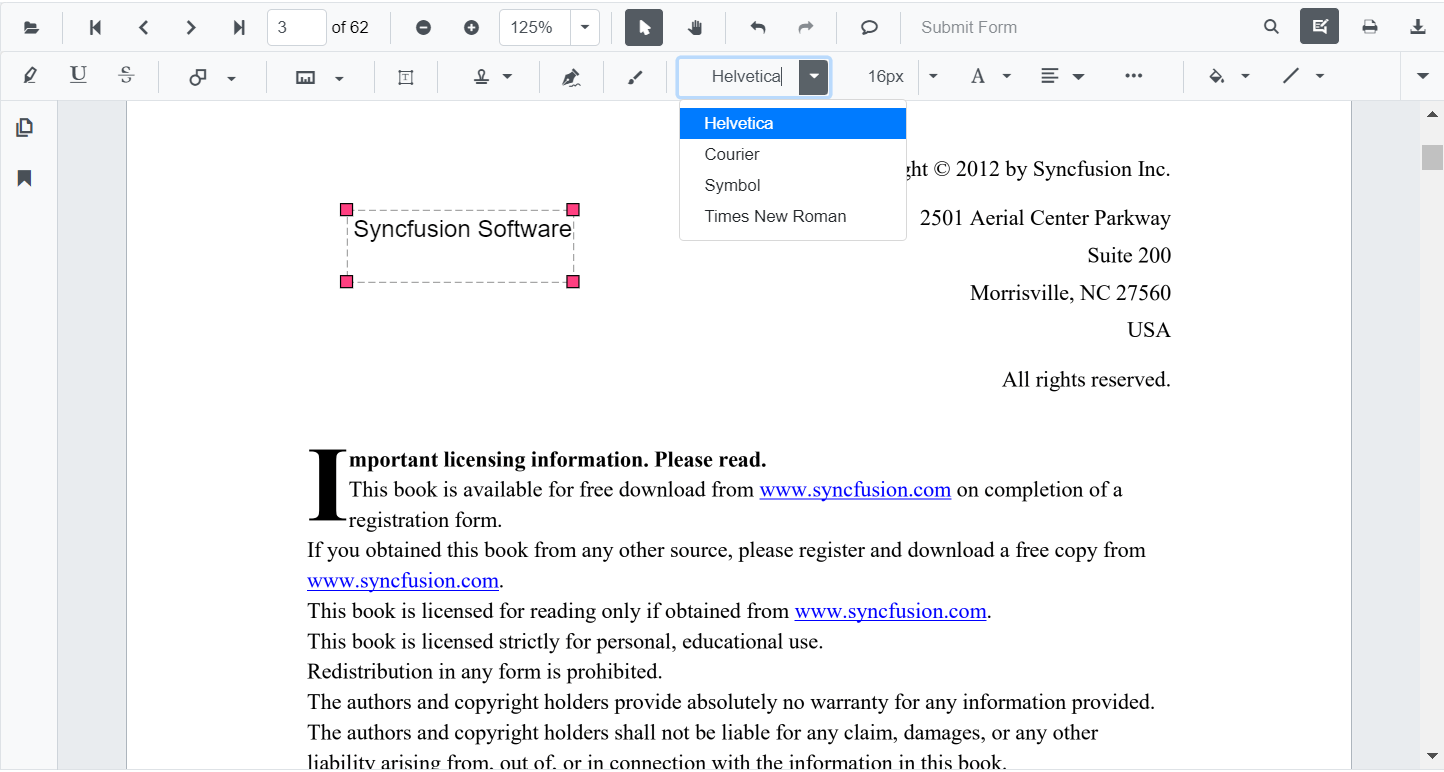
Editing font family
Change the font family by selecting a font from the Font Family tool.
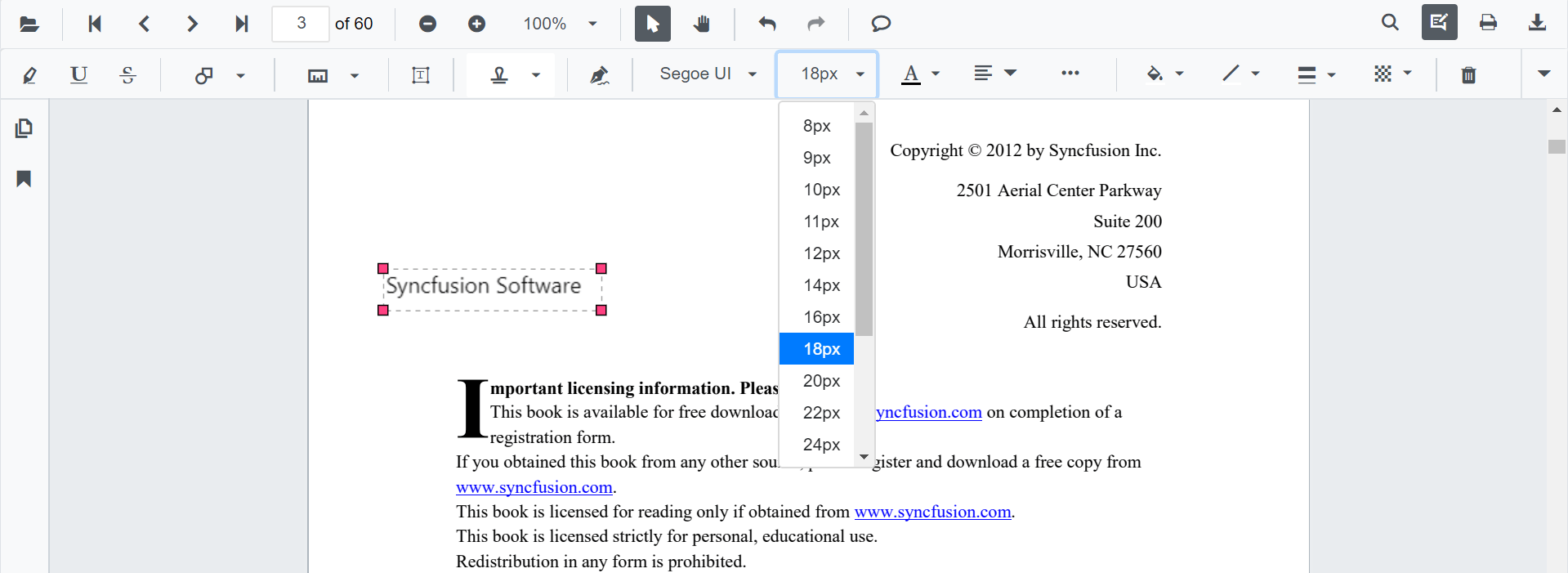
Editing font size
Change the font size by selecting a value from the Font Size tool.
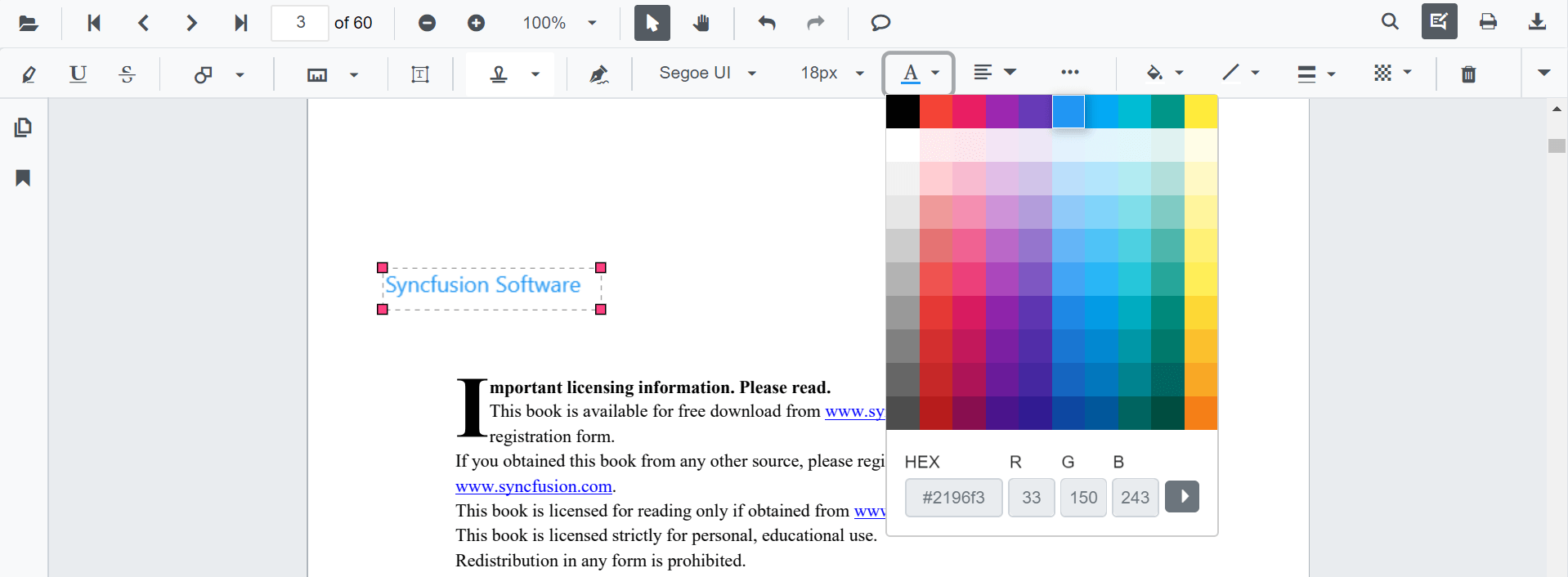
Editing font color
Change the font color using the color palette in the Font Color tool.
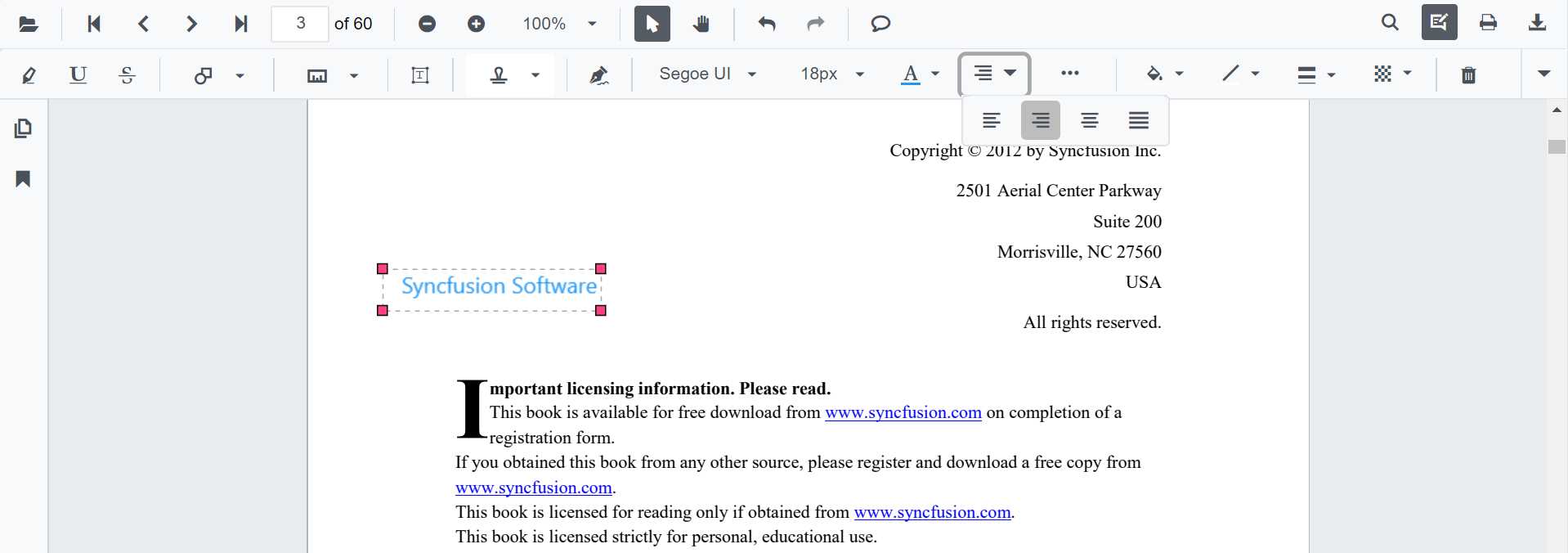
Editing the text alignment
Align the text by choosing an option from the Text Align tool dropdown.
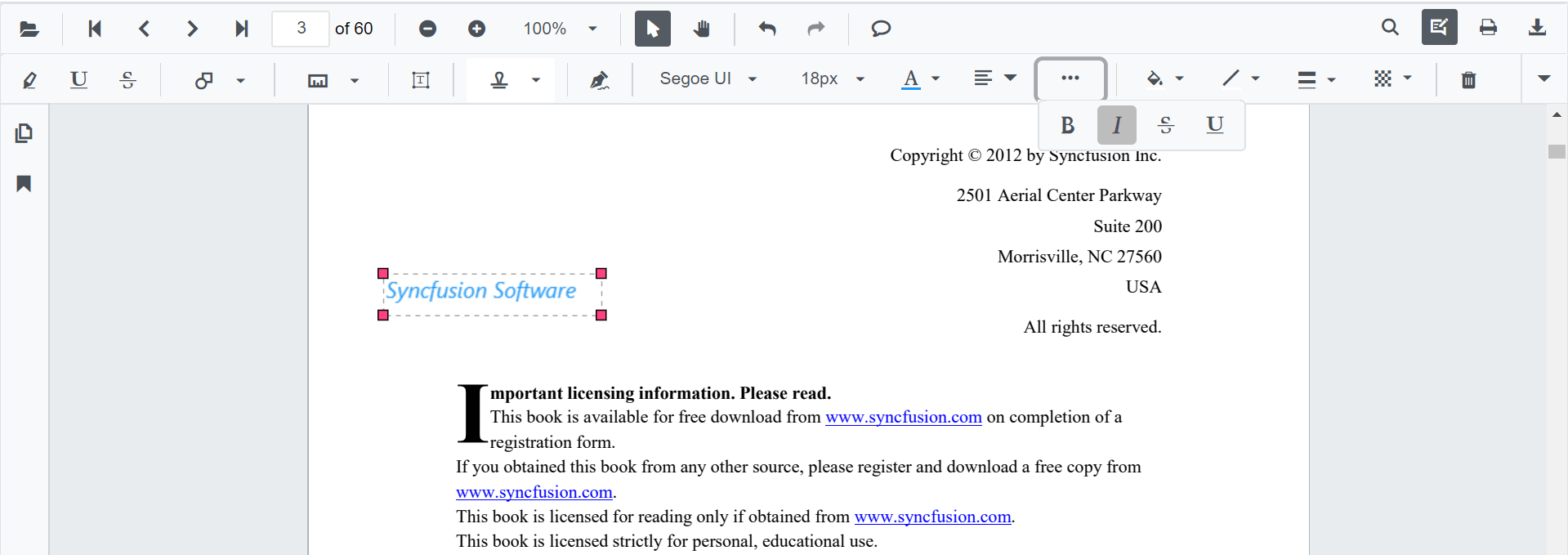
Editing text styles
Apply bold, italic, underline, or strikethrough from the Font Style tool dropdown.
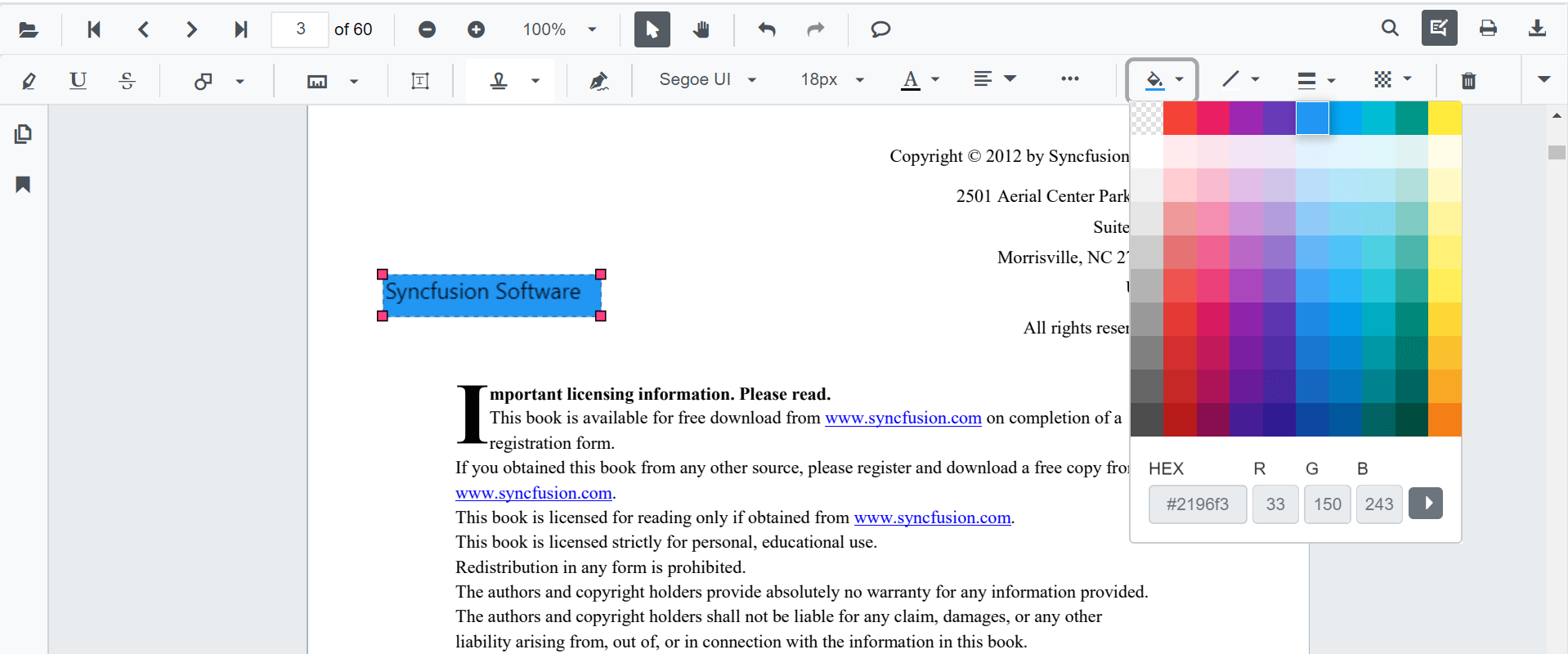
Editing fill color
Change the fill color using the color palette in the Edit Color tool.
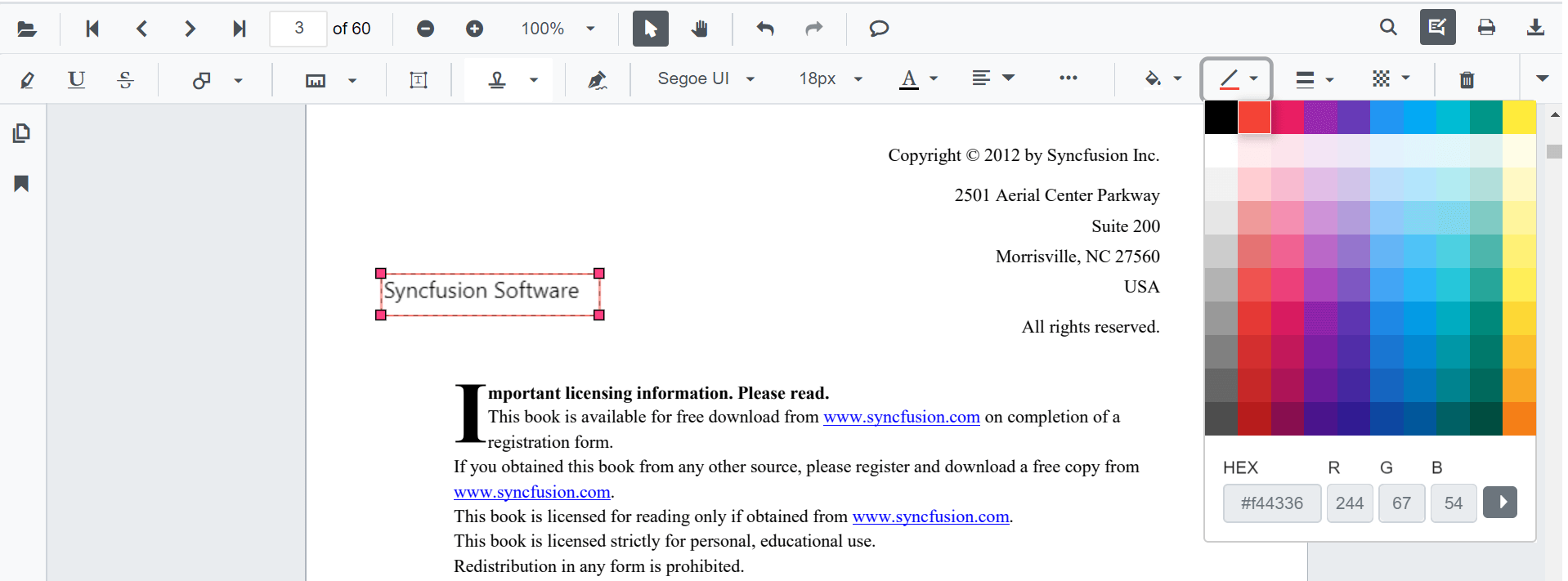
Editing stroke color
Change the border (stroke) color using the color palette in the Edit Stroke Color tool.
Editing thickness
Adjust the border thickness using the range slider in the Edit Thickness tool.
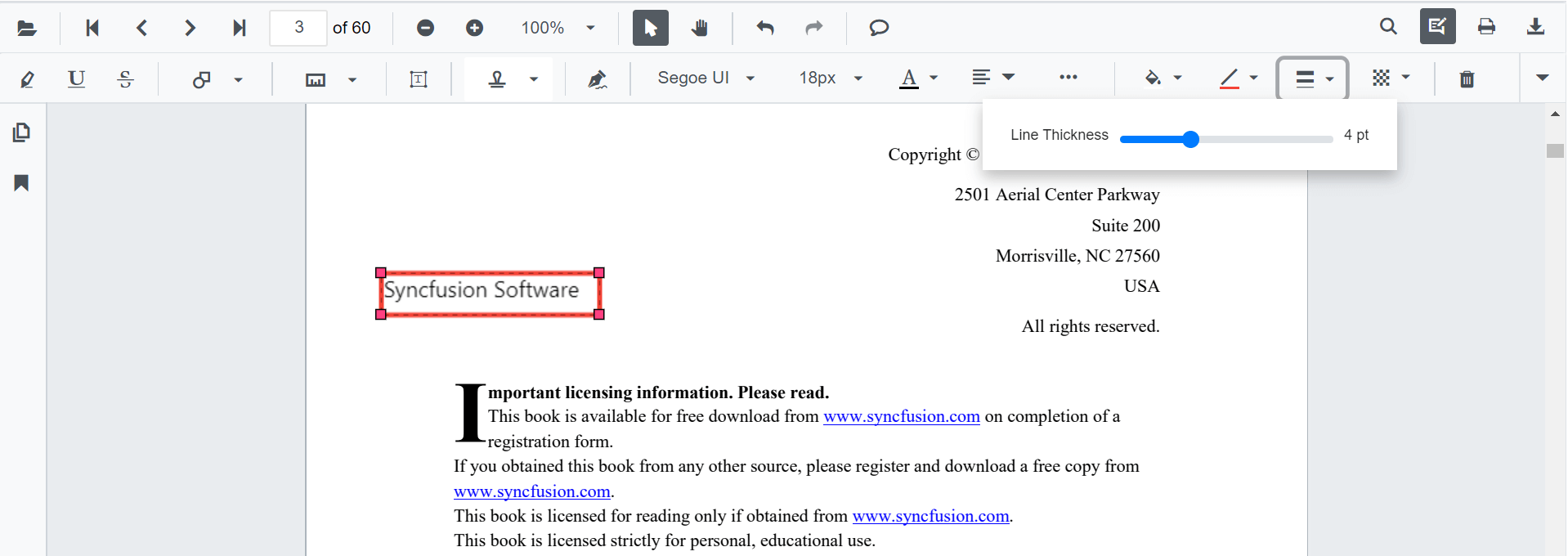
Editing opacity
Adjust the annotation opacity using the range slider in the Edit Opacity tool.
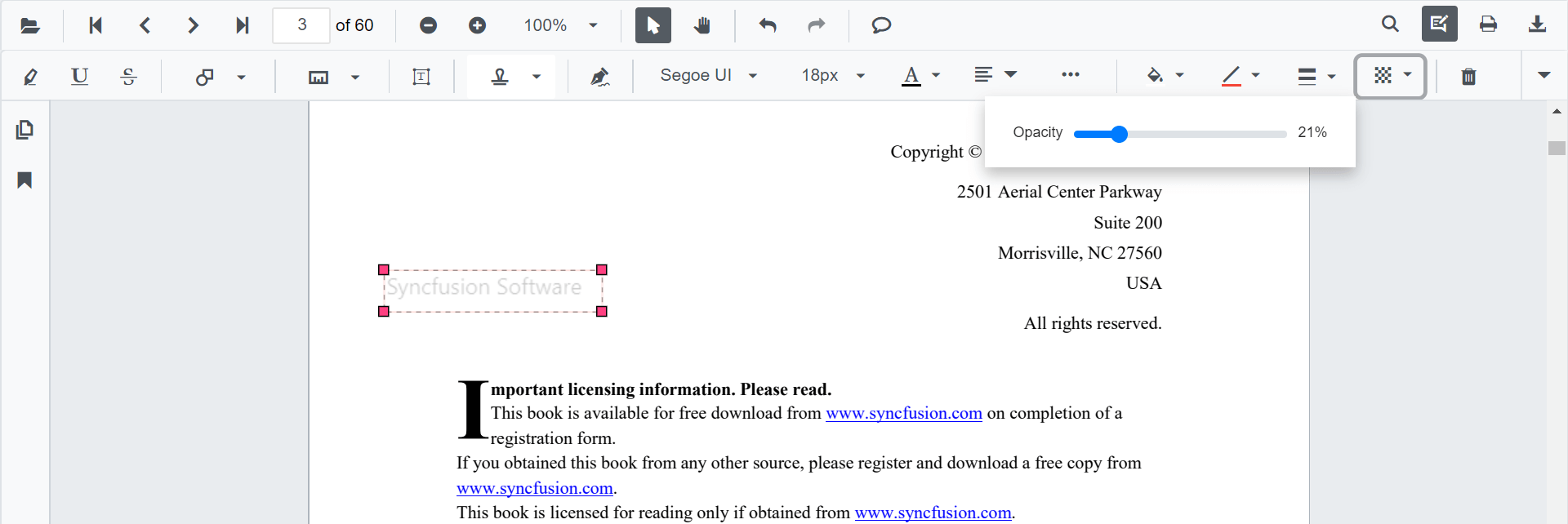
Setting default properties during control initialization
Default properties for free text annotations can be set during component initialization using FreeTextSettings. These defaults apply to newly created annotations; later toolbar changes affect only annotations created after the change. For the full list of supported members (such as FontFamily, FontSize, Opacity, TextAlignment, and BorderThickness), see the PdfViewerFreeTextSettings API reference.
@using Syncfusion.Blazor.SfPdfViewer

<SfPdfViewer2 @ref="viewer" DocumentPath=@DocumentPath Height="100%" Width="100%"
FreeTextSettings=@FreeTextSettings></SfPdfViewer2>

@code {
    private SfPdfViewer2? viewer;
    private string DocumentPath { get; set; } = "wwwroot/Data/PDF_Succinctly.pdf";

    PdfViewerFreeTextSettings FreeTextSettings = new PdfViewerFreeTextSettings
    {
        FillColor = "green",
        BorderColor = "blue",
        FontColor = "yellow"
    };
}
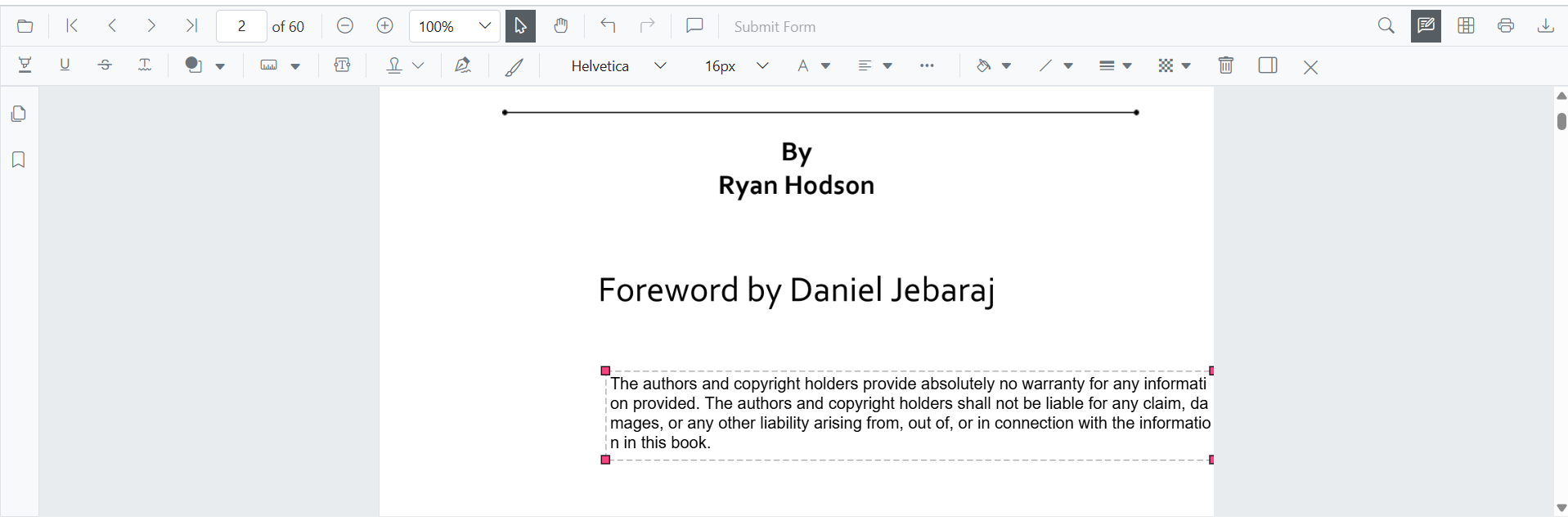
Autofit support for free text annotations can be enabled using the AutoFit property in PdfViewerFreeTextSettings. When enabled, the width of the free text rectangle expands based on the entered text.
@using Syncfusion.Blazor.SfPdfViewer

<SfPdfViewer2 DocumentPath="@DocumentPath" @ref="@Viewer" Height="100%" Width="100%">
    <PdfViewerFreeTextSettings AutoFit="true"></PdfViewerFreeTextSettings>
</SfPdfViewer2>

@code {
    private SfPdfViewer2? Viewer;
    private string DocumentPath { get; set; } = "https://cdn.syncfusion.com/content/pdf/pdf-succinctly.pdf";
}
Add free text annotation programmatically
Blazor SfPdfViewer supports programmatically adding free text annotations using the AddAnnotationAsync method.
The following example demonstrates adding a free text annotation to a PDF document:
@using Syncfusion.Blazor.Buttons
@using Syncfusion.Blazor.SfPdfViewer

<SfButton OnClick="@AddFreeTextAnnotationAsync">Add FreeText Annotation</SfButton>
<SfPdfViewer2 Width="100%" Height="100%" DocumentPath="@DocumentPath" @ref="@Viewer" />

@code {
    private SfPdfViewer2? Viewer;
    private string DocumentPath { get; set; } = "wwwroot/Data/Free_Text_Annotation.pdf";

    private async Task AddFreeTextAnnotationAsync(MouseEventArgs args)
    {
        PdfAnnotation annotation = new PdfAnnotation();
        // Set the annotation type of free text
        annotation.Type = AnnotationType.FreeText;
        // Set the PageNumber starts from 0. So, if set 0 it represents the page 1.
        annotation.PageNumber = 0;

        // Set the text displayed in the free text annotation
        annotation.DynamicText = "Sample Free Text";

        // Bound of the free text annotation (values in PDF page points)
        annotation.Bound = new Bound();
        annotation.Bound.X = 200;
        annotation.Bound.Y = 150;
        annotation.Bound.Width = 150;
        annotation.Bound.Height = 30;
        // Add free text annotation
        await Viewer.AddAnnotationAsync(annotation);
    }
}
This example adds a free text annotation to the first page of the document.

Edit free text annotation programmatically
Blazor SfPdfViewer supports programmatically editing free text annotations using the EditAnnotationAsync method.
The following example demonstrates editing a free text annotation programmatically:
@using Syncfusion.Blazor.Buttons
@using Syncfusion.Blazor.SfPdfViewer

<SfButton OnClick="@EditFreeTextAnnotationAsync">Edit FreeText Annotation</SfButton>
<SfPdfViewer2 Width="100%" Height="100%" DocumentPath="@DocumentPath" @ref="@Viewer" />

@code {
    private SfPdfViewer2? Viewer;
    private string DocumentPath { get; set; } = "wwwroot/Data/Free_Text_Annotation.pdf";

    private async Task EditFreeTextAnnotationAsync(MouseEventArgs args)
    {
        // Get annotation collection
        List<PdfAnnotation> annotationCollection = await Viewer.GetAnnotationsAsync();
        // Select the annotation want to edit
        if (annotationCollection is null || annotationCollection.Count == 0) { return; }
        PdfAnnotation annotation = annotationCollection[0];
        // Change the position of the free text annotation
        annotation.Bound.X = 125;
        annotation.Bound.Y = 125;
        // Change the width and height of the free text annotation
        annotation.Bound.Width = 250;
        annotation.Bound.Height = 40;
        // Change the font style of free text annotation like bold, italic, underline strikethrough
        annotation.FontStyle = FontStyle.Bold | FontStyle.Italic;
        // Change the font size of free text annotation
        annotation.FontSize = 20;
        // Change the font color of free text annotation
        annotation.FontColor = "#00008B";
        // Change the font family of free text annotation
        annotation.FontFamily = "Symbol";
        // Change the border width of free text annotation
        annotation.BorderWidth = 3;
        // Change the border color of free text annotation
        annotation.BorderColor = "#000000";
        // Change the text of free text annotation
        annotation.DynamicText = "Modified Free Text";
        // Change the text align of free text annotation
        annotation.TextAlignment = TextAlignment.Center;
        // Change the fill color of free text annotation
        annotation.FillColor = "#FFFF00";
        // Change the Opacity (0 to 1) of free text annotation
        annotation.Opacity = 0.5;
        // Edit the free text annotation
        await Viewer.EditAnnotationAsync(annotation);
    }
}
This example updates the position, size, appearance, and content of the first free text annotation returned by GetAnnotationsAsync().

Custom font support for free text annotation
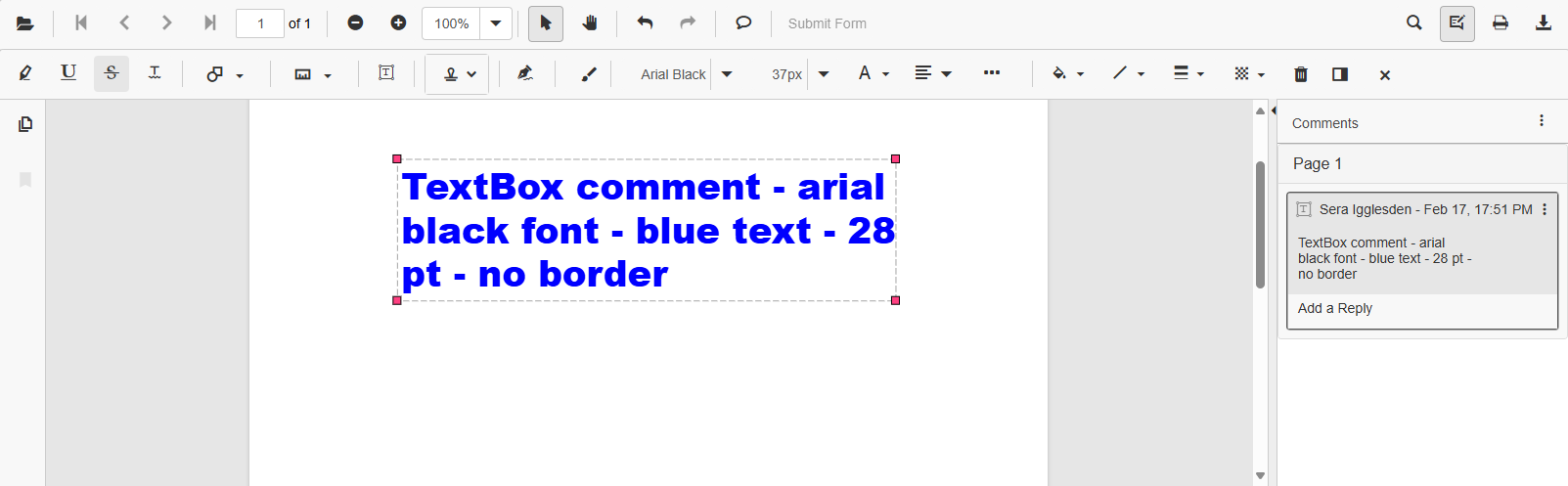
The Blazor SfPdfViewer supports loading, editing, and saving custom fonts in FreeText annotations using the FallbackFontCollection and FontFamilies properties.
Loading Custom Font Collection in SfPdfViewer
If a custom font is not installed on the system, use FallbackFontCollection to ensure free text annotations are saved with the desired font. The following example loads Arial, Arial Black, and Courier New as TTF files from the wwwroot/Fonts/ folder.
@using Syncfusion.Blazor;
@using Syncfusion.Blazor.SfPdfViewer;

<SfPdfViewer2 @ref="pdfViewer" Height="100%" Width="100%" DocumentPath="@DocumentPath">
    <PdfViewerEvents Created="@Created"></PdfViewerEvents>
</SfPdfViewer2>

@code {
    private SfPdfViewer2? pdfViewer;
    private string DocumentPath { get; set; } = "wwwroot/PDF/Arial Black.pdf";

    private void Created()
    {
        // Use FallbackFontCollection to save the custom font
        // Maps the font family name to its corresponding TTF file as a memory stream
        if (pdfViewer is null) { return; }
        string fontsRoot = Path.Combine(Environment.WebRootPath, "Fonts");
        pdfViewer.FallbackFontCollection.Add("Arial", new MemoryStream(System.IO.File.ReadAllBytes(Path.Combine(fontsRoot, "ARIAL.ttf"))));
        pdfViewer.FallbackFontCollection.Add("Arial Black", new MemoryStream(System.IO.File.ReadAllBytes(Path.Combine(fontsRoot, "ARIBLK.ttf"))));
        pdfViewer.FallbackFontCollection.Add("Courier New", new MemoryStream(System.IO.File.ReadAllBytes(Path.Combine(fontsRoot, "COUR.ttf"))));
    }
}
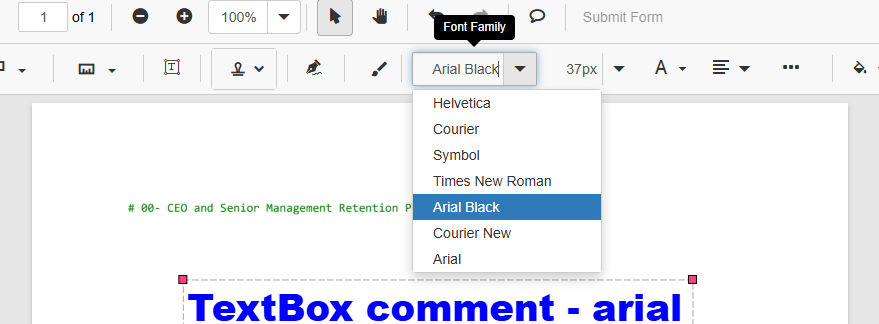
Adding custom font families to the annotation toolbar dropdown
Use the FontFamilies property to add custom font families to the Font Family dropdown in the annotation toolbar.
@using Syncfusion.Blazor;
@using Syncfusion.Blazor.SfPdfViewer;

<SfPdfViewer2 @ref="pdfViewer" Height="100%" Width="100%" DocumentPath="@DocumentPath" FontFamilies="@FontFamilies">
</SfPdfViewer2>

@code {
    private SfPdfViewer2? pdfViewer;
    // Use the FontFamilies property to add custom font families to the Font Family dropdown in the annotation toolbar
    internal string[] FontFamilies { get; set; } = { "Helvetica", "Courier", "Symbol", "Times New Roman", "Arial Black", "Courier New", "Arial" };
    private string DocumentPath { get; set; } = "wwwroot/PDF/Arial Black.pdf";
}
The following example demonstrates loading, editing, and saving custom fonts in free text annotations:
@using Syncfusion.Blazor;
@using Syncfusion.Blazor.SfPdfViewer;
@inject IWebHostEnvironment Environment

<SfPdfViewer2 @ref="pdfViewer" Height="100%" Width="100%" DocumentPath="@DocumentPath" FontFamilies="@FontFamilies">
    <PdfViewerEvents Created="@Created"></PdfViewerEvents>
</SfPdfViewer2>

@code {
    private SfPdfViewer2? pdfViewer;

    // Use the FontFamilies property to add custom font families to the annotation toolbar dropdown
    internal string[] FontFamilies { get; set; } = { "Helvetica", "Courier", "Symbol", "Times New Roman", "Arial Black", "Courier New", "Arial" };

    private string DocumentPath { get; set; } = "wwwroot/PDF/Arial Black.pdf";

    private void Created()
    {
        // Use FallbackFontCollection to save the custom font
        // Maps the font family name to its corresponding TTF file as a memory stream
        pdfViewer.FallbackFontCollection.Add("Arial", new MemoryStream(System.IO.File.ReadAllBytes("wwwroot/Fonts/ARIAL.ttf")));
        pdfViewer.FallbackFontCollection.Add("Arial Black", new MemoryStream(System.IO.File.ReadAllBytes("wwwroot/Fonts/ARIBLK.ttf")));
        pdfViewer.FallbackFontCollection.Add("Courier New", new MemoryStream(System.IO.File.ReadAllBytes("wwwroot/Fonts/COUR.ttf")));
    }
}
To ensure accurate rendering when using Google API fonts in the PDF Viewer component, load these fonts in the application as well. Free text annotations render directly on the canvas, so the fonts must be available at runtime.
The following example illustrates loading custom fonts in free text annotations using fonts from Google Fonts or other external sources.
<script>
    window.addEventListener('DOMContentLoaded', () => {
        var fontFamily = ["Allura", "Tangerine", "Sacramento", "Inspiration"];
        for (var fontIndex = 0; fontIndex < fontFamily.length; fontIndex++)
        {
            document.fonts.load(`16px ${fontFamily[fontIndex]}`).then(() => {
                console.log(`Font "${fontFamily[fontIndex]}" loaded successfully.`);
            }).catch(err => {
                console.error(`Failed to load font "${fontFamily[fontIndex]}":`, err);
            });
        }
    });
</script>
If external fonts are not properly loaded in the environment, slight inconsistencies may occur when importing and rendering free text annotations that use those fonts. This typically affects fonts referenced from web-based sources.