Styles and Formatting in .NET Excel Library
14 Aug 20265 minutes to read
Pivot Table Style
XlsIO supports 85 built-in pivot table styles in Microsoft Excel that can be applied using the PivotBuiltInStyles property as follows.
The following code example illustrates how to apply built-in style to pivot table.
using (ExcelEngine excelEngine = new ExcelEngine())
{
	IApplication application = excelEngine.Excel;
	application.DefaultVersion = ExcelVersion.Xlsx;
	IWorkbook workbook = application.Workbooks.Open(Path.GetFullPath(@"Data/InputTemplate.xlsx"));
	IWorksheet worksheet = workbook.Worksheets[1];
	IPivotTable pivotTable = worksheet.PivotTables[0];

	//Set BuiltInStyle
	pivotTable.BuiltInStyle = PivotBuiltInStyles.PivotStyleDark12;

	#region Save
	//Saving the workbook
	workbook.SaveAs(Path.GetFullPath("Output/PivotTable.xlsx"));
	#endregion
}
using (ExcelEngine excelEngine = new ExcelEngine())
{
IApplication application = excelEngine.Excel;
application.DefaultVersion = ExcelVersion.Xlsx;
IWorkbook workbook = application.Workbooks.Open("InputTemplate.xlsx");
IWorksheet worksheet = workbook.Worksheets[1];
IPivotTable pivotTable = worksheet.PivotTables[0];
//Set BuiltInStyle
pivotTable.BuiltInStyle = PivotBuiltInStyles.PivotStyleDark12;
workbook.SaveAs("PivotTable_Style.xlsx");
//No exception will be thrown if there are unsaved workbooks
excelEngine.ThrowNotSavedOnDestroy = false;
}Using excelEngine As ExcelEngine = New ExcelEngine()
Dim application As IApplication = excelEngine.Excel
application.DefaultVersion = ExcelVersion.Xlsx
Dim workbook As IWorkbook = application.Workbooks.Open("InputTemplate.xlsx")
Dim sheet As IWorksheet = workbook.Worksheets(1)
Dim pivotTable As IPivotTable = sheet.PivotTables(0)
'Set BuiltInStyle
pivotTable.BuiltInStyle = PivotBuiltInStyles.PivotStyleDark12
workbook.SaveAs("PivotTable_Style.xlsx")
'No exception will be thrown if there are unsaved workbooks
excelEngine.ThrowNotSavedOnDestroy = False
End UsingA complete working example to apply built-in style to pivot table in C# is present on this GitHub page.
Pivot Cell Formatting
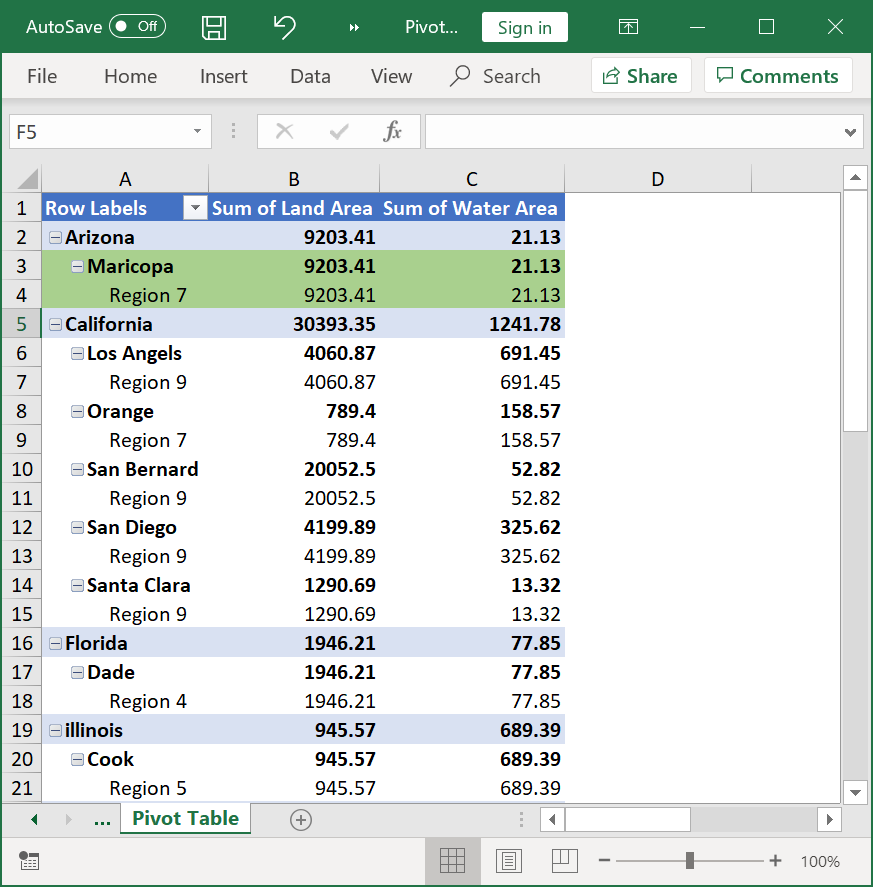
When you apply cell formatting to pivot table cells, Microsoft Excel stores the formatting information with the pivot table and renders the same formatting on those pivot table cells. XlsIO supports applying cell formatting to a range of pivot table cells. You can apply the cell formatting using the IPivotTable.GetCellFormat method, which returns an IPivotCellFormat instance that exposes the formatting properties.
The following code example illustrates how to apply cell formatting to pivot table cells.
using (ExcelEngine excelEngine = new ExcelEngine())
{
	IApplication application = excelEngine.Excel;
	application.DefaultVersion = ExcelVersion.Xlsx;
	IWorkbook workbook = application.Workbooks.Open(Path.GetFullPath(@"Data/InputTemplate.xlsx"));
	IWorksheet worksheet = workbook.Worksheets[1];

	IPivotTable pivotTable = worksheet.PivotTables[0];
	//Get the cell format for pivot range.
	IPivotCellFormat cellFormat = pivotTable.GetCellFormat("A4:J5");
	cellFormat.BackColor = ExcelKnownColors.Green;

	#region Save
	//Saving the workbook
	workbook.SaveAs(Path.GetFullPath("Output/PivotCellFormat.xlsx"));
	#endregion
}
using (ExcelEngine engine = new ExcelEngine())
{
IApplication application = engine.Excel;
IWorkbook workbook = application.Workbooks.Open("InputTemplate.xlsx");
IWorksheet worksheet = workbook.Worksheets[0];
IPivotTable pivotTable = worksheet.PivotTables[0];
//Get the cell format for "A1" pivot range.
IPivotCellFormat cellFormat = pivotTable.GetCellFormat("A3:C4");
cellFormat.BackColor = ExcelKnownColors.Green;
workbook.SaveAs("PivotFormat.xlsx");
}Using excelEngine As ExcelEngine = New ExcelEngine()
Dim application As IApplication = excelEngine.Excel
Dim workbook As IWorkbook = application.Workbooks.Open("InputTemplate.xlsx")
Dim pivotSheet As IWorksheet = workbook.Worksheets(0)
Dim pivotTable As IPivotTable = pivotSheet.PivotTables(0)
'Get the cell format for "A3:C4" pivot range.
Dim cellFormat As IPivotCellFormat = pivotTable.GetCellFormat("A3:C4")
cellFormat.BackColor = ExcelKnownColors.Green
workbook.SaveAs("PivotFormat.xlsx")
End UsingA complete working example to apply cell formatting to pivot table cells in C# is present on this GitHub page.
By executing the program, you will get the output Excel file as below.