Macros in .NET Excel Library
14 Aug 202624 minutes to read
A macro is a set of processes that can be run repeatedly in an Excel document.
Creating a Macro
XlsIO allows you to create macros in an Excel document through the IVbaProject interface. Macro-enabled documents can be saved in different formats, such as XLS, XLTM, and XLSM.
XlsIO supports creating macros in the following types using the VbaModuleType enum.
- Document
- StdModule
- Class
- MsForm
You can add a Vba module through IVbaModules interface in XlsIO.
Document
The Document module type is added for every worksheet, and one is added for the entire workbook when creating a Vba project.
//Adding Document to the workbook
IVbaProject project = workbook.VbaProject;
IVbaModule module = project.Modules.Add("Document", VbaModuleType.Document);
//Adding Document to the workbook
IVbaProject project = workbook.VbaProject;
IVbaModule module = project.Modules.Add("Document", VbaModuleType.Document);'Adding Document to the workbook
Dim project As IVbaProject = workbook.VbaProject
Dim [module] As IVbaModule = project.Modules.Add("Document", VbaModuleType.Document)The following code illustrates how to use the Document module in an Excel document.
using (ExcelEngine excelEngine = new ExcelEngine())
{
	IApplication application = excelEngine.Excel;
	application.DefaultVersion = ExcelVersion.Xlsx;
	IWorkbook workbook = application.Workbooks.Create(1);
	IWorksheet sheet = workbook.Worksheets[0];

	//Creating Vba project
	IVbaProject project = workbook.VbaProject;

	//Accessing vba modules collection
	IVbaModules vbaModules = project.Modules;

	// Accessing sheet module
	IVbaModule vbaModule = vbaModules[sheet.CodeName];

	//Adding vba code to the module
	vbaModule.Code = "Sub Auto_Open\n MsgBox \" Workbook Opened \" \n End Sub";

	#region Save
	//Saving the workbook
	FileStream outputStream = new FileStream(Path.GetFullPath("Output/MacroAsDocument.xlsm"), FileMode.Create, FileAccess.Write);
	workbook.SaveAs(outputStream, ExcelSaveType.SaveAsMacro);
	#endregion

	//Dispose streams
	outputStream.Dispose();
}
using (ExcelEngine excelEngine = new ExcelEngine())
{
//Instantiate the excel application object.
IApplication application = excelEngine.Excel;
// Creating new workbook
IWorkbook workbook = application.Workbooks.Create(1);
IWorksheet sheet = workbook.Worksheets[0];
//Creating Vba project
IVbaProject project = workbook.VbaProject;
//Accessing vba modules collection
IVbaModules vbaModules = project.Modules;
//Accessing sheet module
IVbaModule vbaModule = vbaModules[sheet.CodeName];
//Adding vba code to the module
vbaModule.Code = "Sub Auto_Open\n MsgBox \"Workbook Opened\" \n End Sub";
//Saving as macro document
workbook.SaveAs("Output.xlsm");
}Using excelEngine As ExcelEngine = New ExcelEngine()
'Instantiate the excel application object.
Dim application As IApplication = excelEngine.Excel
'Creating new Workbook
Dim workbook As IWorkbook = application.Workbooks.Create(1)
Dim sheet As IWorksheet = workbook.Worksheets(0)
'Creating Vba project
Dim project As IVbaProject = workbook.VbaProject
'Accessing vba modules collection
Dim vbaModules As IVbaModules = project.Modules
‘Accessing sheet module
Dim vbaModule As IVbaModule = vbaModules(sheet.CodeName)
'Adding vba code to the module
vbaModule.Code = "Sub Auto_Open" & vbLf & " MsgBox "" Workbook Opened "" " & vbLf & " End Sub"
'Saving as macro document
workbook.SaveAs("Output.xlsm")
End UsingA complete working example to create a macro as a document in C# is available on this GitHub page.
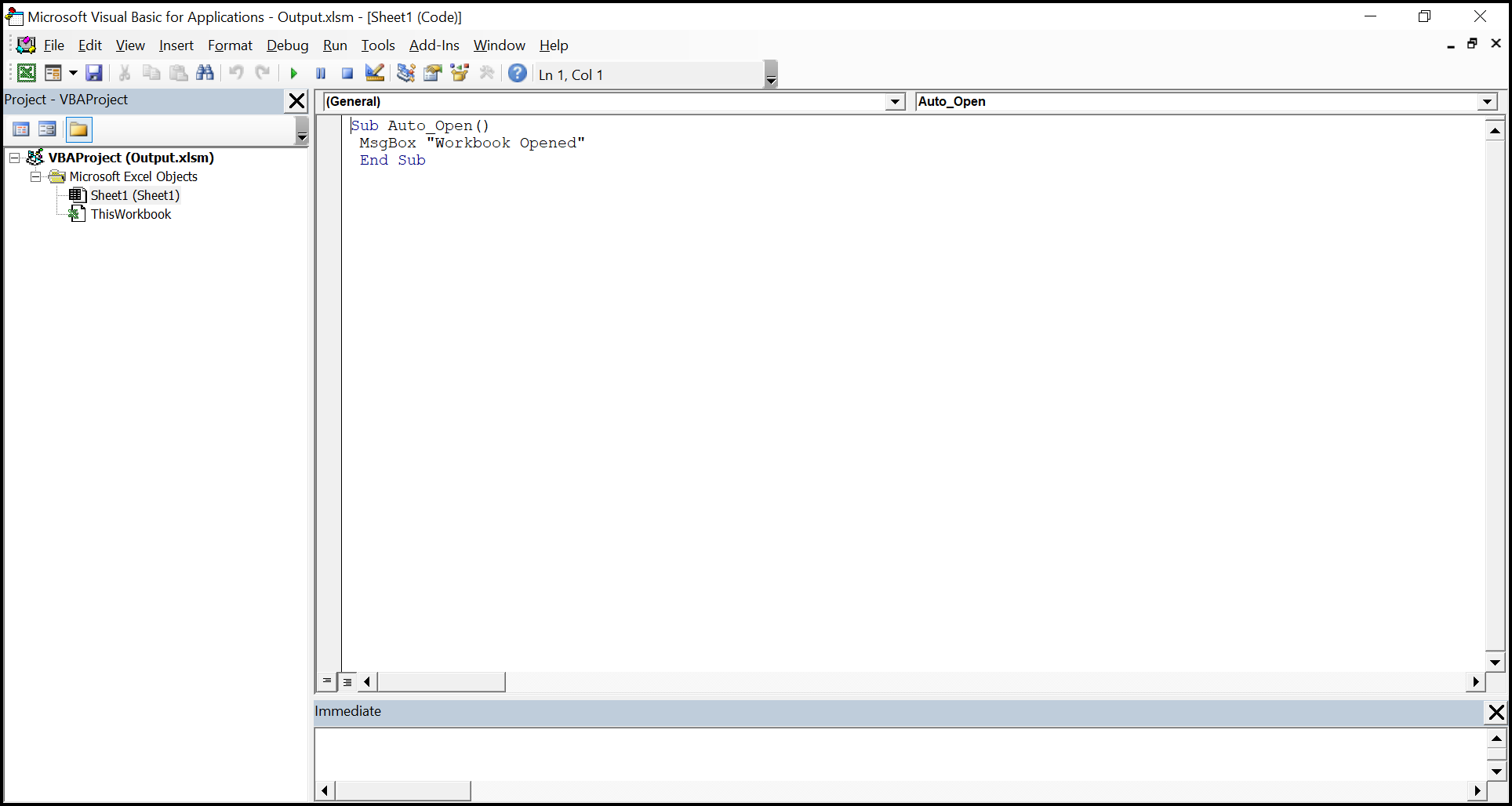
The Vba project in the output looks like below.
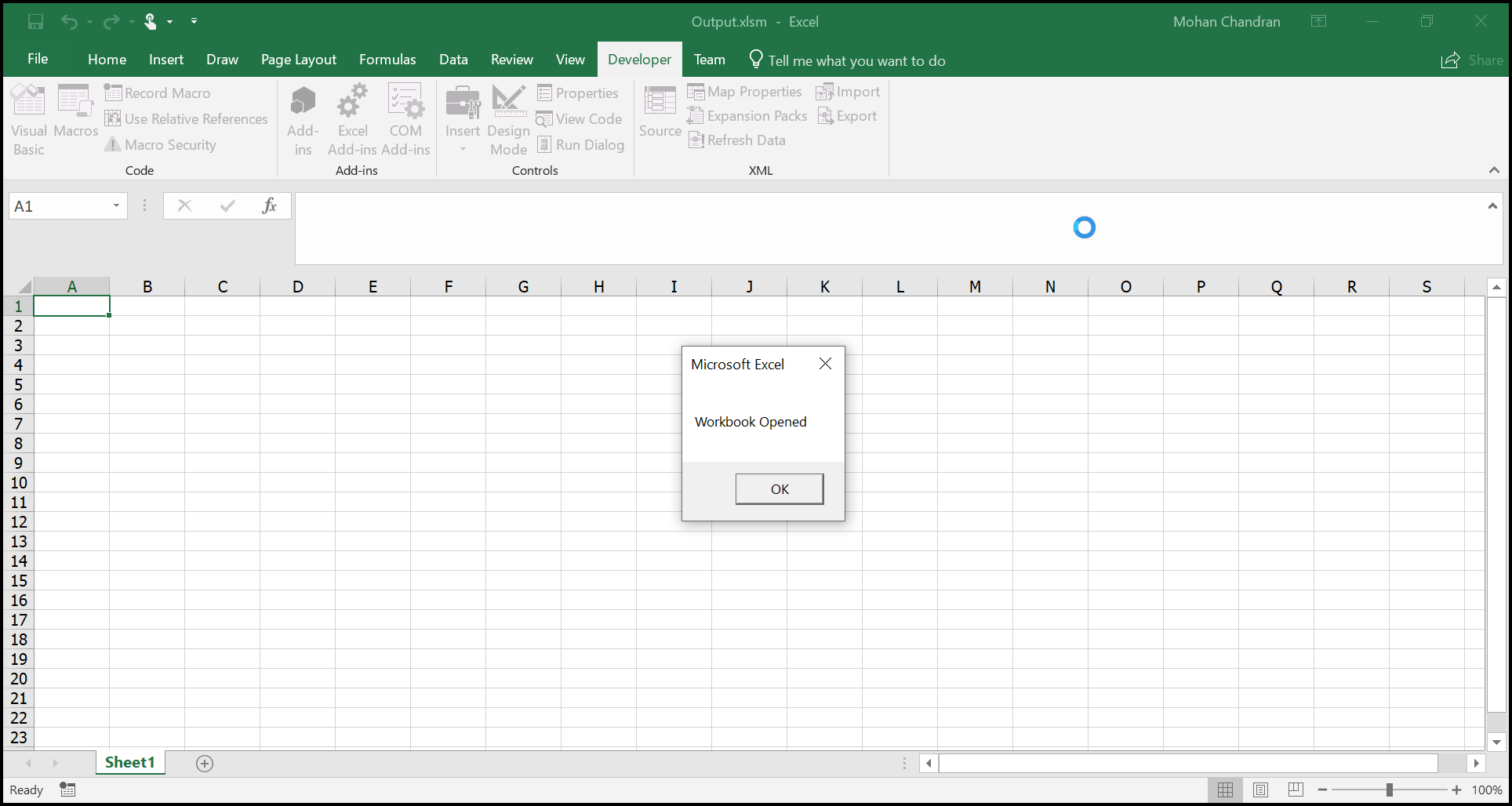
The macro output in the Excel document looks like below.
StdModule
StdModule is the module created for whenever a macro process is recorded in Excel document.
The following code illustrates how to add a StdModule using the Add method. Here, the name parameter and a VbaModuleType enum value are used.
- Test – Macro module name added to the Vba project.
- StdModule – Type of the Vba module.
//Adding StdModule to the workbook
IVbaProject project = workbook.VbaProject;
IVbaModule module = project.Modules.Add("Test", VbaModuleType.StdModule);
//Adding StdModule to the workbook
IVbaProject project = workbook.VbaProject;
IVbaModule module = project.Modules.Add("Test", VbaModuleType.StdModule);'Adding StdModule to the workbook
Dim project As IVbaProject = workbook.VbaProject
Dim [module] As IVbaModule = project.Modules.Add("Test", VbaModuleType.StdModule)The following code illustrates how to create a macro using a StdModule in an Excel document.
using (ExcelEngine excelEngine = new ExcelEngine())
{
	IApplication application = excelEngine.Excel;
	application.DefaultVersion = ExcelVersion.Xlsx;
	IWorkbook workbook = application.Workbooks.Create(1);
	IWorksheet sheet = workbook.Worksheets[0];

	//Creating Vba project
	IVbaProject project = workbook.VbaProject;

	//Accessing vba modules collection
	IVbaModules vbaModules = project.Modules;

	//Adding a vba module
	IVbaModule vbaModule = vbaModules.Add("StdModule", VbaModuleType.StdModule);

	//Adding vba code to the module
	vbaModule.Code = "Sub Auto_Open\n MsgBox \"Macro Added\" \n End Sub";

	#region Save
	//Saving the workbook
	FileStream outputStream = new FileStream(Path.GetFullPath("Output/MacroAsStdModule.xlsm"), FileMode.Create, FileAccess.Write);
	workbook.SaveAs(outputStream, ExcelSaveType.SaveAsMacro);
	#endregion

	//Dispose streams
	outputStream.Dispose();
}
using (ExcelEngine excelEngine = new ExcelEngine())
{
//Instantiate the excel application object.
IApplication application = excelEngine.Excel;
// Creating new workbook
IWorkbook workbook = application.Workbooks.Create(1);
IWorksheet sheet = workbook.Worksheets[0];
//Creating Vba project
IVbaProject project = workbook.VbaProject;
//Accessing vba modules collection
IVbaModules vbaModules = project.Modules;
//Adding a vba module
IVbaModule vbaModule = vbaModules.Add("StdModule", VbaModuleType.StdModule);
//Adding vba code to the module
vbaModule.Code = "Sub Auto_Open\n MsgBox \"Macro Added\" \n End Sub";
//Saving as macro document
workbook.SaveAs("Output.xlsm");
}Using excelEngine As ExcelEngine = New ExcelEngine()
'Instantiate the excel application object.
Dim application As IApplication = excelEngine.Excel
'Creating new Workbook
Dim workbook As IWorkbook = application.Workbooks.Create(1)
Dim sheet As IWorksheet = workbook.Worksheets(0)
'Creating Vba project
Dim project As IVbaProject = workbook.VbaProject
'Accessing vba modules collection
Dim vbaModules As IVbaModules = project.Modules
'Adding a vba module
Dim vbaModule As IVbaModule = vbaModules.Add("StdModule", VbaModuleType.StdModule)
'Adding vba code to the module
vbaModule.Code = "Sub Auto_Open" & vbLf & " MsgBox ""Macro Added"" " & vbLf & " End Sub"
'Saving as macro document
workbook.SaveAs("Output.xlsm")
End UsingA complete working example to create a macro as a standard module in C# is available on this GitHub page.
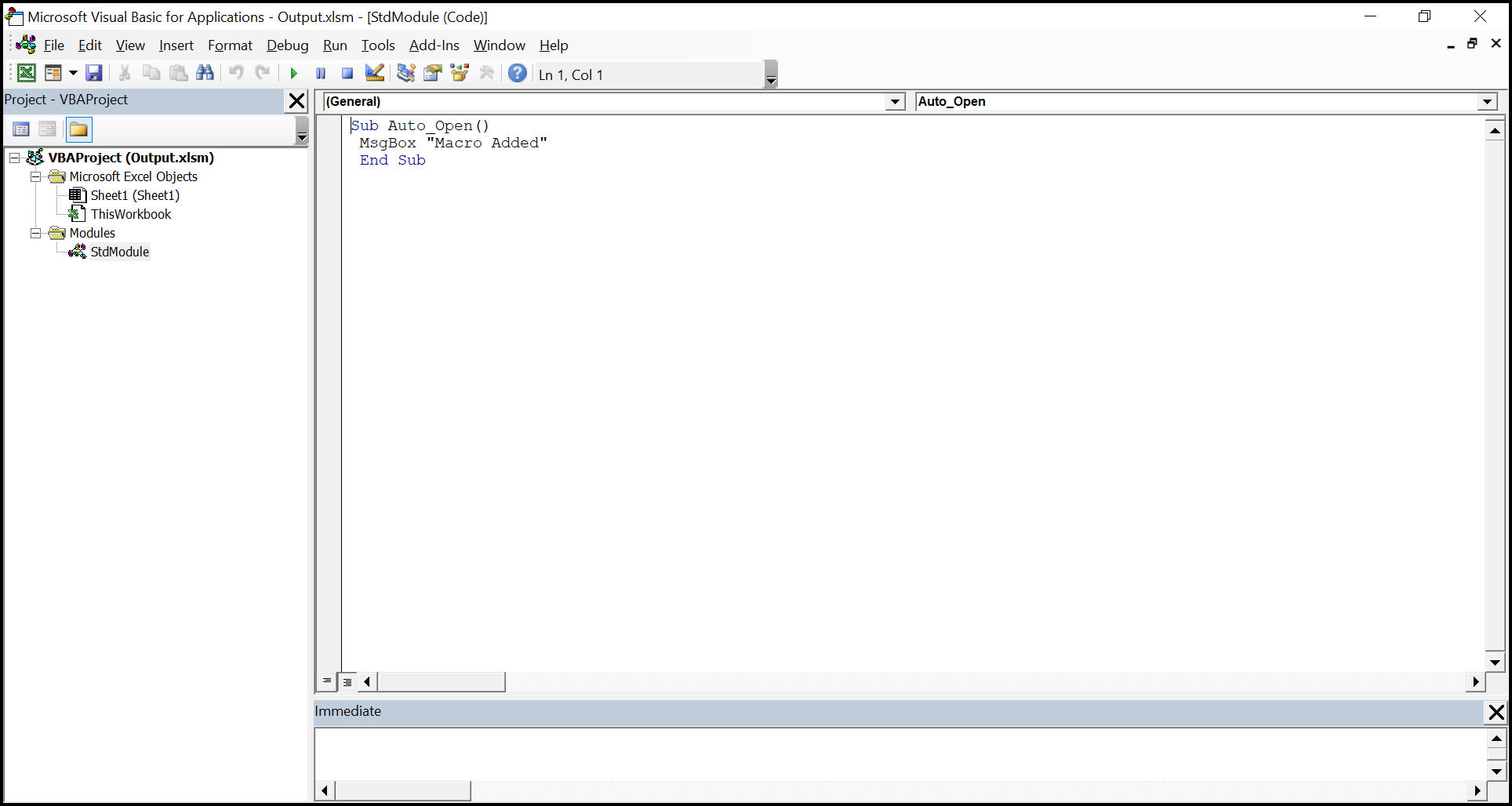
The Vba project in the output Excel document looks like below.
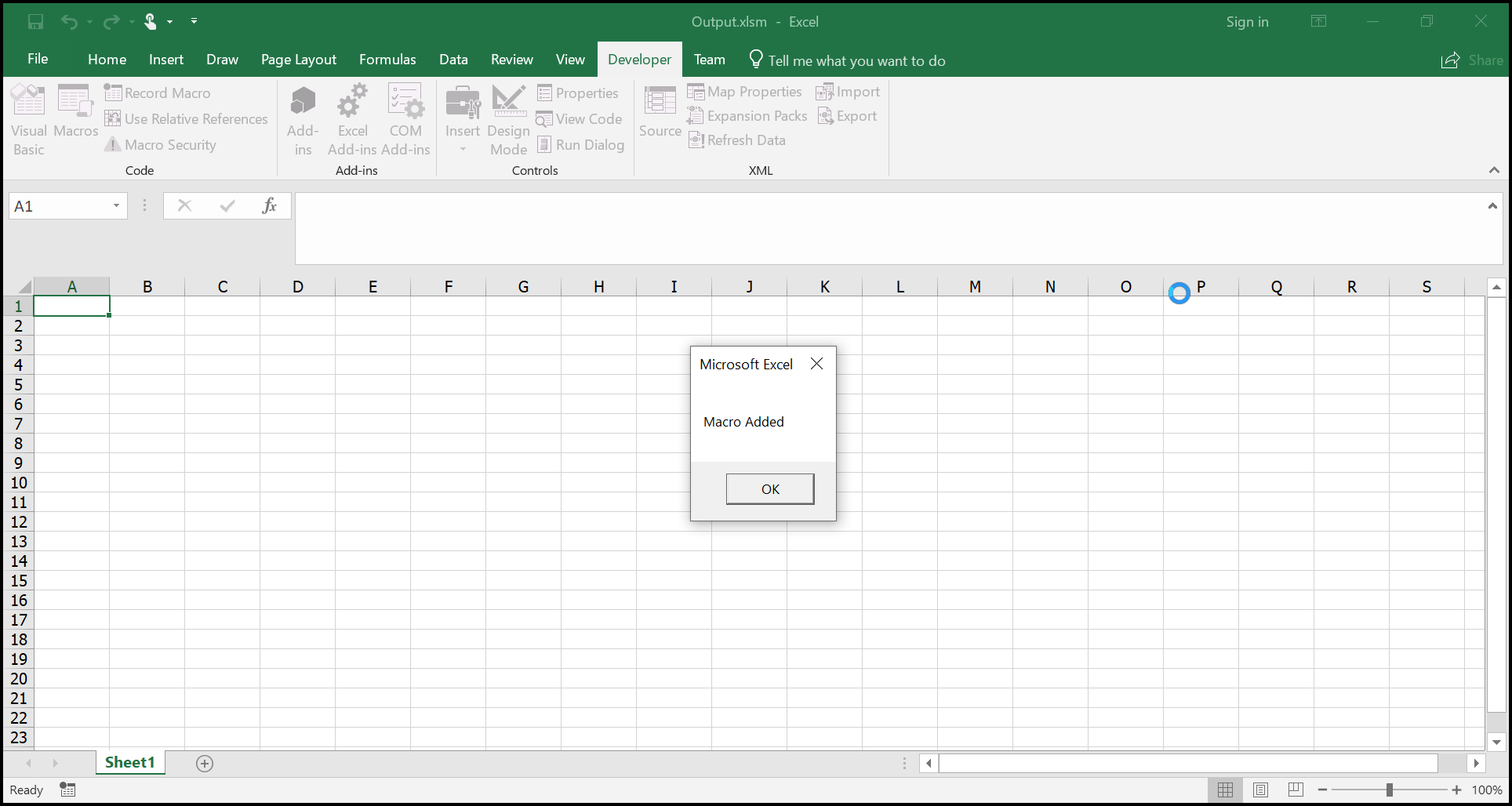
The Macro output in the Excel document looks like below.
Class Module
A class module lets you create your own object model so you can add objects of the same kind with different values, such as an employee information list. XlsIO supports creating class modules in Excel documents.
The following code illustrates how to add a class in XlsIO. Here, the name parameter and a VbaModuleType enum value are used.
- Test – Class name used in the Vba project
- ClassModule – Type of Vba module
//Adding class module to the workbook
IVbaProject project = workbook.VbaProject;
IVbaModule module = project.Modules.Add("Test", VbaModuleType.ClassModule);
//Adding class module to the workbook
IVbaProject project = workbook.VbaProject;
IVbaModule module = project.Modules.Add("Test", VbaModuleType.ClassModule);'Adding class module to the workbook
Dim project As IVbaProject = workbook.VbaProject
Dim [module] As IVbaModule = project.Modules.Add("Test", VbaModuleType.ClassModule)The following code illustrates how to use a class module to run a macro from another module in an Excel document.
using (ExcelEngine excelEngine = new ExcelEngine())
{
	IApplication application = excelEngine.Excel;
	application.DefaultVersion = ExcelVersion.Xlsx;
	IWorkbook workbook = application.Workbooks.Create(1);
	IWorksheet sheet = workbook.Worksheets[0];

	//Creating Vba project
	IVbaProject project = workbook.VbaProject;

	//Accessing vba modules collection
	IVbaModules vbaModules = project.Modules;

	//Adding a class module
	IVbaModule clsModule = vbaModules.Add("Test", VbaModuleType.ClassModule);
	clsModule.Code = "Public Sub Create()\n MsgBox \"Created a class module\" \n End Sub";

	//Adding a vba module
	IVbaModule vbaModule = vbaModules.Add("Module1", VbaModuleType.StdModule);

	//Using class in StdModule
	vbaModule.Code = "Sub Auto_Open()\n Dim obj As New test \n obj.Create \n End Sub";

	#region Save
	//Saving the workbook
	FileStream outputStream = new FileStream(Path.GetFullPath("Output/MacroAsClass.xlsm"), FileMode.Create, FileAccess.Write);
	workbook.SaveAs(outputStream, ExcelSaveType.SaveAsMacro);
	#endregion

	//Dispose streams
	outputStream.Dispose();
}
using (ExcelEngine excelEngine = new ExcelEngine())
{
//Instantiate the excel application object.
IApplication application = excelEngine.Excel;
// Creating new workbook
IWorkbook workbook = application.Workbooks.Create(1);
IWorksheet sheet = workbook.Worksheets[0];
//Creating Vba project
IVbaProject project = workbook.VbaProject;
//Accessing vba modules collection
IVbaModules vbaModules = project.Modules;
//Adding a class module
IVbaModule clsModule = vbaModules.Add("Test", VbaModuleType.ClassModule);
clsModule.Code = "Public Sub Create()\n MsgBox \"Created a class module\" \n End Sub";
//Adding a vba module
IVbaModule vbaModule = vbaModules.Add("Module1", VbaModuleType.StdModule);
//Using class in StdModule
vbaModule.Code = "Sub Auto_Open()\n Dim obj As New test \n obj.Create \n End Sub";
//Saving as macro document
workbook.SaveAs("Output.xlsm");
}Using excelEngine As ExcelEngine = New ExcelEngine()
'Instantiate the excel application object.
Dim application As IApplication = excelEngine.Excel
'Creating new Workbook
Dim workbook As IWorkbook = application.Workbooks.Create(1)
Dim sheet As IWorksheet = workbook.Worksheets(0)
'Creating Vba project
Dim project As IVbaProject = workbook.VbaProject
'Accessing vba modules collection
Dim vbaModules As IVbaModules = project.Modules
'Adding a vba module
Dim vbaModule As IVbaModule = vbaModules.Add("StdModule", VbaModuleType.StdModule)
'Adding vba code to the module
vbaModule.Code = "Sub Auto_Open" & vbLf & " MsgBox ""Macro Added"" " & vbLf & " End Sub"
'Saving as macro document
workbook.SaveAs("Output.xlsm")
End UsingA complete working example to create a macro as a class in C# is available on this GitHub page.
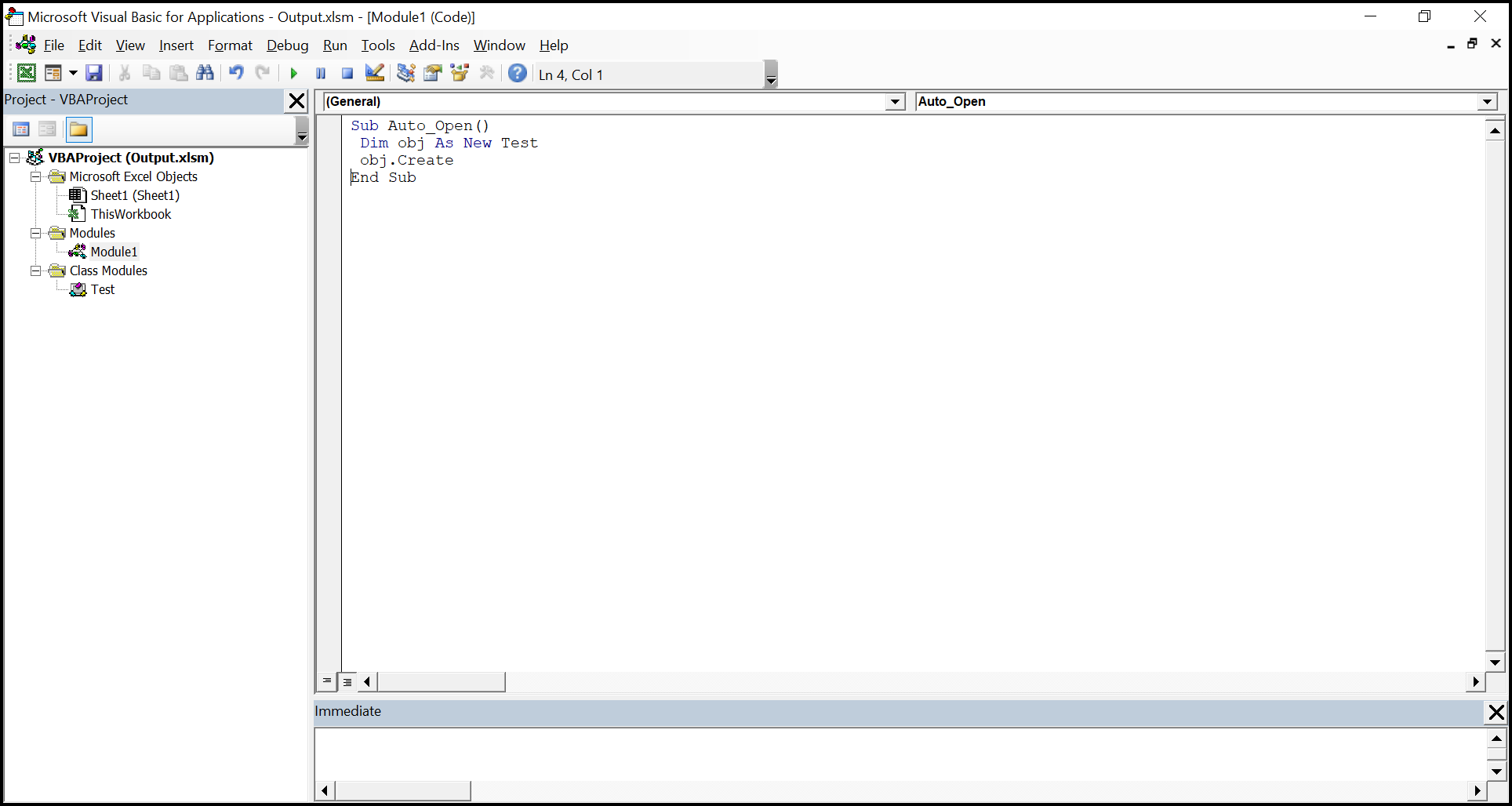
The Vba project in the output Excel document looks like below.
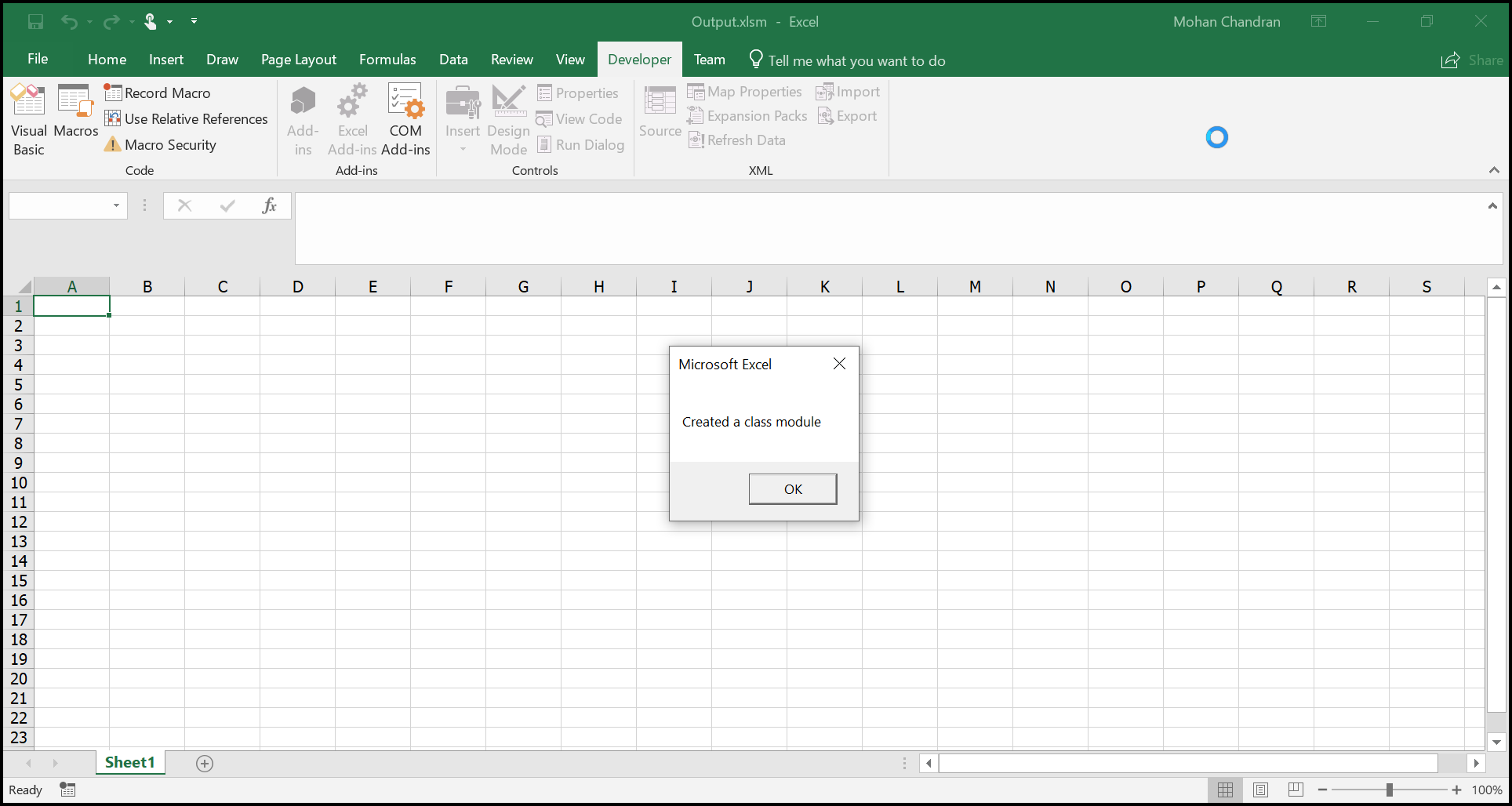
The Macro output in the Excel document looks like below.
MSForm
MsForm is the form module in which you can have form controls such as text boxes, labels, buttons, and so on. A form module cannot be created by XlsIO, but you can copy a form module from an existing workbook to a new workbook.
The following code illustrates how to copy a form from another workbook to a new one. Here, the name parameter and a VbaModuleType enum value are used.
- UserForm – Class name used in the Vba project
- MsForm – Type of Vba module
//Adding class module to the workbook
IVbaProject project = workbook.VbaProject;
IVbaModule module = project.Modules.Add("UserForm", VbaModuleType.MsForm);
//Adding class module to the workbook
IVbaProject project = workbook.VbaProject;
IVbaModule module = project.Modules.Add("UserForm", VbaModuleType.MsForm);'Adding class module to the workbook
Dim project As IVbaProject = workbook.VbaProject
Dim [module] As IVbaModule = project.Modules.Add("UserForm", VbaModuleType.MsForm)The following code illustrates how to copy a form from another workbook to a new workbook.
using (ExcelEngine excelEngine = new ExcelEngine())
{
	IApplication application = excelEngine.Excel;
	application.DefaultVersion = ExcelVersion.Xlsx;
	IWorkbook workbook = application.Workbooks.Create(1);
	IWorksheet sheet = workbook.Worksheets[0];

	//Creating Vba project
	IVbaProject project = workbook.VbaProject;

	//Accessing vba modules collection
	IVbaModules vbaModules = project.Modules;

	//Opening form module existing workbook
	IWorkbook newBook = application.Workbooks.Open(Path.GetFullPath(@"Data/InputTemplate.xls"));

	IVbaProject newProject = newBook.VbaProject;

	//Accessing existing form module
	IVbaModule form = newProject.Modules["UserForm1"];

	//Adding a form module in new workbook
	IVbaModule formModule = project.Modules.Add(form.Name, VbaModuleType.MsForm);

	//Copying the form code behind
	formModule.Code = form.Code;

	//Copying the designer of the form
	formModule.DesignerStorage = form.DesignerStorage;

	#region Save
	//Saving the workbook
	FileStream outputStream = new FileStream(Path.GetFullPath("Output/MacroAsMSForm.xlsm"), FileMode.Create, FileAccess.Write);
	workbook.SaveAs(outputStream, ExcelSaveType.SaveAsMacro);
	#endregion

	//Dispose streams
	outputStream.Dispose();
}
using (ExcelEngine excelEngine = new ExcelEngine())
{
//Instantiate the excel application object.
IApplication application = excelEngine.Excel;
// Creating new workbook
IWorkbook workbook = application.Workbooks.Create(1);
IWorksheet sheet = workbook.Worksheets[0];
//Creating Vba project
IVbaProject project = workbook.VbaProject;
//Accessing vba modules collection
IVbaModules vbaModules = project.Modules;
//Opening form module existing workbook
IWorkbook newBook = application.Workbooks.Open("Test.xls");
IVbaProject newProject = newBook.VbaProject;
//Accessing existing form module
IVbaModule form = newProject.Modules["UserForm1"];
//Adding a form module in new workbook
IVbaModule formModule = project.Modules.Add(form.Name, VbaModuleType.MsForm);
//Copying the form code behind
formModule.Code = form.Code;
//Copying the designer of the form
formModule.DesignerStorage = form.DesignerStorage;
//Saving as macro document
workbook.SaveAs("Output.xlsm");
}Using excelEngine As ExcelEngine = New ExcelEngine()
'Instantiate the excel application object.
Dim application As IApplication = excelEngine.Excel
'Creating new Workbook
Dim workbook As IWorkbook = application.Workbooks.Create(1)
Dim sheet As IWorksheet = workbook.Worksheets(0)
'Creating Vba project
Dim project As IVbaProject = workbook.VbaProject
'Accessing vba modules collection
Dim vbaModules As IVbaModules = project.Modules
'Open form existing workbook
Dim newBook As IWorkbook = application.Workbooks.Open("Test.xls")
Dim newProject As IVbaProject = newBook.VbaProject
'Accessing existing form module
Dim form As IVbaModule = newProject.Modules("UserForm1")
'Adding a form module in new workbook
Dim formModule As IVbaModule = project.Modules.Add(form.Name, VbaModuleType.MsForm)
'Copying the form code behind
formModule.Code = form.Code
'Copying the designer of the form
formModule.DesignerStorage = form.DesignerStorage
'Saving as macro document
workbook.SaveAs("Output.xlsm")
End UsingA complete working example to create a macro as an MS Form in C# is available on this GitHub page.
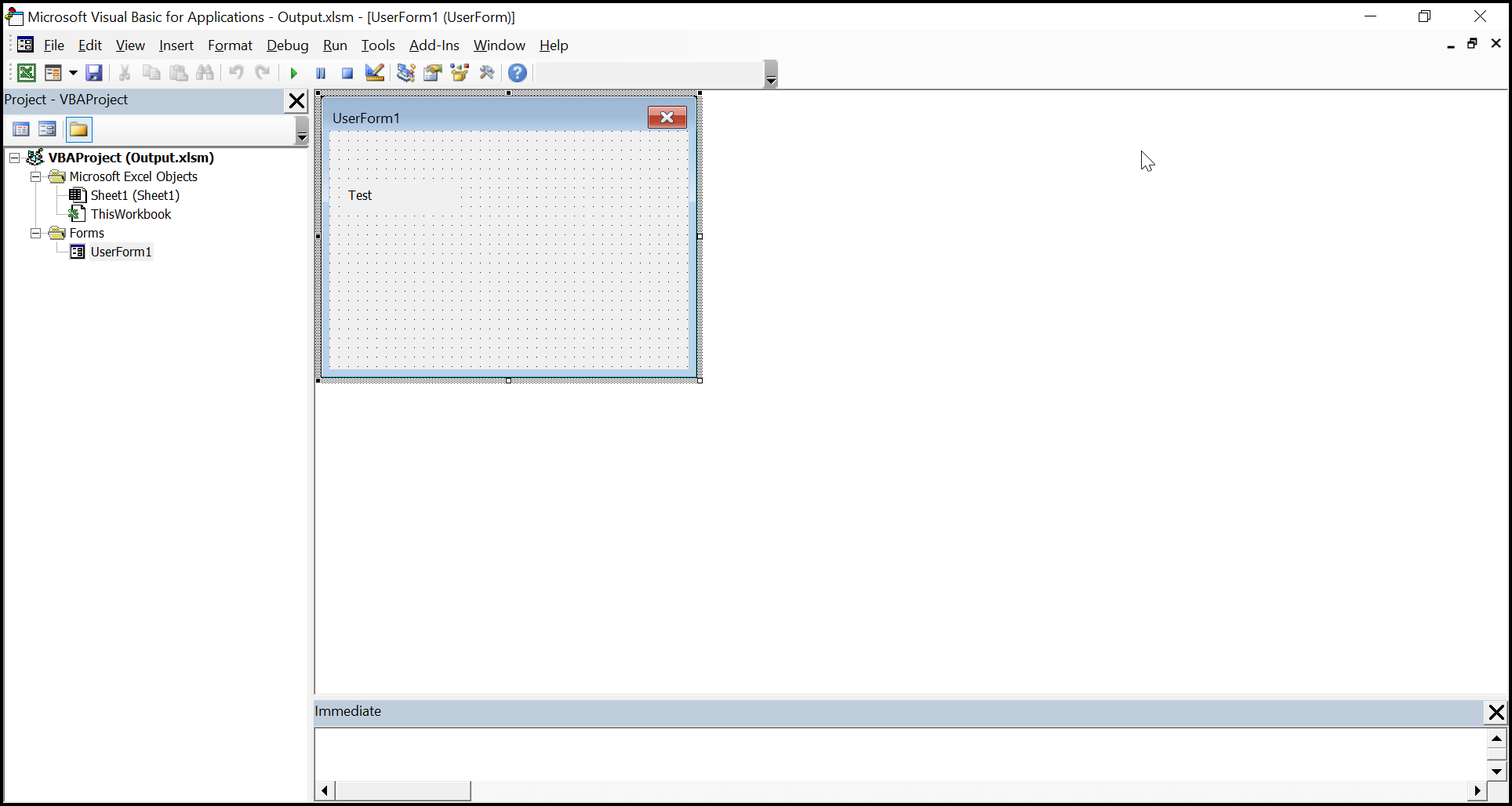
The Vba project in the output Excel document looks like below.
Assigning Macro to Shapes
XlsIO supports assigning macros to the shape controls in the Excel document through OnAction property.
The following code illustrates how to assign macros to shapes in an Excel document.
using (ExcelEngine excelEngine = new ExcelEngine())
{
	IApplication application = excelEngine.Excel;
	application.DefaultVersion = ExcelVersion.Xlsx;
	IWorkbook workbook = application.Workbooks.Create(1);
	IWorksheet sheet = workbook.Worksheets[0];

	//Creating Vba project
	IVbaProject project = workbook.VbaProject;

	//Accessing vba modules collection
	IVbaModules vbaModules = project.Modules;

	//Adding a vba module
	IVbaModule vbaModule = vbaModules.Add("StdModule", VbaModuleType.StdModule);

	//Adding vba code to the module
	vbaModule.Code = "Sub Invoke()\n MsgBox \"Macro Added\" \n End Sub";

	//Adding a auto shape
	IShape shape = sheet.Shapes.AddAutoShapes(AutoShapeType.Rectangle, 1, 2, 60, 70);
	shape.Name = "Shape1";

	//Assigning a Macro to shape
	shape.OnAction = "StdModule.Invoke";

	#region Save
	//Saving the workbook
	FileStream outputStream = new FileStream(Path.GetFullPath("Output/ShapesWithMacro.xlsm"), FileMode.Create, FileAccess.Write);
	workbook.SaveAs(outputStream, ExcelSaveType.SaveAsMacro);
	#endregion

	//Dispose streams
	outputStream.Dispose();
}
using (ExcelEngine excelEngine = new ExcelEngine())
{
//Instantiate the excel application object.
IApplication application = excelEngine.Excel;
// Creating new workbook
IWorkbook workbook = application.Workbooks.Create(1);
IWorksheet sheet = workbook.Worksheets[0];
//Creating Vba project
IVbaProject project = workbook.VbaProject;
//Accessing vba modules collection
IVbaModules vbaModules = project.Modules;
//Adding a vba module
IVbaModule vbaModule = vbaModules.Add("StdModule", VbaModuleType.StdModule);
//Adding vba code to the module
vbaModule.Code = "Sub Invoke()\n MsgBox \"Macro Added\" \n End Sub";
//Adding a auto shape
IShape shape = sheet.Shapes.AddAutoShapes(AutoShapeType.Rectangle, 1, 2, 60, 70);
shape.Name = "Shape1";
//Assigning a Macro to shape
shape.OnAction = "StdModule.Invoke";
//Saving as macro document
workbook.SaveAs("Output.xlsm");
}Using excelEngine As ExcelEngine = New ExcelEngine()
'Instantiate the excel application object.
Dim application As IApplication = excelEngine.Excel
'Creating new Workbook
Dim workbook As IWorkbook = application.Workbooks.Create(1)
Dim sheet As IWorksheet = workbook.Worksheets(0)
'Creating Vba project
Dim project As IVbaProject = workbook.VbaProject
'Accessing vba modules collection
Dim vbaModules As IVbaModules = project.Modules
'Adding a vba module
Dim vbaModule As IVbaModule = vbaModules.Add("StdModule", VbaModuleType.StdModule)
'Adding vba code to the module
vbaModule.Code = "Sub Invoke()" & vbLf & " MsgBox ""Macro Added"" " & vbLf & " End Sub"
'Adding a auto shape
Dim shape As IShape = sheet.Shapes.AddAutoShapes(AutoShapeType.Rectangle, 1, 2, 60, 70)
shape.Name = "Shape1"
'Assigning a Macro to shape
shape.OnAction = "StdModule.Invoke"
'Saving as macro document
workbook.SaveAs("Output.xlsm")
End UsingA complete working example to assign a macro to a shape in C# is available on this GitHub page.
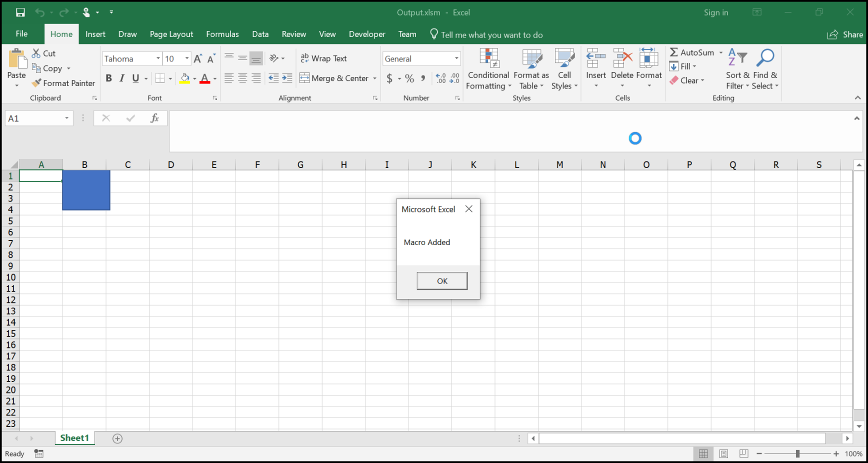
When the shape is clicked, the output looks like below.
Saving Macro-Enabled Documents into a Stream
By default, when you save an Excel workbook to a stream, the file type is based on the Excel version used. For the Excel 97–2003 version, the file format is XLS. For later versions, the document is saved as XLSX. When saving macro-enabled documents in XLSM or XLTM format to a stream, set ExcelSaveType to SaveAsMacro or SaveAsMacroTemplate.
The following code illustrates how to save macro-enabled documents to a stream.
using (ExcelEngine excelEngine = new ExcelEngine())
{
	IApplication application = excelEngine.Excel;
	application.DefaultVersion = ExcelVersion.Xlsx;
	IWorkbook workbook = application.Workbooks.Create(1);
	IWorksheet sheet = workbook.Worksheets[0];

	//Creating Vba project
	IVbaProject project = workbook.VbaProject;

	//Accessing vba modules collection
	IVbaModules vbaModules = project.Modules;

	//Adding a vba module
	IVbaModule vbaModule = vbaModules.Add("StdModule", VbaModuleType.StdModule);

	//Adding vba code to the module
	vbaModule.Code = "Sub Auto_Open\n MsgBox \"Macro Added\" \n End Sub";

	#region Save
	//Saving the workbook Macro in XLTM format
	FileStream outputStream = new FileStream(Path.GetFullPath("Output/SaveAsStream.xltm"), FileMode.Create, FileAccess.Write);
	workbook.SaveAs(outputStream, ExcelSaveType.SaveAsMacroTemplate);
	#endregion

	//Dispose streams
	outputStream.Dispose();
}
using (ExcelEngine excelEngine = new ExcelEngine())
{
//Instantiate the excel application object.
IApplication application = excelEngine.Excel;
// Creating new workbook
IWorkbook workbook = application.Workbooks.Create(1);
IWorksheet sheet = workbook.Worksheets[0];
//Creating Vba project
IVbaProject project = workbook.VbaProject;
//Accessing vba modules collection
IVbaModules vbaModules = project.Modules;
//Adding a vba module
IVbaModule vbaModule = vbaModules.Add("StdModule", VbaModuleType.StdModule);
//Adding vba code to the module
vbaModule.Code = "Sub Auto_Open\n MsgBox \"Macro Added\" \n End Sub";
//Saving as Macro in XLSM format
MemoryStream stream = new MemoryStream();
workbook.SaveAs(stream, ExcelSaveType.SaveAsMacro);
}Using excelEngine As ExcelEngine = New ExcelEngine()
'Instantiate the excel application object.
Dim application As IApplication = excelEngine.Excel
'Creating new Workbook
Dim workbook As IWorkbook = application.Workbooks.Create(1)
Dim sheet As IWorksheet = workbook.Worksheets(0)
'Creating Vba project
Dim project As IVbaProject = workbook.VbaProject
'Accessing vba modules collection
Dim vbaModules As IVbaModules = project.Modules
'Adding a vba module
Dim vbaModule As IVbaModule = vbaModules.Add("StdModule", VbaModuleType.StdModule)
'Adding vba code to the module
vbaModule.Code = "Sub Auto_Open" & vbLf & " MsgBox ""Macro Added"" " & vbLf & " End Sub"
‘Saving as Macro in XLSM format
Dim stream As MemoryStream = New MemoryStream()
workbook.SaveAs(stream, ExcelSaveType.SaveAsMacro)
End UsingA complete working example to save a macro-enabled document into a stream in C# is available on this GitHub page.
Editing a Macro
XlsIO allows you to edit existing macros in Excel documents. To edit a macro in an Excel document, modify the module that contains the macro code. Use the module name to access and edit the module in XlsIO.
The following code illustrates how to edit an existing macro in an Excel document.
using (ExcelEngine excelEngine = new ExcelEngine())
{
	IApplication application = excelEngine.Excel;
	application.DefaultVersion = ExcelVersion.Xlsx;
	IWorkbook workbook = application.Workbooks.Open(Path.GetFullPath(@"Data/InputTemplate.xls"), ExcelOpenType.Automatic);
	IWorksheet sheet = workbook.Worksheets[0];

	//Accessing Vba project
	IVbaProject project = workbook.VbaProject;

	//Accessing vba modules collection
	IVbaModules vbaModules = project.Modules;

	//Access a Vba Module
	IVbaModule vbaModule = vbaModules["Module1"];

	//Edit the macro
	vbaModule.Name = "Module1";

	vbaModule.Code = "Sub Auto_Open()\n MsgBox \"Macro is edited\" \n End Sub ";

	#region Save
	//Saving the workbook
	FileStream outputStream = new FileStream(Path.GetFullPath("Output/EditMacro.xlsm"), FileMode.Create, FileAccess.Write);
	workbook.SaveAs(outputStream, ExcelSaveType.SaveAsMacro);
	#endregion

	//Dispose streams
	outputStream.Dispose();
}
using (ExcelEngine excelEngine = new ExcelEngine())
{
// Instantiate the excel application object.
IApplication application = excelEngine.Excel;
// Opening a workbook
IWorkbook workbook = application.Workbooks.Open("Test.xls");
workbook.Version = ExcelVersion.Excel2016;
IWorksheet sheet = workbook.Worksheets[0];
//Accessing Vba project
IVbaProject project = workbook.VbaProject;
//Accessing vba modules collection
IVbaModules vbaModules = project.Modules;
//Access a Vba Module
IVbaModule vbaModule = vbaModules["Module1"];
//Edit the macro
vbaModule.Name = "CreateData";
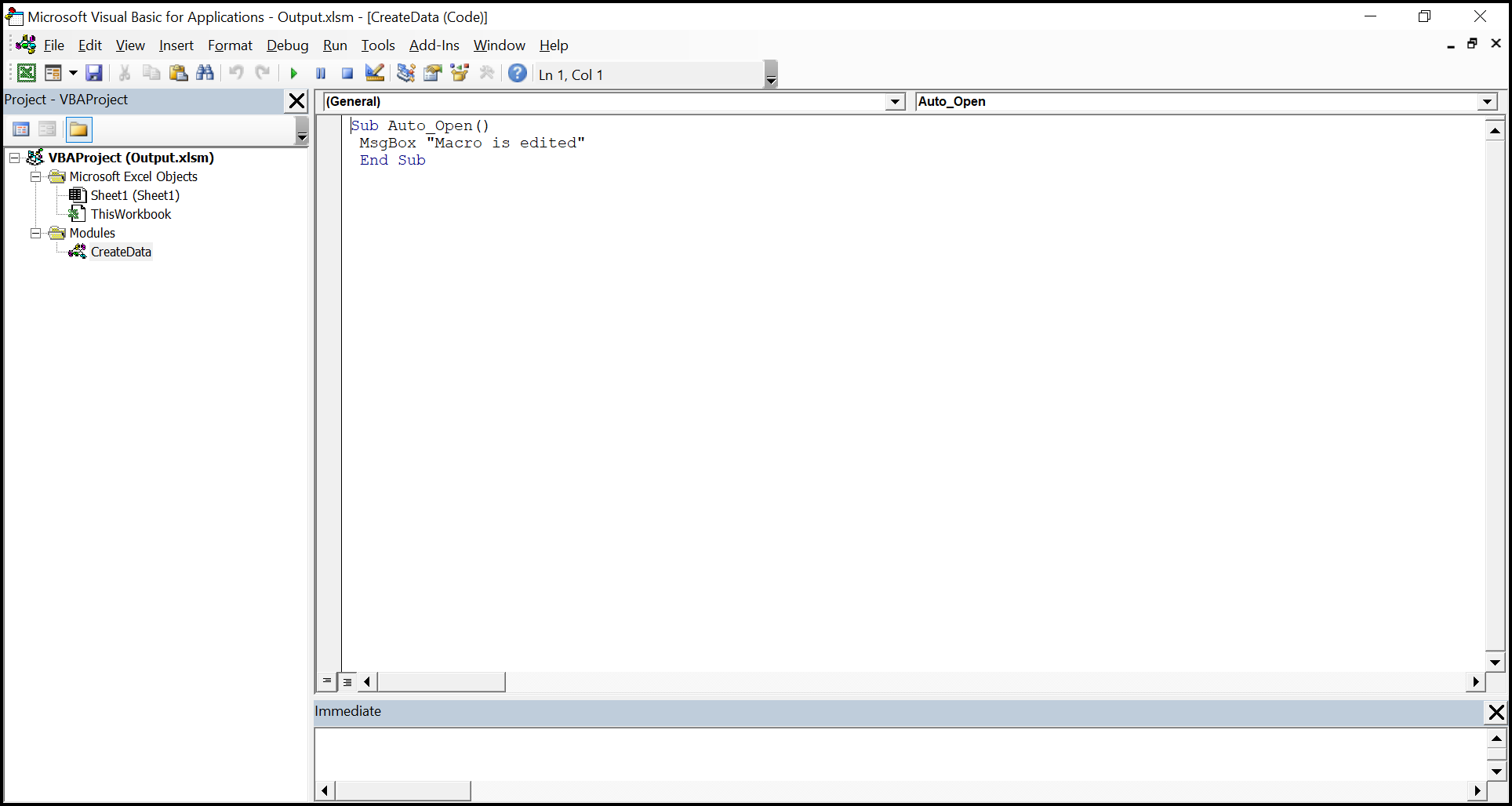
vbaModule.Code = "Sub Auto_Open()\n MsgBox \"Macro is edited\" \n End Sub ";
//Saving as macro document
workbook.SaveAs("Output.xlsm");
}Using excelEngine As ExcelEngine = New ExcelEngine()
'Instantiate the excel application object.
Dim application As IApplication = excelEngine.Excel
'Opening a Workbook
Dim workbook As IWorkbook = application.Workbooks.Open("Test.xls")
Dim sheet As IWorksheet = workbook.Worksheets(0)
'Creating Vba project
Dim project As IVbaProject = workbook.VbaProject
'Accessing vba modules collection
Dim vbaModules As IVbaModules = project.Modules
'Accessing a vba module
Dim vbaModule As IVbaModule = vbaModules("Module1")
'Editing a module
vbaModule.Name = "CreateData"
vbaModule.Code = "Sub Auto_Open()" & vbLf & " MsgBox ""Macro is edited"" " & vbLf & " End Sub "
'Saving as macro document
workbook.SaveAs("Output.xlsm")
End UsingA complete working example to edit a macro in C# is available on this GitHub page.
The Vba project in the output Excel document looks like below.
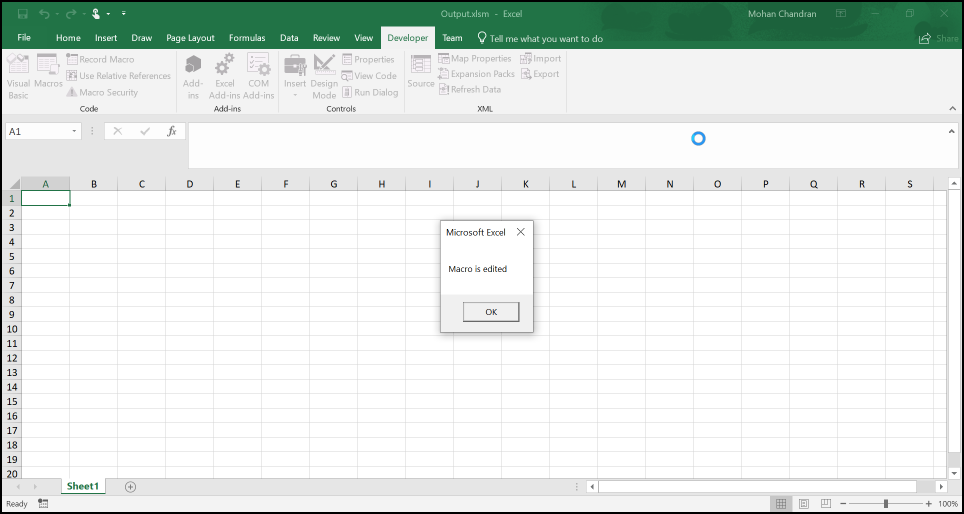
The Macro output in the Excel document looks like below.
Macros are parsed only when accessed. By default, opening and saving a macro file will preserve its macros.
Removing Macros
Excel macro-enabled documents can be saved as normal documents where the macro process is not necessary. XlsIO supports saving the macro-enabled documents such as XLS, XLSM, XLTM without macros and normal documents such as XLSX and XLS. For that, macro in the Excel documents needs to be removed.
Macro in the Excel document can be removed in the following ways.
- Remove(String name)
- RemoveAt(int index)
- Clear()
- SkipOnSave
Remove(string name)
Macro process exist in the Vba project’s code modules. To remove a macro, the Vba modules needs to be removed.
- name – Name of the Vba module needs to be removed.
The following code illustrates how to remove a module using the Remove method.
using (ExcelEngine excelEngine = new ExcelEngine())
{
	IApplication application = excelEngine.Excel;
	application.DefaultVersion = ExcelVersion.Xlsx;
	IWorkbook workbook = application.Workbooks.Open(Path.GetFullPath(@"Data/InputTemplate.xls"), ExcelOpenType.Automatic);
	IWorksheet sheet = workbook.Worksheets[0];

	//Accessing Vba project
	IVbaProject project = workbook.VbaProject;

	//Accessing vba modules collection
	IVbaModules vbaModules = project.Modules;

	//Remove macro module
	vbaModules.Remove("Module1");

	#region Save
	//Saving the workbook
	FileStream outputStream = new FileStream(Path.GetFullPath("Output/RemoveMacroWithName.xlsm"), FileMode.Create, FileAccess.Write);
	workbook.SaveAs(outputStream, ExcelSaveType.SaveAsMacro);
	#endregion

	//Dispose streams
	outputStream.Dispose();
}
using (ExcelEngine excelEngine = new ExcelEngine())
{
// Instantiate the excel application object.
IApplication application = excelEngine.Excel;
// Opening a workbook
IWorkbook workbook = application.Workbooks.Open("Test.xls");
workbook.Version = ExcelVersion.Excel2016;
IWorksheet sheet = workbook.Worksheets[0];
//Accessing Vba project
IVbaProject project = workbook.VbaProject;
//Accessing vba modules collection
IVbaModules vbaModules = project.Modules;
//Remove macro module
vbaModules.Remove("Module1");
//Saving as macro document
workbook.SaveAs("Output.xlsm");
}Using excelEngine As ExcelEngine = New ExcelEngine()
'Instantiate the excel application object.
Dim application As IApplication = excelEngine.Excel
'Opening a Workbook
Dim workbook As IWorkbook = application.Workbooks.Open("Test.xls")
Dim sheet As IWorksheet = workbook.Worksheets(0)
'Creating Vba project
Dim project As IVbaProject = workbook.VbaProject
'Accessing vba modules collection
Dim vbaModules As IVbaModules = project.Modules
'Remove macro module
vbaModules.Remove("Module1")
'Saving as macro document
workbook.SaveAs("Output.xlsm")
End UsingA complete working example to remove a macro using a name in C# is available on this GitHub page.
- Index – Position of the Vba module in the modules collection.
The following code illustrates how to remove a macro using the module index.
using (ExcelEngine excelEngine = new ExcelEngine())
{
	IApplication application = excelEngine.Excel;
	application.DefaultVersion = ExcelVersion.Xlsx;
	IWorkbook workbook = application.Workbooks.Open(Path.GetFullPath(@"Data/InputTemplate.xls"), ExcelOpenType.Automatic);
	IWorksheet sheet = workbook.Worksheets[0];

	//Accessing Vba project
	IVbaProject project = workbook.VbaProject;

	//Accessing vba modules collection
	IVbaModules vbaModules = project.Modules;

	//Remove macro module
	vbaModules.RemoveAt(2);

	#region Save
	//Saving the workbook
	FileStream outputStream = new FileStream(Path.GetFullPath("Output/RemoveMacroWithIndex.xlsm"), FileMode.Create, FileAccess.Write);
	workbook.SaveAs(outputStream, ExcelSaveType.SaveAsMacro);
	#endregion

	//Dispose streams
	outputStream.Dispose();
}
using (ExcelEngine excelEngine = new ExcelEngine())
{
// Instantiate the excel application object.
IApplication application = excelEngine.Excel;
// Opening a workbook
IWorkbook workbook = application.Workbooks.Open("Test.xls");
workbook.Version = ExcelVersion.Excel2016;
IWorksheet sheet = workbook.Worksheets[0];
//Accessing Vba project
IVbaProject project = workbook.VbaProject;
//Accessing vba modules collection
IVbaModules vbaModules = project.Modules;
//Remove macro module
vbaModules.RemoveAt(0);
//Saving as macro document
workbook.SaveAs("Output.xlsm");
}Using excelEngine As ExcelEngine = New ExcelEngine()
'Instantiate the excel application object.
Dim application As IApplication = excelEngine.Excel
'Opening a Workbook
Dim workbook As IWorkbook = application.Workbooks.Open("Test.xls")
Dim sheet As IWorksheet = workbook.Worksheets(0)
'Creating Vba project
Dim project As IVbaProject = workbook.VbaProject
'Accessing vba modules collection
Dim vbaModules As IVbaModules = project.Modules
'Remove macro module
vbaModules.RemoveAt(0)
'Saving as macro document
workbook.SaveAs("Output.xlsm")
End UsingA complete working example to remove a macro using an index in C# is available on this GitHub page.
Clear()
The Clear() method removes all the Vba modules at once by clearing the module collection.
The following code illustrates how to remove all macros using the Clear method.
using (ExcelEngine excelEngine = new ExcelEngine())
{
	IApplication application = excelEngine.Excel;
	application.DefaultVersion = ExcelVersion.Xlsx;
	IWorkbook workbook = application.Workbooks.Open(Path.GetFullPath(@"Data/InputTemplate.xls"), ExcelOpenType.Automatic);
	IWorksheet sheet = workbook.Worksheets[0];

	//Accessing Vba project
	IVbaProject project = workbook.VbaProject;

	//Accessing vba modules collection
	IVbaModules vbaModules = project.Modules;

	//Remove all macros
	vbaModules.Clear();

	#region Save
	//Saving the workbook
	FileStream outputStream = new FileStream(Path.GetFullPath("Output/ClearAllMacro.xlsm"), FileMode.Create, FileAccess.Write);
	workbook.SaveAs(outputStream, ExcelSaveType.SaveAsMacro);
	#endregion

	//Dispose streams
	outputStream.Dispose();
}
using (ExcelEngine excelEngine = new ExcelEngine())
{
// Instantiate the excel application object.
IApplication application = excelEngine.Excel;
// Opening a workbook
IWorkbook workbook = application.Workbooks.Open("Test.xls");
workbook.Version = ExcelVersion.Excel2016;
IWorksheet sheet = workbook.Worksheets[0];
//Accessing Vba project
IVbaProject project = workbook.VbaProject;
//Accessing vba modules collection
IVbaModules vbaModules = project.Modules;
//Remove all macros
vbaModules.Clear();
//Saving as macro document
workbook.SaveAs("Output.xlsm");
}Using excelEngine As ExcelEngine = New ExcelEngine()
'Instantiate the excel application object.
Dim application As IApplication = excelEngine.Excel
'Opening a Workbook
Dim workbook As IWorkbook = application.Workbooks.Open("Test.xls")
Dim sheet As IWorksheet = workbook.Worksheets(0)
'Creating Vba project
Dim project As IVbaProject = workbook.VbaProject
'Accessing vba modules collection
Dim vbaModules As IVbaModules = project.Modules
'Remove all macros
vbaModules.Clear()
'Saving as macro document
workbook.SaveAs("Output.xlsm")
End UsingA complete working example to remove all macros in C# is available on this GitHub page.
SkipOnSave
SkipOnSave allows you to resave the Excel document as a regular XLSX or XLS document.
The following code illustrates how to save a macro-enabled document as a regular Excel document.
using (ExcelEngine excelEngine = new ExcelEngine())
{
	IApplication application = excelEngine.Excel;
	application.DefaultVersion = ExcelVersion.Xlsx;
	IWorkbook workbook = application.Workbooks.Open(Path.GetFullPath(@"Data/InputTemplate.xls"), ExcelOpenType.Automatic);
	IWorksheet sheet = workbook.Worksheets[0];

	//Skip Macros while saving
	application.SkipOnSave = SkipExtRecords.Macros;

	#region Save
	//Saving the workbook
	FileStream outputStream = new FileStream(Path.GetFullPath("Output/SkipMacroAndSave.xlsx"), FileMode.Create, FileAccess.Write);
	workbook.SaveAs(outputStream, ExcelSaveType.SaveAsXLSX);
	#endregion

	//Dispose streams
	outputStream.Dispose();
}
using (ExcelEngine excelEngine = new ExcelEngine())
{
// Instantiate the excel application object.
IApplication application = excelEngine.Excel;
// Opening a workbook
IWorkbook workbook = application.Workbooks.Open("Test.xls");
workbook.Version = ExcelVersion.Excel2016;
IWorksheet sheet = workbook.Worksheets[0];
//Skip Macros while saving
application.SkipOnSave = SkipExtRecords.Macros;
//Saving as Excel without macro
workbook.SaveAs("Output.xlsx");
}Using excelEngine As ExcelEngine = New ExcelEngine()
'Instantiate the excel application object.
Dim application As IApplication = excelEngine.Excel
'Opening a Workbook
Dim workbook As IWorkbook = application.Workbooks.Open("Test.xls")
Dim sheet As IWorksheet = workbook.Worksheets(0)
'Skip Macros while saving
application.SkipOnSave = SkipExtRecords.Macros
'Saving as Excel without macro
workbook.SaveAs("Output.xlsx")
End UsingA complete working example to skip macros on save in C# is available on this GitHub page.