Create PowerPoint document in AWS Lambda
21 Jul 20269 minutes to read
Syncfusion® PowerPoint is a .NET Core PowerPoint library used to create, read, edit and convert PowerPoint documents programmatically without Microsoft PowerPoint or interop dependencies. Using this library, you can create a PowerPoint document in AWS Lambda.
A basic understanding of AWS Lambda concepts (Lambda functions, execution roles, and publishing) is assumed. To learn how to set up an AWS account and the AWS Toolkit for Visual Studio, refer to the official AWS Lambda documentation and AWS Toolkit for Visual Studio.
Steps to create PowerPoint document in AWS Lambda
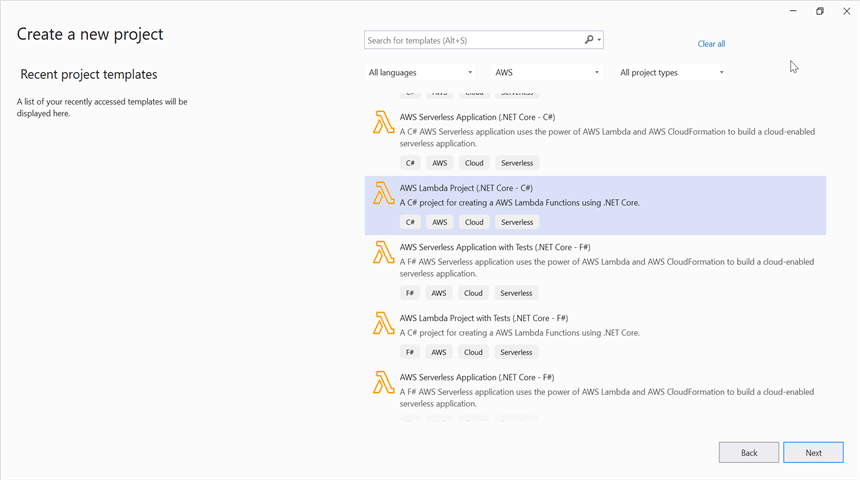
Step 1: Create a new AWS Lambda project as follows.
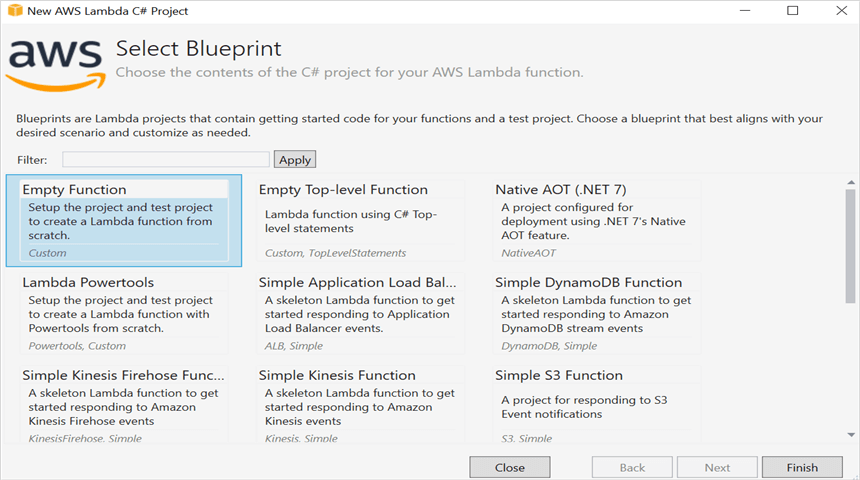
Step 2: Select Blueprint as Empty Function and click Finish.
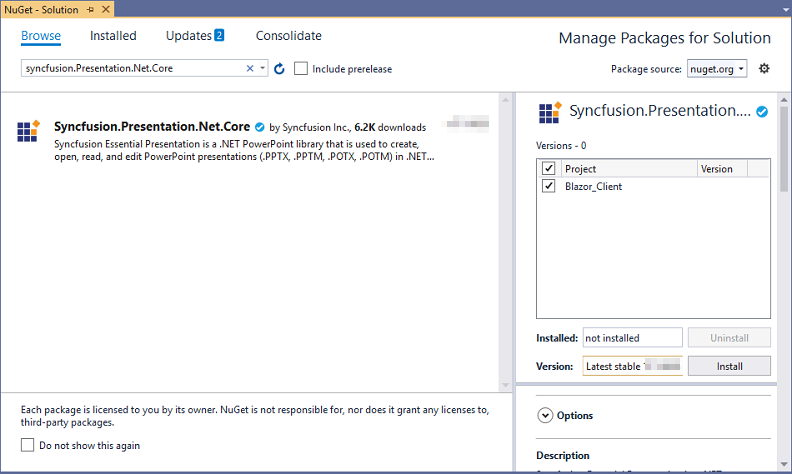
Step 3: Install the Syncfusion.Presentation.Net.Core NuGet package as a reference to your project from NuGet.org.
Starting with v16.2.0.x, if you reference Syncfusion® assemblies from trial setup or from the NuGet feed, you also have to add the “Syncfusion.Licensing” assembly reference and include a license key in your projects. Please refer to this link to know about registering the Syncfusion® license key in your application to use our components.
Register the Syncfusion license key in the
FunctionHandlerof the Function.cs file before performing any Syncfusion library operations. Refer to the license key generation and application registration guides for details. A minimal registration is shown below.
//Register Syncfusion license key before using any Syncfusion types.
Syncfusion.Licensing.SyncfusionLicenseProvider.RegisterLicense("YOUR_LICENSE_KEY");
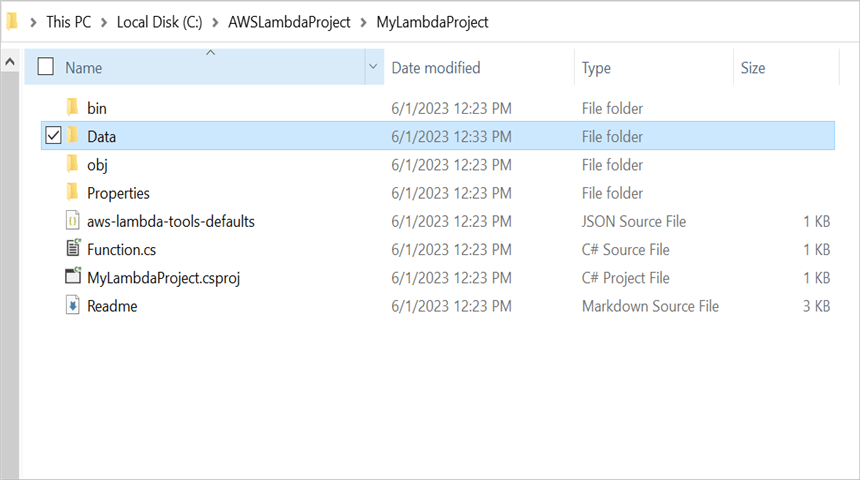
Step 4: Create a folder and copy the required data files and include the files to the project.
Step 5: Set the copy to output directory to Copy if newer to all the data files.
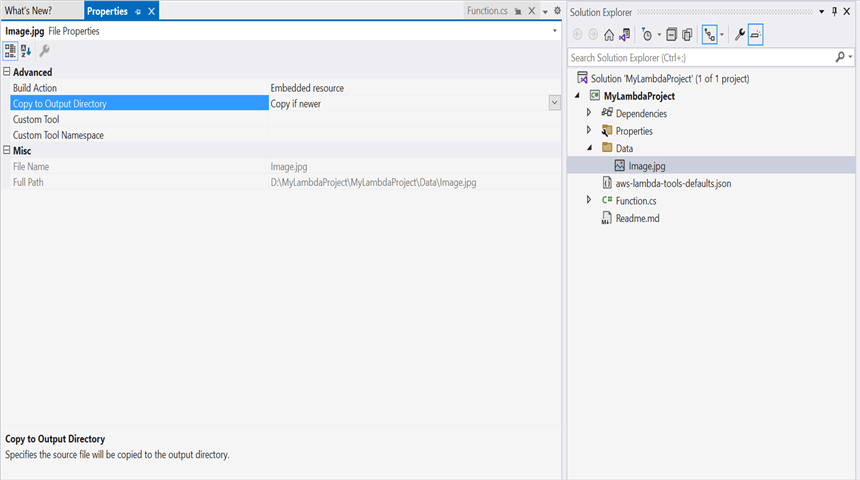
Step 6: Include the following namespaces in Function.cs file.
using System;
using System.IO;
using Syncfusion.Presentation;
using Syncfusion.Licensing;
Step 7: Add the following code snippet in Function.cs to create a PowerPoint document in AWS Lambda.
public string FunctionHandler(string input)
{
    //Register the Syncfusion license before using any Syncfusion types.
    SyncfusionLicenseProvider.RegisterLicense("YOUR_LICENSE_KEY");

    //Create a new instance of PowerPoint Presentation file.
    using IPresentation pptxDoc = Presentation.Create();

    //Add a new slide to file and apply background color.
    ISlide slide = pptxDoc.Slides.Add(SlideLayoutType.TitleOnly);
    //Specify the fill type and fill color for the slide background.
    slide.Background.Fill.FillType = FillType.Solid;
    slide.Background.Fill.SolidFill.Color = ColorObject.FromArgb(232, 241, 229);

    //Add title content to the slide by accessing the title placeholder of the TitleOnly layout-slide.
    IShape titleShape = slide.Shapes[0] as IShape;
    titleShape.TextBody.AddParagraph("Company History").HorizontalAlignment = HorizontalAlignmentType.Center;

    //Add description content to the slide by adding a new TextBox.
    IShape descriptionShape = slide.AddTextBox(53.22, 141.73, 874.19, 77.70);
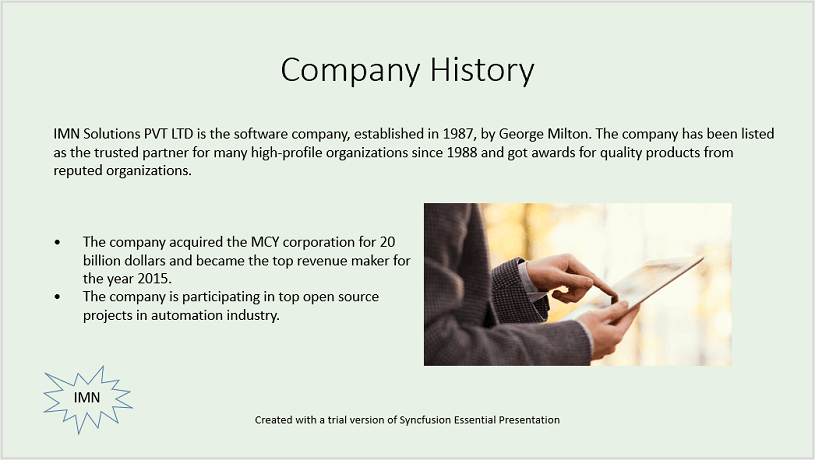
    descriptionShape.TextBody.Text = "IMN Solutions PVT LTD is the software company, established in 1987, by George Milton. The company has been listed as the trusted partner for many high-profile organizations since 1988 and got awards for quality products from reputed organizations.";

    //Add bullet points to the slide.
    IShape bulletPointsShape = slide.AddTextBox(53.22, 270, 437.90, 116.32);
    //Add a paragraph for a bullet point.
    IParagraph firstPara = bulletPointsShape.TextBody.AddParagraph("The company acquired the MCY corporation for 20 billion dollars and became the top revenue maker for the year 2015.");
    //Format how the bullets should be displayed.
    firstPara.ListFormat.Type = ListType.Bulleted;
    firstPara.LeftIndent = 35;
    firstPara.FirstLineIndent = -35;
    // Add another paragraph for the next bullet point.
    IParagraph secondPara = bulletPointsShape.TextBody.AddParagraph("The company is participating in top open source projects in automation industry.");
    //Format how the bullets should be displayed.
    secondPara.ListFormat.Type = ListType.Bulleted;
    secondPara.LeftIndent = 35;
    secondPara.FirstLineIndent = -35;

    // Get a picture as stream from the bundled Data folder in the deployment package.
    string filePath = Path.GetFullPath(@"Data/Image.jpg");
    using FileStream pictureStream = new FileStream(filePath, FileMode.Open, FileAccess.Read);
    //Add the picture to a slide by specifying its size and position.
    slide.Shapes.AddPicture(pictureStream, 499.79, 238.59, 364.54, 192.16);

    //Add an auto-shape to the slide.
    IShape stampShape = slide.Shapes.AddShape(AutoShapeType.Explosion1, 48.93, 430.71, 104.13, 80.54);
    //Format the auto-shape color by setting the fill type and text.
    stampShape.Fill.FillType = FillType.None;
    stampShape.TextBody.AddParagraph("IMN").HorizontalAlignment = HorizontalAlignmentType.Center;

    //Save the PowerPoint Presentation.
    using MemoryStream pptxStream = new MemoryStream();
    pptxDoc.Save(pptxStream);
    return Convert.ToBase64String(pptxStream.ToArray());
}
Step 8: Right-click the project and select Publish to AWS Lambda.
Before publishing, ensure that an IAM execution-role with the AWSLambdaBasicExecutionRole managed policy (or equivalent) is available in your AWS account so Step 10 can attach it. See AWS Lambda execution role for setup.
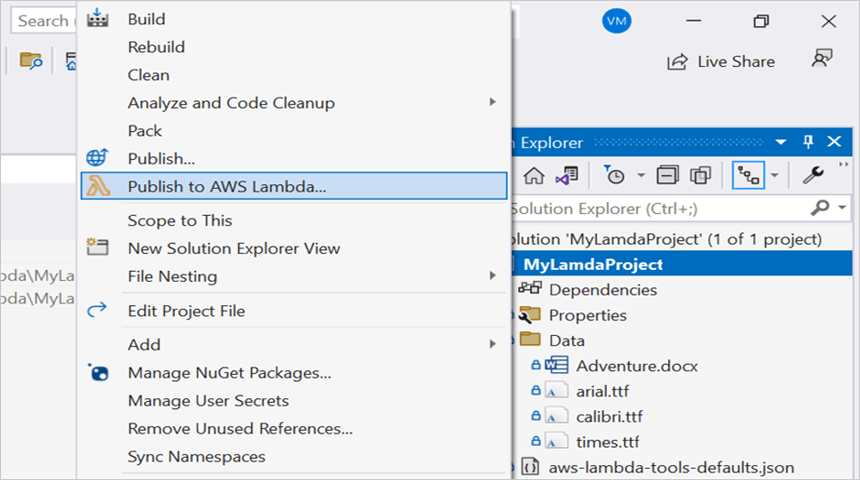
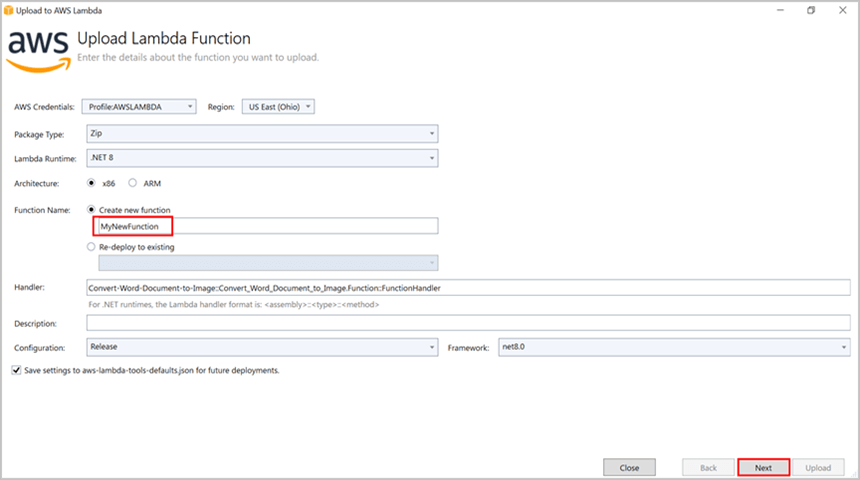
Step 9: Create a new AWS profile in the Upload Lambda Function Window. After creating the profile, add a name for the Lambda function to publish. Then, click Next.
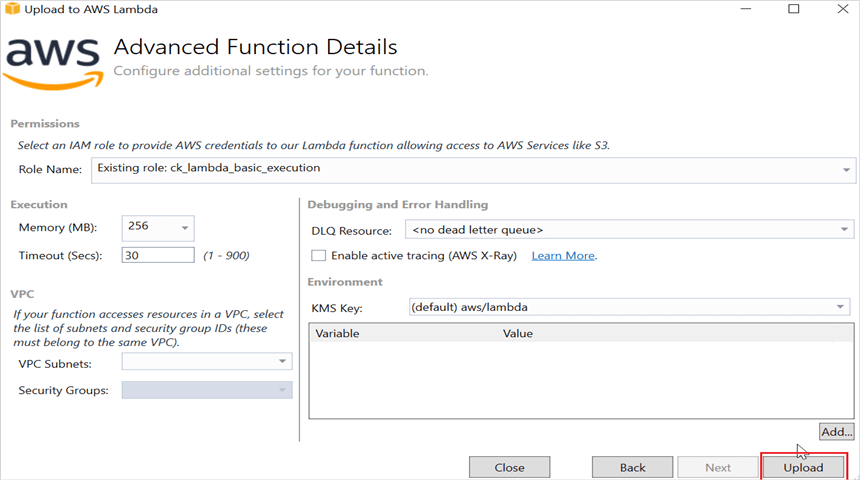
Step 10: In the Advanced Function Details window, specify the Role Name as based on AWS Managed policy. After selecting the role, click the Upload button to deploy your application.
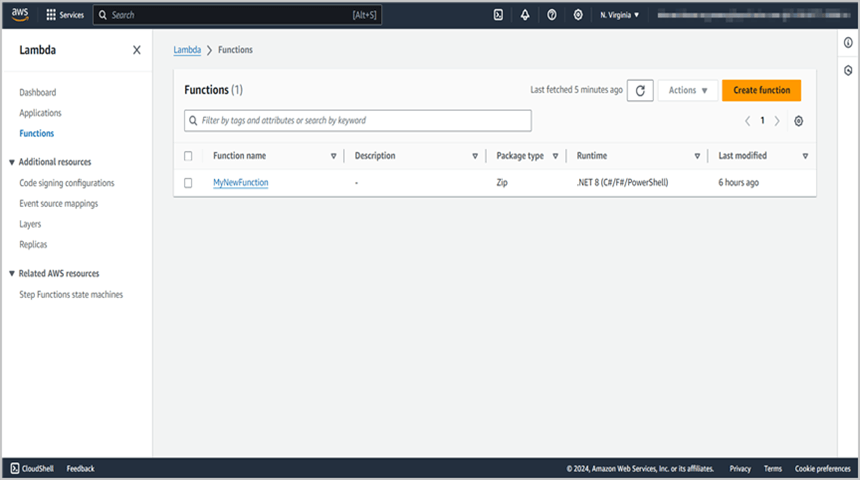
Step 11: After deploying the application, you can see the published Lambda function in AWS console.
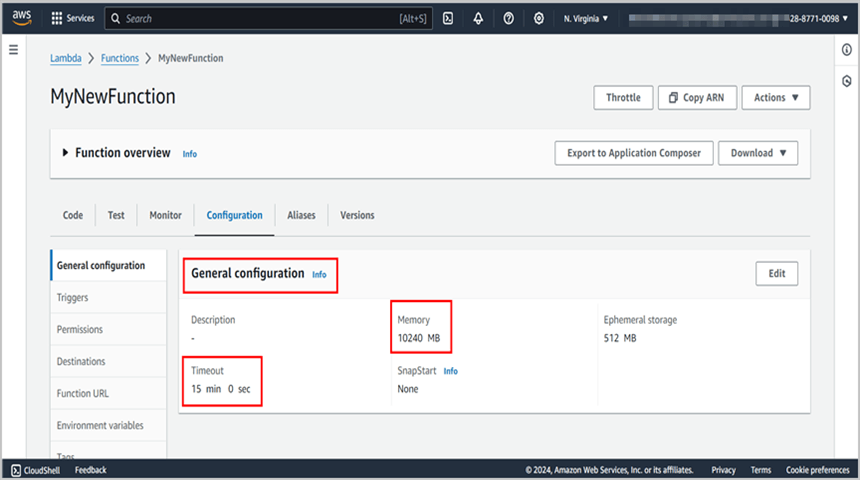
Step 12: Edit Memory size and Timeout as maximum in General configuration of the AWS Lambda function.
Troubleshooting:
- Timeout / Function execution failed: Increases Timeout (e.g. 1-5 min) and Memory (recommended at least 512 MB) in General configuration. Cold start of the containerized Lambda may take longer on first invoke.
- File not found at Data/Image.jpg: The Lambda runtime’s working directory is read-only; ensure the
Datafolder is bundled and Copy if newer is set (Step 5), or load the picture from an embedded resource / Amazon S3.
Steps to post the request to AWS Lambda
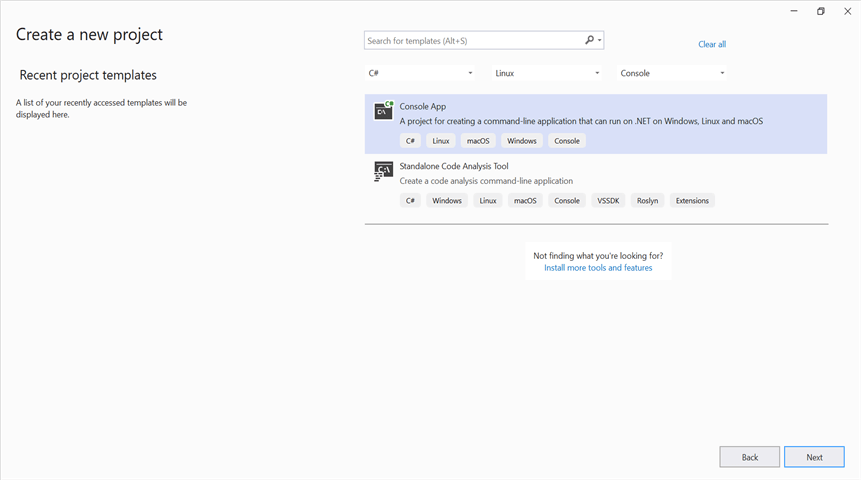
Step 1: Create a new console project.
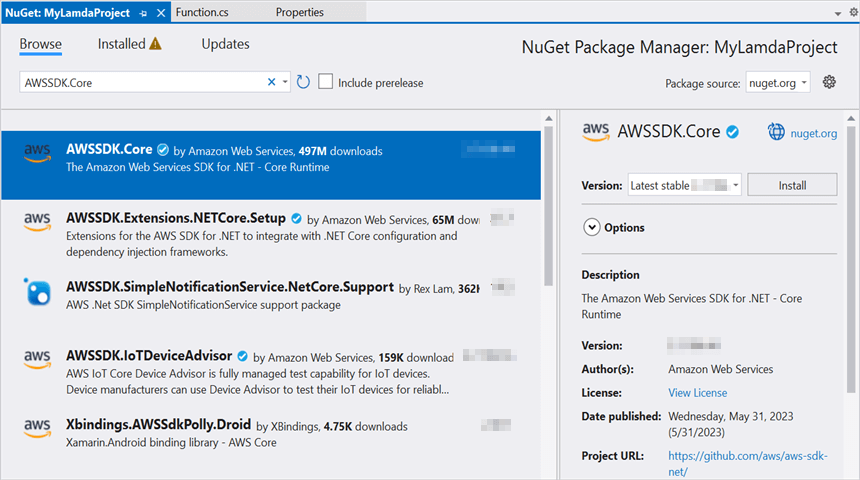
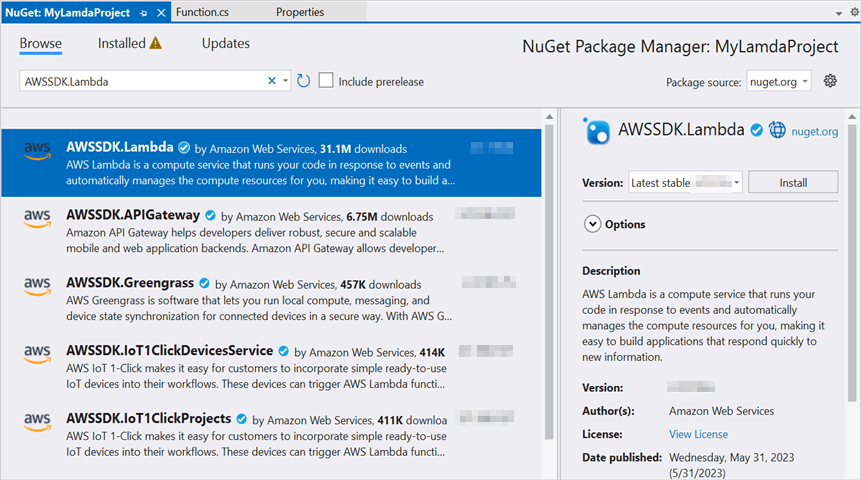
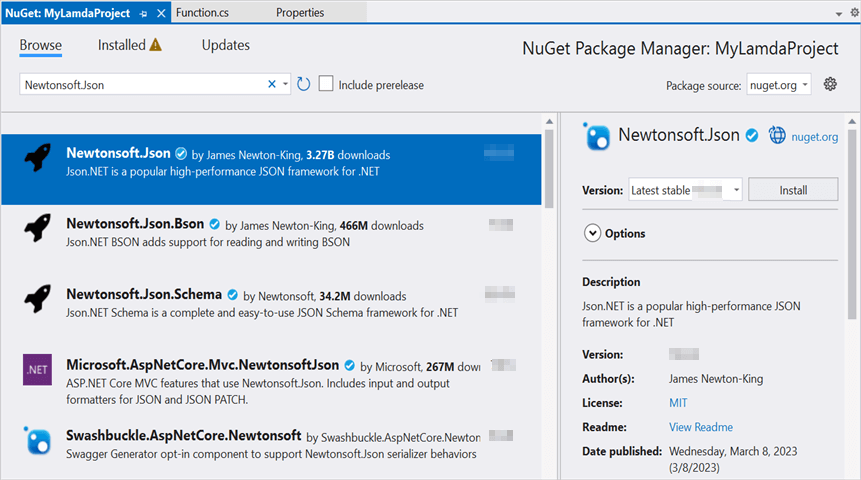
Step 2: Install the following NuGet packages in your application from NuGet.org.
Step 3: Include the following namespaces in Program.cs file.
using Amazon;
using Amazon.Lambda;
using Amazon.Lambda.Model;
using Newtonsoft.Json;
Step 4: Add the following code snippet in Program.cs to invoke the published AWS Lambda function using the function name and access keys.
//Create a new AmazonLambdaClient
AmazonLambdaClient client = new AmazonLambdaClient("awsaccessKeyID", "awsSecretAccessKey", RegionEndpoint.USEast2);
//Create new InvokeRequest with published function name.
InvokeRequest invoke = new InvokeRequest
{
    FunctionName = "MyNewFunction",
    InvocationType = InvocationType.RequestResponse,
    Payload = "\"Test\""
};
//Get the InvokeResponse from client InvokeRequest.
InvokeResponse response = client.Invoke(invoke);
//Read the response stream
using var stream = new StreamReader(response.Payload);
using JsonReader reader = new JsonTextReader(stream);
var serializer = new JsonSerializer();
var responseText = serializer.Deserialize(reader);
//Convert Base64String into PowerPoint document
byte[] bytes = Convert.FromBase64String(responseText.ToString());
using FileStream fileStream = new FileStream("Sample.pptx", FileMode.Create);
using BinaryWriter writer = new BinaryWriter(fileStream);
writer.Write(bytes, 0, bytes.Length);
writer.Close();
System.Diagnostics.Process.Start("Sample.pptx");
By executing the program, you will get the PowerPoint document as follows.
From GitHub, you can download the console application and AWS Lambda project.
Looking for the full .NET PowerPoint Library component overview, features, pricing, and documentation? Visit the .NET PowerPoint Library page.
An online sample link to create a PowerPoint Presentation in ASP.NET Core.