Excel to PDF Conversion in WinUI using Excel Library
14 Aug 20269 minutes to read
Syncfusion® XlsIO is a WinUI Excel library used to create, read, edit, and convert Excel documents programmatically, without Microsoft Excel or interop dependencies.
Prerequisites
To use the WinUI 3 project templates, install the Windows App SDK extension for Visual Studio. For more details, refer here.
WinUI Desktop app
Step 1: Create a new C# WinUI Desktop app. Select the Blank App, Packaged (WinUI 3 in Desktop) project template.

Step 2: Name the project and click Create.

Step 3: Install the Syncfusion.XlsIORenderer.Net NuGet package as a reference to your project from NuGet.org.

Starting with v16.2.0.x, if you reference Syncfusion® assemblies from the trial setup or from the NuGet feed, you must also add the
Syncfusion.Licensingreference and register a license key. Refer to this link to learn how to register the Syncfusion® license key. The simplest approach is to add the following call inApp.xaml.csbefore constructing theExcelEngine:Syncfusion.Licensing.SyncfusionLicenseProvider.RegisterLicense("YOUR_LICENSE_KEY");
Step 4: Add an InputTemplate.xlsx file to the project. In Solution Explorer, right-click the project, choose Add → Existing Item, select InputTemplate.xlsx, and set its Build Action to Embedded Resource in the Properties window. The logical name passed to GetManifestResourceStream (below) must match the project’s default namespace followed by the file name (e.g. Convert_Excel_to_PDF.InputTemplate.xlsx).
Step 5: Add a new button to MainWindow.xaml as shown below.
<Window
    x:Class="Convert_Excel_to_PDF.MainWindow"
    xmlns="http://schemas.microsoft.com/winfx/2006/xaml/presentation"
    xmlns:x="http://schemas.microsoft.com/winfx/2006/xaml"
    xmlns:local="using:Convert_Excel_to_PDF"
    xmlns:d="http://schemas.microsoft.com/expression/blend/2008"
    xmlns:mc="http://schemas.openxmlformats.org/markup-compatibility/2006"
    mc:Ignorable="d">

    <StackPanel Orientation="Horizontal" HorizontalAlignment="Center" VerticalAlignment="Center">
        <Button x:Name="myButton" Click="ConvertExceltoPDF">Convert Excel to PDF</Button>
    </StackPanel>
</Window>
Step 6: Add the following namespaces in MainWindow.xaml.cs.
using Syncfusion.XlsIO;
using Syncfusion.Pdf;
using Syncfusion.XlsIORenderer;
Step 7: Add the following code in the ConvertExceltoPDF handler in MainWindow.xaml.cs to convert an Excel document to PDF. Note: async void is acceptable in WinUI 3 button-click event handlers; the FileSavePicker and MessageDialog calls inside SaveAndLaunch must be invoked on the UI thread.
private async void ConvertExceltoPDF(object sender, Microsoft.UI.Xaml.RoutedEventArgs e)
{
    using (ExcelEngine excelEngine = new ExcelEngine())
    {
        IApplication application = excelEngine.Excel;
        application.DefaultVersion = ExcelVersion.Xlsx;

        // Load the embedded Excel workbook as a stream.
        Assembly assembly = typeof(App).GetTypeInfo().Assembly;
        using (Stream inputStream = assembly.GetManifestResourceStream("Convert_Excel_to_PDF.InputTemplate.xlsx"))
        {
            IWorkbook workbook = application.Workbooks.Open(inputStream);

            // Initialize the XlsIO renderer.
            XlsIORenderer renderer = new XlsIORenderer();

            // Convert the Excel document to a PDF document.
            PdfDocument pdfDocument = renderer.ConvertToPDF(workbook);

            // Create a MemoryStream to save the converted PDF.
            MemoryStream pdfStream = new MemoryStream();

            // Save the converted PDF document to the MemoryStream.
            pdfDocument.Save(pdfStream);
            pdfStream.Position = 0;

            // Close the workbook and the PDF document to release resources.
            workbook.Close();
            pdfDocument.Close();

            // Save the PDF file or perform any other action with the PDF.
            await SaveHelper.SaveAndLaunch("Sample.pdf", pdfStream);
        }
    }
}
For additional control over page size, orientation, and font embedding, pass an
ExcelToPdfConverterSettingsinstance toXlsIORenderer.ConvertToPDF. See the Excel-to-PDF conversion options for details.
Save PDF document in WinUI
Add a new C# class file named SaveHelper in the project and paste the following code into it. The helper uses a single FileSavePicker path (the legacy Windows Phone 8.1 branch is removed because it does not apply to WinUI 3 Desktop).
using System;
using System.IO;
using System.Threading.Tasks;
using System.Collections.Generic;
using System.Diagnostics;
using Windows.Storage;
using Windows.Storage.Pickers;
using Windows.Storage.Streams;
using Windows.UI.Popups;
using WinRT.Interop;

public static class SaveHelper
{
    // Save the PDF and offer to open the saved file in the default viewer.
    public static async Task SaveAndLaunch(string filename, MemoryStream stream)
    {
        // Get the process's main-window handle to open the dialog in the application process.
        IntPtr windowHandle = Process.GetCurrentProcess().MainWindowHandle;

        FileSavePicker savePicker = new FileSavePicker();
        savePicker.DefaultFileExtension = ".pdf";
        savePicker.SuggestedFileName = filename;
        // Save the file as a PDF file.
        savePicker.FileTypeChoices.Add("PDF", new List<string>() { ".pdf" });

        // Required in WinUI 3 Desktop so the picker is parented to the application window.
        InitializeWithWindow.Initialize(savePicker, windowHandle);

        StorageFile storageFile = await savePicker.PickSaveFileAsync();
        if (storageFile != null)
        {
            using (IRandomAccessStream zipStream = await storageFile.OpenAsync(FileAccessMode.ReadWrite))
            {
                // Write the PDF data from memory to the file.
                using Stream outstream = zipStream.AsStreamForWrite();
                outstream.SetLength(0);
                stream.CopyTo(outstream);
                outstream.Flush();
            }

            // Create a message dialog.
            MessageDialog msgDialog = new MessageDialog("Do you want to view the Document?", "File has been converted successfully");
            UICommand yesCmd = new UICommand("Yes");
            msgDialog.Commands.Add(yesCmd);
            UICommand noCmd = new UICommand("No");
            msgDialog.Commands.Add(noCmd);

            // Show the dialog.
            IUICommand cmd = await msgDialog.ShowAsync();
            if (cmd.Label == yesCmd.Label)
            {
                // Launch the saved file in the default viewer.
                await Windows.System.Launcher.LaunchFileAsync(storageFile);
            }
        }
    }
}
A complete working example of how to convert an Excel document to PDF in WinUI is present on this GitHub page.
By executing the program, you will get the PDF document as shown below.
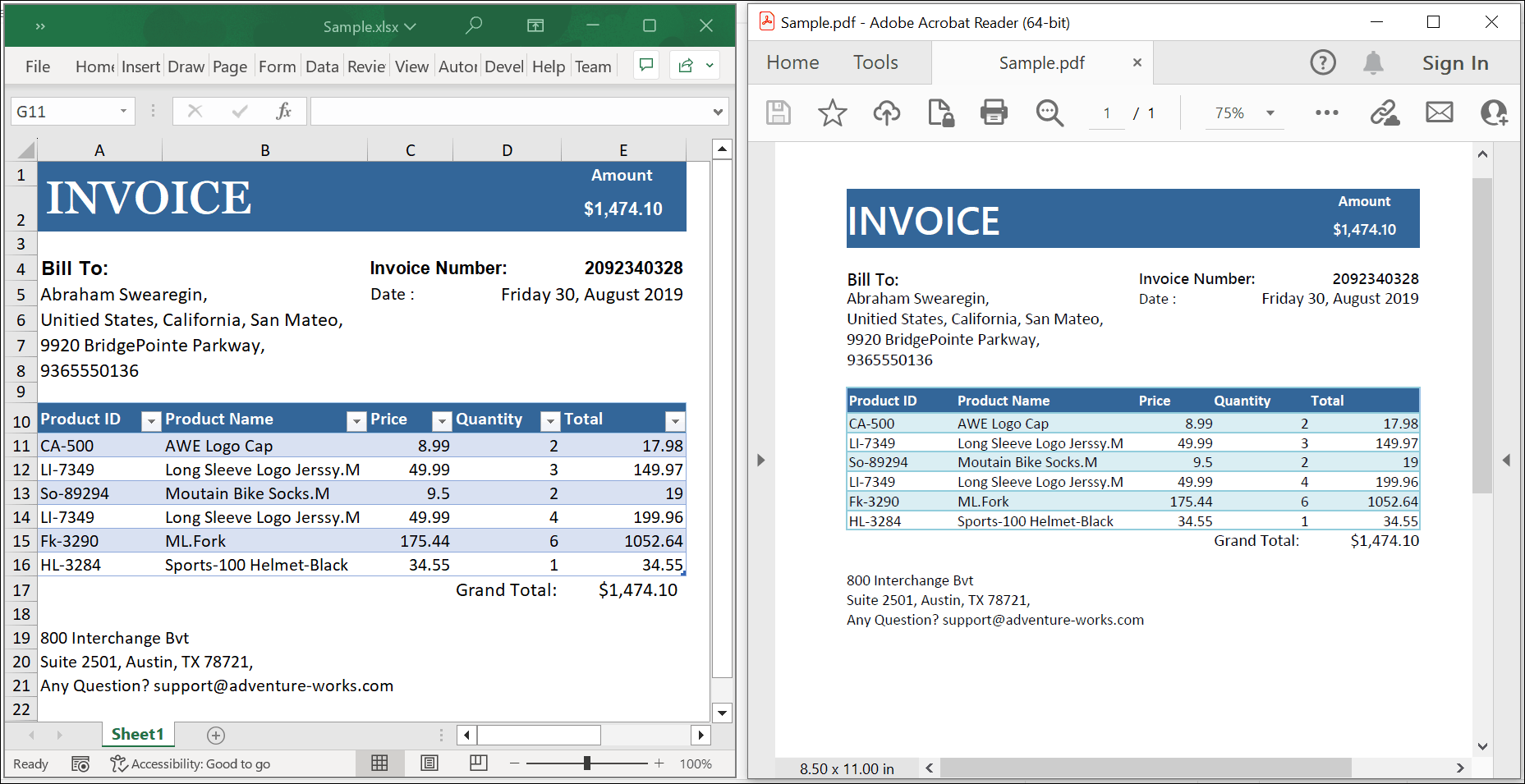
Click here to explore the rich set of Syncfusion® Excel library (XlsIO) features.
An online sample link to convert an Excel document to PDF in ASP.NET Core.