About Syncfusion .NET Excel Chart to Image Conversion
14 Aug 20265 minutes to read
XlsIO exposes two API surfaces for converting an Excel chart to an image:
-
XlsIORenderer— the cross-platform / .NET Standard API. Use this for ASP.NET Core, Blazor, WinUI, and .NET MAUI apps. -
ChartToImageConverter— the Windows-specific / .NET Framework API. Provides additional chart-quality settings throughScalingMode.
Refer to the following links for the assemblies and NuGet packages required to convert a chart to an image, per platform:
IMPORTANT: Before running the samples on this page, install the required NuGet package for your target platform and register your Syncfusion license key. For more information, see the Licensing overview.
The following code snippets show how to convert an Excel chart to an image using XlsIORenderer (cross-platform) or ChartToImageConverter (Windows-specific).
using (ExcelEngine excelEngine = new ExcelEngine())
{
	IApplication application = excelEngine.Excel;
	application.DefaultVersion = ExcelVersion.Xlsx;

	// Initialize XlsIORenderer and set the chart image format to PNG.
	application.XlsIORenderer = new XlsIORenderer();
	application.XlsIORenderer.ChartRenderingOptions.ImageFormat = ExportImageFormat.Png;

	IWorkbook workbook = application.Workbooks.Open(Path.GetFullPath(@"Data/InputTemplate.xlsx"));
	IWorksheet worksheet = workbook.Worksheets[0];
	IChart chart = worksheet.Charts[0];

	// Save the chart as a PNG image.
	using (FileStream outputStream = new FileStream(Path.GetFullPath("Output/Image.png"), FileMode.Create, FileAccess.Write))
	{
		chart.SaveAsImage(outputStream);
	}
}
using (ExcelEngine excelEngine = new ExcelEngine())
{
IApplication application = excelEngine.Excel;
application.DefaultVersion = ExcelVersion.Xlsx;
application.ChartToImageConverter = new ChartToImageConverter();
application.ChartToImageConverter.ScalingMode = ScalingMode.Best;
IWorkbook workbook = application.Workbooks.Open("Sample.xlsx");
IWorksheet worksheet = workbook.Worksheets[0];
IChart chart = worksheet.Charts[0];
// Create the memory stream for the chart image.
using (MemoryStream stream = new MemoryStream())
{
chart.SaveAsImage(stream);
using (Image image = Image.FromStream(stream))
{
// Persist the rendered chart to disk.
image.Save("Output.png");
}
}
// Alternatively, write directly to disk:
// chart.SaveAsImage("Output.png");
}Using excelEngine As ExcelEngine = New ExcelEngine()
Dim application As IApplication = excelEngine.Excel
application.DefaultVersion = ExcelVersion.Xlsx
Dim chartConverter As New ChartToImageConverter()
application.ChartToImageConverter = chartConverter
application.ChartToImageConverter.ScalingMode = ScalingMode.Best
Dim workbook As IWorkbook = application.Workbooks.Open("Sample.xlsx")
Dim worksheet As IWorksheet = workbook.Worksheets(0)
Dim chart As IChart = worksheet.Charts(0)
' Create the memory stream for the chart image.
Using stream As New MemoryStream()
chart.SaveAsImage(stream)
Using image As Image = Image.FromStream(stream)
' Persist the rendered chart to disk.
image.Save("Output.png")
End Using
End Using
' Alternatively, write directly to disk:
' chart.SaveAsImage("Output.png")
End UsingA complete working example to convert an Excel chart to an image in C# is present on this GitHub page.
- Instance of XlsIORenderer class is mandatory to convert the chart to image using .NET Standard 2.0 assemblies.
- In .NET Standard, the Image format and quality can be specified using the ChartRenderingOptions property of XlsIORenderer class. By default the ImageFormat for chart is set to JPEG and ScalingMode is set to Best.
- Chart conversion to image and PDF are supported from .NET Framework 4.0 and .NET Standard 2.0 onwards
- Chart to Image conversion also works proper in both Blazor server-side and client-side.
Supported chart types
XlsIO supports the following chart types in image conversion.
|
Chart Type |
Chart Subtypes |
| Area |
* Area * Area_Stacked * Area_Stacked_100 * Area_3D |
| Bar |
* Bar_Clustered * Bar_Stacked * Bar_Stacked_100 * Bar_Clustered_3D * Bar_Stacked_3D * Bar_Stacked_100_3D |
| Bubble | Bubble |
| Column |
* Column_Clustered * Column_Stacked * Column_Stacked_100 * Column_3D * Column_Clustered_3D * Column_Stacked_3D * Column_Stacked_100_3D |
| Doughnut |
* Doughnut * Doughnut_Exploded |
| Line |
* Line * Line_Markers * Line_3D * Stacked_Line * Stacked_Line_Markers |
| Pie |
* Pie * Pie_Exploded * Pie_3D * Pie_Exploded_3D * PieOfPie * BarOfPie |
| Radar |
* Radar * Radar_Filled * Radar_Markers |
| Scatter |
* Scatter_Line * Scatter_Line_Markers * Scatter_Markers * Scatter_SmoothedLine * Scatter_SmoothedLine_Markers |
| Stock |
* Stock_HighLowClose * Stock_OpenHighLowClose * Stock_VolumeOpenHighLowClose * Stock_VolumeHighLowClose |
| Excel 2016 Charts |
* Funnel * Waterfall * Histogram * Pareto * Sunburst * Box and Whisker * Treemap |
From the above supported chart types table, Line_3D charts are not supported in chart to image conversion in .NET Core platforms.
Only embedded charts are supported in chart to image conversion. The Chart sheets are not supported.
Pie of Pie, Bar of Pie, Sunburst, Box and Whisker, and Treemap charts are supported only in .NET Core platforms for chart to image conversion.
Supported chart elements
XlsIO supports the following chart elements in image conversion:
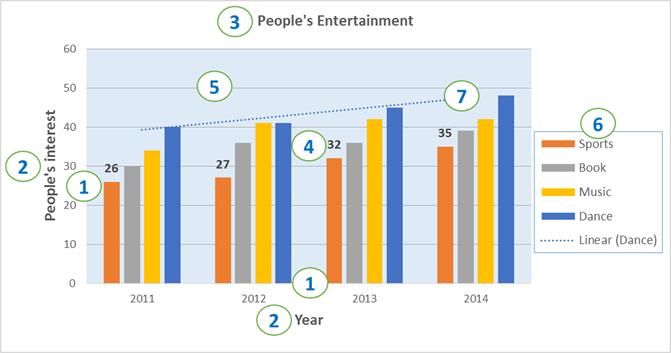
Chart Elements:
- Axis
- Axis titles
- Chart title
- Data labels
- Grid lines
- Legend
- Trend line