Excel to PDF Conversion in ASP.NET using Excel Library
14 Aug 20264 minutes to read
Syncfusion® XlsIO is a .NET Excel Library used to create, read, edit, and convert Excel documents programmatically, without Microsoft Excel or interop dependencies.
Steps to convert an Excel document to PDF in C#
Step 1: Create a new ASP.NET Web Application Project.
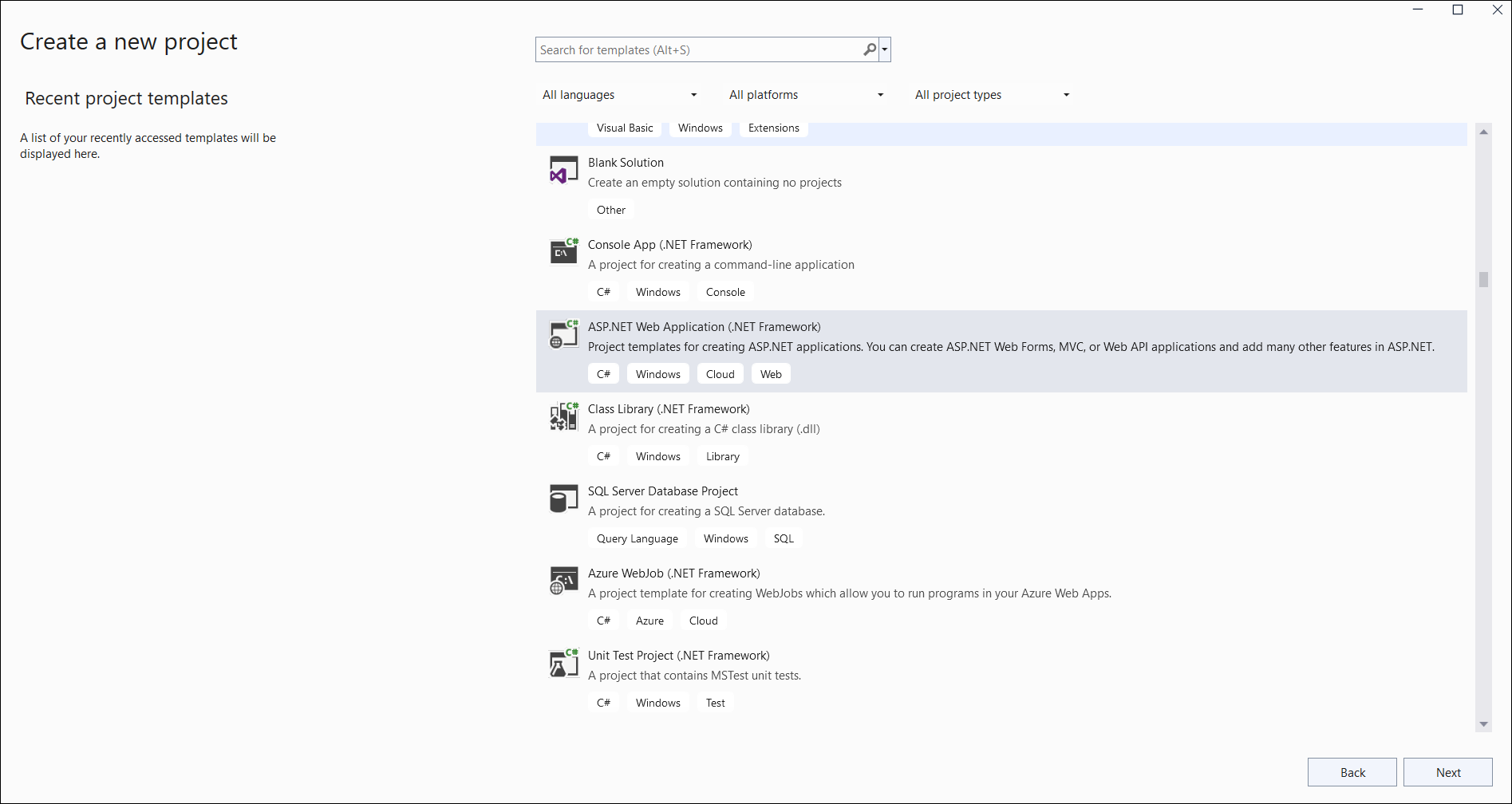
Step 2: Name the project.

Step 3: Select the Web Forms template (or Empty and check Web Forms under “Add folders and core references for”). Do not choose the Empty template without Web Forms, as it does not include the Web Forms configuration required for this sample.

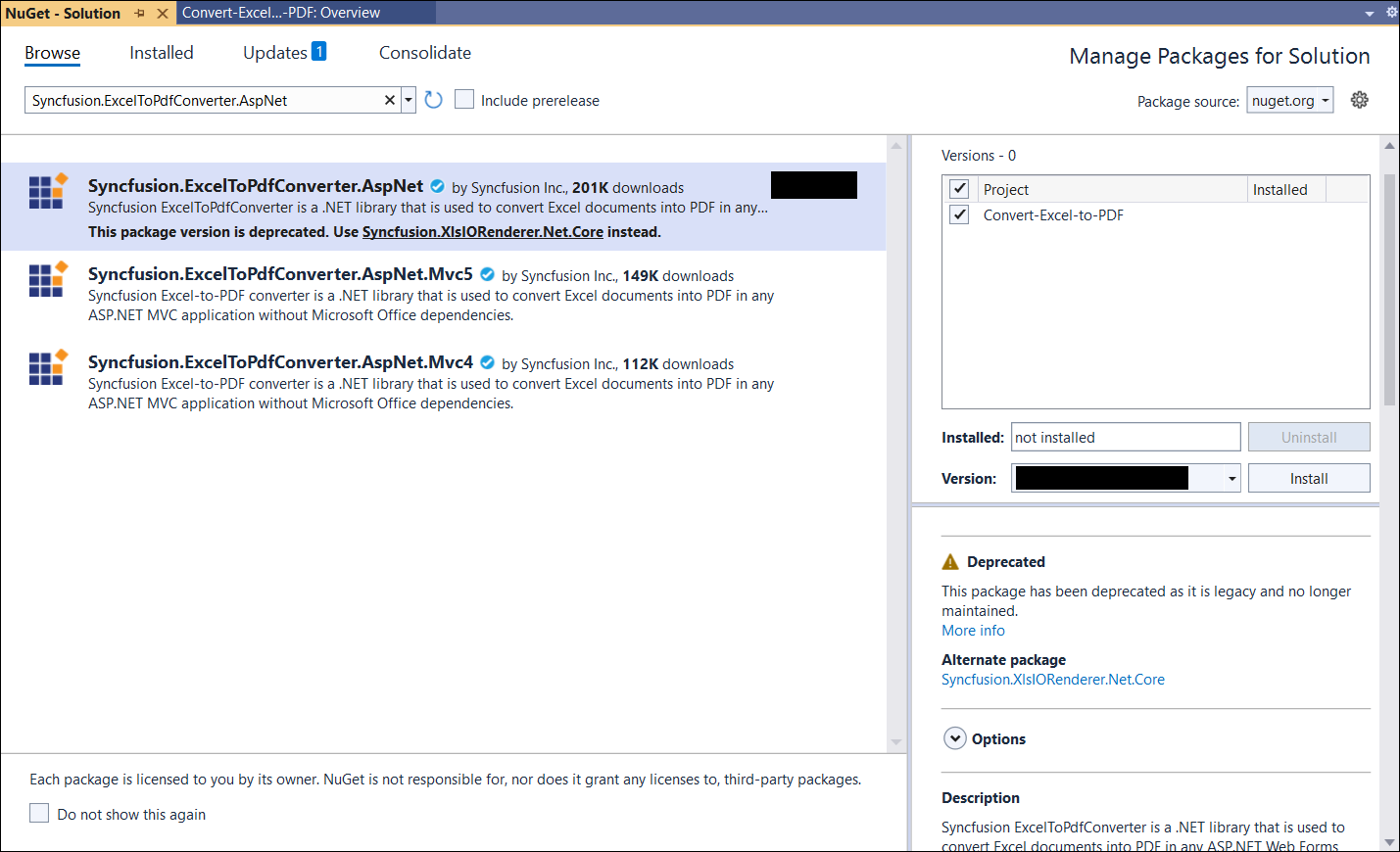
Step 4: Install the Syncfusion.ExcelToPdfConverter.AspNet NuGet package as a reference to your project from NuGet.org. This package transitively pulls in the required Syncfusion.XlsIO.Base and Syncfusion.Pdf.Base assemblies.
Starting with v16.2.0.x, if you reference Syncfusion® assemblies from the trial setup or from the NuGet feed, you must also add the
Syncfusion.Licensingreference and register a license key. Refer to this link to learn how to register the Syncfusion® license key. The simplest approach is to add the following call inGlobal.asaxApplication_Start:Syncfusion.Licensing.SyncfusionLicenseProvider.RegisterLicense("YOUR_LICENSE_KEY");
Step 5: Add a new Web Form to your project. Right-click the project, choose Add → New Item, select Web Form, and name it MainPage.
Step 6: Add a new button to MainPage.aspx as shown below.
<%@ Page Language="C#" AutoEventWireup="true" CodeBehind="MainPage.aspx.cs" Inherits="Convert_Excel_to_PDF.MainPage" %>

<!DOCTYPE html>

<html xmlns="http://www.w3.org/1999/xhtml">
<head runat="server">
    <title></title>
</head>
<body>
    <form id="form1" runat="server">
        <div>
            <asp:Button ID="Button1" runat="server" Text="Convert Excel to PDF" OnClick="OnButtonClicked" />
        </div>
    </form>
</body>
</html>
Step 7: Add the following namespaces in MainPage.aspx.cs.
using Syncfusion.XlsIO;
using Syncfusion.Pdf;
using Syncfusion.ExcelToPdfConverter;
Step 8: Add the following code in the OnButtonClicked handler in MainPage.aspx.cs to convert an Excel document to PDF. Place a Sample.xlsx file at the project root (or under App_Data) so the relative path resolves.
protected void OnButtonClicked(object sender, EventArgs e)
{
  using (ExcelEngine excelEngine = new ExcelEngine())
  {
    IApplication application = excelEngine.Excel;
    application.DefaultVersion = ExcelVersion.Xlsx;

    //Open the existing Excel workbook. Adjust the path as required.
    IWorkbook workbook = application.Workbooks.Open(Server.MapPath("~/Sample.xlsx"));

    //Initialize the Excel-to-PDF converter
    ExcelToPdfConverter converter = new ExcelToPdfConverter(workbook);

    //Convert the Excel document to a PDF document
    PdfDocument pdfDocument = converter.Convert();

    //Save the converted PDF document directly to the HTTP response
    pdfDocument.Save("Sample.pdf", HttpContext.Current.Response, HttpReadType.Save);

    //Close the workbook and the PDF document to release resources
    workbook.Close();
    pdfDocument.Close();

    //Finalize the response so no further page processing occurs
    HttpContext.Current.Response.End();
  }
}
For additional control over page size, orientation, and font embedding, pass an
ExcelToPdfConverterSettingsinstance when creating theExcelToPdfConverterand call theConvert(ExcelToPdfConverterSettings)overload. See the Excel-to-PDF conversion settings for details.
A complete working example of how to convert an Excel document to PDF in ASP.NET is present on this GitHub page.
By executing the program, you will get the PDF document as shown below.

Click here to explore the rich set of Syncfusion® Excel library (XlsIO) features.
An online sample link to convert an Excel document to PDF in ASP.NET MVC.