Range Pointer in .NET MAUI Radial Gauge
18 Nov 201810 minutes to read
A range pointer is an accenting line or shaded background range that can be placed on a gauge to mark the current value.
Prerequisite: Ensure that the required NuGet package is installed, the necessary namespaces are imported, and the SfRadialGauge control is properly configured in your application. For detailed setup and configuration instructions, refer to the Getting Started guide.
<gauge:SfRadialGauge>
    <gauge:SfRadialGauge.Axes>
        <gauge:RadialAxis>
            <gauge:RadialAxis.Pointers>
                <gauge:RangePointer Value = "30" />
            </gauge:RadialAxis.Pointers>
        </gauge:RadialAxis>
    </gauge:SfRadialGauge.Axes>
</gauge:SfRadialGauge>
SfRadialGauge sfRadialGauge = new SfRadialGauge();
RadialAxis radialAxis = new RadialAxis();
sfRadialGauge.Axes.Add(radialAxis);
RangePointer rangePointer = new RangePointer();
rangePointer.Value = 30;
radialAxis.Pointers.Add(rangePointer);
this.Content = sfRadialGauge;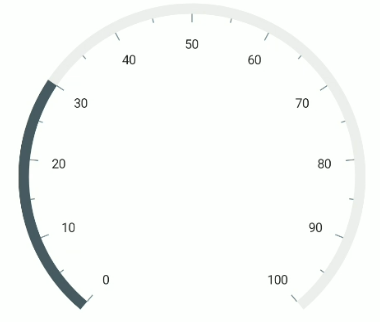
The following properties are used to customize the range pointer:
-
Fill- Specifies the color of the range pointer. -
PointerWidth- Specifies the width of the pointer either in pixels or factor. -
WidthUnit- Specifies whether thePointerWidthis defined in pixels or factor.
The PointerWidth of the pointer can be specified either in pixel or factor. If WidthUnit is set to SizeUnit.Pixel, the range is rendered based on the provided pixel value. If WidthUnit is set to SizeUnit.Factor, the provided factor value is multiplied with the axis radius. For example, if the pointer width is set to 0.1, then 10% of the axis radius is considered as the range pointer width.
<gauge:SfRadialGauge>
    <gauge:SfRadialGauge.Axes>
        <gauge:RadialAxis>
            <gauge:RadialAxis.Pointers>
                <gauge:RangePointer Value = "30"
                                    PointerWidth = "0.1"
                                    WidthUnit = "Factor"
                                    Fill = "Indigo" />
            </gauge:RadialAxis.Pointers>
        </gauge:RadialAxis>
    </gauge:SfRadialGauge.Axes>
</gauge:SfRadialGauge>
SfRadialGauge sfRadialGauge = new SfRadialGauge();
RadialAxis radialAxis = new RadialAxis();
sfRadialGauge.Axes.Add(radialAxis);
RangePointer rangePointer = new RangePointer();
rangePointer.Value = 30;
rangePointer.PointerWidth = 0.1;
rangePointer.WidthUnit = SizeUnit.Factor;
rangePointer.Fill = new SolidColorBrush(Colors.Indigo);
radialAxis.Pointers.Add(rangePointer);
this.Content = sfRadialGauge;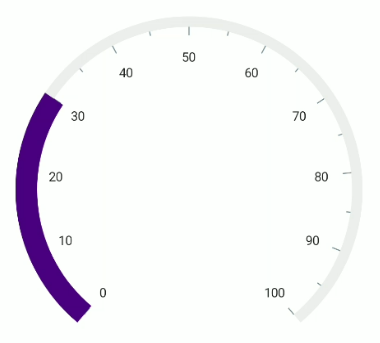
The default value of WidthUnit and OffsetUnit is SizeUnit.Pixel.
Setting a gradient brush to the pointer
The GradientStops property of the range pointer allows you to apply a smooth color transition by specifying different colors at specific axis values.
<gauge:SfRadialGauge>
    <gauge:SfRadialGauge.Axes>
        <gauge:RadialAxis >
            <gauge:RadialAxis.AxisLineStyle>
                <gauge:RadialLineStyle ThicknessUnit = "Factor" Thickness = "0.1"/>
            </gauge:RadialAxis.AxisLineStyle>
            <gauge:RadialAxis.Pointers>
                <gauge:RangePointer Value = "40"
                                    PointerWidth = "0.1"
                                    WidthUnit = "Factor">
                    <gauge:RangePointer.GradientStops>
                        <gauge:GaugeGradientStop Value = "10"
                                                 Color = "#FFCC2B5E" />
                        <gauge:GaugeGradientStop Value = "30"
                                                 Color = "#FF753A88" />
                    </gauge:RangePointer.GradientStops>
                </gauge:RangePointer>
            </gauge:RadialAxis.Pointers>
        </gauge:RadialAxis>
    </gauge:SfRadialGauge.Axes>
</gauge:SfRadialGauge>
SfRadialGauge sfRadialGauge = new SfRadialGauge();
RadialAxis radialAxis = new RadialAxis();
radialAxis.AxisLineStyle.Thickness = 0.1;
radialAxis.AxisLineStyle.ThicknessUnit = SizeUnit.Factor;
sfRadialGauge.Axes.Add(radialAxis);
RangePointer rangePointer = new RangePointer();
rangePointer.Value = 40;
rangePointer.PointerWidth = 0.1;
rangePointer.WidthUnit = SizeUnit.Factor;
rangePointer.GradientStops.Add(new GaugeGradientStop { Value = 10, Color = Color.FromRgb(204, 43, 94) });
rangePointer.GradientStops.Add(new GaugeGradientStop { Value = 30, Color = Color.FromRgb(117, 58, 136) });
radialAxis.Pointers.Add(rangePointer);
this.Content = sfRadialGauge;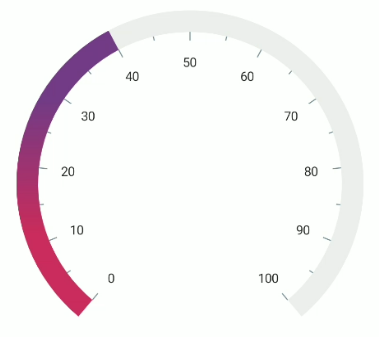
Corner style customization
The CornerStyle property of the range pointer specifies the corner type for the pointer. The corners can be customized using the CornerStyle enum, which provides the following values:
-
BothFlat- Both the start and end corners of the range pointer are flat. -
BothCurve- Both the start and end corners of the range pointer are curved. -
StartCurve- Only the start corner of the range pointer is curved. -
EndCurve- Only the end corner of the range pointer is curved.
The default value is BothFlat.
<gauge:SfRadialGauge>
    <gauge:SfRadialGauge.Axes>
        <gauge:RadialAxis>
            <gauge:RadialAxis.Pointers>
                <gauge:RangePointer Value = "30"
                                    CornerStyle = "BothCurve" />
            </gauge:RadialAxis.Pointers>
        </gauge:RadialAxis>
    </gauge:SfRadialGauge.Axes>
</gauge:SfRadialGauge>
SfRadialGauge sfRadialGauge = new SfRadialGauge();
RadialAxis radialAxis = new RadialAxis();
sfRadialGauge.Axes.Add(radialAxis);
RangePointer rangePointer = new RangePointer();
rangePointer.Value = 30;
rangePointer.CornerStyle = CornerStyle.BothCurve;
radialAxis.Pointers.Add(rangePointer);
this.Content = sfRadialGauge;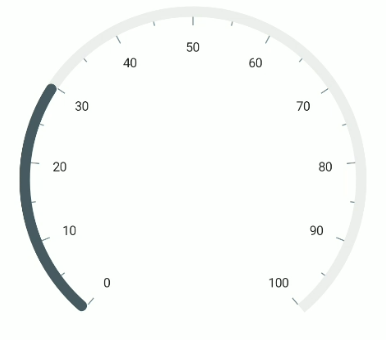
Range pointer position customization
The following properties are used to customize the position of the range pointer:
-
PointerOffset- Specifies the position value for the pointer either in pixels or factor. -
OffsetUnit- Specifies whether thePointerOffsetis defined in pixels or factor.
The range pointer can be moved far or near to the axis line using the PointerOffset property. The PointerOffset can be set in either pixel or factor value using its OffsetUnit.
<gauge:SfRadialGauge>
    <gauge:SfRadialGauge.Axes>
        <gauge:RadialAxis>
            <gauge:RadialAxis.Pointers>
                <gauge:RangePointer Value = "30"
                                    PointerOffset = "70" />
            </gauge:RadialAxis.Pointers>
        </gauge:RadialAxis>
    </gauge:SfRadialGauge.Axes>
</gauge:SfRadialGauge>
SfRadialGauge sfRadialGauge = new SfRadialGauge();
RadialAxis radialAxis = new RadialAxis();
sfRadialGauge.Axes.Add(radialAxis);
RangePointer rangePointer = new RangePointer();
rangePointer.Value = 30;
rangePointer.PointerOffset = 70;
radialAxis.Pointers.Add(rangePointer);
this.Content = sfRadialGauge;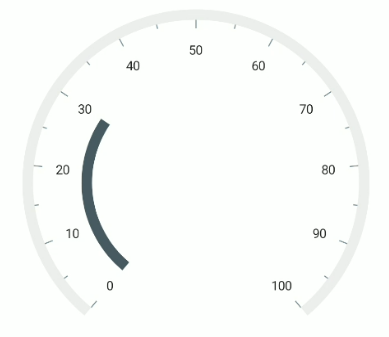
When OffsetUnit is set to SizeUnit.Pixel, the pointer is moved by the provided pixel value.
When OffsetUnit is set to SizeUnit.Factor, the factor value is multiplied with the axis radius. For example, if PointerOffset is set to 0.1, then the pointer offset is considered as 10% of the axis radius.