Pointers in .NET MAUI Linear Gauge
18 Nov 20187 minutes to read
Prerequisite: Ensure that the required NuGet package is installed, the necessary namespaces are imported, and the .NET MAUI Linear Gauge control is properly configured in your application. For detailed setup and configuration instructions, refer to the Getting Started guide.
The pointer is used to indicate values on a scale. The Linear Gauge control has three types of pointers:
-
Bar pointer- A shaded bar from the minimum scale value to the specified value. For more details, refer to the Bar pointer documentation. -
Shape pointer- A built-in shape marker (e.g., circle, triangle) placed on the scale. For more details, refer to the Shape marker pointer documentation. -
Content pointer- Any .NET MAUI content (e.g., image, text, or custom view) placed on the scale. For more details, refer to the Content marker pointer documentation.
All the pointers can be customized as needed. You can add multiple pointers to the gauge to point multiple values on the same scale. The value of the pointer is set using the Value property. All three pointer types support interaction when the IsInteractive property is enabled.

Interaction with pointers
The following code sample demonstrates how to update a simple marker pointer value based on swipe or drag gestures. By default, the IsInteractive property is set to false.
<gauge:SfLinearGauge>
    <gauge:SfLinearGauge.MarkerPointers>
        <gauge:LinearShapePointer Value="70" IsInteractive="True"
                                  Fill="Blue"/>
    </gauge:SfLinearGauge.MarkerPointers>
</gauge:SfLinearGauge>
SfLinearGauge gauge = new SfLinearGauge();
gauge.MarkerPointers.Add(new LinearShapePointer()
{
Value = 70,
IsInteractive = true,
Fill = new SolidColorBrush(Colors.Blue)
});
this.Content = gauge;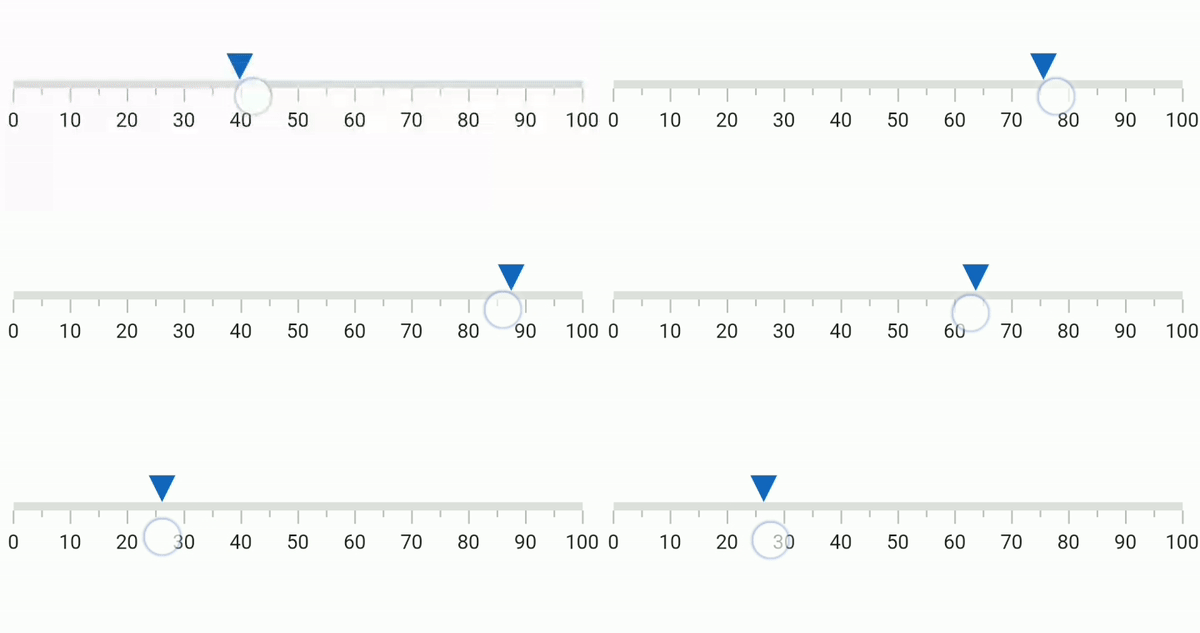
Step frequency
The StepFrequency property is used to specify the interval between snap points while dragging the pointer. The default value is 0, which allows continuous movement.
For example, if the value of StepFrequency is 20, the pointer will not move continuously while dragging; instead, it will update in steps of 20.
To work with the
StepFrequencyvalue, enable pointer interaction support.
<gauge:SfLinearGauge>
    <gauge:SfLinearGauge.MarkerPointers>
        <gauge:LinearShapePointer Value="70" IsInteractive="True"
                                  StepFrequency="5" Fill="Blue"/>
    </gauge:SfLinearGauge.MarkerPointers>
</gauge:SfLinearGauge>
SfLinearGauge gauge = new SfLinearGauge();
gauge.MarkerPointers.Add(new LinearShapePointer()
{
Value = 70,
IsInteractive = true,
StepFrequency = 5,
Fill = new SolidColorBrush(Colors.Blue)
});
this.Content = gauge;Drag offset
The DragOffset property is used to specify the outer dragging offset for the pointer. This value determines the range within which the pointer can be dragged when interacting near it. The default value of DragOffset is 15 pixels.
For example, if the value of DragOffset is 20, the pointer can be dragged when interacting within 20 pixels of it.
If the value of DragOffset is 0, the pointer can only be dragged when interacting within its exact bounds.
To work with the
DragOffsetvalue, enable pointer interaction support.
<gauge:SfLinearGauge>
    <gauge:SfLinearGauge.MarkerPointers>
        <gauge:LinearShapePointer Value="70" IsInteractive="True"
                                  DragOffset="5" Fill="Blue"/>
    </gauge:SfLinearGauge.MarkerPointers>
</gauge:SfLinearGauge>
SfLinearGauge gauge = new SfLinearGauge();
gauge.MarkerPointers.Add(new LinearShapePointer()
{
Value = 70,
IsInteractive = true,
DragOffset = 5,
Fill = new SolidColorBrush(Colors.Blue)
});
this.Content = gauge;Events
ValueChangeStarted - Occurs whenever the pointer starts to drag.
ValueChanging - Occurs before the current drag value gets updated as pointer value. The Cancel argument of ValueChangingEventArgs allows you to restrict the update of the current drag value.
ValueChanged - Occurs whenever the pointer value is changed while dragging. The event provides a ValueChangedEventArgs containing the new Value.
ValueChangeCompleted - Occurs once the dragging of the pointer gets completed.
<gauge:SfLinearGauge>
    <gauge:SfLinearGauge.MarkerPointers>
        <gauge:LinearShapePointer Value="70" IsInteractive="True"
                                  ValueChangeStarted="LinearShapePointer_ValueChangeStarted"
                                  ValueChanging="LinearShapePointer_ValueChanging"
                                  ValueChanged="LinearShapePointer_ValueChanged"
                                  ValueChangeCompleted="LinearShapePointer_ValueChangeCompleted"
                                  Fill="Blue"/>
    </gauge:SfLinearGauge.MarkerPointers>
</gauge:SfLinearGauge>
SfLinearGauge gauge = new SfLinearGauge();
LinearShapePointer linearShapePointer = new LinearShapePointer()
{
Value = 70,
IsInteractive = true,
Fill = new SolidColorBrush(Colors.Blue)
};
linearShapePointer.ValueChangeStarted += LinearShapePointer_ValueChangeStarted;
linearShapePointer.ValueChanging += LinearShapePointer_ValueChanging;
linearShapePointer.ValueChanged += LinearShapePointer_ValueChanged;
linearShapePointer.ValueChangeCompleted += LinearShapePointer_ValueChangeCompleted;
gauge.MarkerPointers.Add(linearShapePointer);
this.Content = gauge;
//code omitted for brevity
private void LinearShapePointer_ValueChanged(object sender, ValueChangedEventArgs e)
{
// Read the updated value from e.Value
}
private void LinearShapePointer_ValueChanging(object sender, ValueChangingEventArgs e)
{
if (e.NewValue > 70)
e.Cancel = true;
}
private void LinearShapePointer_ValueChangeStarted(object sender, EventArgs e)
{
// Handle the drag start
}
private void LinearShapePointer_ValueChangeCompleted(object sender, ValueChangedEventArgs e)
{
// Handle the drag completion
}