Create and Modify Annotations in JavaScript (ES5) PDF Viewer
25 Sep 20264 minutes to read
The PDF Viewer annotation tools add, edit, and manage markups across documents. This page provides an overview with quick navigation to each annotation type and common creation and modification workflows.
Quick navigation to annotation types
Jump directly to a specific annotation type for detailed usage and examples:
Text markup annotations:
- Highlight: Highlight annotation
- Strikethrough: Strikethrough annotation
- Underline: Underline annotation
- Squiggly: Squiggly annotation
Shape annotations:
- Line: Line annotation
- Arrow: Arrow annotation
- Rectangle: Rectangle annotation
- Circle: Circle annotation
- Polygon: Polygon annotation
Measurement annotations:
- Distance: Distance annotation
- Perimeter: Perimeter annotation
- Area: Area annotation
- Radius: Radius annotation
- Volume: Volume annotation
Other annotations:
- Redaction: Redaction annotation
- Free text: Free text annotation- Link: Link annotation- Ink (freehand): Ink annotation
- Stamp: Stamp annotation
- Sticky notes: Sticky notes annotation
Each annotation type page includes both UI steps and programmatic examples specific to that type.
Create annotations
Create via UI
- Open the annotation toolbar in the PDF Viewer.
- Choose the required tool (for example, Shape, Free text, Ink, Stamp, Redaction).
- Click or drag on the page to place the annotation.
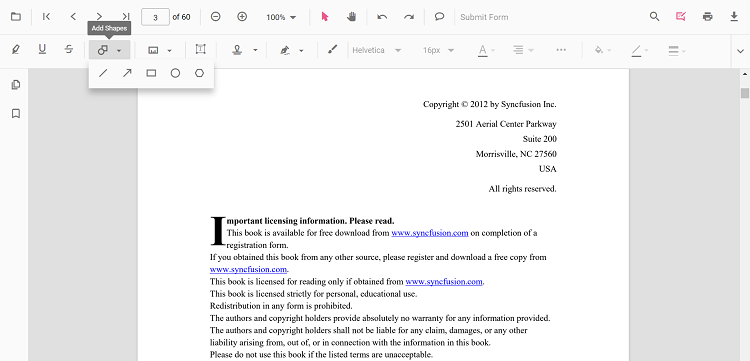
When pan mode is active and a shape or stamp tool is selected, the viewer switches to text select mode automatically. Property pickers in the annotation toolbar let users choose color, stroke color, thickness, and opacity while drawing.
Create programmatically
Creation patterns vary by type. Refer to the individual annotation pages for tailored code. Example: creating a Redaction annotation using addAnnotation.
<button id="addRedactAnnot">Add Redaction Annotation</button>// Requires a PdfViewer instance named `viewer`
document.getElementById('addRedactAnnot')?.addEventListener('click', () => {
viewer.annotation.addAnnotation('Redaction', {
bound: { x: 200, y: 480, width: 150, height: 75 },
pageNumber: 1,
markerFillColor: '#0000FF',
markerBorderColor: 'white',
fillColor: 'red',
overlayText: 'Confidential',
fontColor: 'yellow',
fontFamily: 'Times New Roman',
fontSize: 8,
beforeRedactionsApplied: false
});
});Refer to the individual annotation pages for enabling draw modes from UI buttons and other type-specific creation samples.
Modify annotations
Modify via UI
Use the annotation toolbar after selecting an annotation:
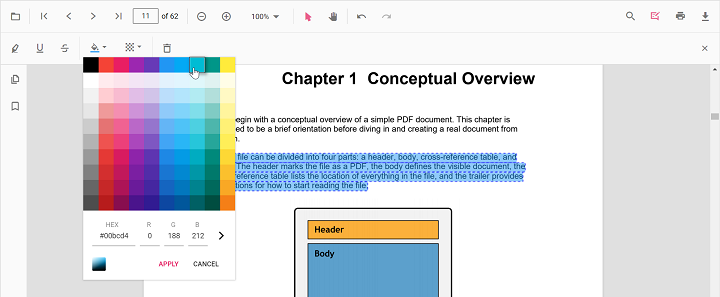
- Edit color: change the fill or text color (when applicable)
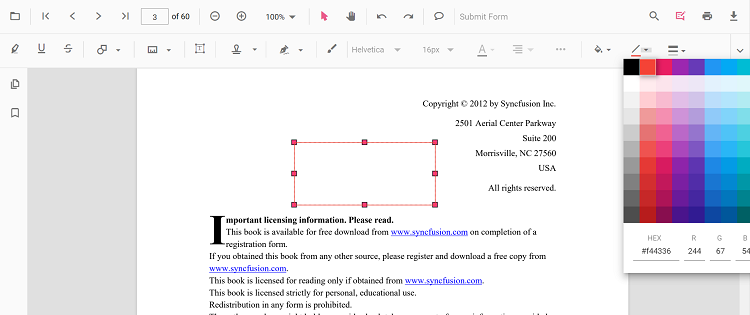
- Edit stroke color: change the border or line color (shape and line types)
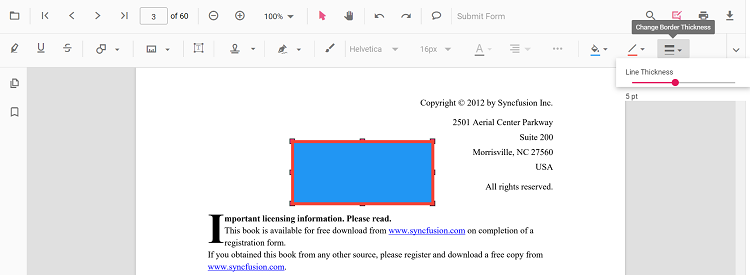
- Edit thickness: adjust the border or line thickness
- Edit opacity: change transparency
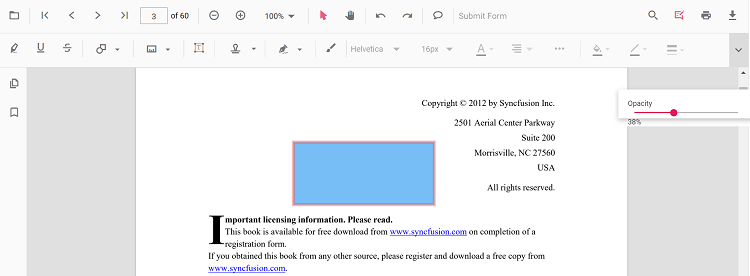
Additional options such as Line Properties (for line/arrow) are available from the context menu (right-click > Properties) where supported.
Modify programmatically
Use editAnnotation to apply changes to an existing annotation. Common flow:
- Locate the target annotation from
annotationCollection. - Update the desired properties.
- Call
editAnnotationwith the modified object.
<button id="bulkEdit">Bulk edit matching annotations</button>// Example: change color/opacity for matching annotations
// Requires a PdfViewer instance named `pdfviewer`
document.getElementById('bulkEdit')?.addEventListener('click', () => {
for (let i = 0; i < pdfviewer.annotationCollection.length; i++) {
const ann = pdfviewer.annotationCollection[i];
// Example match: author/subject; customize the condition as needed
if (ann.author === 'Guest User' || ann.subject === 'Corrections') {
ann.color = '#ff0000';
ann.opacity = 0.8;
pdfviewer.annotation.editAnnotation(ann);
}
}
});For type-specific edit examples (for example, editing line endings, moving stamps, or updating sticky note bounds), see the corresponding annotation type page linked above.