Customize Annotations in JavaScript (ES5) PDF Viewer
15 Aug 202612 minutes to read
Annotation appearance and behavior (for example color, stroke color, thickness, and opacity) can be customized using the built‑in UI or programmatically. This page summarizes common customization patterns and shows how to set defaults per annotation type.
Customize via UI
Use the annotation toolbar after selecting an annotation:
- Edit color: change the annotation fill or text color.
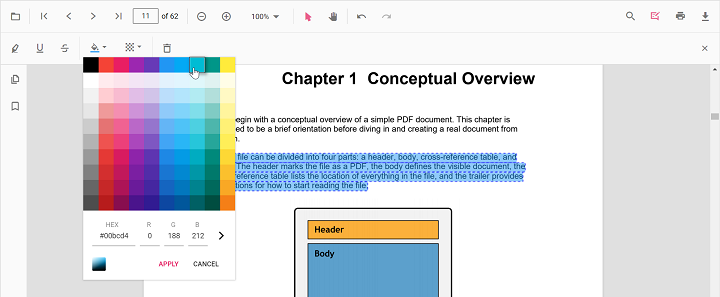
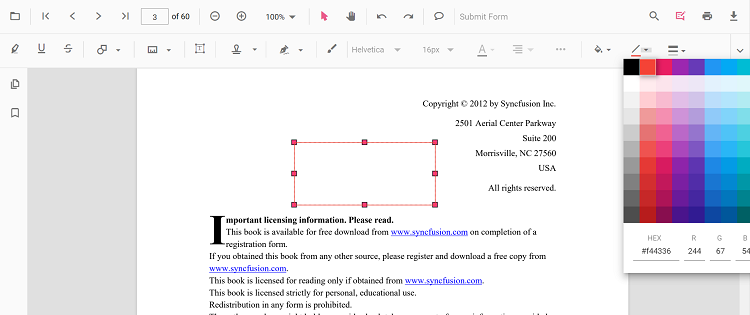
- Edit stroke color: change the border or line color for shapes and line types.
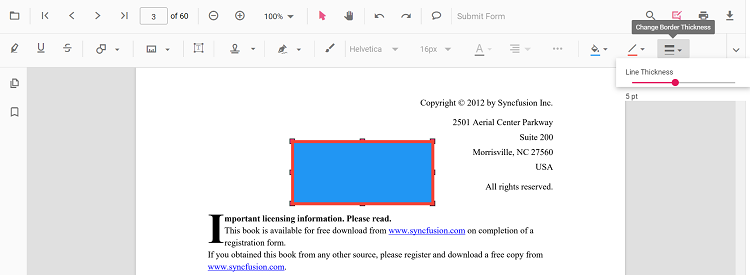
- Edit thickness: adjust the border or line thickness.
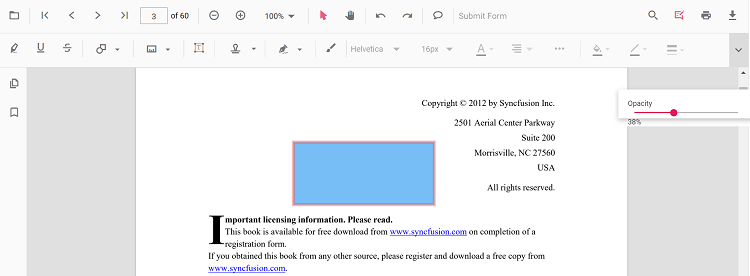
- Edit opacity: change annotation transparency.
Type‑specific options (for example, Line properties) are available from the context menu (right‑click > Properties) where supported.
Set default properties during initialization
Set defaults for specific annotation types when creating the PdfViewer instance. Configure properties such as author, subject, color, and opacity using annotation settings. The examples below reference settings used on the annotation type pages.
Text markup annotations:
- Highlight: Set default properties before creating the control using
highlightSettings - Strikethrough: Use
strikethroughSettings - Underline: Use
underlineSettings - Squiggly: Use
squigglySettings
Shape annotations:
- Line: Use
lineSettings - Arrow: Use
arrowSettings - Rectangle: Use
rectangleSettings - Circle: Use
circleSettings - Polygon: Use
polygonSettings
Measurement annotations:
- Distance: Use
distanceSettings - Perimeter: Use
perimeterSettings - Area: Use
areaSettings - Radius: Use
radiusSettings - Volume: Use
volumeSettings
Other annotations:
- Redaction: Use
redactionSettings - Free text: Use
freeTextSettings - Ink (freehand): Use
inkAnnotationSettings - Stamp: Use
stampSettings - Sticky notes: Use
stickyNotesSettings
ej.pdfviewer.PdfViewer.Inject(
  ej.pdfviewer.Toolbar,
  ej.pdfviewer.Magnification,
  ej.pdfviewer.Navigation,
  ej.pdfviewer.LinkAnnotation,
  ej.pdfviewer.ThumbnailView,
  ej.pdfviewer.BookmarkView,
  ej.pdfviewer.TextSelection,
  ej.pdfviewer.Annotation,
  ej.pdfviewer.FormDesigner,
  ej.pdfviewer.FormFields
);

var pdfviewer = new ej.pdfviewer.PdfViewer({
  documentPath: 'https://cdn.syncfusion.com/content/pdf/pdf-succinctly.pdf',
  resourceUrl: 'https://cdn.syncfusion.com/ej2/31.1.23/dist/ej2-pdfviewer-lib',
  // Text markup defaults
  highlightSettings: { author: 'QA', subject: 'Review', color: '#ffff00', opacity: 0.6 },
  strikethroughSettings: { author: 'QA', subject: 'Remove', color: '#ff0000', opacity: 0.6 },
  underlineSettings: { author: 'Guest User', subject: 'Points to be remembered', color: '#00ffff', opacity: 0.9 },
  squigglySettings: { author: 'Guest User', subject: 'Corrections', color: '#00ff00', opacity: 0.9 },

  // Shapes
  lineSettings: { strokeColor: '#0066ff', thickness: 2, opacity: 0.8 },
  arrowSettings: { strokeColor: '#0066ff', thickness: 2, opacity: 0.8 },
  rectangleSettings: { fillColor: '#ffffff00', strokeColor: '#222222', thickness: 1, opacity: 1 },
  circleSettings: { fillColor: '#ffffff00', strokeColor: '#222222', thickness: 1, opacity: 1 },
  polygonSettings: { fillColor: '#ffffff00', strokeColor: '#222222', thickness: 1, opacity: 1 },

  // Measurements
  distanceSettings: { strokeColor: '#0066ff', thickness: 2, opacity: 0.8 },
  perimeterSettings: { strokeColor: '#0066ff', thickness: 2, opacity: 0.8 },
  areaSettings: { strokeColor: '#0066ff', thickness: 2, opacity: 0.8, fillColor: '#ffffff00' },
  radiusSettings: { strokeColor: '#0066ff', thickness: 2, opacity: 0.8, fillColor: '#ffffff00' },
  volumeSettings: { strokeColor: '#0066ff', thickness: 2, opacity: 0.8, fillColor: '#ffffff00' },

  // Others
  freeTextSettings: { borderColor: '#222222', thickness: 1, opacity: 1 },
  inkAnnotationSettings: { color: '#0000ff', thickness: 3, opacity: 0.8 },
  stampSettings: { opacity: 0.9 },
  stickyNotesSettings: { author: 'QA', subject: 'Review', color: '#ffcc00', opacity: 1 }
});

pdfviewer.appendTo('#PdfViewer');ej.pdfviewer.PdfViewer.Inject(
ej.pdfviewer.Toolbar,
ej.pdfviewer.Magnification,
ej.pdfviewer.Navigation,
ej.pdfviewer.LinkAnnotation,
ej.pdfviewer.ThumbnailView,
ej.pdfviewer.BookmarkView,
ej.pdfviewer.TextSelection,
ej.pdfviewer.Annotation
);
var pdfviewer = new ej.pdfviewer.PdfViewer({
documentPath: 'https://cdn.syncfusion.com/content/pdf/pdf-succinctly.pdf',
highlightSettings: { author: 'QA', subject: 'Review', color: '#ffff00', opacity: 0.6 },
strikethroughSettings: { author: 'QA', subject: 'Remove', color: '#ff0000', opacity: 0.6 },
underlineSettings: { author: 'Guest User', subject: 'Points to be remembered', color: '#00ffff', opacity: 0.9 },
squigglySettings: { author: 'Guest User', subject: 'Corrections', color: '#00ff00', opacity: 0.9 },
lineSettings: { strokeColor: '#0066ff', thickness: 2, opacity: 0.8 },
arrowSettings: { strokeColor: '#0066ff', thickness: 2, opacity: 0.8 },
rectangleSettings: { fillColor: '#ffffff00', strokeColor: '#222222', thickness: 1, opacity: 1 },
circleSettings: { fillColor: '#ffffff00', strokeColor: '#222222', thickness: 1, opacity: 1 },
polygonSettings: { fillColor: '#ffffff00', strokeColor: '#222222', thickness: 1, opacity: 1 },
distanceSettings: { strokeColor: '#0066ff', thickness: 2, opacity: 0.8 },
perimeterSettings: { strokeColor: '#0066ff', thickness: 2, opacity: 0.8 },
areaSettings: { strokeColor: '#0066ff', thickness: 2, opacity: 0.8, fillColor: '#ffffff00' },
radiusSettings: { strokeColor: '#0066ff', thickness: 2, opacity: 0.8, fillColor: '#ffffff00' },
volumeSettings: { strokeColor: '#0066ff', thickness: 2, opacity: 0.8, fillColor: '#ffffff00' },
freeTextSettings: { borderColor: '#222222', thickness: 1, opacity: 1 },
inkAnnotationSettings: { color: '#0000ff', thickness: 3, opacity: 0.8 },
stampSettings: { opacity: 0.9 },
stickyNotesSettings: { author: 'QA', subject: 'Review', color: '#ffcc00', opacity: 1 }
});
pdfviewer.serviceUrl = 'https://document.syncfusion.com/web-services/pdf-viewer/api/pdfviewer/';
pdfviewer.appendTo('#PdfViewer');After changing defaults using UI tools (for example, Edit color or Edit opacity), the updated values apply to subsequent annotations within the same session.
Customize programmatically at runtime
To update an existing annotation from code, modify its properties and call editAnnotation.
Example: bulk‑update matching annotations.
<button id="bulkUpdateAnn">Bulk update annotations</button>// Requires a PdfViewer instance named `pdfviewer`
var btn = document.getElementById('bulkUpdateAnn');
if (btn) {
btn.addEventListener('click', function () {
for (var i = 0; i < pdfviewer.annotationCollection.length; i++) {
var ann = pdfviewer.annotationCollection[i];
// Example criteria; customize as needed
if (ann.author === 'Guest' || ann.subject === 'Rectangle') {
ann.color = '#ff0000';
ann.opacity = 0.8;
// For shapes/lines you can also change strokeColor/thickness when applicable
// ann.strokeColor = '#222222';
// ann.thickness = 2;
pdfviewer.annotation.editAnnotation(ann);
}
}
});
}Customize Annotation Settings
Defines the settings of the annotations. You can change annotation settings like author name, height, width etc., using annotationSettings API
<div id="PdfViewer" style="height: 100%;width: 100%;"></div>ej.pdfviewer.PdfViewer.Inject(
ej.pdfviewer.Toolbar,
ej.pdfviewer.Magnification,
ej.pdfviewer.Navigation,
ej.pdfviewer.LinkAnnotation,
ej.pdfviewer.ThumbnailView,
ej.pdfviewer.BookmarkView,
ej.pdfviewer.TextSelection,
ej.pdfviewer.TextSearch,
ej.pdfviewer.Print,
ej.pdfviewer.Annotation,
ej.pdfviewer.FormFields,
ej.pdfviewer.FormDesigner
);
var viewer = new ej.pdfviewer.PdfViewer();
viewer.resourceUrl = 'https://cdn.syncfusion.com/ej2/31.1.23/dist/ej2-pdfviewer-lib';
viewer.documentPath = 'PDF_Succinctly.pdf';
// Change the annotation settings.
viewer.annotationSettings = {
author: 'XYZ',
minHeight: 10,
minWidth: 10,
maxWidth: 100,
maxHeight: 100,
isLock: false,
skipPrint: false,
skipDownload: false,
allowedInteractions: [
ej.pdfviewer.AllowedInteraction.Select,
ej.pdfviewer.AllowedInteraction.Move
]
};
viewer.appendTo('#PdfViewer');Customize Annotation SelectorSettings
Defines the settings of annotation selector. You can customize the annotation Selector using annotationSelectorSettings API
<div id="PdfViewer" style="height: 100%;width: 100%;"></div>ej.pdfviewer.PdfViewer.Inject(
ej.pdfviewer.Toolbar,
ej.pdfviewer.Magnification,
ej.pdfviewer.Navigation,
ej.pdfviewer.LinkAnnotation,
ej.pdfviewer.ThumbnailView,
ej.pdfviewer.BookmarkView,
ej.pdfviewer.TextSelection,
ej.pdfviewer.TextSearch,
ej.pdfviewer.Print,
ej.pdfviewer.Annotation,
ej.pdfviewer.FormFields,
ej.pdfviewer.FormDesigner
);
var viewer = new ej.pdfviewer.PdfViewer();
viewer.resourceUrl = 'https://cdn.syncfusion.com/ej2/31.1.23/dist/ej2-pdfviewer-lib';
viewer.documentPath = 'PDF_Succinctly.pdf';
// Change the annotation selector settings.
viewer.annotationSelectorSettings = {
selectionBorderColor: 'blue',
resizerBorderColor: 'red',
resizerFillColor: '#4070ff',
resizerSize: 8,
selectionBorderThickness: 1,
resizerShape: 'Circle',
selectorLineDashArray: [5, 6],
resizerLocation: ej.pdfviewer.AnnotationResizerLocation.Corners | ej.pdfviewer.AnnotationResizerLocation.Edges,
resizerCursorType: ej.pdfviewer.CursorType.grab
};
viewer.appendTo('#PdfViewer');