Customize Annotations in Blazor PDF Viewer
14 Aug 202614 minutes to read
Annotation appearance and behavior (for example color, stroke color, thickness, and opacity) can be customized using the built-in UI or programmatically. This page summarizes common customization patterns and shows how to set defaults per annotation type.
Customize via UI
To open the annotation toolbar, click Edit Annotation in the SfPdfViewer toolbar. Once the toolbar is visible, select an annotation to use these tools:
-
Edit color: changes the annotation fill or text color.
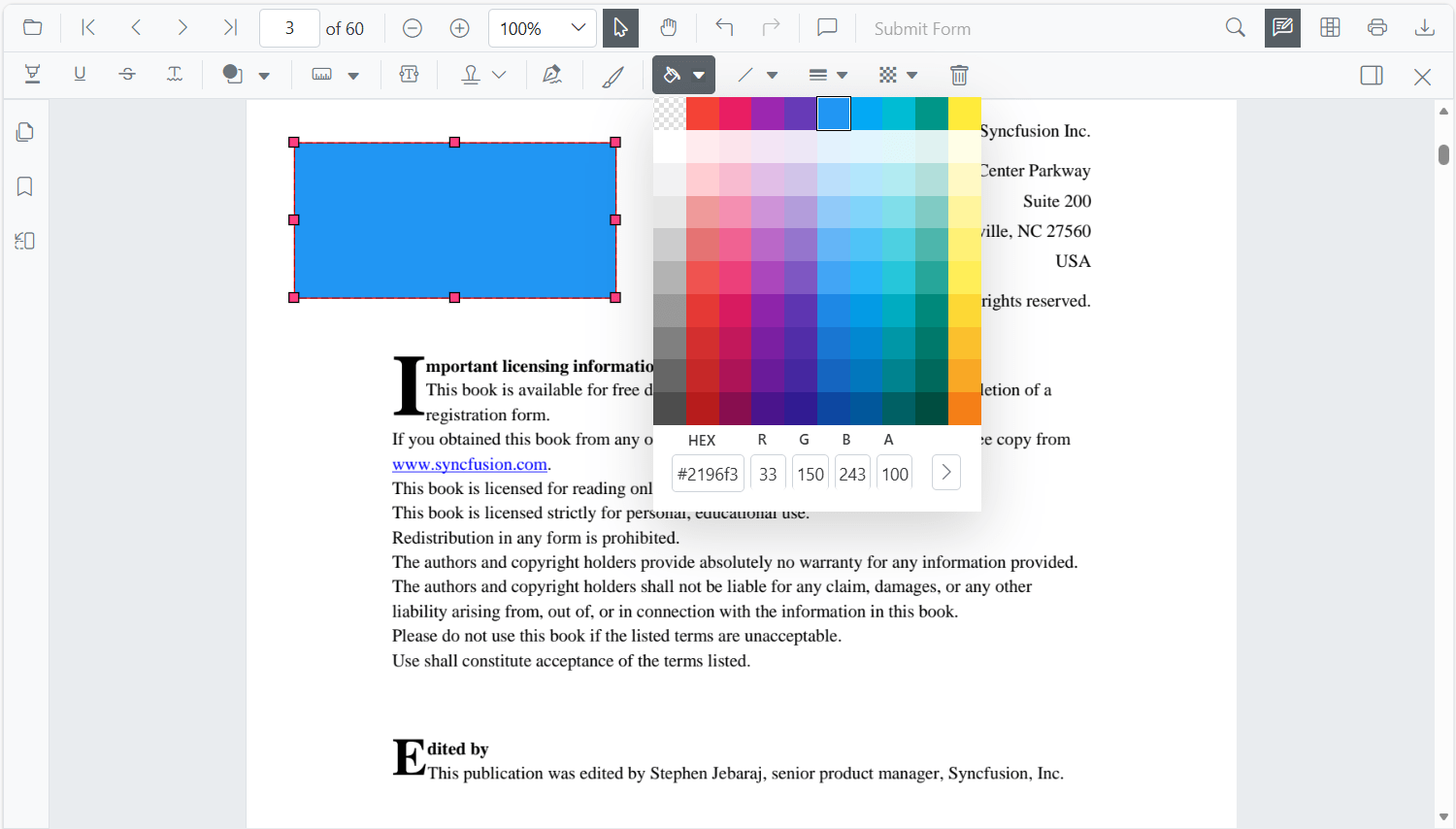
-
Edit stroke color: changes the border or line color for shape and line types.

-
Edit thickness: adjusts the border or line thickness.
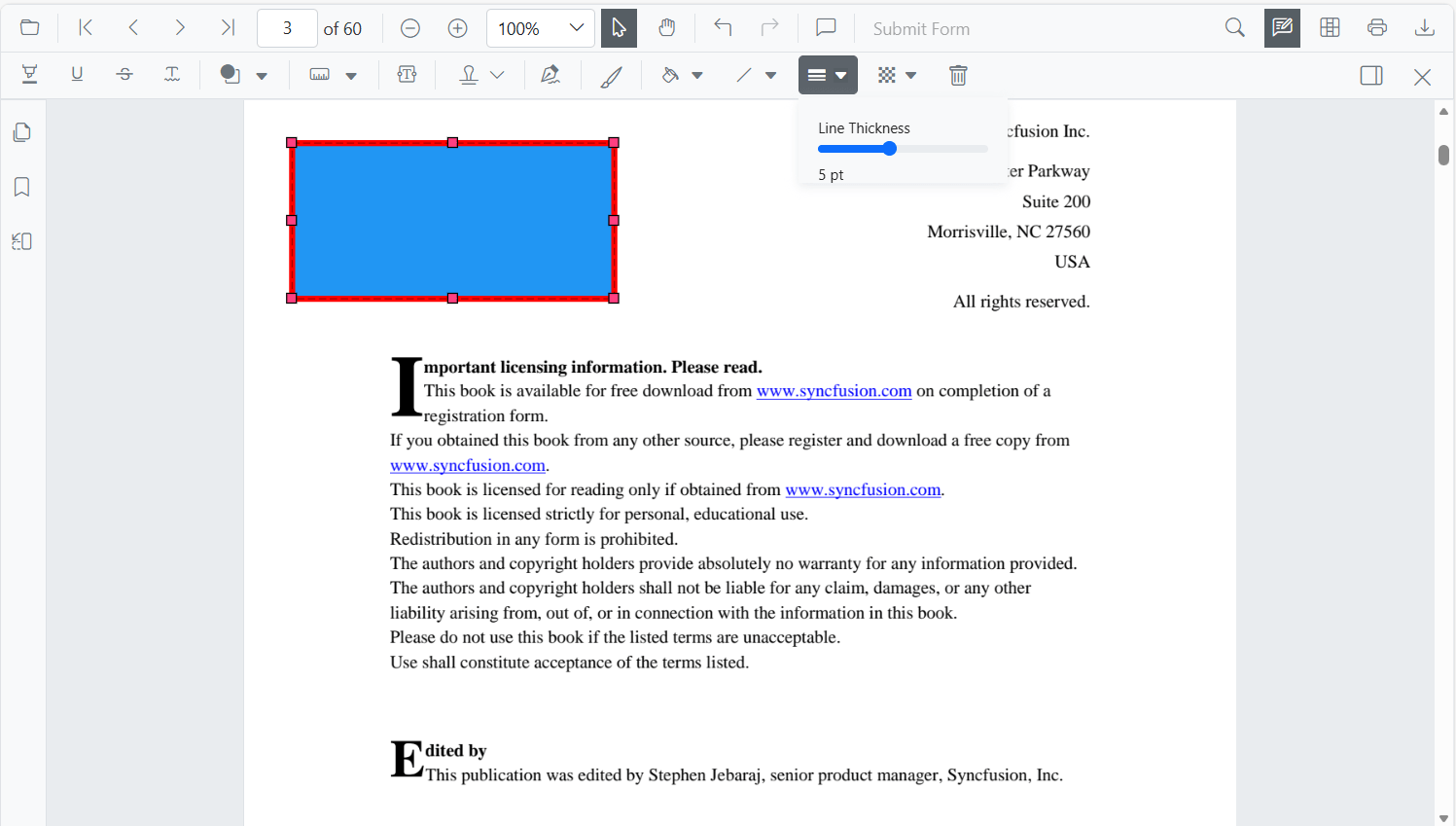
-
Edit opacity: adjusts transparency (0 fully transparent to 1 fully opaque).
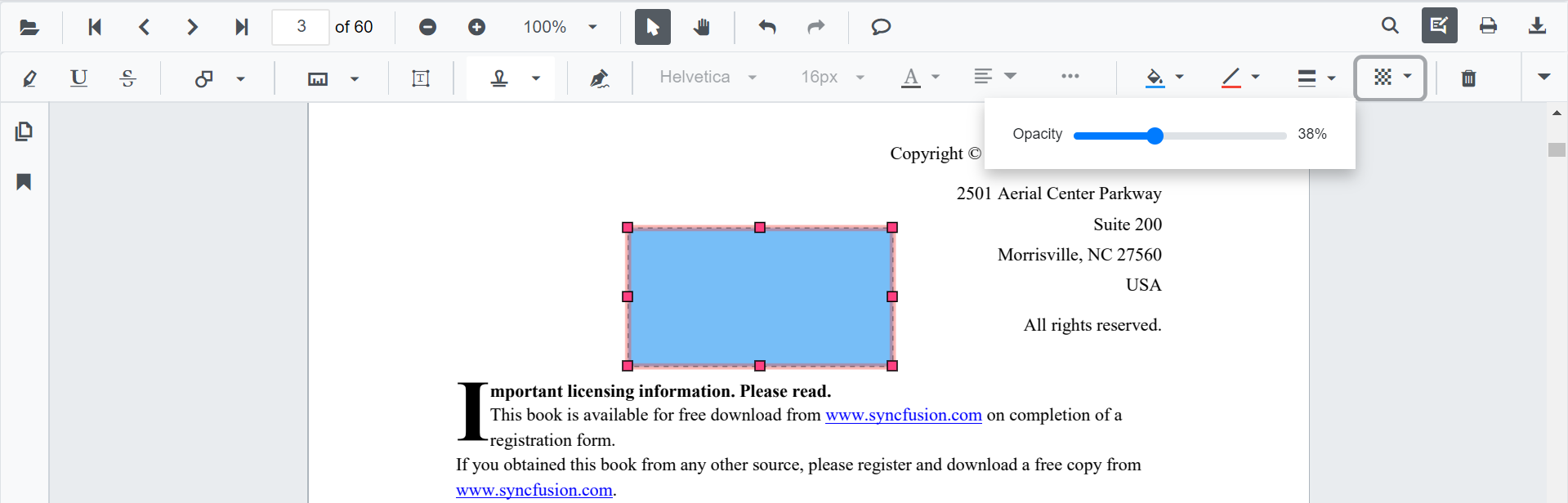
Type-specific options (for example, Line properties) are available from the context menu (right-click > Properties) where supported. Values changed via the UI apply to subsequent annotations within the same session and are not persisted across page reloads unless exported with the document.
Set default properties during initialization
Configure default properties such as author, subject, color, and opacity by setting the type-specific settings components (or their corresponding parameters) on the SfPdfViewer. The examples below reference settings used on the annotation type pages.
Per-type settings reference
Text markup annotations:
- Highlight: HighlightSettings
- Strikethrough: StrikethroughSettings
- Underline: UnderlineSettings
- Squiggly: SquigglySettings
Shape annotations:
- Line: LineSettings
- Arrow: ArrowSettings
- Rectangle: RectangleSettings
- Circle: CircleSettings
- Polygon: PolygonSettings
Example: per-type settings
The following example uses the parameter syntax to configure defaults for shape annotations. The same pattern applies to text markup and measurement types.
@using Syncfusion.Blazor.SfPdfViewer

<SfPdfViewer2 @ref="@viewer"
              DocumentPath="@DocumentPath"
              LineSettings="@LineSettings"
              ArrowSettings="@ArrowSettings"
              RectangleSettings="@RectangleSettings"
              CircleSettings="@CircleSettings"
              PolygonSettings="@PolygonSettings"
              Width="100%"
              Height="100%">
</SfPdfViewer2>

@code {
    private SfPdfViewer2 viewer;
    private string DocumentPath { get; set; } = "wwwroot/Data/PDF_Succinctly.pdf";

    // Shape annotation defaults
    PdfViewerLineSettings LineSettings = new PdfViewerLineSettings
    {
        StrokeColor = "#0066ff",
        Thickness = 2,
        Opacity = 0.8
    };

    PdfViewerArrowSettings ArrowSettings = new PdfViewerArrowSettings
    {
        StrokeColor = "#0066ff",
        Thickness = 2,
        Opacity = 0.8
    };

    PdfViewerRectangleSettings RectangleSettings = new PdfViewerRectangleSettings
    {
        // 8-digit hex includes the alpha channel (#RRGGBBAA). Use 6-digit hex when alpha is not required.
        FillColor = "#ffffff00",
        StrokeColor = "#222222",
        Thickness = 1,
        Opacity = 1
    };

    PdfViewerCircleSettings CircleSettings = new PdfViewerCircleSettings
    {
        FillColor = "#ffffff00",
        StrokeColor = "#222222",
        Thickness = 1,
        Opacity = 1
    };

    PdfViewerPolygonSettings PolygonSettings = new PdfViewerPolygonSettings
    {
        FillColor = "#ffffff00",
        StrokeColor = "#222222",
        Thickness = 1,
        Opacity = 1
    };
}
Example: child-component syntax
The same defaults can be expressed using child-component tags, which is helpful when combining with other settings or when Razor markup is preferred over code-behind.
@using Syncfusion.Blazor.SfPdfViewer

<SfPdfViewer2 DocumentPath="@DocumentPath"
              Width="100%"
              Height="100%">
    <PdfViewerLineSettings StrokeColor="#0066ff" Thickness="2" Opacity="0.8" />
    <PdfViewerRectangleSettings FillColor="transparent" StrokeColor="#222222" Thickness="1" Opacity="1" />
</SfPdfViewer2>

@code {
    private string DocumentPath { get; set; } = "wwwroot/Data/PDF_Succinctly.pdf";
}
Customize annotation settings
PdfViewerAnnotationSettings defines the global defaults applied to all annotations. Set it through the AnnotationSettings parameter or the <PdfViewerAnnotationSettings> child tag.
| Property | Type | Default | Description |
|---|---|---|---|
Author |
string |
null |
Default author assigned to new annotations. |
MinWidth |
double |
0 |
Minimum width in points. |
MinHeight |
double |
0 |
Minimum height in points. |
MaxWidth |
double |
0 (no limit) |
Maximum width in points. |
MaxHeight |
double |
0 (no limit) |
Maximum height in points. |
IsLock |
bool |
false |
Lock new annotations so they cannot be edited through the UI. |
IsPrint |
bool |
true |
Allow annotations to participate in print output. |
SkipDownload |
bool |
false |
Exclude annotations from the exported/downloaded PDF. |
@using Syncfusion.Blazor.SfPdfViewer

<SfPdfViewer2 @ref="viewer"
              DocumentPath="@DocumentPath"
              Height="100%"
              Width="100%"
              AnnotationSettings="@AnnotationSettings">
</SfPdfViewer2>

@code {
    private SfPdfViewer2 viewer;
    private string DocumentPath { get; set; } = "wwwroot/Data/PDF_Succinctly.pdf";

    PdfViewerAnnotationSettings AnnotationSettings = new PdfViewerAnnotationSettings
    {
        Author = "XYZ",
        MinHeight = 10,
        MinWidth = 10,
        MaxWidth = 100,
        MaxHeight = 100,
        IsLock = false,
        IsPrint = true,
        SkipDownload = false
    };
}
For detailed permission semantics, see Annotation Permission.
Customize annotation selector settings
PdfViewerAnnotationSelectorSettings customizes the selection handles (border and resizers) shown when an annotation is selected. Set the AnnotationSelectorSettings property on any of the per-type settings classes (for example, PdfViewerRectangleSettings, PdfViewerLineSettings, PdfViewerHighlightSettings).
| Property | Type | Default | Description |
|---|---|---|---|
SelectionBorderColor |
string |
"#000000" |
Color of the selection border. Accepts a CSS color name (e.g., "blue") or a hex value (e.g., "#0000ff"). |
SelectionBorderThickness |
double |
1 |
Border thickness in pixels. |
ResizerBorderColor |
string |
"#000000" |
Color of the resizer border. Accepts a CSS color name or hex value. |
ResizerFillColor |
string |
"#ffffff" |
Fill color of the resizer handles. Accepts a CSS color name or hex value. |
ResizerSize |
double |
8 |
Size of the resizer handles in pixels. |
ResizerShape |
AnnotationResizerShape |
Square |
Shape of the resizer handles (Square or Circle). |
@using Syncfusion.Blazor.SfPdfViewer

<SfPdfViewer2 @ref="viewer"
              DocumentPath="@DocumentPath"
              Height="100%"
              Width="100%"
              RectangleSettings="@RectangleSettings">
</SfPdfViewer2>

@code {
    private SfPdfViewer2 viewer;
    private string DocumentPath { get; set; } = "wwwroot/Data/PDF_Succinctly.pdf";

    PdfViewerRectangleSettings RectangleSettings = new PdfViewerRectangleSettings
    {
        AnnotationSelectorSettings = new PdfViewerAnnotationSelectorSettings
        {
            SelectionBorderColor = "blue",
            ResizerBorderColor = "red",
            ResizerFillColor = "#4070ff",
            ResizerSize = 8,
            SelectionBorderThickness = 1,
            ResizerShape = AnnotationResizerShape.Circle
        }
    };
}
The same property is also available on PdfViewerLineSettings, PdfViewerCircleSettings, PdfViewerPolygonSettings, PdfViewerHighlightSettings, PdfViewerStrikethroughSettings, PdfViewerUnderlineSettings, PdfViewerSquigglySettings, PdfViewerDistanceSettings, PdfViewerPerimeterSettings, PdfViewerAreaSettings, PdfViewerRadiusSettings, PdfViewerVolumeSettings, PdfViewerFreeTextSettings, PdfViewerInkAnnotationSettings, and PdfViewerStampSettings. Settings apply at component initialization; changing them at runtime requires re-rendering the viewer.
Customize programmatically at runtime
Use EditAnnotationAsync to update an existing annotation. The general flow is:
- Retrieve the target annotation from
GetAnnotationsAsync()(orGetAnnotationsOnPageAsync(pageNumber)for a single page). - Update the desired properties.
- Call
EditAnnotationAsync(annotation)with the modified object. If the annotation cannot be found on the current document, the call returns without applying changes.
Example: edit a single annotation
@using Syncfusion.Blazor.Buttons
@using Syncfusion.Blazor.SfPdfViewer

<SfButton OnClick="@EditAnnotation">Edit Annotation</SfButton>
<SfPdfViewer2 @ref="@Viewer"
              DocumentPath="@DocumentPath"
              Height="100%"
              Width="100%">
</SfPdfViewer2>

@code {
    private SfPdfViewer2 viewer;
    private string DocumentPath { get; set; } = "wwwroot/Data/PDF_Succinctly.pdf";

    private async Task EditAnnotation(MouseEventArgs args)
    {
        List<PdfAnnotation> annotationCollection = await Viewer.GetAnnotationsAsync();
        if (annotationCollection == null || annotationCollection.Count == 0) return;

        PdfAnnotation annotation = annotationCollection[0];

        // Property mapping by annotation type:
        //   - Text markup: use Color (and Opacity).
        //   - Shape (rectangle, circle, polygon, line, arrow): use FillColor, StrokeColor, Thickness, Opacity.
        //   - Measurement: use StrokeColor, Thickness, Opacity, FillColor.
        //   - Free text: use FontColor, FontSize, BorderColor, Opacity.
        //   - Stamp: use Opacity, CustomData.
        annotation.Color = "#FFFF00";   // text-markup example
        annotation.Opacity = 0.6;
        // annotation.FillColor = "#FFFF00";      // shape example
        // annotation.StrokeColor = "#000000";
        // annotation.Thickness = 3;

        await Viewer.EditAnnotationAsync(annotation);
    }
}
Example: bulk update
The following example updates every annotation that matches a filter. Wrap calls in try/catch because per-annotation errors are otherwise swallowed by async void.
@using Syncfusion.Blazor.Buttons
@using Syncfusion.Blazor.SfPdfViewer

<SfButton OnClick="BulkUpdateAnnotations">Bulk Update Annotations</SfButton>
<SfPdfViewer2 @ref="@Viewer"
              DocumentPath="@DocumentPath"
              Height="100%"
              Width="100%">
</SfPdfViewer2>

@code {
    private SfPdfViewer2 viewer;
    private string DocumentPath { get; set; } = "wwwroot/Data/PDF_Succinctly.pdf";

    private async Task BulkUpdateAnnotations(MouseEventArgs args)
    {
        // async void is required for Blazor event handlers; wrap in try/catch to surface errors.
        try
        {
            List<PdfAnnotation> annotationCollection = await Viewer.GetAnnotationsAsync();
            if (annotationCollection == null) return;

            foreach (var ann in annotationCollection)
            {
                if (ann.Author == "Guest" || ann.Subject == "Rectangle")
                {
                    ann.Color = "#ff0000";      // text-markup
                    ann.Opacity = 0.8;
                    // For shape/line annotations, set StrokeColor/Thickness/FillColor instead.
                    // ann.StrokeColor = "#222222";
                    // ann.Thickness = 2;
                    await Viewer.EditAnnotationAsync(ann);
                }
            }
        }
        catch (Exception ex)
        {
            // Handle or log the error.
            Console.Error.WriteLine($"Bulk update failed: {ex.Message}");
        }
    }
}
EditAnnotationAsyncis awaited sequentially in the loop above. For very large annotation counts, this can be slow; consider batching by page or moving the iteration to a background task.