Customize the Annotation Toolbar in Blazor PDF Viewer
14 Aug 20262 minutes to read
This guide shows how to show or hide the annotation toolbar and how to customize the annotation toolbar by selecting which tools to display, arranging their order, and controlling its visibility programmatically.
Show or hide the annotation toolbar
Use the ShowAnnotationToolbar method on the viewer to control visibility. Use the EnableAnnotationToolbar property during initialization, or call the ShowAnnotationToolbar method at runtime.
@using Syncfusion.Blazor.SfPdfViewer
@using Syncfusion.Blazor.Buttons

<SfButton @onclick="ToggleToolbar">Show/Hide Annotation Toolbar</SfButton>

<SfPdfViewer2 @ref="viewer"
              DocumentPath="wwwroot/Data/PDF_Succinctly.pdf"
              Height="100%"
              Width="100%">
</SfPdfViewer2>

@code {
    private SfPdfViewer2 viewer;
    private bool show = true;

    private void ToggleToolbar()
    {
        viewer.ShowAnnotationToolbar(show);
        show = !show;
    }
}Customize annotation toolbar items
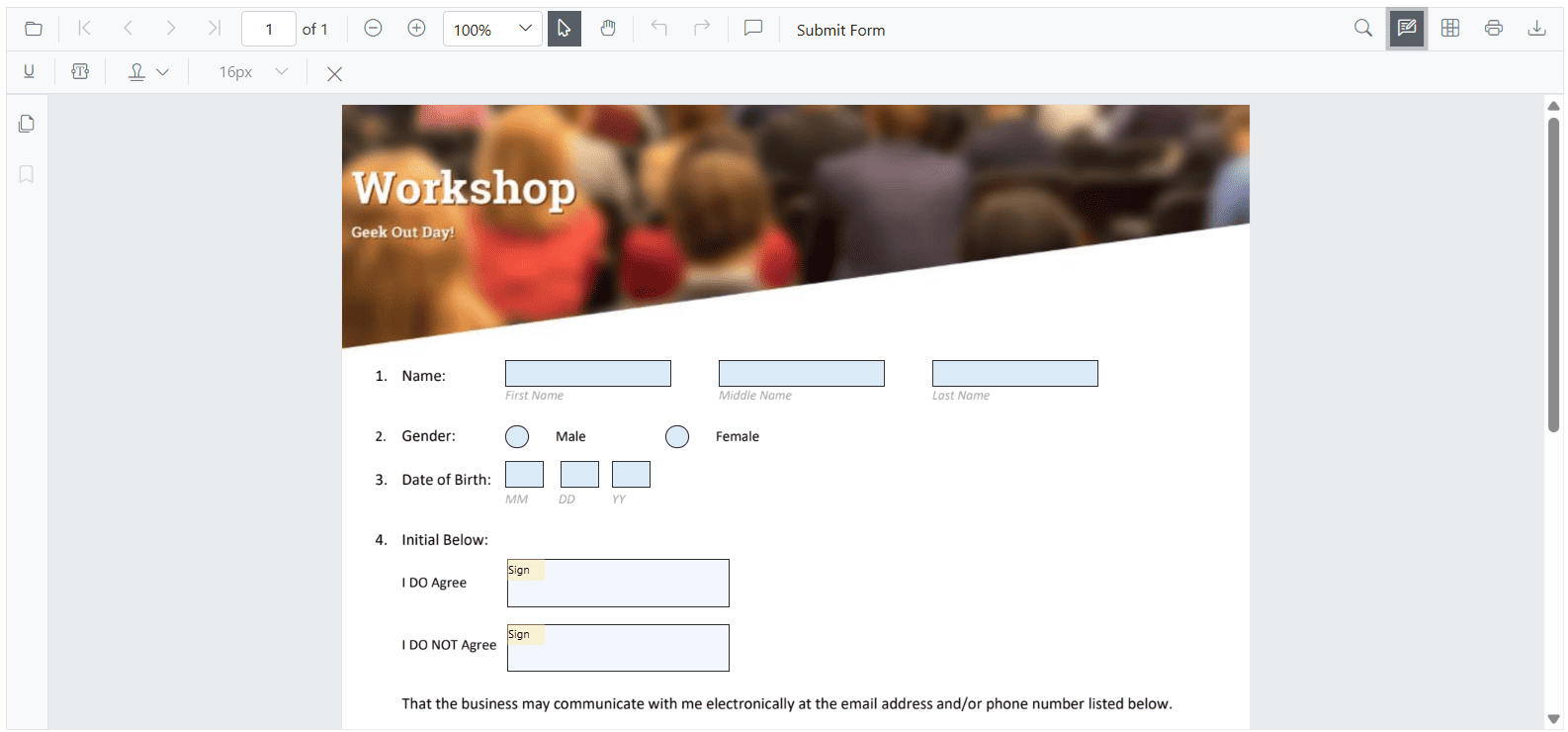
Use PdfViewerToolbarSettings to specify which annotation tools are shown and their order. The property accepts a list of AnnotationToolbarItem values; only listed items are rendered, and the displayed order follows the list sequence.
Include the CloseTool so users can exit the annotation toolbar when needed.
@using Syncfusion.Blazor.SfPdfViewer

<SfPdfViewer2 @ref="PdfViewerInstance"
              DocumentPath="wwwroot/Data/PDF_Succinctly.pdf"
              Height="100%"
              Width="100%">
    <PdfViewerToolbarSettings AnnotationToolbarItems="AnnotationToolbarItems"></PdfViewerToolbarSettings>
</SfPdfViewer2>

@code {
    private SfPdfViewer2 PdfViewerInstance;

    List<AnnotationToolbarItem> AnnotationToolbarItems = new List<AnnotationToolbarItem>()
    {
        AnnotationToolbarItem.HighlightTool,
        AnnotationToolbarItem.UnderlineTool,
        AnnotationToolbarItem.StrikethroughTool,
        AnnotationToolbarItem.ColorEditTool,
        AnnotationToolbarItem.OpacityEditTool,
        AnnotationToolbarItem.AnnotationDeleteTool,
        AnnotationToolbarItem.CommentPanelTool,
        AnnotationToolbarItem.CloseTool
    };
}
The desktop view shows items in the order configured.
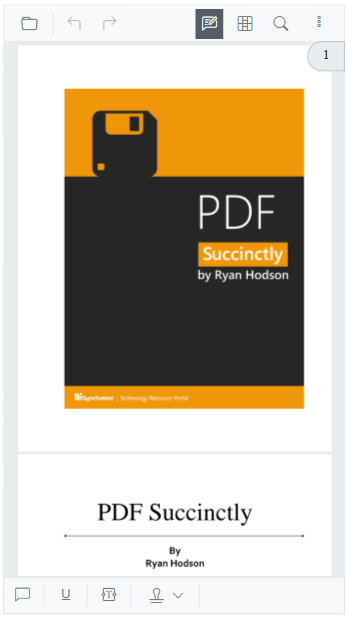
On mobile devices, the toolbar adapts responsively to the available width.
- Property tools (color, opacity, thickness, font, etc.) now appear only after you select or add the related annotation. Until you select or add an annotation, these tools are hidden.
- This change reduces clutter and shows options only when they’re relevant to the selected annotation.