Events and Commands in .NET MAUI AI AssistView
18 Nov 201824 minutes to read
Events and commands in the SfAIAssistView enable handling user interactions and executing actions, allowing you to customize and control chat behavior effectively.
ItemTapped Event and Command
The SfAIAssistView control provides the ItemTapped and ItemTappedCommand to respond when an item is tapped. The tapped item and its position are passed through the ItemTappedEventArgs. This argument provides the following details:
- Item : The tapped item within AI AssistView.
- Position : The touch position when the item was tapped.
ItemTapped Event
The following example demonstrates how to handle the ItemTapped event.
<syncfusion:SfAIAssistView x:Name="aiAssistView"
                           ItemTapped="OnAssistViewItemTapped" />
using Microsoft.Maui.Controls;
using Syncfusion.Maui.AIAssistView;

public partial class MainPage : ContentPage
{
    public MainPage()
    {
        InitializeComponent();
    }

    private void OnAssistViewItemTapped(object sender, ItemTappedEventArgs e)
    {
        DisplayAlert("Item", "Tapped on item: " + e.Item.Text, "Ok");
    }
}
ItemTapped Command
To handle the tap action using commands (MVVM), bind the ItemTappedCommand.
<syncfusion:SfAIAssistView x:Name="aiAssistView"
                           ItemTappedCommand="{Binding TappedCommand}" />
using System.Windows.Input;
using Microsoft.Maui.Controls;
using Syncfusion.Maui.AIAssistView;

public class ViewModel : INotifyPropertyChanged
{
    private ICommand tappedCommand;

    public ViewModel()
    {
        tappedCommand = new Command<object>(ExecuteItemTappedCommand);
    }

    public ICommand TappedCommand
    {
        get { return tappedCommand; }
        set { tappedCommand = value; }
    }

    private void ExecuteItemTappedCommand(object obj)
    {
        var itemTappedArgs = obj as ItemTappedEventArgs;
        if (itemTappedArgs != null)
        {
            Application.Current.MainPage.DisplayAlert("Item", "Tapped on item: " + itemTappedArgs.Item.Text, "Ok");
        }
    }
}
ItemLongPressed Event and Command
The SfAIAssistView control also supports the ItemLongPressed event and ItemLongPressedCommand, which are triggered when item is long-pressed. The ItemLongPressedEventArgs argument provides the following details:
ItemLongPressed Event
<syncfusion:SfAIAssistView x:Name="aiAssistView"
                           ItemLongPressed="OnAssistViewItemLongPressed" />
using Microsoft.Maui.Controls;
using Syncfusion.Maui.AIAssistView;

public partial class MainPage : ContentPage
{
    public MainPage()
    {
        InitializeComponent();
    }

    private void OnAssistViewItemLongPressed(object sender, ItemLongPressedEventArgs e)
    {
        DisplayAlert("Item", "Long pressed on item: " + e.Item.Text, "Ok");
    }
}
ItemLongPressed Command
To handle the long-press action using commands (MVVM), bind the ItemLongPressedCommand.
<syncfusion:SfAIAssistView x:Name="aiAssistView"
                           ItemLongPressedCommand ="{Binding LongPressedCommand}" />
using System.Windows.Input;
using Microsoft.Maui.Controls;
using Syncfusion.Maui.AIAssistView;

public class ViewModel : INotifyPropertyChanged
{
    private ICommand longPressedCommand;

    public ViewModel()
    {
        longPressedCommand = new Command<object>(ExecuteItemLongPressedCommand);
    }

    public ICommand LongPressedCommand
    {
        get { return longPressedCommand; }
        set { longPressedCommand = value; }
    }

    private void ExecuteItemLongPressedCommand(object obj)
    {
        var itemLongPressedArgs = obj as ItemLongPressedEventArgs;
        if (itemLongPressedArgs != null)
        {
            Application.Current.MainPage.DisplayAlert("Item", "LongPressed on item: " + itemLongPressedArgs.Item.Text, "Ok");
        }
    }
}
ImageTapped Event and Command
The SfAIAssistView control provides built-in support for handling image interactions through the ImageTapped event and the ImageTappedCommand.
These are triggered whenever a user taps on an image within the control. The tapped image item is accessible through the ImageTappedEventArgs, which includes the following member:
- ImageItem : Refers to the tapped image item.
ImageTapped Event
<syncfusion:SfAIAssistView x:Name="sfAIAssistView"
                           ImageTapped="sfAIAssistView_ImageTapped" />
using Microsoft.Maui.Controls;
using Syncfusion.Maui.AIAssistView;

public partial class MainPage : ContentPage
{
    public MainPage()
    {
        InitializeComponent();
        SfAIAssistView sfAIAssistView = new SfAIAssistView();
        sfAIAssistView.ImageTapped += SfAIAssistView_ImageTapped;
    }

    private void SfAIAssistView_ImageTapped(object sender, ImageTappedEventArgs e)
    {
        DisplayAlert("Image", "Tapped on image: " + e.ImageItem.Source, "Ok");
    }
}
ImageTapped Command
<syncfusion:SfAIAssistView x:Name="sfAIAssistView"
                           ImageTappedCommand="{Binding TappedCommand}" />
using System.Windows.Input;
using Microsoft.Maui.Controls;
using Syncfusion.Maui.AIAssistView;

public class ViewModel : INotifyPropertyChanged
{
    private ICommand imageTappedCommand;

    public ViewModel()
    {
        imageTappedCommand = new Command<object>(OnImageTapped);
    }

    public ICommand ImageTappedCommand
    {
        get { return imageTappedCommand; }
        set { imageTappedCommand = value; }
    }

    private void OnImageTapped(object obj)
    {
        var imageTappedArgs = obj as ImageTappedEventArgs;
        if (imageTappedArgs != null)
        {
            Application.Current.MainPage.DisplayAlert("Image", "Tapped on image item: " + imageTappedArgs.ImageItem.Source, "Ok");
        }
    }
}
CardTapped Event and Command
The SfAIAssistView control provides built-in support for handling card interactions through the CardTapped event and the CardTappedCommand. These are triggered whenever a user taps on a card within the control. The tapped card item is accessible through the CardTappedEventArgs, which includes the following members:
- Card : Represents the selected card from the card collection.
- Action : Holds the information about the selected action when a user taps a button on a card.
- CardItem : Refers to the current assist view card item.
- Handled : Indicates whether the event is handled or not.
CardTapped Event
<syncfusion:SfAIAssistView x:Name="sfAIAssistView"
                           CardTapped="sfAIAssistView_CardTapped" />
using Microsoft.Maui.Controls;
using Syncfusion.Maui.AIAssistView;

public partial class MainPage : ContentPage
{
    public MainPage()
    {
        InitializeComponent();
        SfAIAssistView sfAIAssistView = new SfAIAssistView();
        sfAIAssistView.CardTapped += this.SfAIAssistView_CardTapped;
    }

    private void SfAIAssistView_CardTapped(object sender, CardTappedEventArgs e)
    {
        DisplayAlert("Card", "Tapped on card: " + e.Card.Title, "Ok");
    }
}
CardTapped Command
<syncfusion:SfAIAssistView x:Name="sfAIAssistView"
                           CardTappedCommand="{Binding TappedCommand}" />
using System.Windows.Input;
using Microsoft.Maui.Controls;
using Syncfusion.Maui.AIAssistView;

public class ViewModel : INotifyPropertyChanged
{
    private ICommand cardTappedCommand;

    public ViewModel()
    {
        cardTappedCommand = new Command<object>(OnCardTapped);
    }

    public ICommand CardTappedCommand
    {
        get { return cardTappedCommand; }
        set { cardTappedCommand = value; }
    }

    private void OnCardTapped(object obj)
    {
        var cardTappedArgs = obj as CardTappedEventArgs;
        if (cardTappedArgs != null)
        {
            DisplayAlert("Card", "Tapped on card item: " + cardTappedArgs.Card.Title, "Ok");
        }
    }
}
AttachmentTapped Event and Command
The SfAIAssistView control provides built-in support for handling attachment interactions through the AttachmentTapped event and the AttachmentTappedCommand. These are triggered whenever a user taps on an attachment in the preview.
The tapped attachment item is accessible through the AttachmentTappedEventArgs, which includes the following member:
- Attachment : Refers to the tapped attachment item.
AttachmentTapped Event
The AttachmentTapped event is triggered when a preview attachment item is tapped.
<syncfusion:SfAIAssistView x:Name="sfAIAssistView"
                           AttachmentTapped="sfAIAssistView_AttachmentTapped" />
using Microsoft.Maui.Controls;
using Syncfusion.Maui.AIAssistView;

public partial class MainPage : ContentPage
{
    public MainPage()
    {
        InitializeComponent();
        SfAIAsssistView sfAIAssistView = new SfAIAssistView();
        sfAIAssistView.AttachmentTapped += this.SfAIAssistView_AttachmentTapped;
    }

    private void SfAIAssistView_AttachmentTapped(object sender, AttachmentTappedEventArgs e)
    {
        DisplayAlert("Attachment", "Tapped on attachment: " + e.Attachment.FileName, "Ok");
    }
}
AttachmentTapped Command
The AttachmentTappedCommand is triggered when a preview attachment item is tapped.
<syncfusion:SfAIAssistView x:Name="sfAIAssistView"
                           AttachmentTappedCommand="{Binding TappedCommand}" />
using System.Windows.Input;
using Microsoft.Maui.Controls;
using Syncfusion.Maui.AIAssistView;

public class ViewModel : INotifyPropertyChanged
{
    private ICommand attachmentTappedCommand;

    public ViewModel()
    {
        attachmentTappedCommand = new Command<object>(OnAttachmentTapped);
    }

    public ICommand AttachmentTappedCommand
    {
        get { return attachmentTappedCommand; }
        set { attachmentTappedCommand = value; }
    }

    private void OnAttachmentTapped(object obj)
    {
        var attachmentTappedArgs = obj as AttachmentTappedEventArgs;
        if (attachmentTappedArgs != null)
        {
            Application.Current.MainPage.DisplayAlert("Attachment", "Tapped on attachment item: " + attachmentTappedArgs.Attachment.FileName, "Ok");
        }
    }
}
Request Event and Command
The Request event and RequestCommand are triggered when a request item is sent. The RequestEventArgs arguments provides the following details:
- RequestItem : Represents the item requested.
- Handled : Indicates whether the request has been handled.
Request Event
The Request event is triggered when a request item is sent. This event can be handled to fetch response from an AI service.
<syncfusion:SfAIAssistView x:Name="aiAssistView"
                           Request="OnAssistViewRequest" />
using Microsoft.Maui.Controls;
using Syncfusion.Maui.AIAssistView;

public partial class MainPage : ContentPage
{
    public MainPage()
    {
        InitializeComponent();
        SfAIAsssistView sfAIAssistView = new SfAIAssistView();
        sfAIAssistView.Request += this.OnAssistViewRequest;
    }

    private void OnAssistViewRequest(object sender, RequestEventArgs e)
    {
        // Add your code for getting response from the AI.
    }
}
Request Command
To handle the request action using commands (MVVM), bind the RequestCommand.
<syncfusion:SfAIAssistView x:Name="aiAssistView"
                           RequestCommand="{Binding AssistViewRequestCommand}"/>
using System.Windows.Input;
using Microsoft.Maui.Controls;
using Syncfusion.Maui.AIAssistView;

public class ViewModel : INotifyPropertyChanged
{
    public ViewModel()
    {
        this.AssistViewRequestCommand = new Command<object>(ExecuteRequestCommand);
    }

    public ICommand AssistViewRequestCommand { get; private set; }

    private async void ExecuteRequestCommand(object obj)
    {
        var request = (obj as RequestEventArgs)?.RequestItem;
        //logic for getting response from the AI
    }
}
ItemCopy Command
The ItemCopyCommand is executed when user clicks on the copy action icon in a response item.
<syncfusion:SfAIAssistView x:Name="aiAssistView"
                           ItemCopyCommand="{Binding CopyCommand}" />
using System.ComponentModel;
using System.Runtime.CompilerServices;
using System.Windows.Input;
using Microsoft.Maui.Controls;
using Syncfusion.Maui.AIAssistView;

public class ViewModel : INotifyPropertyChanged
{
    private ICommand copyCommand;

    public ViewModel()
    {
        copyCommand = new Command<object>(ExecuteCopyCommand);
    }

    public ICommand CopyCommand
    {
        get { return copyCommand; }
        set { copyCommand = value; }
    }

    private void ExecuteCopyCommand(object obj)
    {
        // add copy logic here
    }
}
ItemRetry Command
The ItemRetryCommand is executed when user clicks on the retry action icon in a response item.
<syncfusion:SfAIAssistView x:Name="sfAIAssistView"
                           ItemRetryCommand="{Binding RetryCommand}" />
using System.ComponentModel;
using System.Runtime.CompilerServices;
using System.Windows.Input;
using Microsoft.Maui.Controls;
using Syncfusion.Maui.AIAssistView;

public class ViewModel : INotifyPropertyChanged
{
    private ICommand retryCommand;

    public ViewModel()
    {
        retryCommand = new Command<object>(ExecuteRetryCommand);
    }

    public ICommand RetryCommand
    {
        get { return retryCommand; }
        set { retryCommand = value; }
    }

    private void ExecuteRetryCommand(object obj)
    {
        // add retry logic here
    }
}
ItemRatingChanged Command
The ItemRatingChangedCommand is executed whenever a user changes the rating of a response item. This typically occurs when a user performs an action like liking or disliking the item.
<syncfusion:SfAIAssistView x:Name="aiAssistView"
                           ItemRatingChangedCommand="{Binding RatingChangedCommand}" />
using System.ComponentModel;
using System.Runtime.CompilerServices;
using System.Windows.Input;
using Microsoft.Maui.Controls;
using Syncfusion.Maui.AIAssistView;

public class ViewModel : INotifyPropertyChanged
{
    private ICommand ratingChangedCommand;

    public ViewModel()
    {
        ratingChangedCommand = new Command<object>(ExecuteRatingChangedCommand);
    }

    public ICommand RatingChangedCommand
    {
        get { return ratingChangedCommand; }
        set { ratingChangedCommand = value; }
    }

    private void ExecuteRatingChangedCommand(object obj)
    {
        Application.Current.MainPage.DisplayAlert("Rating", "Rating changed", "Ok");
    }
}
StopResponding Event and Command
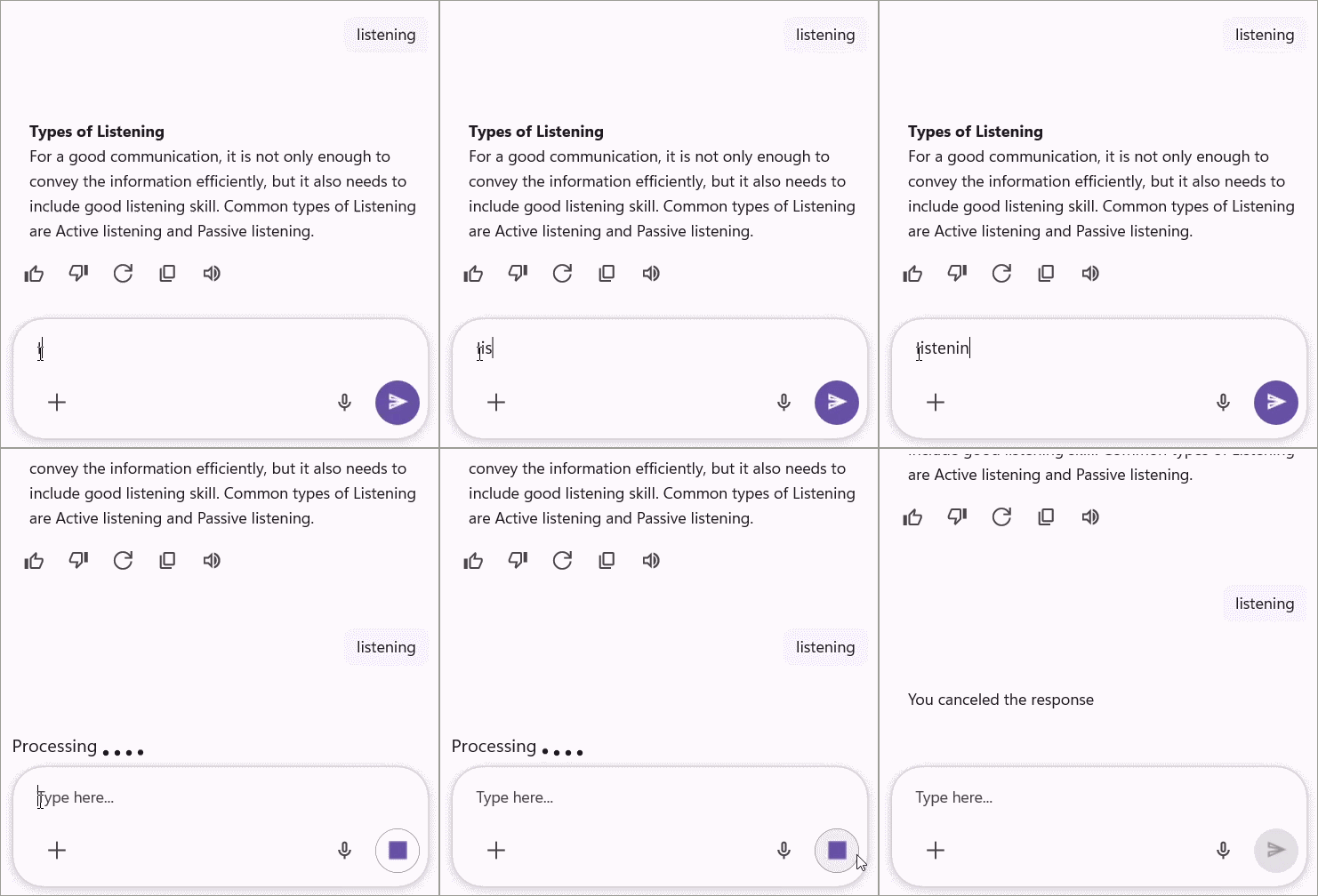
The SfAIAssistView control includes a built-in event called StopResponding and a command named StopRespondingCommand. These are triggered when the Stop Responding button is clicked.
To cancel the response using the StopRespondingCommand or StopResponding event, you can include logic to stop the ongoing response as shown below.
StopResponding Event
<syncfusion:SfAIAssistView x:Name="sfAIAssistView"
                           StopResponding="OnStopResponding" />
using System;
using Microsoft.Maui.Controls;
using Syncfusion.Maui.AIAssistView;

public partial class MainPage : ContentPage
{
    public MainPage()
    {
        InitializeComponent();
        SfAIAsssistView sfAIAssistView = new SfAIAssistView();
        sfAIAssistView.StopResponding += OnStopResponding;
    }

    private void OnStopResponding(object sender, EventArgs e)
    {
        // Handle the Stop Responding action
    }
}
StopResponding Command
<syncfusion:SfAIAssistView x:Name="sfAIAssistView"
                           StopRespondingCommand="{Binding StopRespondingCommand}" />
using System.Collections.ObjectModel;
using System.ComponentModel;
using System.Runtime.CompilerServices;
using System.Windows.Input;
using Microsoft.Maui.Controls;
using Syncfusion.Maui.AIAssistView;

public class ViewModel : INotifyPropertyChanged
{
    private bool cancelResponse;
    private ObservableCollection<object> assistItems;

    public ViewModel()
    {
        this.assistItems = new ObservableCollection<object>();
        AssistViewRequestCommand = new Command(ExecuteRequestCommand);
        StopRespondingCommand = new Command(ExecuteStopResponding);
    }

    public ICommand AssistViewRequestCommand { get; private set; }
    public ICommand StopRespondingCommand { get; private set; }

    public ObservableCollection<object> AssistItems
    {
        get { return assistItems; }
        set
        {
            assistItems = value;
            OnPropertyChanged();
        }
    }

    public bool CancelResponse
    {
        get { return cancelResponse; }
        set
        {
            cancelResponse = value;
            OnPropertyChanged();
        }
    }

    public event PropertyChangedEventHandler PropertyChanged;

    private void ExecuteStopResponding()
    {
        // logic to handle the Stop Responding action
        this.CancelResponse = true;
        AssistItem responseItem = new AssistItem() { Text = "You canceled the response" };
        responseItem.ShowAssistItemFooter = false;
        this.AssistItems.Add(responseItem);
    }

    private void ExecuteRequestCommand(object obj)
    {
        this.GetResult();
    }

    private void GetResult()
    {
        if (!CancelResponse)
        {
            // generating the response if it has not been canceled.
        }
    }

    protected void OnPropertyChanged([CallerMemberName] string name = null)
    {
        PropertyChanged?.Invoke(this, new PropertyChangedEventArgs(name));
    }
}
NOTE
Conversation Events and Commands
When a user selects a conversation item, the ConversationItemTapped event and ConversationItemTappedCommand are triggered, providing ConversationItemTappedEventArgs as arguments. This arguments contains the following details about the selected suggestion item.
- ConversationItem : The conversation item selected by the user.
- Handled : A boolean indicating whether the selected conversation item is automatically visible in view. The default value is false.
ConversationItemTapped event
<syncfusion:SfAIAssistView x:Name="aiAssistView"
                           ConversationItemTapped="OnConversationItemTapped"/>
using Microsoft.Maui.Controls;
using Syncfusion.Maui.AIAssistView;

public partial class MainPage : ContentPage
{
    public MainPage()
    {
        InitializeComponent();
        SfAIAsssistView sfAIAssistView = new SfAIAssistView();
        sfAIAssistView.ConversationItemTapped += OnConversationItemTapped;
    }

    private void OnConversationItemTapped(object sender, ConversationItemTappedEventArgs e)
    {
        // Handle the conversation item action
    }
}
ConversationItemTappedCommand
<syncfusion:SfAIAssistView x:Name="aiAssistView"
                           ConversationItemTappedCommand="{Binding ConversationItemTappedCommand}"/>
using System.ComponentModel;
using System.Windows.Input;
using Microsoft.Maui.Controls;
using Syncfusion.Maui.AIAssistView;

public class ViewModel : INotifyPropertyChanged
{
    public ICommand ConversationItemTappedCommand { get; }

    public ViewModel()
    {
        this.ConversationItemTappedCommand = new Command<object>(OnConversationItemTapped);
    }

    public event PropertyChangedEventHandler PropertyChanged;

    private void OnConversationItemTapped(object obj)
    {
        // Handle the conversation item action
    }
}
ContextMenuOpening Event
The ContextMenuOpening event is triggered before the context menu is displayed. The ContextMenuOpeningEventArgs provide the following details:
- ContextMenuItems : Represents the collection of menu items that will be displayed. You can modify this list (add or remove items) dynamically before the menu appears.
-
Cancel: Indicates whether the context menu opening should be canceled. Set this property to true to prevent the menu from being shown.
<syncfusion:SfAIAssistView x:Name="sfAIAssistView"
                           ContextMenuOpening="OnContextMenuOpening">
</syncfusion:SfAIAssistView>
using Microsoft.Maui.Controls;
using Syncfusion.Maui.AIAssistView;
public partial class MainPage : ContentPage
{
public MainPage()
{
InitializeComponent();
SfAIAsssistView sfAIAssistView = new SfAIAssistView();
sfAIAssistView.ContextMenuOpening += OnContextMenuOpening;
}
private void OnContextMenuOpening(object sender, ContextMenuOpeningEventArgs e)
{
// Allows customizing or canceling the context menu before it is displayed
}
}