Dealing with Columns in .NET MAUI Picker (SfPicker)
21 Jul 20267 minutes to read
This section explains the customization of picker columns.
Columns customization
The PickerColumn class exposes DisplayMemberPath, Width, SelectedIndex, ItemsSource, and HeaderText for enhanced control and flexibility by the following code.
DisplayMemberPath
When you have a collection of objects, and you want to display a specific property of those objects rather than the entire object by using the DisplayMemberPath property in the PickerColumn class.
<sfPicker:SfPicker x:Name="picker">
</sfPicker:SfPicker>
public MainPage()
{
InitializeComponent();
ObservableCollection<CountryInfo> countryDetails = new ObservableCollection<CountryInfo>
{
new CountryInfo { Language = "Tamil", StateName = "Tamil Nadu" },
new CountryInfo { Language = "Hindi", StateName = "Uttar Pradesh" },
new CountryInfo { Language = "Bengali", StateName = "West Bengal" },
new CountryInfo { Language = "Telugu", StateName = "Andhra Pradesh" },
new CountryInfo { Language = "Marathi", StateName = "Maharashtra" },
new CountryInfo { Language = "Kannada", StateName = "Karnataka" },
new CountryInfo { Language = "Gujarati", StateName = "Gujarat" },
new CountryInfo { Language = "Punjabi", StateName = "Punjab" },
new CountryInfo { Language = "Odia", StateName = "Odisha" },
new CountryInfo { Language = "Malayalam", StateName = "Kerala" },
new CountryInfo { Language = "Assamese", StateName = "Assam" },
};
PickerColumn pickerColumn = new PickerColumn()
{
DisplayMemberPath = "Language",
HeaderText = "Select Languages",
ItemsSource = countryDetails,
SelectedIndex = 1,
};
this.picker.Columns.Add(pickerColumn);
}public class CountryInfo
{
public string Language { get; set; }
public string StateName { get; set; }
}
Width
Set the Width of each column through the Width property on the PickerColumn. The default value of width is -1.
<sfPicker:SfPicker x:Name="picker">
</sfPicker:SfPicker>this.picker.Columns[0].Width = 150;SelectedIndex
Set the SelectedIndex of each column through the SelectedIndex property on the PickerColumn. The default value is 0.
<sfPicker:SfPicker x:Name="picker">
</sfPicker:SfPicker>this.picker.Columns[0].SelectedIndex = 5;SelectedItem
Set the SelectedItem of each column through the SelectedItem property on the PickerColumn. The default value is derived from the SelectedIndex default value.
<sfPicker:SfPicker x:Name="picker">
</sfPicker:SfPicker>this.picker.Columns[0].SelectedItem = "India";NOTE
- If you set both the
SelectedItemandSelectedIndexproperties, the picker displays the item corresponding to theSelectedIndexin the selection view. The index value takes precedence for display purposes.- In multiple columns, if you set any one column’s selected item as
null, the selected item for the other columns will also becomenull.
HeaderText
Set the HeaderText of each column through the HeaderText property on the PickerColumn. The default value is string.Empty.
<sfPicker:SfPicker x:Name="picker">
</sfPicker:SfPicker>this.picker.Columns[0].HeaderText = "Languages";
ItemsSource
Set the ItemsSource of each column through the ItemsSource property on the PickerColumn. The default value is null.
<sfPicker:SfPicker x:Name="picker">
</sfPicker:SfPicker>ObservableCollection<string> languages = new ObservableCollection<string> { "Spanish", "French", "Tamil", "English", "German", "Chinese", "Telegu", "Japanese", "Arabic", "Russian", "Portuguese", "Italian" };
this.picker.Columns.Add(languages);
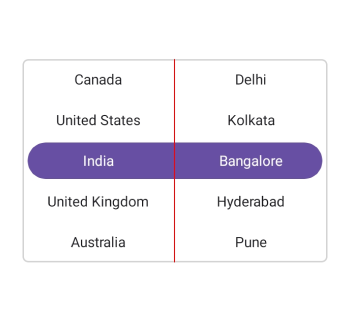
Column divider color
Customize the column divider color when the picker consists of more than one column using the ColumnDividerColor property in SfPicker.
<sfPicker:SfPicker x:Name="picker"
                   ColumnDividerColor="Red">
</sfPicker:SfPicker>
SfPicker picker = new SfPicker();
picker.ColumnDividerColor = Colors.Red;
this.Content = picker;