Column Header in .NET MAUI Picker control
This section explains the column header customization of picker control.
Column header view
The SfPicker enables or disables the column header section via the Height property of the column header view. Set the property to a value greater than 0 to display the column header; the default value is 0.
<sfPicker:SfPicker x:Name="picker">
        <sfPicker:SfPicker.ColumnHeaderView>
            <sfPicker:PickerColumnHeaderView Height="40"/>
        </sfPicker:SfPicker.ColumnHeaderView>
</sfPicker:SfPicker>this.picker.ColumnHeaderView.Height= 40;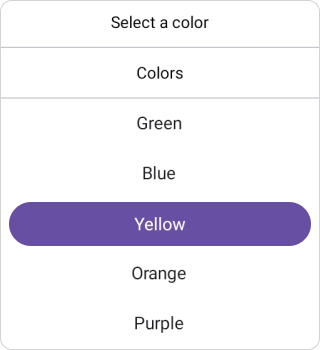
Column header customization
Customize the column header using the Height, TextStyle, Background, and DividerColor properties.
Background
The column header Background color can be customized by setting the column header view’s Background property.
<sfPicker:SfPicker x:Name="picker">
        <sfPicker:SfPicker.ColumnHeaderView>
            <sfPicker:PickerColumnHeaderView Background="#E5E4E2"/>
        </sfPicker:SfPicker.ColumnHeaderView>
</sfPicker:SfPicker>this.picker.ColumnHeaderView.Background = Color.FromArgb("#E5E4E2"),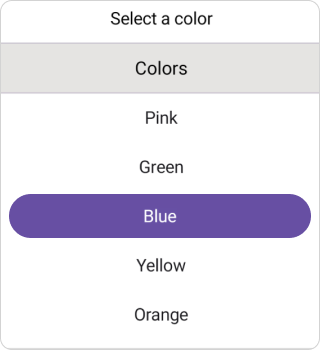
Column header text style
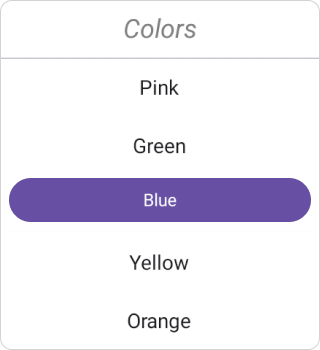
Customize the column header TextStyle — including TextColor, FontSize, FontFamily, and FontAttributes — as shown in the following code.
<sfPicker:SfPicker x:Name="picker">
      <sfPicker:SfPicker.ColumnHeaderView>
          <sfPicker:PickerColumnHeaderView>
              <sfPicker:PickerColumnHeaderView.TextStyle>
                  <sfPicker:PickerTextStyle TextColor="Gray"
                  FontSize="18"
                  FontAttributes="Italic"/>
              </sfPicker:PickerColumnHeaderView.TextStyle>
          </sfPicker:PickerColumnHeaderView>
      </sfPicker:SfPicker.ColumnHeaderView>
</sfPicker:SfPicker>this.picker.ColumnHeaderView.TextStyle = new PickerTextStyle()
{
TextColor = Colors.Gray,
FontSize = 18,
FontAttributes = FontAttributes.Italic
};
Divider color
The column header separator line is customized by setting the SfPicker.ColumnHeaderView.DividerColor property.
<sfPicker:SfPicker x:Name="picker">
        <sfPicker:SfPicker.ColumnHeaderView>
            <sfPicker:PickerColumnHeaderView DividerColor="Red"/>
        </sfPicker:SfPicker.ColumnHeaderView>
</sfPicker:SfPicker>this.picker.ColumnHeaderView.DividerColor = Colors.Red;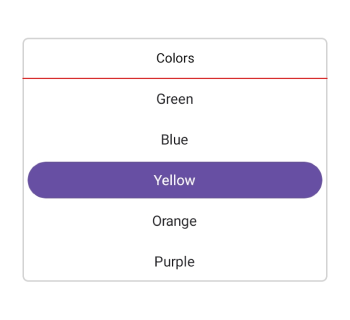
Custom Column Header Appearance using Data template
You can customize the picker column header appearance by using the ColumnHeaderTemplate property in the SfPicker.
<picker:SfPicker x:Name="picker" >
    <picker:SfPicker.ColumnHeaderTemplate>
    <DataTemplate>
        <Grid BackgroundColor="#BB9AB1">
            <Label Text="Colors" TextColor="White" HorizontalTextAlignment="Center" VerticalTextAlignment="Center"/>
        </Grid>
    </DataTemplate>
</picker:SfPicker.ColumnHeaderTemplate>
</picker:SfPicker>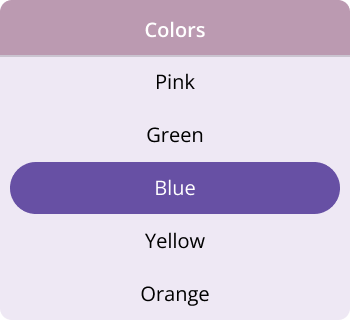
If a template is applied to the column header in the PickerColumnHeaderView, the remaining column header properties will not have any effect, except for the DividerColor Property.
Custom Column Header appearance using DataTemplateSelector
You can customize the picker column header appearance by using the ColumnHeaderTemplate property in the SfPicker. The DataTemplateSelector allows you to choose a DataTemplate at runtime based on the value bound to the picker column header. This lets you apply a custom data template to the column header and customize its appearance based on specific conditions.
<Grid.Resources>
    <DataTemplate x:Key="selectedItemTemplate">
        <Grid Background = "LightBlue" >
            <Label Text="Colors"  HorizontalOptions="Center" VerticalOptions="Center" TextColor="Red"/>
        </Grid>
    </DataTemplate>
    <DataTemplate x:Key="nonSelectedItemTemplate">
        <Grid Background="LightGreen" >
            <Label Text="Colors"  HorizontalOptions="Center" VerticalOptions="Center" TextColor="Orange"/>
        </Grid>
    </DataTemplate>
    <local:PickerTemplateSelector x:Key="columnHeaderTemplateSelector" SelectedItemTemplate="{StaticResource selectedItemTemplate}"  NonSelectedItemTemplate="{StaticResource nonSelectedItemTemplate}"/>
    <picker:SfPicker x:Name="picker" ColumnHeaderTemplate="{StaticResource columnHeaderTemplateSelector}">
    </picker:SfPicker>
</Grid.Resources>
public class PickerTemplateSelector : DataTemplateSelector
{
public PickerTemplateSelector()
{
}
public DataTemplate SelectedItemTemplate { get; set; }
public DataTemplate NonSelectedItemTemplate { get; set; }
protected override DataTemplate OnSelectTemplate(object item, BindableObject container)
{
var Details = item as PickerColumn;
if (Details != null)
{
if (Details.SelectedIndex <= 4)
return SelectedItemTemplate;
}
return NonSelectedItemTemplate;
}
}