Typing Indicator in WPF AI AssistView
18 Nov 20187 minutes to read
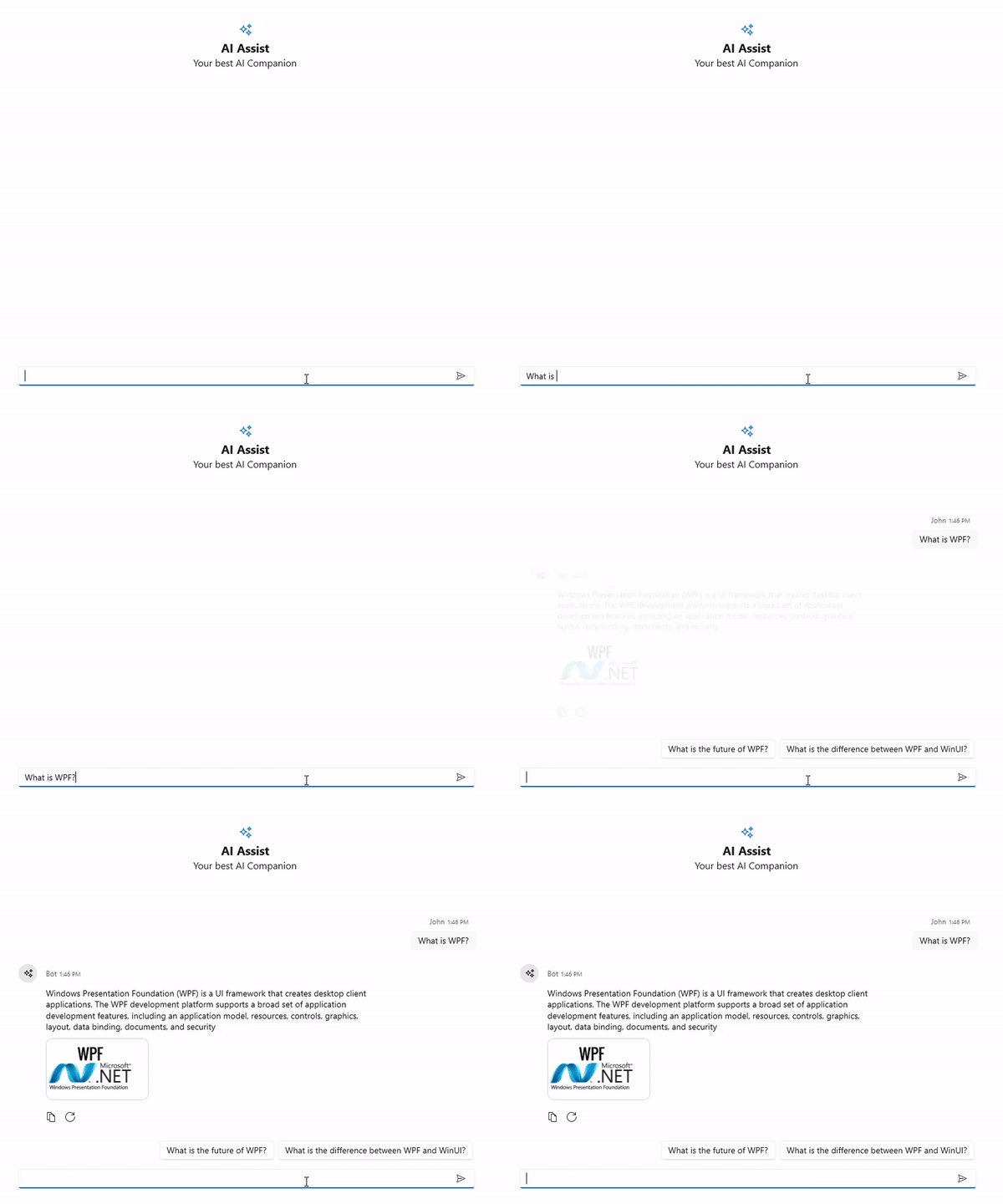
By using the TypingIndicator property, a typing indicator is shown while the AI is processing or generating a response, giving users real-time feedback and enhancing conversational flow
Create a ViewModel class with TypingIndicator
Create a simple suggestion collection as shown in the following code example in a new class file. Save it as ViewModel.cs file.
public class ViewModel : INotifyPropertyChanged
 {
     private ObservableCollection<object> chats;
     private Author currentUser;
     private IEnumerable<string> suggestion;
     private TypingIndicator typingIndicator;

     public ViewModel()
     {
         this.Chats = new ObservableCollection<object>();
         this.CurrentUser = new Author { Name="John"};
         Suggestion = new ObservableCollection<string>();
         TypingIndicator = new TypingIndicator { Author = new Author { Name = "AI" } };
         this.GenerateMessages();
     }

     private async void GenerateMessages()
     {
         this.Chats.Add( new TextMessage { Author = CurrentUser, Text = "What is WPF?" } );
         await Task.Delay(1000);
         this.Chats.Add( new TextMessage { Author = new Author { Name = "Bot" }, Text = "WPF is a user interface layer that contains modern controls and styles for building Windows apps." });
         Suggestion = new ObservableCollection<string> {"What is the future of WPF?", "What is XAML?", "What is the difference between WPF 2 and WPF 3?" };
     }


     public IEnumerable<string> Suggestion
     {
        get
        {
         return this.suggestion;
        }
        set
        {
         this.suggestion = value;
         RaisePropertyChanged("Suggestion");
        }
     }

     public ObservableCollection<object> Chats
     {
         get
         {
             return this.chats;
         }
         set
         {
             this.chats = value;
             RaisePropertyChanged("Messages");
         }
     }

     public Author CurrentUser
     {
         get
         {
             return this.currentUser;
         }
         set
         {
             this.currentUser = value;
             RaisePropertyChanged("CurrentUser");
         }
     }


    public TypingIndicator TypingIndicator
    {
        get
        {
            return this.typingIndicator;
        }
        set
        {
            this.typingIndicator = value;
            RaisePropertyChanged("TypingIndicator");
        }
    }


     public void RaisePropertyChanged(string propName)
     {
         if (PropertyChanged != null)
         {
             PropertyChanged(this, new PropertyChangedEventArgs(propName));
         }
     }


     public event PropertyChangedEventHandler PropertyChanged;
  }
Bind the TypingIndicator
Set the ViewModel as the DataContext of the SfAIAssistView control or its parent window to enable data binding between the UI and ViewModel properties.
To display a typing indicator in the SfAIAssistView, bind the TypingIndicator property in the ViewModel to the TypingIndicator property of the SfAIAssistView control.
When the application runs, the typing indicator displays an animation that represents the AI or user typing a message. The indicator is displayed when the ShowTypingIndicator property is set to true.
<Window
    x:Class="GettingStarted.MainWindow"
    xmlns="http://schemas.microsoft.com/winfx/2006/xaml/presentation"
    xmlns:x="http://schemas.microsoft.com/winfx/2006/xaml"
    xmlns:local="clr-namespace:GettingStarted"
    xmlns:d="http://schemas.microsoft.com/expression/blend/2008"
    xmlns:mc="http://schemas.openxmlformats.org/markup-compatibility/2006"
    xmlns:syncfusion="clr-namespace:Syncfusion.UI.Xaml.Chat;assembly=Syncfusion.SfChat.Wpf"
    mc:Ignorable="d">
    <Grid>
     <Grid.DataContext>
        <local:ViewModel/>
     </Grid.DataContext>
      <syncfusion:SfAIAssistView   CurrentUser="{Binding CurrentUser}"
                                   Suggestions="{Binding Suggestion}"
                                   ShowTypingIndicator="True"
                                   TypingIndicator="{Binding TypingIndicator}"
                                   Messages="{Binding Chats}"/>
    </Grid>
</Window>