Customizations in .NET MAUI Date Time Picker control
18 Nov 201824 minutes to read
The .NET MAUI Date Time Picker header, column header, footer, and selection views can be customized.
Header Customization
Customize the Date Time Picker header by using the HeaderView property of the SfDateTimePicker.
Date Time Picker header
The Date Time Picker provide pre-defined header text. By default it shows the current date and time. If you want to change the header text using the DateFormat and TimeFormat properties in SfDateTimePicker.
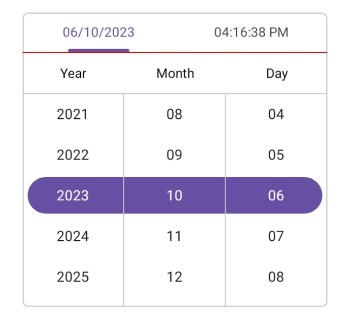
Set the divider color
The SfDateTimePicker control allows you to customize the header divider color by setting the DividerColor property of the DateTimePickerHeaderView.
<ContentPage
    . . .
    xmlns:picker="clr-namespace:Syncfusion.Maui.Picker;assembly=Syncfusion.Maui.Picker">
    <picker:SfDateTimePicker>
        <picker:SfDateTimePicker.HeaderView>
            <picker:DateTimePickerHeaderView DividerColor="Red" />
        </picker:SfDateTimePicker.HeaderView>
    </picker:SfDateTimePicker>
</ContentPage>
using Syncfusion.Maui.Picker;
. . .
public partial class MainPage : ContentPage
{
public MainPage()
{
InitializeComponent();
SfDateTimePicker dateTimePicker = new SfDateTimePicker();
dateTimePicker.HeaderView = new DateTimePickerHeaderView()
{
DividerColor = Colors.Red,
};
this.Content = dateTimePicker;
}
}
Custom Header Appearance using Datatemplate
You can customize the datetime picker header appearance by using the HeaderTemplate property in the SfDateTimePicker.
<ContentPage
    . . .
    xmlns:picker="clr-namespace:Syncfusion.Maui.Picker;assembly=Syncfusion.Maui.Picker">
    <picker:SfDateTimePicker x:Name="datetimepicker" >
        <picker:SfDateTimePicker.HeaderTemplate>
            <DataTemplate>
                <Grid BackgroundColor="#BB9AB1">
                    <Label HorizontalOptions="Center" VerticalOptions="Center" Text="Select a Date and Time" TextColor="White"/>
                </Grid>
            </DataTemplate>
        </picker:SfDateTimePicker.HeaderTemplate>
    </picker:SfDateTimePicker>
</ContentPage>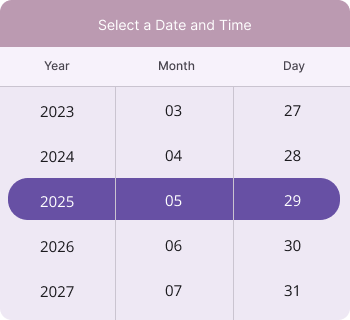
- If a template is applied to the header in the DateTimePickerHeaderView will not work except DividerColor Property.
- When a template is applied to the DateTimePicker Header, the built-in time selection switch becomes non-functional.
Custom Header appearance using DataTemplateSelector
You can customize the datetime picker header appearance by using the HeaderTemplate property in the SfDateTimePicker. The DataTemplateSelector allows you to choose a DataTemplate at runtime based on the value bound to the datetime picker header. This lets you apply a custom data template to the header and customize its appearance based on specific conditions.
<ContentPage
    . . .
    xmlns:picker="clr-namespace:Syncfusion.Maui.Picker;assembly=Syncfusion.Maui.Picker">
    <Grid.Resources>
        <DataTemplate x:Key="todayDatesTimeTemplate">
            <Grid Background="LightBlue">
                <Label HorizontalOptions="Center" VerticalOptions="Center" Text="Select a Date and Time" TextColor="Red"/>
            </Grid>
        </DataTemplate>
        <DataTemplate x:Key="normalDatesTimeTemplate">
            <Grid Background="LightGreen">
                <Label HorizontalOptions="Center" VerticalOptions="Center" Text="Select a Date and Time" TextColor="Orange"/>
            </Grid>
        </DataTemplate>
        <local:DateTimeTemplateSelector x:Key="headerTemplateSelector" TodayDatesTimeTemplate="{StaticResource todayDatesTimeTemplate}"  NormalDatesTimeTemplate="{StaticResource normalDatesTimeTemplate}"/>
        <picker:SfDateTimePicker x:Name="datetimepicker" HeaderTemplate="{StaticResource headerTemplateSelector}">
        </picker:SfDateTimePicker>
    </Grid.Resources>
</ContentPage>
using Syncfusion.Maui.Picker;
. . .
public class DateTimeTemplateSelector : DataTemplateSelector
{
public DateTimeTemplateSelector()
{
}
public DataTemplate TodayDatesTimeTemplate { get; set; }
public DataTemplate NormalDatesTimeTemplate { get; set; }
protected override DataTemplate OnSelectTemplate(object item, BindableObject container)
{
var Details = item as SfDateTimePicker;
if (Details != null)
{
if (Details.SelectedDate < DateTime.Now.Date)
return TodayDatesTimeTemplate;
}
return NormalDatesTimeTemplate;
}
}Customization of the header
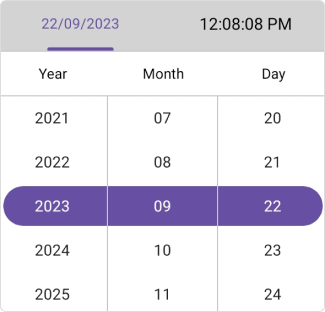
Customize the header text style and background color of the Date Time picker using the TextStyle and Background properties of the HeaderView in theDateTimePickerHeaderView.
<ContentPage
    . . .
    xmlns:picker="clr-namespace:Syncfusion.Maui.Picker;assembly=Syncfusion.Maui.Picker">
    <picker:SfDateTimePicker>
        <picker:SfDateTimePicker.HeaderView>
            <picker:DateTimePickerHeaderView Background="#D3D3D3">
                <picker:DateTimePickerHeaderView.TextStyle>
                    <picker:PickerTextStyle FontSize="15" TextColor="Black" />
                </picker:DateTimePickerHeaderView.TextStyle>
            </picker:DateTimePickerHeaderView>
        </picker:SfDateTimePicker.HeaderView>
    </picker:SfDateTimePicker>
</ContentPage>
using Syncfusion.Maui.Picker;
. . .
public partial class MainPage : ContentPage
{
public MainPage()
{
InitializeComponent();
SfDateTimePicker dateTimePicker = new SfDateTimePicker();
dateTimePicker.HeaderView = new DateTimePickerHeaderView()
{
Background = Color.FromArgb("#D3D3D3"),
TextStyle = new PickerTextStyle()
{
TextColor = Colors.White,
FontSize = 15,
}
};
this.Content = dateTimePicker;
}
}
Column Header Customization
Customize the Date Time Picker column header by using the ColumnHeaderView property of the SfDateTimePicker.
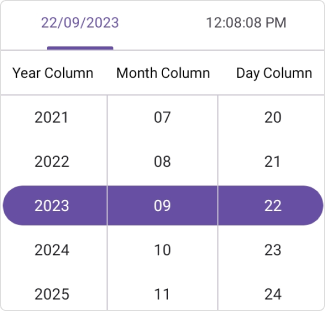
Set the custom column header
The SfDateTimePicker provides a custom text to its column header by setting the ColumnHeaderView property of the SfDateTimePicker, which has DayHeaderText, MonthHeaderText, YearHeaderText, HourHeaderText, MinuteHeaderText, SecondHeaderText, MilliSecondHeaderText, and MeridiemHeaderText properties in the DateTimePickerColumnHeaderView. The default value of DayHeaderText is “Day”, MonthHeaderText is “Month”, YearHeaderText is “Year”, HourHeaderText is “Hour”, MinuteHeaderText is “Minute”, SecondHeaderText is “Second”, MilliSecondHeaderText is “MilliSecond” and MeridiemHeaderText is “string.Empty”.
<ContentPage
    . . .
    xmlns:picker="clr-namespace:Syncfusion.Maui.Picker;assembly=Syncfusion.Maui.Picker">
    <picker:SfDateTimePicker>
        <picker:SfDateTimePicker.ColumnHeaderView>
            <picker:DateTimePickerColumnHeaderView
                DayHeaderText="Day Column" MonthHeaderText="Month Column" YearHeaderText="Year Column"
                HourHeaderText="Hour Column" MinuteHeaderText="Minute Column" SecondHeaderText="Second Column"
                MilliSecondHeaderText="MilliSecond Column" MeridiemHeaderText="Meridiem Column" />
        </picker:SfDateTimePicker.ColumnHeaderView>
    </picker:SfDateTimePicker>
</ContentPage>
using Syncfusion.Maui.Picker;
. . .
public partial class MainPage : ContentPage
{
public MainPage()
{
InitializeComponent();
SfDateTimePicker dateTimePicker = new SfDateTimePicker();
dateTimePicker.ColumnHeaderView = new DateTimePickerColumnHeaderView()
{
DayHeaderText = "Day Column",
MonthHeaderText = "Month Column",
YearHeaderText = "Year Column",
HourHeaderText = "Hour Column",
MinuteHeaderText = "Minute Column",
SecondHeaderText = "Second Column",
MilliSecondHeaderText = "MilliSecond Text",
MeridiemHeaderText = "Meridiem Column",
};
this.Content = dateTimePicker;
}
}
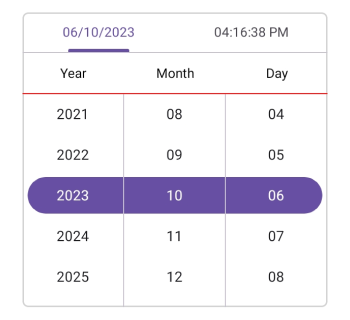
Set the divider color
The SfDateTimePicker control allows you to customize the column header divider color by setting the DividerColor property of the DatePickerColumnHeaderView.
<ContentPage
    . . .
    xmlns:picker="clr-namespace:Syncfusion.Maui.Picker;assembly=Syncfusion.Maui.Picker">
    <picker:SfDateTimePicker>
        <picker:SfDateTimePicker.ColumnHeaderView>
            <picker:DateTimePickerColumnHeaderView DividerColor="Red" />
        </picker:SfDateTimePicker.ColumnHeaderView>
    </picker:SfDateTimePicker>
</ContentPage>
using Syncfusion.Maui.Picker;
. . .
public partial class MainPage : ContentPage
{
public MainPage()
{
InitializeComponent();
SfDateTimePicker dateTimePicker = new SfDateTimePicker();
dateTimePicker.ColumnHeaderView = new DateTimePickerColumnHeaderView()
{
DividerColor = Colors.Red,
};
this.Content = dateTimePicker;
}
}
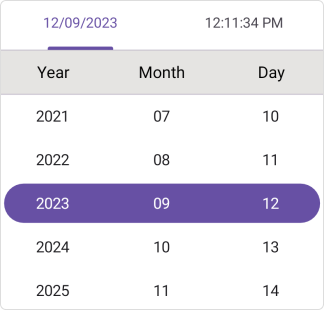
Customization of the column header
Customize the column header view text style and background color of the Date Time Picker using the TextStyle and Background properties of the DateTimePickerColumnHeaderView.
<ContentPage
    . . .
    xmlns:picker="clr-namespace:Syncfusion.Maui.Picker;assembly=Syncfusion.Maui.Picker">
    <picker:SfDateTimePicker>
        <picker:SfDateTimePicker.ColumnHeaderView>
            <picker:DateTimePickerColumnHeaderView Background="#D3D3D3">
                <picker:DateTimePickerColumnHeaderView.TextStyle>
                    <picker:PickerTextStyle FontSize="15" TextColor="Black" />
                </picker:DateTimePickerColumnHeaderView.TextStyle>
            </picker:DateTimePickerColumnHeaderView>
        </picker:SfDateTimePicker.ColumnHeaderView>
    </picker:SfDateTimePicker>
</ContentPage>
using Syncfusion.Maui.Picker;
. . .
public partial class MainPage : ContentPage
{
public MainPage()
{
InitializeComponent();
SfDateTimePicker dateTimePicker = new SfDateTimePicker();
dateTimePicker.ColumnHeaderView = new DateTimePickerColumnHeaderView()
{
Background = Color.FromArgb("#D3D3D3"),
TextStyle = new PickerTextStyle()
{
TextColor = Colors.Black,
FontSize = 15,
},
};
this.Content = dateTimePicker;
}
}
Custom Column Header Appearance using Datatemplate
You can customize the datetime picker column header appearance by using the ColumnHeaderTemplate property in the SfDateTimePicker.
<ContentPage
    . . .
    xmlns:picker="clr-namespace:Syncfusion.Maui.Picker;assembly=Syncfusion.Maui.Picker">
    <picker:SfDateTimePicker x:Name="datetimepicker" >
        <picker:SfDateTimePicker.ColumnHeaderTemplate>
            <DataTemplate>
                <Grid BackgroundColor="#BB9AB1">
                    <Grid.ColumnDefinitions>
                        <ColumnDefinition/>
                        <ColumnDefinition/>
                        <ColumnDefinition/>
                    </Grid.ColumnDefinitions>
                    <Label Text="Year" Grid.Column="0" TextColor="White" HorizontalTextAlignment="Center" VerticalTextAlignment="Center"/>
                    <Label Text="Month" Grid.Column="1" TextColor="White"  HorizontalTextAlignment="Center" VerticalTextAlignment="Center"/>
                    <Label Text="Day" Grid.Column="2" TextColor="White" HorizontalTextAlignment="Center" VerticalTextAlignment="Center"/>
                </Grid>
            </DataTemplate>
        </picker:SfDateTimePicker.ColumnHeaderTemplate>
    </picker:SfDateTimePicker>
</ContentPage>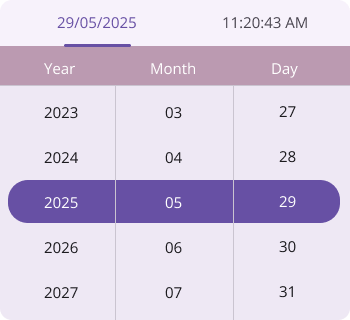
If a template is applied to the column header in the DateTimePickerColumnHeaderView, the remaining column header properties will not have any effect, except for the DividerColor Property.
Custom Column Header appearance using DataTemplateSelector
You can customize the datetime picker column header appearance by using the ColumnHeaderTemplate property in the SfDateTimePicker. The DataTemplateSelector allows you to choose a DataTemplate at runtime based on the value bound to the datetime picker column header. This lets you apply a custom data template to the column header and customize its appearance based on specific conditions.
<ContentPage
    . . .
    xmlns:picker="clr-namespace:Syncfusion.Maui.Picker;assembly=Syncfusion.Maui.Picker">
    <Grid.Resources>
        <DataTemplate x:Key="todayDatesTimeTemplate">
            <Grid Background="LightBlue">
                <Grid.ColumnDefinitions>
                    <ColumnDefinition/>
                    <ColumnDefinition/>
                    <ColumnDefinition/>
                </Grid.ColumnDefinitions>
                <Label Text="Year" Grid.Column="0" TextColor="Red" HorizontalTextAlignment="Center" VerticalTextAlignment="Center"/>
                <Label Text="Month" Grid.Column="1" TextColor="Red"  HorizontalTextAlignment="Center" VerticalTextAlignment="Center"/>
                <Label Text="Day" Grid.Column="2" TextColor="Red" HorizontalTextAlignment="Center" VerticalTextAlignment="Center"/>
            </Grid>
        </DataTemplate>
        <DataTemplate x:Key="normalDatesTimeTemplate">
            <Grid Background="LightGreen">
                <Grid.ColumnDefinitions>
                    <ColumnDefinition/>
                    <ColumnDefinition/>
                    <ColumnDefinition/>
                </Grid.ColumnDefinitions>
                <Label Text="Year" Grid.Column="0" TextColor="Orange" HorizontalTextAlignment="Center" VerticalTextAlignment="Center"/>
                <Label Text="Month" Grid.Column="1" TextColor="Orange"  HorizontalTextAlignment="Center" VerticalTextAlignment="Center"/>
                <Label Text="Day" Grid.Column="2" TextColor="Orange" HorizontalTextAlignment="Center" VerticalTextAlignment="Center"/>
                </Grid>
        </DataTemplate>
        <local:DateTimeTemplateSelector x:Key="columnHeaderTemplateSelector" TodayDatesTimeTemplate="{StaticResource todayDatesTimeTemplate}"  NormalDatesTimeTemplate="{StaticResource normalDatesTimeTemplate}"/>
        <picker:SfDateTimePicker x:Name="datetimepicker" ColumnHeaderTemplate="{StaticResource columnHeaderTemplateSelector}">
        </picker:SfDateTimePicker>
    </Grid.Resources>
</ContentPage>
using Syncfusion.Maui.Picker;
. . .
public class DateTimeTemplateSelector : DataTemplateSelector
{
public DateTimeTemplateSelector()
{
}
public DataTemplate TodayDatesTimeTemplate { get; set; }
public DataTemplate NormalDatesTimeTemplate { get; set; }
protected override DataTemplate OnSelectTemplate(object item, BindableObject container)
{
var Details = item as SfDateTimePicker;
if (Details != null)
{
if (Details.SelectedDate < DateTime.Now.Date)
return TodayDatesTimeTemplate;
}
return NormalDatesTimeTemplate;
}
}Footer Customization
Customize the Date Time Picker footer view by using the FooterView property of the SfDateTimePicker.
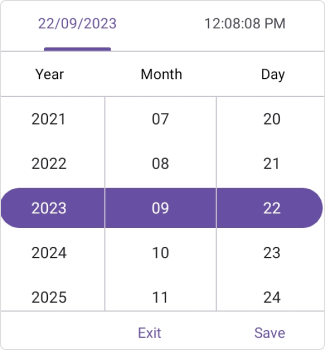
Set the footer text with OK and Cancel button customizations
In the SfDateTimePicker control, validation buttons (OK and Cancel) can be customized by setting the OkButtonText and CancelButtonText properties of the PickerFooterView. It allows you to confirm or cancel the selected date and time. The OkButtonText can be enabled using the ShowOkButton property in the PickerFooterView. The default value of the OkButtonText property is “OK”, and CancelButtonText is “Cancel”. To enable the footer view, set the Height property of the PickerFooterView to a value greater than 0. The default value of the Height property is 0.
<ContentPage
    . . .
    xmlns:picker="clr-namespace:Syncfusion.Maui.Picker;assembly=Syncfusion.Maui.Picker">
    <picker:SfDateTimePicker x:Name="picker" >
        <picker:SfDateTimePicker.FooterView >
            <picker:PickerFooterView Height="40" OkButtonText="Save"
                                     CancelButtonText="Exit"/>
        </picker:SfDateTimePicker.FooterView>
    </picker:SfDateTimePicker>
</ContentPage>
using Syncfusion.Maui.Picker;
. . .
public partial class MainPage : ContentPage
{
public MainPage()
{
InitializeComponent();
SfDateTimePicker dateTimePicker = new SfDateTimePicker();
dateTimePicker.FooterView = new PickerFooterView()
{
Height = 40,
OkButtonText = "Save",
CancelButtonText = "Exit",
};
this.Content = dateTimePicker;
}
}
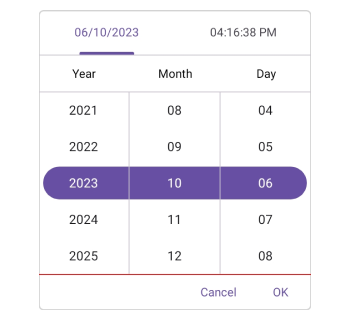
Set the divider color
The SfDateTimePicker control allows you to customize the footer divider color by setting the DividerColor property of the PickerFooterView.
<ContentPage
    . . .
    xmlns:picker="clr-namespace:Syncfusion.Maui.Picker;assembly=Syncfusion.Maui.Picker">
    <picker:SfDateTimePicker x:Name="picker" >
        <picker:SfDateTimePicker.FooterView >
            <picker:PickerFooterView DividerColor="Red" />
        </picker:SfDateTimePicker.FooterView>
    </picker:SfDateTimePicker>
</ContentPage>
using Syncfusion.Maui.Picker;
. . .
public partial class MainPage : ContentPage
{
public MainPage()
{
InitializeComponent();
SfDateTimePicker dateTimePicker = new SfDateTimePicker();
dateTimePicker.FooterView = new PickerFooterView()
{
DividerColor = Colors.Red,
};
this.Content = dateTimePicker;
}
}
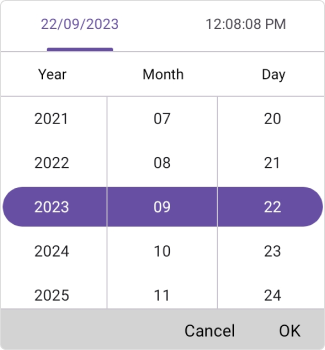
Customization of the footer
Customize the footer text style and background color of the Date Time Picker using the TextStyle and Background properties of the PickerFooterView.
<ContentPage
    . . .
    xmlns:picker="clr-namespace:Syncfusion.Maui.Picker;assembly=Syncfusion.Maui.Picker">
    <picker:SfDateTimePicker x:Name="picker" >
        <picker:SfDateTimePicker.FooterView >
            <picker:PickerFooterView Background="#D3D3D3">
                <picker:PickerFooterView.TextStyle >
                    <picker:PickerTextStyle FontSize="15" TextColor="Black" />
                </picker:PickerFooterView.TextStyle>
            </picker:PickerFooterView>
        </picker:SfDateTimePicker.FooterView>
    </picker:SfDateTimePicker>
</ContentPage>
using Syncfusion.Maui.Picker;
. . .
public partial class MainPage : ContentPage
{
public MainPage()
{
InitializeComponent();
SfDateTimePicker dateTimePicker = new SfDateTimePicker();
dateTimePicker.FooterView = new PickerFooterView()
{
Background = Color.FromArgb("#D3D3D3"),
TextStyle = new PickerTextStyle()
{
TextColor = Colors.Black,
FontSize = 15,
}
};
this.Content = dateTimePicker;
}
}
Custom Footer Header Appearance using Datatemplate
You can customize the datetime picker footer appearance by using the FooterTemplate property in the SfDateTimePicker.
<ContentPage
    . . .
    xmlns:picker="clr-namespace:Syncfusion.Maui.Picker;assembly=Syncfusion.Maui.Picker">
    <picker:SfDateTimePicker x:Name="datetimepicker">
        <picker:SfDateTimePicker.FooterTemplate>
            <DataTemplate>
                <Grid BackgroundColor="#BB9AB1">
                    <Grid.ColumnDefinitions>
                        <ColumnDefinition/>
                        <ColumnDefinition/>
                    </Grid.ColumnDefinitions>
                    <Button Grid.Column="0" Text="Decline" TextColor="White" Background="Transparent" />
                    <Button Grid.Column="1" Text="Accept" TextColor="White" Background="Transparent" />
                </Grid>
            </DataTemplate>
        </picker:SfDateTimePicker.FooterTemplate>
    </picker:SfDateTimePicker>
</ContentPage>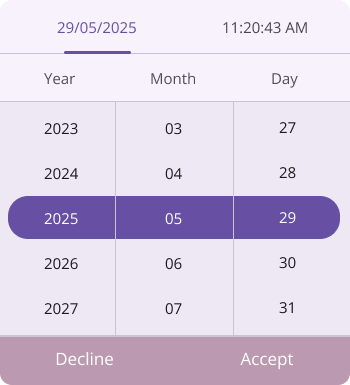
If a template is applied to the footer in the PickerFooterView, the remaining footer properties will not have any effect, except for the DividerColor Property.
Custom Footer appearance using DataTemplateSelector
You can customize the datetime picker footer appearance by using the FooterTemplate property in the SfDateTimePicker. The DataTemplateSelector allows you to choose a DataTemplate at runtime based on the value bound to the datetime picker footer. This lets you apply a custom data template to the footer and customize its appearance based on specific conditions.
<ContentPage
    . . .
    xmlns:picker="clr-namespace:Syncfusion.Maui.Picker;assembly=Syncfusion.Maui.Picker">
    <Grid.Resources>
        <DataTemplate x:Key="todayDatesTimeTemplate">
            <Grid Background="LightBlue">
                <Grid.ColumnDefinitions>
                    <ColumnDefinition/>
                    <ColumnDefinition/>
                </Grid.ColumnDefinitions>
                <Button Grid.Column="0" Text="Decline" TextColor="Red" Background="Transparent" />
                <Button Grid.Column="1" Text="Accept" TextColor="Red" Background="Transparent" />
            </Grid>
        </DataTemplate>
        <DataTemplate x:Key="normalDatesTimeTemplate">
            <Grid Background="LightGreen">
                <Grid.ColumnDefinitions>
                    <ColumnDefinition/>
                    <ColumnDefinition/>
                </Grid.ColumnDefinitions>
                <Button Grid.Column="0" Text="Decline" TextColor="Orange" Background="Transparent" />
                <Button Grid.Column="1" Text="Accept" TextColor="Orange" Background="Transparent" />
            </Grid>
        </DataTemplate>
        <local:DateTimeTemplateSelector x:Key="footerTemplateSelector" TodayDatesTimeTemplate="{StaticResource todayDatesTimeTemplate}"  NormalDatesTimeTemplate="{StaticResource normalDatesTimeTemplate}"/>
        <picker:SfDateTimePicker x:Name="datetimepicker" FooterTemplate="{StaticResource footerTemplateSelector}">
        </picker:SfDateTimePicker>
    </Grid.Resources>
</ContentPage>
using Syncfusion.Maui.Picker;
. . .
public class DateTimeTemplateSelector : DataTemplateSelector
{
public DateTimeTemplateSelector()
{
}
public DataTemplate TodayDatesTimeTemplate { get; set; }
public DataTemplate NormalDatesTimeTemplate { get; set; }
protected override DataTemplate OnSelectTemplate(object item, BindableObject container)
{
var Details = item as SfDateTimePicker;
if (Details != null)
{
if (Details.SelectedDate < DateTime.Now.Date)
return TodayDatesTimeTemplate;
}
return NormalDatesTimeTemplate;
}
}Selection View Customization
Customize the Date Time Picker selection view by using the SelectionView property of the SfDateTimePicker.
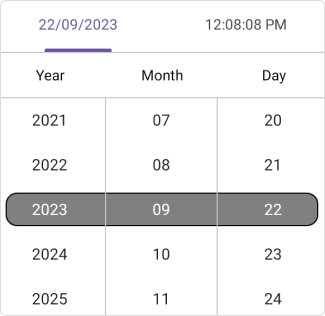
Set the selection view
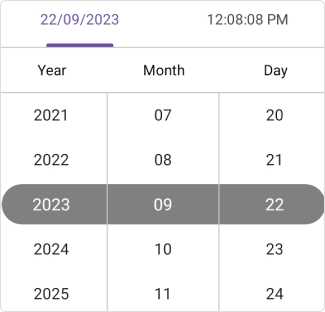
In the SfDateTimePicker control, the corner radius, stroke, and padding can be customized by setting the CornerRadius, Stroke, and Padding properties in the PickerSelectionView.
<ContentPage
    . . .
    xmlns:picker="clr-namespace:Syncfusion.Maui.Picker;assembly=Syncfusion.Maui.Picker">
    <picker:SfDateTimePicker x:Name="picker" >
        <picker:SfDateTimePicker.SelectionView >
            <picker:PickerSelectionView CornerRadius="10" Stroke="#36454F" Padding="10, 5, 10, 5" Background="#808080" />
        </picker:SfDateTimePicker.SelectionView>
    </picker:SfDateTimePicker>
</ContentPage>
using Syncfusion.Maui.Picker;
. . .
public partial class MainPage : ContentPage
{
public MainPage()
{
InitializeComponent();
SfDateTimePicker dateTimePicker = new SfDateTimePicker();
dateTimePicker.SelectionView = new PickerSelectionView()
{
CornerRadius = 10,
Stroke = Color.FromArgb("#36454F"),
Pading = new Thickness(10, 5, 10, 5),
Background = Color.FromArgb("#808080"),
};
this.Content = dateTimePicker;
}
}
Customization of the selected item
Customize the selected view text style of the Date Time Picker using the SelectedTextStyle property of the SfDateTimePicker.
<ContentPage
    . . .
    xmlns:picker="clr-namespace:Syncfusion.Maui.Picker;assembly=Syncfusion.Maui.Picker">
    <picker:SfDateTimePicker x:Name="picker" >
        <picker:SfDateTimePicker.SelectedTextStyle >
            <picker:PickerTextStyle FontSize="15" TextColor="White"/>
        </picker:SfDateTimePicker.SelectedTextStyle>
    </picker:SfDateTimePicker>
</ContentPage>
using Syncfusion.Maui.Picker;
. . .
public partial class MainPage : ContentPage
{
public MainPage()
{
InitializeComponent();
SfDateTimePicker dateTimePicker = new SfDateTimePicker();
dateTimePicker.SelectedTextStyle = new PickerTextStyle()
{
TextStyle = new PickerTextStyle()
{
TextColor = Colors.White,
FontSize = 15,
}
};
this.Content = dateTimePicker;
}
}
Column divider color
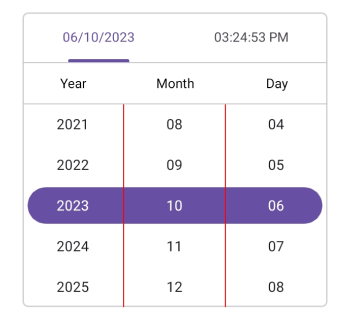
Customize the column divider color using the ColumnDividerColor property in SfDateTimePicker.
<ContentPage
    . . .
    xmlns:picker="clr-namespace:Syncfusion.Maui.Picker;assembly=Syncfusion.Maui.Picker">
    <picker:SfDateTimePicker x:Name="picker"
                             ColumnDividerColor="Red">
    </picker:SfDateTimePicker>
</ContentPage>
using Syncfusion.Maui.Picker;
. . .
public partial class MainPage : ContentPage
{
public MainPage()
{
InitializeComponent();
SfDateTimePicker dateTimePicker = new SfDateTimePicker();
dateTimePicker.ColumnDividerColor = Colors.Red;
this.Content = dateTimePicker;
}
}
CloseButtonIcon
Show Close Button
You can enable or disable the close button in the SfDateTimePicker, above the header by setting the ShowCloseButton property. The default value is false.
<ContentPage
    . . .
    xmlns:picker="clr-namespace:Syncfusion.Maui.Picker;assembly=Syncfusion.Maui.Picker">
    <Grid>
        <picker:SfDateTimePicker x:Name="dateTimePicker" Mode="Dialog" ShowCloseButton="True">
        </picker:SfDateTimePicker>
        <Button Text="Open Picker"
                x:Name="pickerButton"
                Clicked="Button_Clicked"
                HorizontalOptions="Center"
                VerticalOptions="Center"
                HeightRequest="50"
                WidthRequest="150">
        </Button>
    </Grid>
</ContentPage>
using Syncfusion.Maui.Picker;
. . .
public partial class MainPage : ContentPage
{
public MainPage()
{
InitializeComponent();
}
private void Button_Clicked(object sender, EventArgs e)
{
dateTimePicker.IsOpen = true;
}
}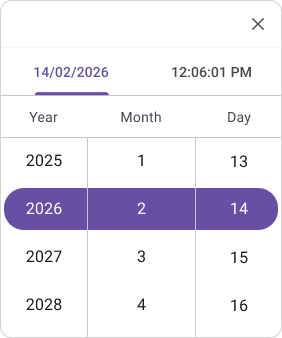
For the CloseButton to render properly, the header view must be present; otherwise, it will not function.
Close Button Icon
You can customize the close button icon in the SfDateTimePicker, above the header by setting the CloseButtonIcon property.
<ContentPage
    . . .
    xmlns:picker="clr-namespace:Syncfusion.Maui.Picker;assembly=Syncfusion.Maui.Picker">
    <Grid>
        <picker:SfDateTimePicker x:Name="dateTimePicker" Mode="Dialog" ShowCloseButton="True" CloseButtonIcon="designer_two.png">
        </picker:SfDateTimePicker>
        <Button Text="Open Picker"
                x:Name="pickerButton"
                Clicked="Button_Clicked"
                HorizontalOptions="Center"
                VerticalOptions="Center"
                HeightRequest="50"
                WidthRequest="150">
        </Button>
    </Grid>
</ContentPage>
using Syncfusion.Maui.Picker;
. . .
public partial class MainPage : ContentPage
{
public MainPage()
{
InitializeComponent();
}
private void Button_Clicked(object sender, EventArgs e)
{
dateTimePicker.IsOpen = true;
}
}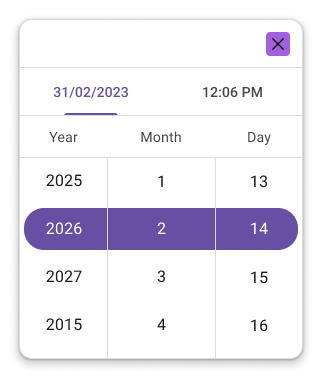
The ShowCloseButton property must be set to true for the close button icon to be displayed.
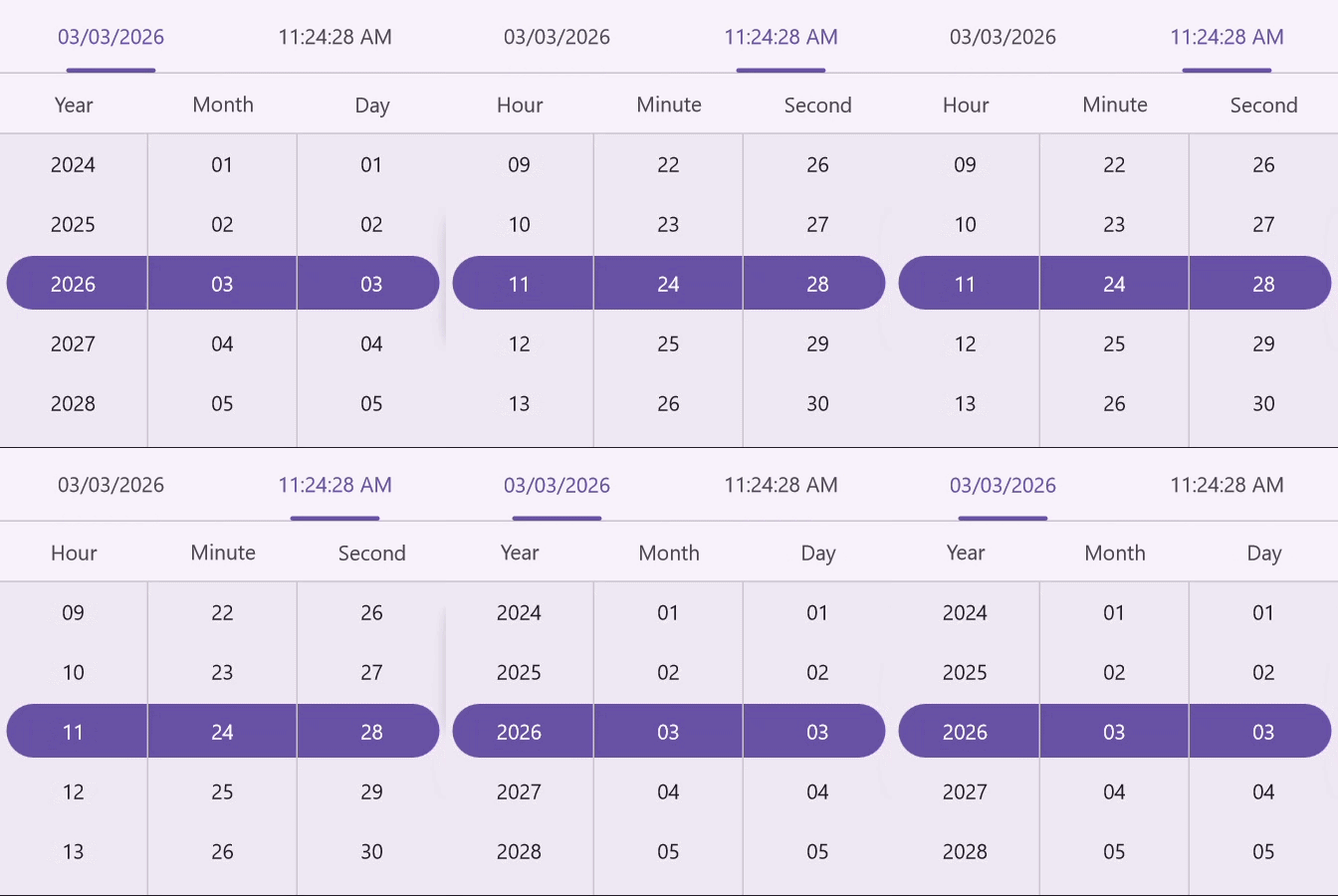
Customization of Active View
Active View
You can control the initial active tab (Date or Time) in the SfDateTimePicker by setting the ActiveView property. The DateTimePickerView enumeration has two values: Date (default) and Time.
<ContentPage
    . . .
    xmlns:picker="clr-namespace:Syncfusion.Maui.Picker;assembly=Syncfusion.Maui.Picker">
    <picker:SfDateTimePicker ActiveView="Time">
    </picker:SfDateTimePicker>
</ContentPage>
using Syncfusion.Maui.Picker;
. . .
public partial class MainPage : ContentPage
{
public MainPage()
{
InitializeComponent();
SfDateTimePicker sfDateTimePicker = new SfDateTimePicker();
sfDateTimePicker.ActiveView = DateTimePickerView.Time;
this.Content = sfDateTimePicker;
}
}
Column Customization
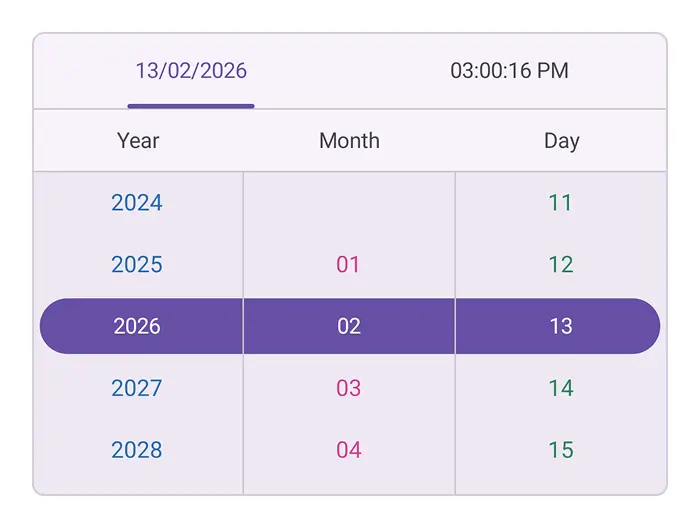
Customization of the day column text style
Customize the day column text style of the SfDateTimePicker by setting its DayColumnTextStyle property. This property accepts a TextStyle to change font, size, color, and attributes for the day labels.
- Applying
DayColumnTextStyleoverrides the previously defined unselected TextStyle, so the unselected style will no longer be applied.
<ContentPage
    . . .
    xmlns:picker="clr-namespace:Syncfusion.Maui.Picker;assembly=Syncfusion.Maui.Picker">
    <picker:SfDateTimePicker x:Name="datetimepicker" >
        <picker:SfDateTimePicker.DayColumnTextStyle>
            <picker:PickerTextStyle FontSize="15" TextColor="#2F855A"/>
        </picker:SfDateTimePicker.DayColumnTextStyle>
    </picker:SfDateTimePicker>
</ContentPage>
using Syncfusion.Maui.Picker;
. . .
public partial class MainPage : ContentPage
{
public MainPage()
{
InitializeComponent();
SfDateTimePicker dateTimePicker = new SfDateTimePicker();
dateTimePicker.DayColumnTextStyle = new PickerTextStyle()
{
TextColor = Color.FromArgb("#2F855A"),
FontSize = 15,
};
this.Content = dateTimePicker;
}
}Customization of the month column text style
Customize the month column text style of the SfDateTimePicker by setting its MonthColumnTextStyle property. This property accepts a TextStyle to change font, size, color, and attributes for the month labels.
- Applying
MonthColumnTextStyleoverrides the previously defined unselected TextStyle, so the unselected style will no longer be applied.
<ContentPage
    . . .
    xmlns:picker="clr-namespace:Syncfusion.Maui.Picker;assembly=Syncfusion.Maui.Picker">
    <picker:SfDateTimePicker x:Name="datetimepicker" >
        <picker:SfDateTimePicker.MonthColumnTextStyle>
            <picker:PickerTextStyle FontSize="15" TextColor="#D53F8C"/>
        </picker:SfDateTimePicker.MonthColumnTextStyle>
    </picker:SfDateTimePicker>
</ContentPage>
using Syncfusion.Maui.Picker;
. . .
public partial class MainPage : ContentPage
{
public MainPage()
{
InitializeComponent();
SfDateTimePicker dateTimePicker = new SfDateTimePicker();
dateTimePicker.MonthColumnTextStyle = new PickerTextStyle()
{
TextColor = Color.FromArgb("#D53F8C"),
FontSize = 15,
};
this.Content = dateTimePicker;
}
}Customization of the year column text style
Customize the year column text style of the SfDateTimePicker by setting its YearColumnTextStyle property. This property accepts a TextStyle to change font, size, color, and attributes for the year labels.
- Applying
YearColumnTextStyleoverrides the previously defined unselected TextStyle, so the unselected style will no longer be applied.
<ContentPage
    . . .
    xmlns:picker="clr-namespace:Syncfusion.Maui.Picker;assembly=Syncfusion.Maui.Picker">
    <picker:SfDateTimePicker x:Name="datetimepicker" >
        <picker:SfDateTimePicker.YearColumnTextStyle>
            <picker:PickerTextStyle FontSize="15" TextColor="#2B6CB0"/>
        </picker:SfDateTimePicker.YearColumnTextStyle>
    </picker:SfDateTimePicker>
</ContentPage>
using Syncfusion.Maui.Picker;
. . .
public partial class MainPage : ContentPage
{
public MainPage()
{
InitializeComponent();
SfDateTimePicker dateTimePicker = new SfDateTimePicker();
dateTimePicker.YearColumnTextStyle = new PickerTextStyle()
{
TextColor = Color.FromArgb("#2B6CB0"),
FontSize = 15,
};
this.Content = dateTimePicker;
}
}Customization of the hour column text style
Customize the hour column text style of the SfDateTimePicker by setting its HourColumnTextStyle property. This property accepts a TextStyle to change font, size, color, and attributes for the hour labels.
- Applying
HourColumnTextStyleoverrides the previously defined unselected TextStyle, so the unselected style will no longer be applied.
<ContentPage
    . . .
    xmlns:picker="clr-namespace:Syncfusion.Maui.Picker;assembly=Syncfusion.Maui.Picker">
    <picker:SfDateTimePicker x:Name="datetimepicker" >
        <picker:SfDateTimePicker.HourColumnTextStyle>
            <picker:PickerTextStyle FontSize="15" TextColor="DeepPink"/>
        </picker:SfDateTimePicker.HourColumnTextStyle>
    </picker:SfDateTimePicker>
</ContentPage>
using Syncfusion.Maui.Picker;
. . .
public partial class MainPage : ContentPage
{
public MainPage()
{
InitializeComponent();
SfDateTimePicker dateTimePicker = new SfDateTimePicker();
dateTimePicker.HourColumnTextStyle = new PickerTextStyle()
{
TextColor = Colors.DeepPink,
FontSize = 15,
};
this.Content = dateTimePicker;
}
}Customization of the minute column text style
Customize the minute column text style of the SfDateTimePicker by setting its MinuteColumnTextStyle property. This property accepts a TextStyle to change font, size, color, and attributes for the minute labels.
- Applying
MinuteColumnTextStyleoverrides the previously defined unselected TextStyle, so the unselected style will no longer be applied.
<ContentPage
    . . .
    xmlns:picker="clr-namespace:Syncfusion.Maui.Picker;assembly=Syncfusion.Maui.Picker">
    <picker:SfDateTimePicker x:Name="datetimepicker" >
        <picker:SfDateTimePicker.MinuteColumnTextStyle>
            <picker:PickerTextStyle FontSize="15" TextColor="MediumPurple"/>
        </picker:SfDateTimePicker.MinuteColumnTextStyle>
    </picker:SfDateTimePicker>
</ContentPage>
using Syncfusion.Maui.Picker;
. . .
public partial class MainPage : ContentPage
{
public MainPage()
{
InitializeComponent();
SfDateTimePicker dateTimePicker = new SfDateTimePicker();
dateTimePicker.MinuteColumnTextStyle = new PickerTextStyle()
{
TextColor = Colors.MediumPurple,
FontSize = 15,
};
this.Content = dateTimePicker;
}
}Customization of the second column text style
Customize the second column text style of the SfDateTimePicker by setting its SecondColumnTextStyle property. This property accepts a TextStyle to change font, size, color, and attributes for the second labels.
- Applying
SecondColumnTextStyleoverrides the previously defined unselected TextStyle, so the unselected style will no longer be applied.
<ContentPage
    . . .
    xmlns:picker="clr-namespace:Syncfusion.Maui.Picker;assembly=Syncfusion.Maui.Picker">
    <picker:SfDateTimePicker x:Name="datetimepicker" >
        <picker:SfDateTimePicker.SecondColumnTextStyle>
            <picker:PickerTextStyle FontSize="15" TextColor="DarkCyan"/>
        </picker:SfDateTimePicker.SecondColumnTextStyle>
    </picker:SfDateTimePicker>
</ContentPage>
using Syncfusion.Maui.Picker;
. . .
public partial class MainPage : ContentPage
{
public MainPage()
{
InitializeComponent();
SfDateTimePicker dateTimePicker = new SfDateTimePicker();
dateTimePicker.SecondColumnTextStyle = new PickerTextStyle()
{
TextColor = Colors.DarkCyan,
FontSize = 15,
};
this.Content = dateTimePicker;
}
}Customization of the meridiem column text style
Customize the meridiem column text style of the SfDateTimePicker by setting its MeridiemColumnTextStyle property. This property accepts a TextStyle to change font, size, color, and attributes for the meridiem labels.
- Applying
MeridiemColumnTextStyleoverrides the previously defined unselected TextStyle, so the unselected style will no longer be applied.
<ContentPage
    . . .
    xmlns:picker="clr-namespace:Syncfusion.Maui.Picker;assembly=Syncfusion.Maui.Picker">
    <picker:SfDateTimePicker x:Name="datetimepicker" >
        <picker:SfDateTimePicker.MeridiemColumnTextStyle>
            <picker:PickerTextStyle FontSize="15" TextColor="DarkCyan"/>
        </picker:SfDateTimePicker.MeridiemColumnTextStyle>
    </picker:SfDateTimePicker>
</ContentPage>
using Syncfusion.Maui.Picker;
. . .
public partial class MainPage : ContentPage
{
public MainPage()
{
InitializeComponent();
SfDateTimePicker dateTimePicker = new SfDateTimePicker();
dateTimePicker.MeridiemColumnTextStyle = new PickerTextStyle()
{
TextColor = Colors.DarkCyan,
FontSize = 15,
};
this.Content = dateTimePicker;
}
}Customization of the millisecond column text style
Customize the millisecond column text style of the SfDateTimePicker by setting its MilliSecondColumnTextStyle property. This property accepts a TextStyle to change font, size, color, and attributes for the millisecond labels.
- Applying
MilliSecondColumnTextStyleoverrides the previously defined unselected TextStyle, so the unselected style will no longer be applied.
<ContentPage
    . . .
    xmlns:picker="clr-namespace:Syncfusion.Maui.Picker;assembly=Syncfusion.Maui.Picker">
    <picker:SfDateTimePicker x:Name="datetimepicker" >
        <picker:SfDateTimePicker.MilliSecondColumnTextStyle>
            <picker:PickerTextStyle FontSize="15" TextColor="DarkCyan"/>
        </picker:SfDateTimePicker.MilliSecondColumnTextStyle>
    </picker:SfDateTimePicker>
</ContentPage>
using Syncfusion.Maui.Picker;
. . .
public partial class MainPage : ContentPage
{
public MainPage()
{
InitializeComponent();
SfDateTimePicker dateTimePicker = new SfDateTimePicker();
dateTimePicker.MilliSecondColumnTextStyle = new PickerTextStyle()
{
TextStyle = new PickerTextStyle()
{
TextColor = Colors.DarkCyan,
FontSize = 15,
}
};
this.Content = dateTimePicker;
}
}
Customization of the day column width
Customize the day column width of the SfDateTimePicker by setting its DayColumnWidth property. This property controls the width of the day column.
<ContentPage
    . . .
    xmlns:picker="clr-namespace:Syncfusion.Maui.Picker;assembly=Syncfusion.Maui.Picker">
    <picker:SfDateTimePicker x:Name="datetimepicker" DayColumnWidth="150"/>
</ContentPage>
using Syncfusion.Maui.Picker;
. . .
public partial class MainPage : ContentPage
{
public MainPage()
{
InitializeComponent();
SfDateTimePicker dateTimePicker = new SfDateTimePicker();
dateTimePicker.DayColumnWidth = 150;
this.Content = dateTimePicker;
}
}Customization of the month column width
Customize the month column width of the SfDateTimePicker by setting its MonthColumnWidth property. This property controls the width of the month column.
<ContentPage
    . . .
    xmlns:picker="clr-namespace:Syncfusion.Maui.Picker;assembly=Syncfusion.Maui.Picker">
    <picker:SfDateTimePicker x:Name="datetimepicker" MonthColumnWidth="150"/>
</ContentPage>
using Syncfusion.Maui.Picker;
. . .
public partial class MainPage : ContentPage
{
public MainPage()
{
InitializeComponent();
SfDateTimePicker dateTimePicker = new SfDateTimePicker();
dateTimePicker.MonthColumnWidth = 150;
this.Content = dateTimePicker;
}
}Customization of the year column width
Customize the year column width of the SfDateTimePicker by setting its YearColumnWidth property. This property controls the width of the year column.
<ContentPage
    . . .
    xmlns:picker="clr-namespace:Syncfusion.Maui.Picker;assembly=Syncfusion.Maui.Picker">
    <picker:SfDateTimePicker x:Name="datetimepicker" YearColumnWidth="150"/>
</ContentPage>
using Syncfusion.Maui.Picker;
. . .
public partial class MainPage : ContentPage
{
public MainPage()
{
InitializeComponent();
SfDateTimePicker dateTimePicker = new SfDateTimePicker();
dateTimePicker.YearColumnWidth = 150;
this.Content = dateTimePicker;
}
}Customization of the hour column width
Customize the hour column width of the SfDateTimePicker by setting its HourColumnWidth property. This property controls the width of the hour column.
<ContentPage
    . . .
    xmlns:picker="clr-namespace:Syncfusion.Maui.Picker;assembly=Syncfusion.Maui.Picker">
    <picker:SfDateTimePicker x:Name="datetimepicker" HourColumnWidth="150"/>
</ContentPage>
using Syncfusion.Maui.Picker;
. . .
public partial class MainPage : ContentPage
{
public MainPage()
{
InitializeComponent();
SfDateTimePicker dateTimePicker = new SfDateTimePicker();
dateTimePicker.HourColumnWidth = 150;
this.Content = dateTimePicker;
}
}Customization of the minute column width
Customize the minute column width of the SfDateTimePicker by setting its MinuteColumnWidth property. This property controls the width of the minute column.
<ContentPage
    . . .
    xmlns:picker="clr-namespace:Syncfusion.Maui.Picker;assembly=Syncfusion.Maui.Picker">
    <picker:SfDateTimePicker x:Name="datetimepicker" MinuteColumnWidth="150"/>
</ContentPage>
using Syncfusion.Maui.Picker;
. . .
public partial class MainPage : ContentPage
{
public MainPage()
{
InitializeComponent();
SfDateTimePicker dateTimePicker = new SfDateTimePicker();
dateTimePicker.MinuteColumnWidth = 150;
this.Content = dateTimePicker;
}
}Customization of the second column width
Customize the second column width of the SfDateTimePicker by setting its SecondColumnWidth property. This property controls the width of the second column.
<ContentPage
    . . .
    xmlns:picker="clr-namespace:Syncfusion.Maui.Picker;assembly=Syncfusion.Maui.Picker">
    <picker:SfDateTimePicker x:Name="datetimepicker" SecondColumnWidth="150"/>
</ContentPage>
using Syncfusion.Maui.Picker;
. . .
public partial class MainPage : ContentPage
{
public MainPage()
{
InitializeComponent();
SfDateTimePicker dateTimePicker = new SfDateTimePicker();
dateTimePicker.SecondColumnWidth = 150;
this.Content = dateTimePicker;
}
}Customization of the meridiem column width
Customize the meridiem column width of the SfDateTimePicker by setting its MeridiemColumnWidth property. This property controls the width of the meridiem column.
<ContentPage
    . . .
    xmlns:picker="clr-namespace:Syncfusion.Maui.Picker;assembly=Syncfusion.Maui.Picker">
    <picker:SfDateTimePicker x:Name="datetimepicker" MeridiemColumnWidth="150"/>
</ContentPage>
using Syncfusion.Maui.Picker;
. . .
public partial class MainPage : ContentPage
{
public MainPage()
{
InitializeComponent();
SfDateTimePicker dateTimePicker = new SfDateTimePicker();
dateTimePicker.MeridiemColumnWidth = 150;
this.Content = dateTimePicker;
}
}Customization of the millisecond column width
Customize the millisecond column width of the SfDateTimePicker by setting its MilliSecondColumnWidth property. This property controls the width of the millisecond column.
<ContentPage
    . . .
    xmlns:picker="clr-namespace:Syncfusion.Maui.Picker;assembly=Syncfusion.Maui.Picker">
    <picker:SfDateTimePicker x:Name="datetimepicker" MilliSecondColumnWidth="150"/>
</ContentPage>
using Syncfusion.Maui.Picker;
. . .
public partial class MainPage : ContentPage
{
public MainPage()
{
InitializeComponent();
SfDateTimePicker dateTimePicker = new SfDateTimePicker();
dateTimePicker.MilliSecondColumnWidth = 150;
this.Content = dateTimePicker;
}
}