About Syncfusion Toolbar in Blazor PDF Viewer Component
14 Aug 20262 minutes to read
This page provides a concise reference describing the toolbars available in the Blazor PDF Viewer component. It also explains what each toolbar is for and when it appears.
List of Available Toolbars
- Primary toolbar
- Annotation toolbar
- Form Designer toolbar
- Mobile toolbar
- Redaction toolbar
- Custom toolbar
Functional Overview of Each Toolbar
Primary toolbar
The primary toolbar provides quick access to common viewer actions and entry points to feature-specific toolbars. It adapts to the available width and shows controls appropriate for the current device and layout.
Primary toolbar options include:
- Open file
- Page navigation
- Magnification
- Pan tool
- Text selection
- Text search
- Submit form
- Comments panel
- Download
- Undo and redo
- Annotation tools
- Form designer tools
- Redaction tools
- Bookmark panel
- Thumbnail panel
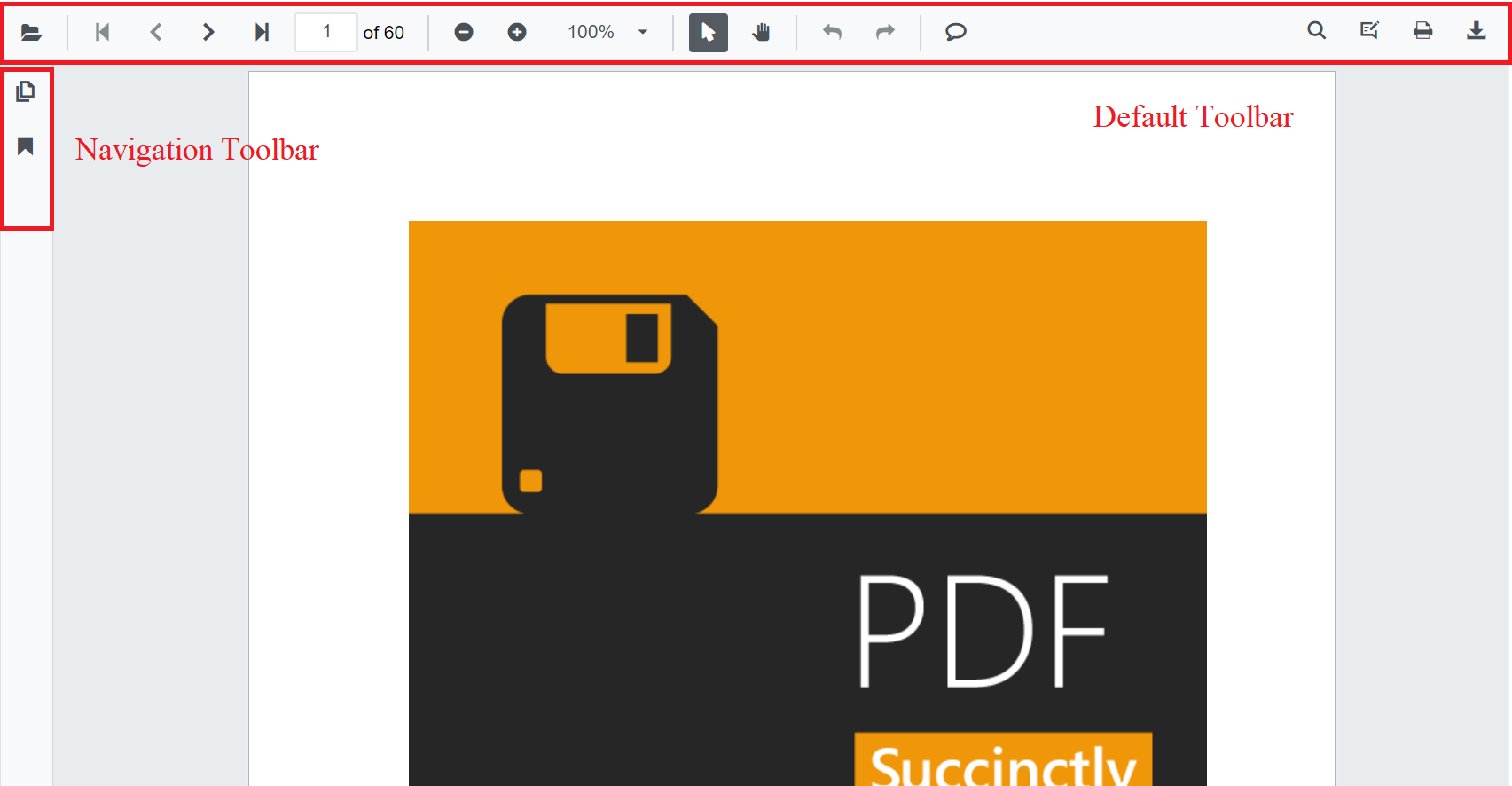
See Primary toolbar customization for configuration options and examples.
Annotation toolbar
The annotation toolbar appears below the primary toolbar when annotation features are enabled. It provides tools to create and edit annotations.
Annotation toolbar options include:
- Text markup: Highlight, Underline, Strikethrough, Squiggly
- Shapes: Line, Arrow, Rectangle, Circle, Polygon
- Measurement: Distance, Perimeter, Area, Radius, Volume
- Freehand: Ink, Signature
- Text: Free text
- Stamp: Built-in and custom stamps
- Properties: Color, opacity, thickness, font
- Edit helpers: Comments panel, Delete
- Close
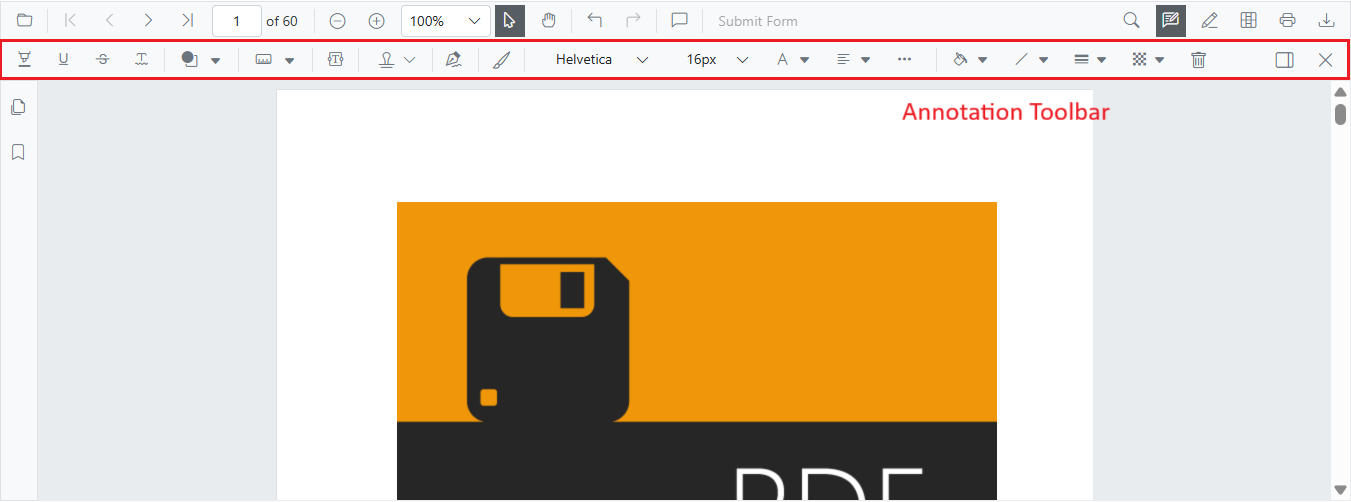
See Annotation toolbar customization for configuration options and examples.
Form Designer toolbar
The form designer toolbar appears when form designer mode is enabled and provides tools to add and configure interactive form fields.
Form designer toolbar options include:
- Field types: Button, Text box, Password, Checkbox, Radio button, Drop-down, List box, Signature, Initial
- Edit helpers: Delete
- Close
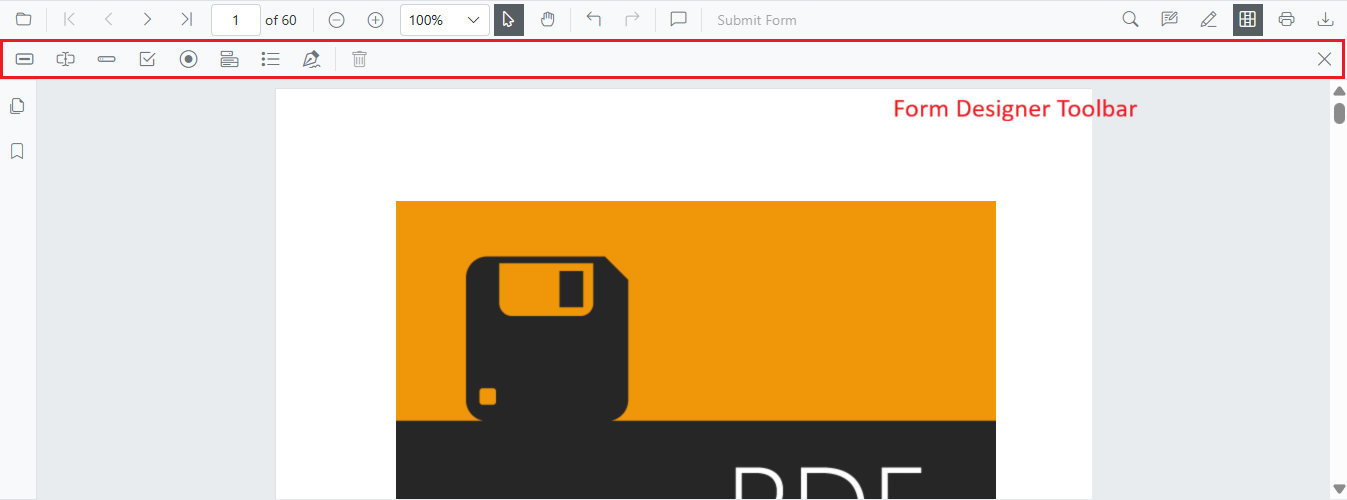
See Form designer toolbar customization for configuration options and examples.
Mobile toolbar
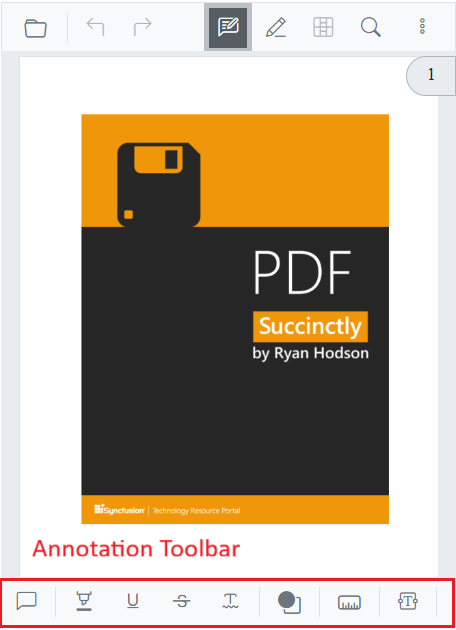
- A compact toolbar layout optimized for small screens and touch interactions. It appears automatically on mobile-sized view ports and contains the most frequently used actions in a space-efficient arrangement.
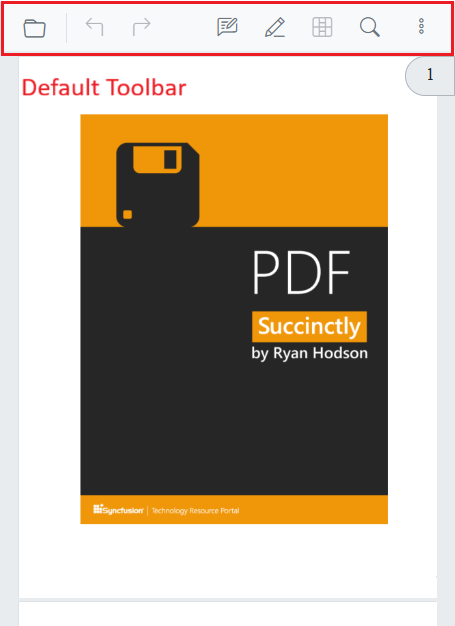
- Annotation toolbar in mobile mode appears at the bottom of the PDF Viewer component.
Redaction toolbar
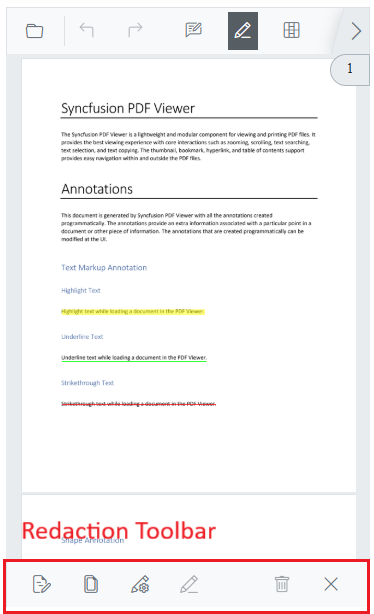
The redaction toolbar provides tools to mark and permanently remove sensitive content. It appears below the primary toolbar when redaction is enabled.
Redaction toolbar options include:
- Redaction marks: Mark for redaction, Redact page
- Apply redactions: Permanently remove marked content
- Properties: Redaction properties
- Edit helpers: Delete
- Close
See Redaction toolbar customization for configuration options and examples.
Customize toolbars
The following quick links describe how to customize, show, or hide specific toolbar items. Each linked page defines custom toolbar configurations and examples.
- Show or hide primary toolbar items
- Show or hide annotation toolbar items
- Show or hide form designer toolbar items
- Add a custom primary toolbar item
- Enable mobile toolbar
- Enable redaction toolbar