Customize mobile toolbar in Blazor PDF Viewer
17 Jul 20267 minutes to read
Overview
This guide explains how to customize the mobile toolbar in the Blazor PDF Viewer, enable the desktop toolbar on mobile devices, and ensure smooth touch interactions.
Primary toolbar in mobile mode
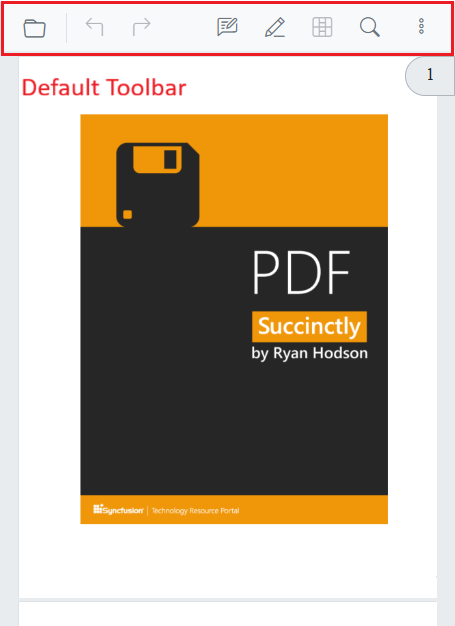
The Blazor PDF Viewer includes a built-in, responsive primary toolbar that adapts to mobile screens. In mobile mode, the toolbar provides quick access to common viewer actions.
The primary toolbar in mobile includes the following options:
- Open PDF File
- Undo and Redo
- Annotation tools
- Form designer tools
- Redaction tools
- Text search
Reorder mobile toolbar items
Use MobileToolbarItems to control the display order. The toolbar renders items in the order they appear in the collection.
@using Syncfusion.Blazor.SfPdfViewer

<SfPdfViewer2 Height="640px"
              Width="100%"
              DocumentPath="wwwroot/Data/PDF_Succinctly.pdf">
    <PdfViewerToolbarSettings MobileToolbarItems="MobileToolbarItems"></PdfViewerToolbarSettings>
</SfPdfViewer2>

@code {
    private List<MobileToolbarItem> MobileToolbarItems { get; set; }

    protected override void OnInitialized()
    {
        MobileToolbarItems = new List<MobileToolbarItem>()
        {
            MobileToolbarItem.Open,
            MobileToolbarItem.UndoRedo,
            MobileToolbarItem.EditAnnotation,
            MobileToolbarItem.Redaction,
            MobileToolbarItem.FormDesigner,
            MobileToolbarItem.Search
        };
    }
}
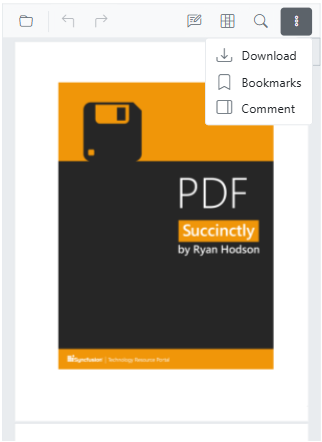
More options menu
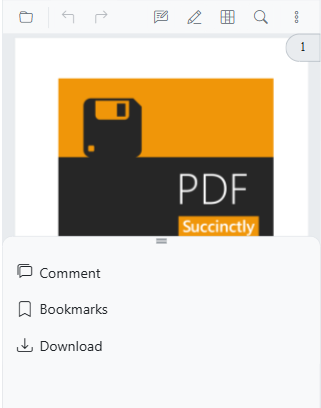
Open the overflow (three-dots) menu to access additional actions such as:
- Download: Download the currently opened PDF document.
- Bookmark: View and navigate bookmarks within the document.
Annotation toolbar in mobile mode
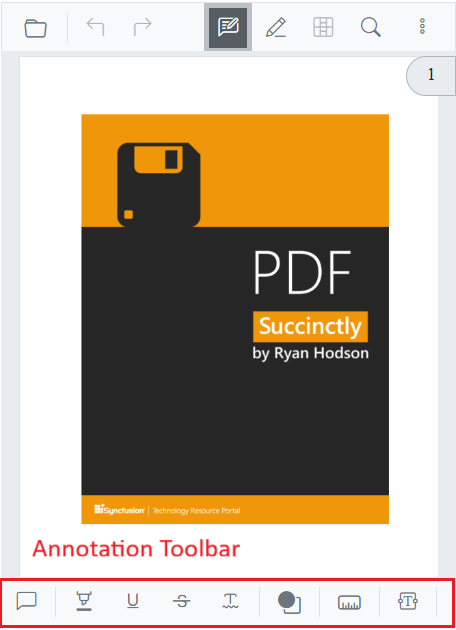
The annotation toolbar appears when annotation features are enabled and provides tools to create and edit annotations. In mobile mode, it appears at the bottom of the viewer.
- Text markup: Highlight, Underline, Strikethrough, Squiggly
- Shapes: Line, Arrow, Rectangle, Circle, Polygon, Volume
- Measurement: Distance, Perimeter, Area, Radius
- Freehand: Ink, Signature
- Text: Free text
- Stamp: Predefined and custom stamps
- Properties: Color, Opacity, Thickness, Font
- Edit helpers: Delete
- Close
Customize annotation toolbar items in mobile
Use AnnotationToolbarItems to configure which annotation tools are shown on mobile devices.
@using Syncfusion.Blazor.SfPdfViewer

<SfPdfViewer2 Height="640px"
              Width="100%"
              DocumentPath="wwwroot/Data/PDF_Succinctly.pdf">
    <PdfViewerToolbarSettings AnnotationToolbarItems="AnnotationToolbarItems"></PdfViewerToolbarSettings>
</SfPdfViewer2>

@code {
    List<AnnotationToolbarItem> AnnotationToolbarItems = new List<AnnotationToolbarItem>()
    {
        AnnotationToolbarItem.HighlightTool,
        AnnotationToolbarItem.UnderlineTool,
        AnnotationToolbarItem.StrikethroughTool,
        AnnotationToolbarItem.FreeTextAnnotationTool,
        AnnotationToolbarItem.CloseTool
    };
}
Form designer toolbar in mobile mode
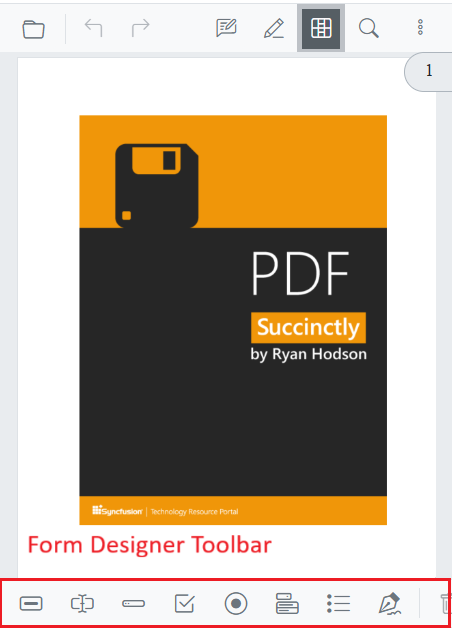
Use the form designer toolbar to add and configure interactive form fields in the PDF. In mobile mode, it appears at the bottom of the viewer.
- Field types: Button, Text box, Password, Check box, Radio button, Drop-down, List box, Signature, Initial
- Edit helpers: Delete
- Close
Customize form designer toolbar items in mobile
Use FormDesignerToolbarItems to configure which form design tools are shown on mobile devices.
@using Syncfusion.Blazor.SfPdfViewer

<SfPdfViewer2 EnableFormDesigner="true"
              Height="640px"
              Width="100%"
              DocumentPath="wwwroot/Data/Form_Designer.pdf">
    <PdfViewerToolbarSettings FormDesignerToolbarItems="FormDesignerToolbarItems"></PdfViewerToolbarSettings>
</SfPdfViewer2>

@code {
    List<FormDesignerToolbarItem> FormDesignerToolbarItems = new List<FormDesignerToolbarItem>()
    {
        FormDesignerToolbarItem.TextBox,
        FormDesignerToolbarItem.CheckBox,
        FormDesignerToolbarItem.ListBox,
        FormDesignerToolbarItem.Delete
    };
}
Redaction toolbar in mobile mode
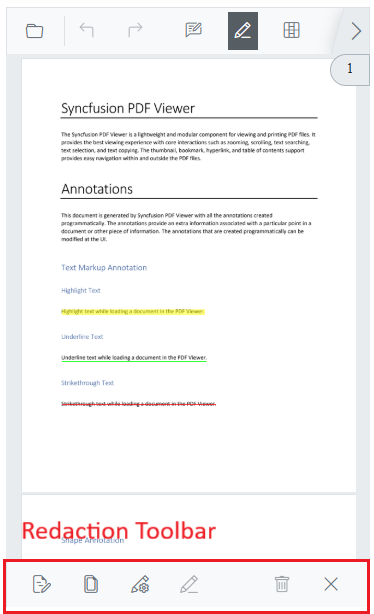
The redaction toolbar provides tools to mark and permanently remove sensitive content from the document. In mobile mode, it appears at the bottom of the viewer.
- Mark for redaction
- Redact page
- Apply redactions: Permanently remove marked content
- Properties: Redaction properties
- Edit helpers: Delete
- Close
Enable redaction toolbar in mobile
Show the redaction toolbar on mobile by configuring the MobileToolbarItems property.
@using Syncfusion.Blazor.SfPdfViewer

<SfPdfViewer2 Height="640px"
              Width="100%"
              DocumentPath="wwwroot/Data/PDF_Succinctly.pdf">
    <PdfViewerToolbarSettings MobileToolbarItems="MobileToolbarItems"></PdfViewerToolbarSettings>
</SfPdfViewer2>

@code {
    private List<MobileToolbarItem> MobileToolbarItems = new List<MobileToolbarItem>();

    protected override void OnInitialized()
    {
        MobileToolbarItems = new List<MobileToolbarItem>()
        {
            MobileToolbarItem.Open,
            MobileToolbarItem.UndoRedo,
            MobileToolbarItem.EditAnnotation,
            MobileToolbarItem.Redaction,
            MobileToolbarItem.FormDesigner,
            MobileToolbarItem.Search
        };
    }
}
Enable desktop mode on mobile
Enable the desktop toolbar on mobile devices with the EnableDesktopMode API. This replaces the mobile toolbar with the desktop layout and provides access to additional actions and controls.
@using Syncfusion.Blazor.SfPdfViewer

<SfPdfViewer2 DocumentPath="wwwroot/Data/PDF_Succinctly.pdf"
              Height="100%"
              Width="100%"
              EnableDesktopMode="true">
</SfPdfViewer2>Modern navigation panel in mobile view
On mobile devices, the navigation toolbar collapses into a toggle menu to save space. Any custom items added appear at the beginning of this menu.
Enable modern navigation panel in mobile view
Enable the modern navigation panel by setting EnableNavigationPanel to true.
@using Syncfusion.Blazor.SfPdfViewer

<SfPdfViewer2 DocumentPath="wwwroot/Data/PDF_Succinctly.pdf"
              Height="100%"
              Width="100%"
              EnableNavigationPanel="true">
</SfPdfViewer2>Enable scrolling in desktop mode with touch gestures
To enable smooth scrolling of PDF documents on mobile while in desktop mode, disable text selection by setting EnableTextSelection to false to allow touch panning.
@using Syncfusion.Blazor.SfPdfViewer

<SfPdfViewer2 DocumentPath="wwwroot/Data/PDF_Succinctly.pdf"
              Height="100%"
              Width="100%"
              EnableDesktopMode="true"
              EnableTextSelection="false">
</SfPdfViewer2>Print option availability in mobile
The Print option is not available in mobile mode by default. To use printing on mobile, enable the desktop toolbar with the EnableDesktopMode API. Availability and behavior may vary by mobile browser.