Redaction in mobile view in Blazor PDF Viewer
14 Aug 20265 minutes to read
Redaction mode in mobile view provides a touch-optimized toolbar and tools to mark, review, and apply redactions on the go.
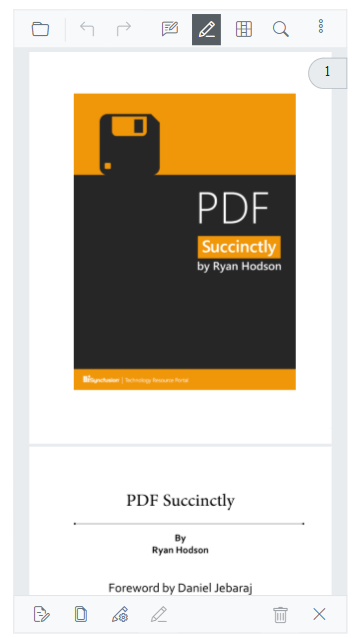
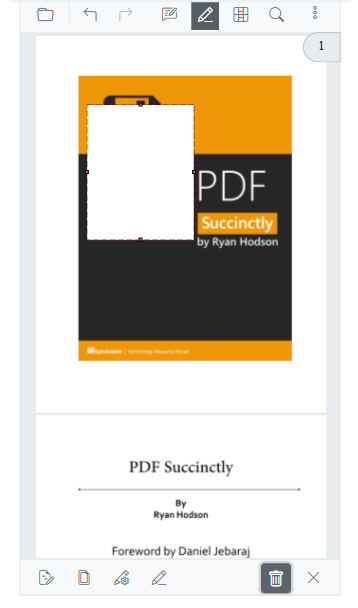
In mobile view, the redaction toolbar appears at the bottom of the viewer for thumb-friendly access. The mobile layout activates automatically on small screens.
Enable redaction in mobile view
Configure the viewer toolbar to include redaction tools for both desktop and mobile. Example:
@page "/"

<SfPdfViewer2 @ref="SfPdfViewer2"
               Height="640px"
               Width="100%"
               DocumentPath="@DocumentPath">
    <PdfViewerToolbarSettings ToolbarItems="ToolbarItems"
                              MobileToolbarItems="MobileToolbarItems">
    </PdfViewerToolbarSettings>
</SfPdfViewer2>

@code {
    private SfPdfViewer2? SfPdfViewer2;
    private string DocumentPath { get; set; } = "https://cdn.syncfusion.com/content/pdf/pdf-succinctly.pdf";

    private List<ToolbarItem>? ToolbarItems { get; set; }
    private List<MobileToolbarItem>? MobileToolbarItems { get; set; }

    protected override void OnInitialized()
    {
        // Configure desktop toolbar items including redaction
        ToolbarItems = new List<ToolbarItem>()
        {
            ToolbarItem.OpenOption,
            ToolbarItem.PageNavigationTool,
            ToolbarItem.MagnificationTool,
            ToolbarItem.SelectionTool,
            ToolbarItem.PanTool,
            ToolbarItem.UndoRedoTool,
            ToolbarItem.CommentTool,
            ToolbarItem.SubmitForm,
            ToolbarItem.SearchOption,
            ToolbarItem.AnnotationEditTool,
            ToolbarItem.Redaction,
            ToolbarItem.FormDesigner,
            ToolbarItem.PrintOption,
            ToolbarItem.DownloadOption
        };

        // Configure mobile toolbar items optimized for touch interaction
        MobileToolbarItems = new List<MobileToolbarItem>()
        {
            MobileToolbarItem.Open,
            MobileToolbarItem.UndoRedo,
            MobileToolbarItem.EditAnnotation,
            MobileToolbarItem.Redaction,
            MobileToolbarItem.FormDesigner,
            MobileToolbarItem.Search
        };
    }
}
Toolbar tools overview
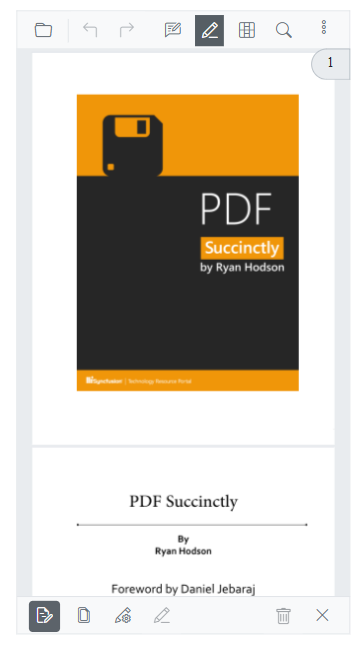
Redaction annotation
Draw rectangular overlays to mark selective content for redaction. Overlays are editable until applied.
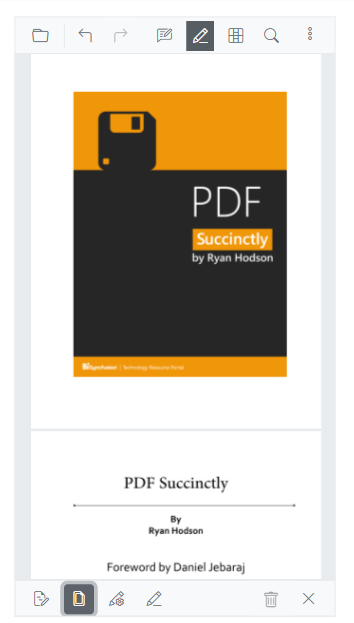
Page redaction
Redact whole pages or page ranges using patterns (odd/even/ranges/current page).
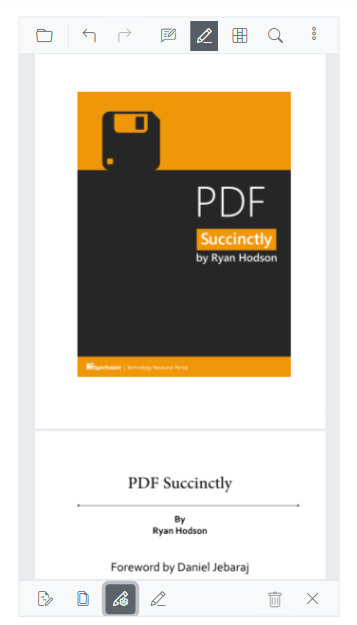
Redaction properties
Customize overlay color, outline, overlay text, font, alignment, and size before applying redactions.
Enabling redaction mode in mobile view
Step 1: Tap the Redaction button in the mobile toolbar to activate redaction mode. The redaction toolbar appears at the bottom of the viewer.
Step 2: From the redaction toolbar, select your desired redaction tool:
- First Tool (Redaction Annotation): For selective content redaction
- Second Tool (Page Redaction): For page-wide or pattern-based redaction
- Third Tool (Redaction Properties): For appearance customization
Step 3: Configure your redaction parameters using the selected tool interface.
Applying different redaction types in mobile view
Selective content redaction
- Select the Redaction Annotation tool (first button).
- Choose Content: Tap and drag over text or draw rectangular areas.
- Preview: Check redaction overlays for accuracy.
- Apply: Tap the Apply Redactions button.
Page-wide redaction
- Select the Page Redaction tool (second button).
- Choose Pattern: Select odd pages, even pages, or custom range.
- Review: Verify affected pages in the viewer.
- Apply: Confirm the page redaction scope and apply.
Custom appearance redaction
- Select the Redaction Properties tool (third button).
- Customize: Adjust colors, overlay text, and formatting.
- Preview: See changes applied to existing annotations.
- Apply: Use the customized appearance for the final redaction.
Apply redactions
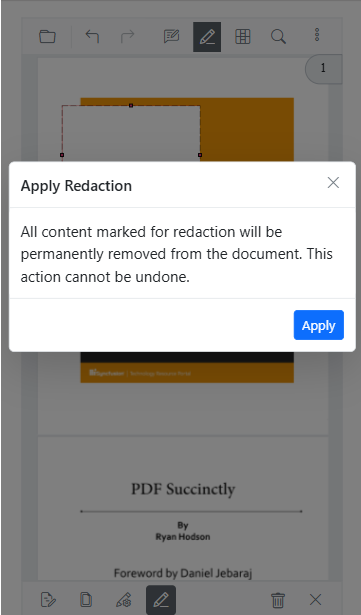
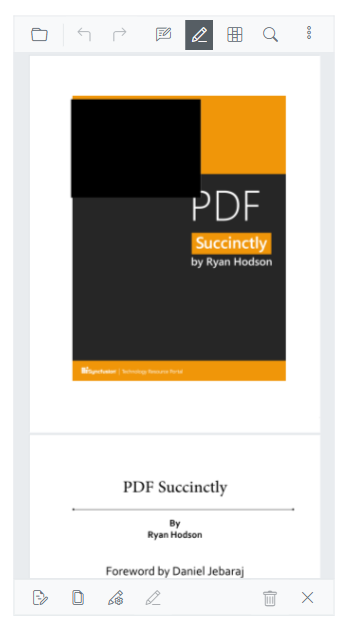
Applying redactions is permanent. After applying, the underlying content and text are removed from the document and cannot be recovered.
After configuring redactions using any combination of tools, follow these steps:
Step 1: Review all redaction marks and configurations.
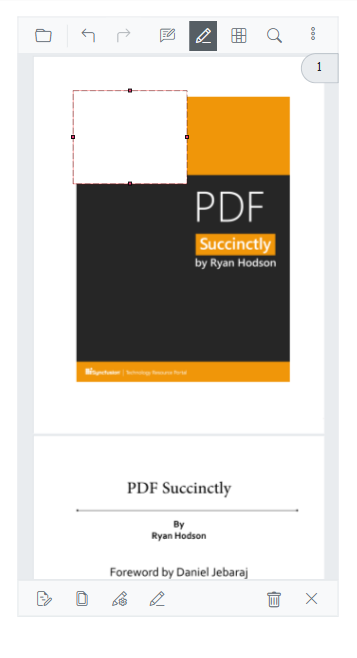
Step 2: Tap the Apply Redactions button in the redaction toolbar.
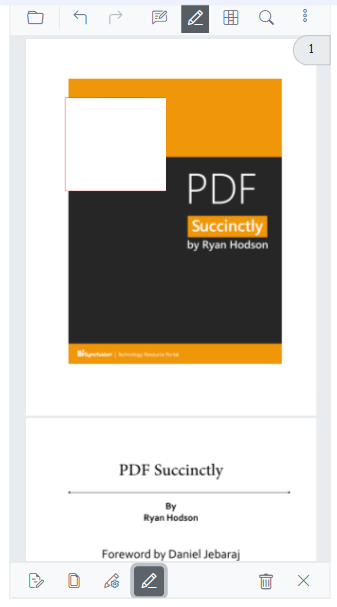
Step 3: Confirm the action when prompted. This operation is permanent and cannot be undone.
The selected content is permanently removed and replaced according to your redaction properties (solid color blocks or custom overlay text).
Removing redaction annotations
To remove existing redaction annotations before they are applied:
Step 1: Tap the Redaction Edit button in the mobile toolbar to enter annotation editing mode.
Step 2: Tap on any existing redaction annotation you wish to remove.
Step 3: Select Delete from the context menu that appears.
Alternative: Tap a redaction annotation, then use the delete button in the annotation properties panel.
After redactions are applied they become part of the PDF content and cannot be removed.