Customize the Redaction Toolbar in Blazor PDF Viewer
17 Jul 20267 minutes to read
This guide shows how to display or hide the redaction toolbar and how to enable it on desktop and mobile devices.
Enable the redaction toolbar on desktop
Show the redaction toolbar on desktop by including the required ToolbarItem.Redaction in the PdfViewerToolbarSettings.
@using Syncfusion.Blazor.SfPdfViewer

<SfPdfViewer2 Height="100%" Width="100%" DocumentPath="wwwroot/Data/Annotations.pdf">
    <PdfViewerToolbarSettings ToolbarItems="ToolbarItems"></PdfViewerToolbarSettings>
</SfPdfViewer2>

@code {
    private List<ToolbarItem> ToolbarItems = new List<ToolbarItem>();
    protected override void OnInitialized()
    {
        ToolbarItems = new List<ToolbarItem>()
        {
            ToolbarItem.OpenOption,
            ToolbarItem.PageNavigationTool,
            ToolbarItem.MagnificationTool,
            ToolbarItem.SelectionTool,
            ToolbarItem.PanTool,
            ToolbarItem.UndoRedoTool,
            ToolbarItem.CommentTool,
            ToolbarItem.SubmitForm,
            ToolbarItem.SearchOption,
            ToolbarItem.AnnotationEditTool,
            ToolbarItem.Redaction,
            ToolbarItem.FormDesigner,
            ToolbarItem.PrintOption,
            ToolbarItem.DownloadOption
        };
    }
}
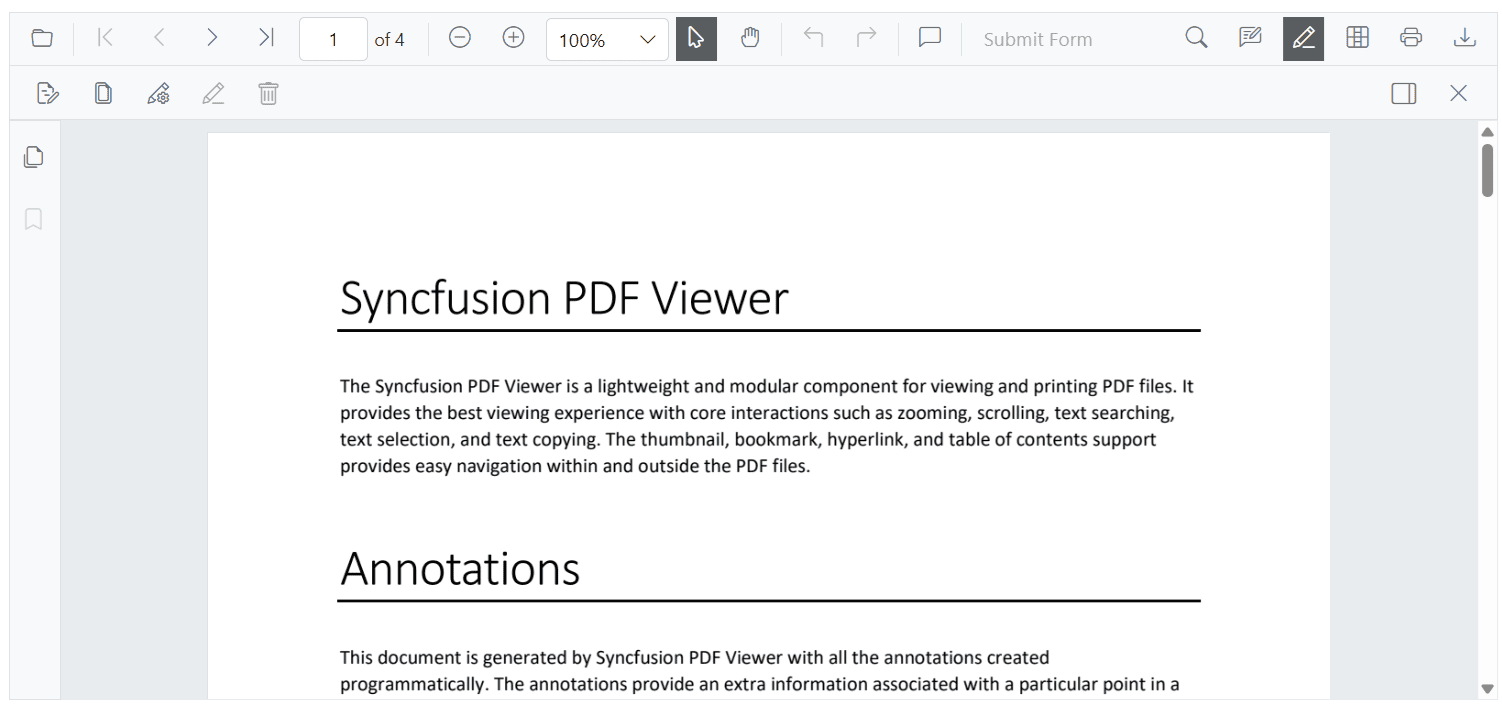
The redaction toolbar appears in the desktop view when the page is loaded.
Enable the redaction toolbar on mobile
Show the redaction toolbar on mobile by configuring the MobileToolbarItem.Redaction in the PdfViewerToolbarSettings.
@using Syncfusion.Blazor.SfPdfViewer

<SfPdfViewer2 Height="100%" Width="100%" DocumentPath="wwwroot/Data/Annotations.pdf">
    <PdfViewerToolbarSettings MobileToolbarItems="MobileToolbarItems"></PdfViewerToolbarSettings>
</SfPdfViewer2>

@code {
    private List<MobileToolbarItem> MobileToolbarItems = new List<MobileToolbarItem>();
    protected override void OnInitialized()
    {
        MobileToolbarItems = new List<MobileToolbarItem>()
        {
            MobileToolbarItem.Open,
            MobileToolbarItem.UndoRedo,
            MobileToolbarItem.EditAnnotation,
            MobileToolbarItem.Redaction,
            MobileToolbarItem.FormDesigner,
            MobileToolbarItem.Search
        };
    }
}
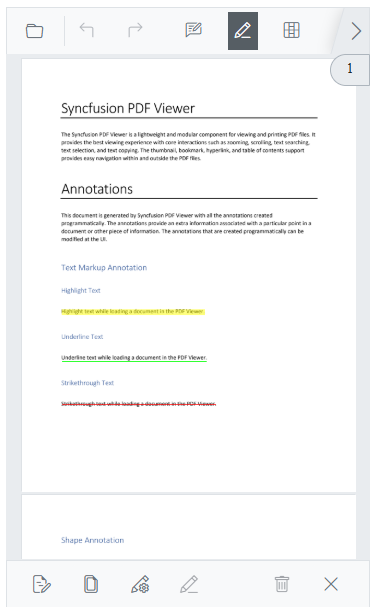
The redaction toolbar appears in the mobile view when the page is loaded.
Show or hide the redaction toolbar
Use the ShowRedactionToolbar method on the viewer to control visibility. The method accepts a bool parameter: true shows the redaction toolbar and false hides it.
Display the redaction toolbar using the toolbar icon
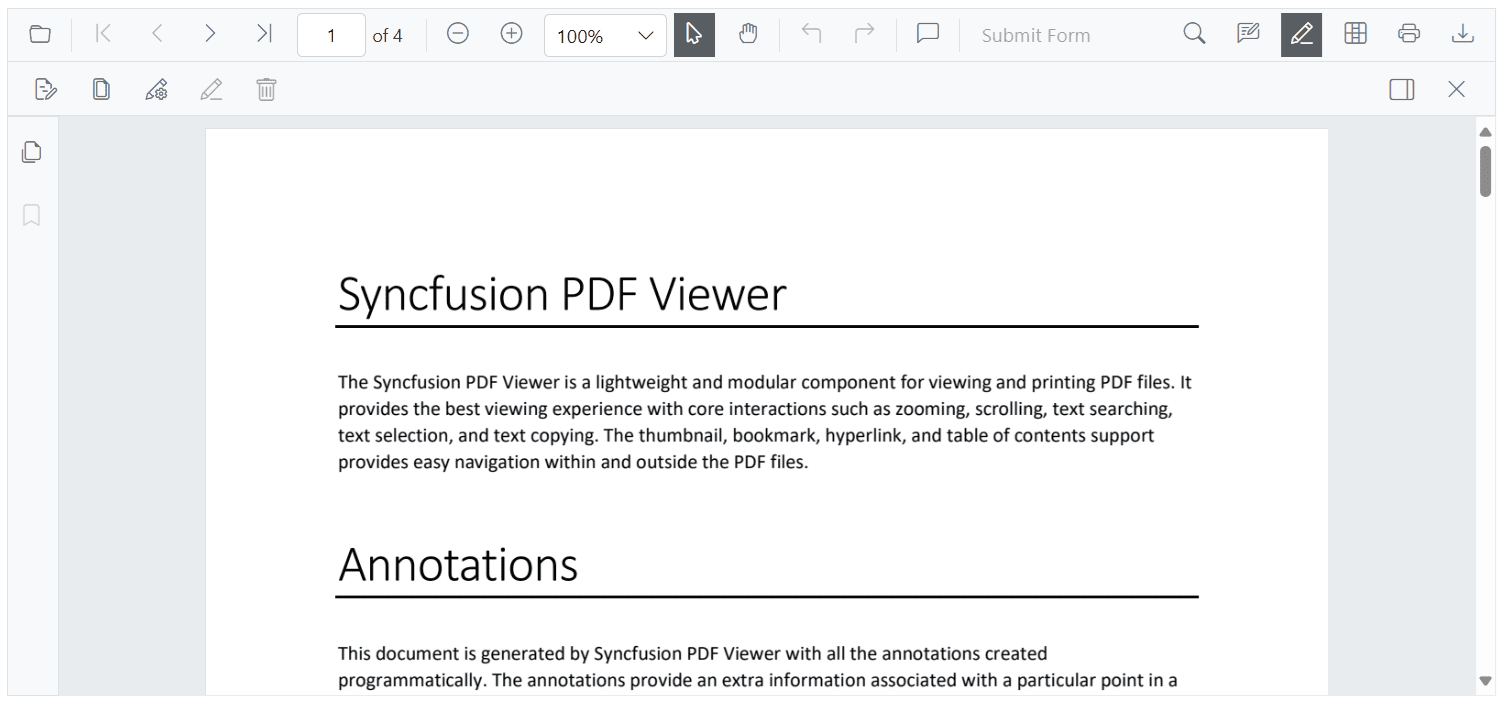
When ToolbarItem.Redaction or MobileToolbarItem.Redaction is enabled, selecting the redaction icon in the primary toolbar opens the redaction toolbar. Selecting the icon again hides it.
Selecting the redaction icon in the primary toolbar opens the redaction toolbar.
Display the redaction toolbar programmatically
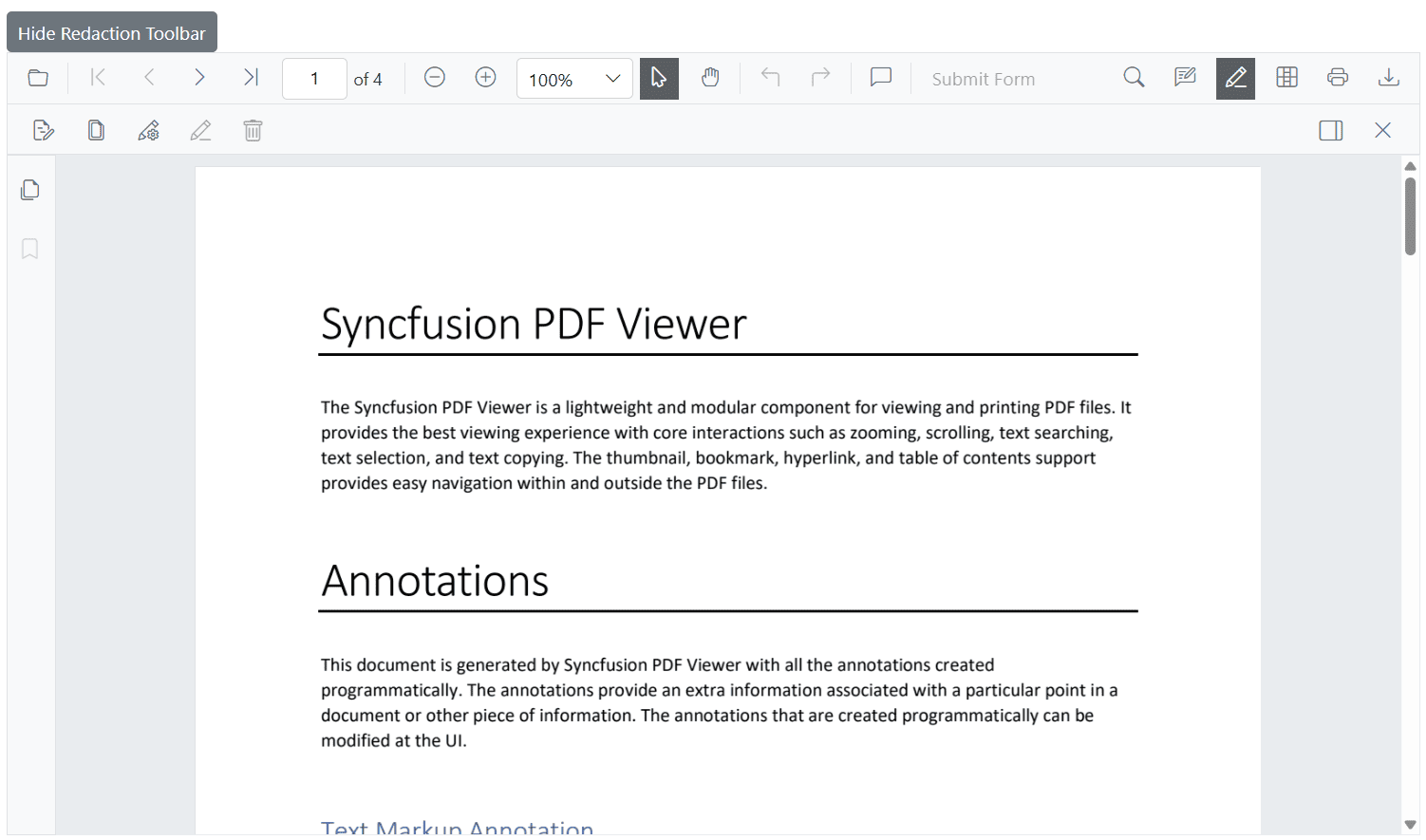
Control visibility through application logic by invoking the ShowRedactionToolbar method on the viewer instance. The isRedactionToolbarVisible flag tracks the current state so the toggle button switches between show and hide.
@using Syncfusion.Blazor.SfPdfViewer
@using Syncfusion.Blazor.Buttons

<SfButton @onclick="ToggleRedactionToolbar">Toggle Redaction Toolbar</SfButton>

<SfPdfViewer2 @ref="viewer"
              DocumentPath="wwwroot/Data/Annotations.pdf"
              Height="100%"
              Width="100%">
    <PdfViewerToolbarSettings ToolbarItems="ToolbarItems"></PdfViewerToolbarSettings>
</SfPdfViewer2>

@code {
    private SfPdfViewer2 viewer;
    private bool isRedactionToolbarVisible = true;

    private List<ToolbarItem> ToolbarItems = new List<ToolbarItem>();

    protected override void OnInitialized()
    {
        ToolbarItems = new List<ToolbarItem>()
        {
            ToolbarItem.OpenOption,
            ToolbarItem.UndoRedoTool,
            ToolbarItem.Redaction,
            ToolbarItem.PrintOption,
            ToolbarItem.DownloadOption
        };
    }

    private void ToggleRedactionToolbar()
    {
        isRedactionToolbarVisible = !isRedactionToolbarVisible;
        viewer.ShowRedactionToolbar(isRedactionToolbarVisible);
    }
}
Invoking the ShowRedactionToolbar method opens the redaction toolbar.
Complete example with redaction toolbar customization
The following is a complete, runnable example. It wires a toggle button and a viewer with the redaction toolbar enabled on both desktop and mobile.
@using Syncfusion.Blazor.SfPdfViewer
@using Syncfusion.Blazor.Buttons

<SfButton @onclick="ToggleRedactionToolbar">Toggle Redaction Toolbar</SfButton>

<SfPdfViewer2 @ref="viewer"
              DocumentPath="wwwroot/Data/Annotations.pdf"
              Height="100%"
              Width="100%">
    <PdfViewerToolbarSettings ToolbarItems="ToolbarItems"
                              MobileToolbarItems="MobileToolbarItems">
    </PdfViewerToolbarSettings>
</SfPdfViewer2>

@code {
    private SfPdfViewer2 viewer;
    private bool isRedactionToolbarVisible = true;

    private List<ToolbarItem> ToolbarItems = new List<ToolbarItem>();
    private List<MobileToolbarItem> MobileToolbarItems = new List<MobileToolbarItem>();

    protected override void OnInitialized()
    {
        ToolbarItems = new List<ToolbarItem>()
        {
            ToolbarItem.OpenOption,
            ToolbarItem.PageNavigationTool,
            ToolbarItem.MagnificationTool,
            ToolbarItem.SelectionTool,
            ToolbarItem.PanTool,
            ToolbarItem.UndoRedoTool,
            ToolbarItem.CommentTool,
            ToolbarItem.SubmitForm,
            ToolbarItem.SearchOption,
            ToolbarItem.AnnotationEditTool,
            ToolbarItem.Redaction,
            ToolbarItem.FormDesigner,
            ToolbarItem.PrintOption,
            ToolbarItem.DownloadOption
        };

        MobileToolbarItems = new List<MobileToolbarItem>()
        {
            MobileToolbarItem.Open,
            MobileToolbarItem.UndoRedo,
            MobileToolbarItem.EditAnnotation,
            MobileToolbarItem.Redaction,
            MobileToolbarItem.FormDesigner,
            MobileToolbarItem.Search
        };
    }

    private void ToggleRedactionToolbar()
    {
        isRedactionToolbarVisible = !isRedactionToolbarVisible;
        viewer.ShowRedactionToolbar(isRedactionToolbarVisible);
    }
}