Getting Started with UWP Digital Gauge
18 Nov 20182 minutes to read
This section explains the steps required to configure the SfDigitalGauge and also explains the steps to add basic elements of SfDigitalGauge through various APIs available within it.
Configuring UWP Digital Gauge
UWP Digital Gauge is available in the following assembly and namespace.
Assembly: Syncfusion.SfGauge.UWP
Namespace: Syncfusion.UI.Xaml.Gauges
By default, the Value property is empty and CharacterType defaults to SegmentSeven.
<syncfusion:SfDigitalGauge />SfDigitalGauge digital = new SfDigitalGauge();
this.Grid.Children.Add(digital);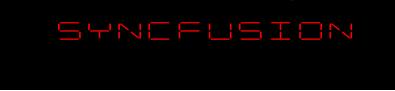
Run the above code and the default SfDigitalGauge is displayed as follows.
The UI component of the digital gauge can be customized by adding segments and setting the Value property, which will be explained in the next section.
Displaying Values
You can add alphanumeric characters to SfDigitalGauge using the Value property in UWP Digital Gauge.
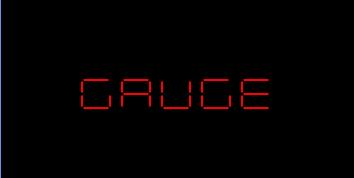
<syncfusion:SfDigitalGauge Value="GAUGE" />SfDigitalGauge digital = new SfDigitalGauge();
digital.Value = "GAUGE";
this.Grid.Children.Add(digital);The values are displayed as follows.
Changing segments
You can view the digital characters in SfDigitalGauge using different types of segments available in the CharacterType property. The CharacterType enum (defined in the Syncfusion.UI.Xaml.Gauges namespace) supports the following values: SegmentSeven, SegmentFourteen, SegmentSixteen, and EightByEightDotMatrix. For the full list of supported segment types and the characters each one renders, see Digital Characters.
The SegmentSeven type primarily supports digits (0–9) and a limited set of characters, which is why the sample below renders numeric values.
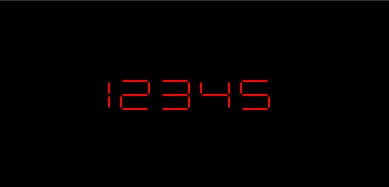
<syncfusion:SfDigitalGauge Value="12345" CharacterType="SegmentSeven"/>SfDigitalGauge digital = new SfDigitalGauge();
digital.Value = "12345";
digital.CharacterType = CharacterType.SegmentSeven;
this.Grid.Children.Add(digital);The segments are displayed as follows.