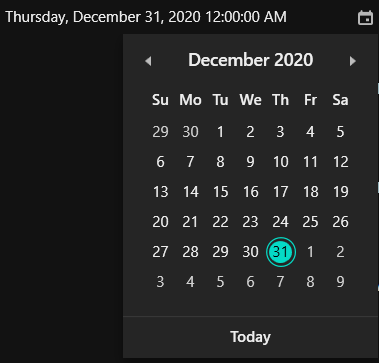
Appearance in WPF DateTimePicker
This section explains different UI customization options available in DateTimeEdit control.
Setting the Foreground
You can change the foreground color for dateTimeEdit by setting the Foreground property. The default color value of Foreground property is Black.
<Window
    . . .
    xmlns:syncfusion="http://schemas.syncfusion.com/wpf">
    <syncfusion:DateTimeEdit Foreground="Red"
                           Name="dateTimeEdit"/>
</Window>
using Syncfusion.Windows.Shared;
DateTimeEdit dateTimeEdit = new DateTimeEdit();
dateTimeEdit.Foreground = Brushes.Red;
NOTE
View Sample in GitHub
Setting the Background
You can change the background color and selection color of DateTimeEdit by using the Background and SelectionBrush property. The default value of Background property is White and SelectionBrush property is RoyalBlue.
<Window
    . . .
    xmlns:syncfusion="http://schemas.syncfusion.com/wpf">
    <syncfusion:DateTimeEdit Background="Yellow"
                         SelectionBrush="Red"
                         Name="dateTimeEdit"/>
</Window>
using Syncfusion.Windows.Shared;
DateTimeEdit dateTimeEdit = new DateTimeEdit();
dateTimeEdit.Background = Brushes.Yellow;
dateTimeEdit.SelectionBrush = Brushes.Red;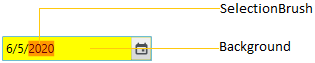
NOTE
View Sample in GitHub
Change focus border color
You can change the focus border color of the DateTimeEdit by setting the FocusedBorderBrush property. The default value of FocusedBorderBrush property is MediumAquamarine.
<Window
    . . .
    xmlns:syncfusion="http://schemas.syncfusion.com/wpf">
    <syncfusion:DateTimeEdit FocusedBorderBrush="Red"
                         Name="dateTimeEdit"/>
</Window>
using Syncfusion.Windows.Shared;
DateTimeEdit dateTimeEdit = new DateTimeEdit();
dateTimeEdit.FocusedBorderBrush = Brushes.Red;
NOTE
View Sample in GitHub
Change flow direction
You can change the flow direction of the DateTimeEdit layout from right to left by setting the FlowDirection property value as RightToLeft. The default value of FlowDirection property is LeftToRight.
<Window
    . . .
    xmlns:syncfusion="http://schemas.syncfusion.com/wpf">
    <syncfusion:DateTimeEdit FlowDirection="RightToLeft"
                         Name="dateTimeEdit"/>
</Window>
using Syncfusion.Windows.Shared;
DateTimeEdit dateTimeEdit = new DateTimeEdit();
dateTimeEdit.FlowDirection = FlowDirection.RightToLeft;
NOTE
View Sample in GitHub
Theme
DateTimeEdit supports various built-in themes. Refer to the below links to apply themes for the DateTimeEdit,