Value Formatting in .NET MAUI Numeric Entry
18 Nov 201811 minutes to read
This section explains how to change the value format of the Numeric Entry control using the CustomFormat property and the related formatting options (Culture, PercentDisplayMode, MaximumNumberDecimalDigits).
Prerequisites
Before using the SfNumericEntry, ensure the following NuGet package is installed in your .NET MAUI project:
Syncfusion.Maui.Inputs
For a step-by-step setup, refer to the Getting Started documentation.
Currency, percentage, and decimal formats
Format the value of the Numeric Entry control by using the CustomFormat property. By default, the value is formatted using the current culture’s decimal format, and the default value of CustomFormat is null.
The following table lists the most common standard format specifiers that are supported for the double type:
| Specifier | Description | Example output (en-US) |
|---|---|---|
C |
Currency | $1,234.50 |
P |
Percent | 12.50 % |
N |
Number (integer and decimal digits) | 1,234.50 |
For the full list of supported standard format strings, see the .NET documentation on standard numeric format strings.
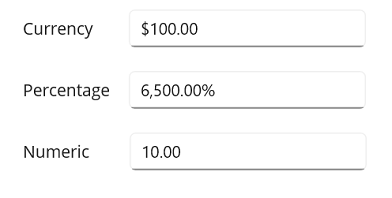
The following example shows how to apply the C, P, and N format strings to the CustomFormat property.
<!-- Format stock price in currency. -->
<editors:SfNumericEntry CustomFormat="C2" WidthRequest="200" />

<!-- Format product discount in percent. -->
<editors:SfNumericEntry CustomFormat="P2" WidthRequest="200" />

<!-- Format worked hours in decimal. -->
<editors:SfNumericEntry CustomFormat="N2" WidthRequest="200" />
// Format stock price in currency.
var stockPrice = new SfNumericEntry
{
CustomFormat = "C2",
WidthRequest = 200
};
// Format product discount in percent.
var productDiscount = new SfNumericEntry
{
CustomFormat = "P2",
WidthRequest = 200
};
// Format worked hours in decimal.
var hoursWorked = new SfNumericEntry
{
CustomFormat = "N2",
WidthRequest = 200
};
Format the integer digits
Pad the integer portion of the value to a fixed width by using the 0 (zero-placeholder) specifier in the CustomFormat property. For example, the format string 00000.00 always renders a 5-digit integer followed by a 2-digit fractional portion, padding the left with zeros when the value has fewer digits.
0 (zero placeholder) replaces the zero with the corresponding digit present in the value; otherwise, a zero is appended at the leftmost position of the value.
<!-- Format stock price in currency. -->
<editors:SfNumericEntry CustomFormat="$00000.00" WidthRequest="200" />

<!-- Format product discount in percentage. -->
<editors:SfNumericEntry CustomFormat="00000.00%" WidthRequest="200" />

<!-- Format worked hours in decimal. -->
<editors:SfNumericEntry CustomFormat="00000.00" WidthRequest="200" />
// Format stock price in currency.
var stockPrice = new SfNumericEntry
{
CustomFormat = "$00000.00",
WidthRequest = 200,
};
// Format product discount in percentage.
var productDiscount = new SfNumericEntry
{
CustomFormat = "00000.00%",
WidthRequest = 200,
};
// Format worked hours in decimal.
var hoursWorked = new SfNumericEntry
{
CustomFormat = "00000.00",
WidthRequest = 200,
};
Format the fractional digits
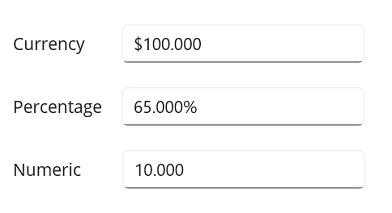
Set the number of fractional digits displayed by the value by using the 0 (zero-placeholder) specifier in the CustomFormat property. The following example renders a 3-digit fractional portion:
0 (zero placeholder) replaces the zero with the corresponding digit in the value. If the value has fewer fractional digits, a zero is appended at the rightmost position.
<editors:SfNumericEntry CustomFormat="$000.000" WidthRequest="200"/>
<editors:SfNumericEntry CustomFormat="00.000%" WidthRequest="200"/>
<editors:SfNumericEntry CustomFormat="00.000" WidthRequest="200"/>
var stockPrice = new SfNumericEntry
{
CustomFormat = "$000.000",
WidthRequest = 200
};
var productDiscount = new SfNumericEntry
{
CustomFormat = "00.000%",
WidthRequest = 200
};
var hoursWorked = new SfNumericEntry
{
CustomFormat = "00.000",
WidthRequest = 200
};
Apply custom format
You can apply custom formats to the Numeric Entry control by combining the 0 and # format specifiers in the CustomFormat property. Use these specifiers to set the minimum and maximum number of fractional digits.
| Specifier | Description |
|---|---|
| 0 (zero placeholder) | Replaces the zero with the corresponding digit present in the value. If no digit is present, a zero is appended at the leftmost (integer) or rightmost (fractional) position. |
| # (digit placeholder) | Replaces the placeholder with the corresponding digit present in the value. If no digit is present, no digit is rendered. |
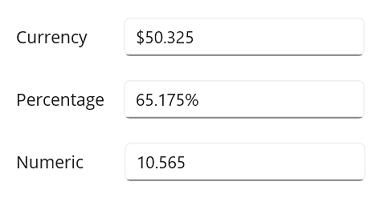
In the following example, the value of the CustomFormat property is $00.00##. The two 0 specifiers before the decimal point force a minimum 2-digit integer, the two 0 specifiers after the decimal point force a minimum 2 fractional digits, and the two # specifiers allow up to 4 fractional digits in total.
<editors:SfNumericEntry x:Name="stockPrice" CustomFormat="$00.00##" WidthRequest="200"/>
<editors:SfNumericEntry x:Name="productDiscount" CustomFormat="00.00##%" WidthRequest="200"/>
<editors:SfNumericEntry x:Name="hoursWorked" CustomFormat="00.00##" WidthRequest="200"/>
var stockPrice = new SfNumericEntry
{
CustomFormat = "$00.00##",
WidthRequest = 200
};
var productDiscount = new SfNumericEntry
{
CustomFormat = "00.00##%",
WidthRequest = 200
};
var hoursWorked = new SfNumericEntry
{
CustomFormat = "00.00##",
WidthRequest = 200
};
Culture support
The Culture property configures the Numeric Entry for a specific language. Set it to a System.Globalization.CultureInfo instance; the value is then formatted using that culture’s decimal separator, currency symbol, and so on.
<editors:SfNumericEntry x:Name="numericEntry"
                        WidthRequest="200"
                        CustomFormat="C2"
                        Value="1234.5" />
var numericEntry = new SfNumericEntry
{
WidthRequest = 200,
CustomFormat = "C2",
Value = 1234.5,
Culture = new CultureInfo("en-US"),
};
this.Content = numericEntry;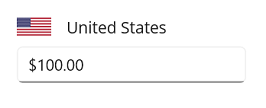
Customize percentage display
When the Numeric Entry uses a percentage format (CustomFormat starts with P or p), the PercentDisplayMode property controls how the value is displayed:
-
Value- Displays the actual value with percentage symbol. -
Compute- Displays the value multiplied by 100, followed by the percentage symbol.
Value mode
<editors:SfNumericEntry x:Name="numericEntry"
                        WidthRequest="200"
                        CustomFormat="p"
                        Value="1000"
                        PercentDisplayMode="Value" />
SfNumericEntry sfNumericEntry = new SfNumericEntry
{
WidthRequest = 200,
CustomFormat = "p",
Value = 1000,
PercentDisplayMode = PercentDisplayMode.Value,
};
Compute mode
<editors:SfNumericEntry x:Name="numericEntry"
                        WidthRequest="200"
                        CustomFormat="p"
                        Value="1000"
                        PercentDisplayMode="Compute" />
SfNumericEntry sfNumericEntry = new SfNumericEntry
{
WidthRequest = 200,
CustomFormat = "p",
Value = 1000,
PercentDisplayMode = PercentDisplayMode.Compute,
};
The default value of
PercentDisplayModeisCompute.
Manage maximum decimal digits
Specify the maximum number of digits to display after the decimal point by setting the MaximumNumberDecimalDigits property.
The
MaximumNumberDecimalDigitsproperty must be a positive integer and is ignored when aCustomFormatis provided. The default value ofMaximumNumberDecimalDigitsis2.
<editors:SfNumericEntry x:Name="numericEntry"
                        WidthRequest="200"
                        Value="1000.23232"
                        MaximumNumberDecimalDigits="3" />
SfNumericEntry sfNumericEntry = new SfNumericEntry
{
WidthRequest = 200,
Value = 1000.23232,
MaximumNumberDecimalDigits = 3,
};