Overview of the Syncfusion® .NET CLI
18 Nov 20186 minutes to read
The Syncfusion® .NET CLI (sfdotnet) is a cross-platform command line tool that creates .NET MAUI projects, manages Syncfusion® .NET MAUI NuGet packages, and configures AI integrations from a terminal. After you install the CLI, you can run sfdotnet with no arguments to open an interactive menu, or run a direct command such as sfdotnet new maui for scripted, prompt-free creation.
The Syncfusion® .NET CLI installs the
sfdotnetcommand.
You can use the CLI to perform the following actions:
- Create a blank .NET MAUI app, or an app containing generated Syncfusion® control samples. For details, refer to Create a .NET MAUI project.
- Add or update Syncfusion® .NET MAUI NuGet package references in an existing project. For details, refer to Manage packages.
- Configure an official Syncfusion® Model Context Protocol (MCP) server for AI coding clients. For details, refer to MCP configuration.
- Install official Syncfusion® component skills for AI agents. For details, refer to AI skills installation.
This documentation covers the .NET MAUI platform.
Prerequisites
The following software is required before you install and use the CLI:
- .NET SDK with the .NET Multi-platform App UI development workload. The workload also installs the .NET MAUI project templates, which the CLI uses to create projects.
- An internet connection so package operations can reach nuget.org.
Syncfusion® packages resolve from the official nuget.org feed,
https://api.nuget.org/v3/index.json. The CLI accepts only this source through--source.
Installation
Install the tool globally using the .NET CLI.
- Open a terminal and run the following command:
dotnet tool install -g Syncfusion.DotNet.Cli- Verify the installation and print the CLI version.
sfdotnet --version-
If
sfdotnetis not found, add the .NET global tool directory to thePATHenvironment variable:%USERPROFILE%\.dotnet\toolson Windows or$HOME/.dotnet/toolson macOS and Linux. Then, restart the terminal.Environment variable Value PATH%USERPROFILE%\.dotnet\tools -
Run
sfdotnet helpfor a short command map, orsfdotnet help mauifor the .NET MAUI command map and package aliases.
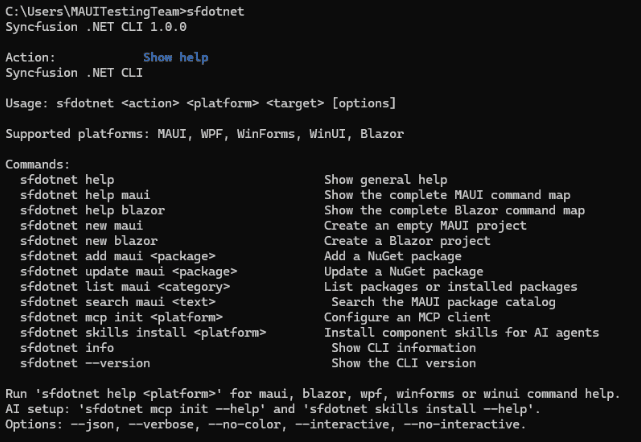
To update the tool to the latest release, run:
dotnet tool update -g Syncfusion.DotNet.CliTo remove the tool, run:
dotnet tool uninstall -g Syncfusion.DotNet.CliInitialize the CLI
Run sfdotnet in an interactive terminal to open the main menu. The menu shows the current CLI version and groups the available operations.
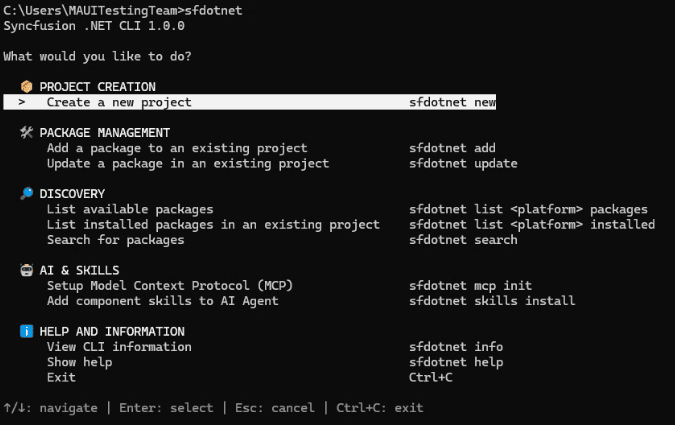
The
<platform>text is a usage placeholder. Usemauifor .NET MAUI.
Use the following keys to navigate the interactive screens:
| Key | Action |
|---|---|
| Up / Down | Move through the options |
| Enter | Choose the focused option, or continue |
| Space | Toggle a checkbox in a multi-selection list |
| Escape | Cancel the current question and return to the menu |
Ctrl+C |
Exit the interactive session |
Complete direct commands remain usable without opening the menu. --no-interactive disables prompts in any command.
Available commands
| Command | Purpose | For details, refer to |
|---|---|---|
sfdotnet new maui |
Create a new .NET MAUI project | Create a .NET MAUI project |
sfdotnet add maui <package> |
Add a Syncfusion® package to an existing project | Manage packages |
sfdotnet update maui <package> |
Update a package in an existing project | Manage packages |
sfdotnet list maui packages |
List available packages | Manage packages |
sfdotnet list maui installed |
List installed packages in an existing project | Manage packages |
sfdotnet search maui <text> |
Search packages | Manage packages |
sfdotnet mcp init maui |
Configure a project-local Syncfusion® MCP client | MCP configuration |
sfdotnet skills install maui |
Install Syncfusion® component skills for AI agents | AI skills installation |
sfdotnet info |
Show CLI information | |
sfdotnet help maui |
Show the .NET MAUI command map | |
sfdotnet --version |
Show the CLI version |
FAQs
How do I use the interactive menu?
Run sfdotnet without arguments and use the arrow keys and Enter to navigate. Direct commands remain usable without opening the menu.