Create a .NET MAUI project
18 Nov 20187 minutes to read
You can create a .NET MAUI project through the interactive wizard or a direct command. For CLI installation and the main menu, refer to the overview.
Create a project using the interactive wizard
Run sfdotnet new, or select Create a new project from the main menu. The .NET MAUI creation flow is:
-
Platform: Select .NET MAUI.
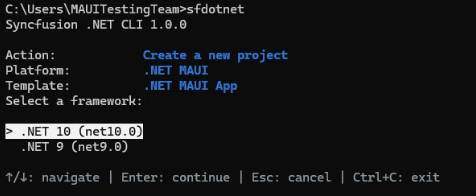
- Project template: The .NET MAUI App template is the only enabled project type and is recorded automatically.
-
Framework: Select the .NET version.
- .NET 10 (
net10.0), the default - .NET 9 (
net9.0)
- .NET 10 (
-
Location and name: Enter the parent directory and the project name. The default locations are
%USERPROFILE%\source\reposon Windows and~/Projectson Linux and macOS. The suggested name isSyncfusionMauiApp, and the first available numeric suffix is used when the destination name collides.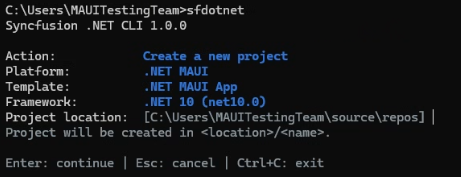
-
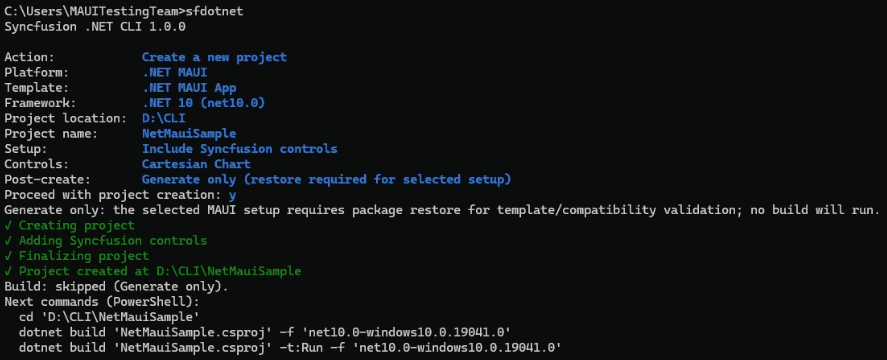
Setup: Select Blank app or Include Syncfusion controls. Blank app is the first option.
-
Controls: When you include controls, choose one or more controls from the list. Controls start unchecked, and at least one selection is required. The following controls are available:
Control Control ID AI AssistView assistviewCartesian Chart cartesian-chartCircular Chart circular-chartDataGrid datagridDiagram diagramKanban kanbanListView listviewPDF Viewer pdf-viewerRich Text Editor rich-text-editorScheduler scheduler -
Post-create: Select Generate only or Build project.
- Confirmation: Review the selected values and confirm to create the project.
A complete direct command does not open the wizard. When a name is missing in an interactive terminal, the wizard supplies a default and collects the remaining unspecified inputs. Missing required values in scripts produce an error.
Create a project using direct commands
To create a blank project without the wizard:
sfdotnet new maui -n MyAppTo create a project containing Syncfusion® control samples:
sfdotnet new maui -n MyApp --control datagrid
sfdotnet new maui -n MyApp --control datagrid listview
sfdotnet new maui -n MyApp --control cartesian-chart circular-chart
Platform and .NET version selection
The CLI supports the maui, blazor, wpf, winforms, and winui platforms. In a direct command, the platform is the positional argument or the --framework/-f option. Actions that need a platform ask for the platform first. Information (sfdotnet info) and general help (sfdotnet help) do not ask for a platform.
The framework step selects the base .NET version. It does not select Android, iOS, Windows, or Mac Catalyst individually.
sfdotnet new maui -n MyApp --target-framework net9.0A .NET MAUI project declares multiple platform targets, such as net10.0-android and net10.0-windows. By default, builds run dotnet build for all configured targets. Use --build-framework to build one enabled target:
sfdotnet new maui -n MyApp --build-framework net10.0-android --post-action build--build-framework is validated against MSBuild’s evaluated targets, and an unknown target is rejected.
Run the created project
A generated .NET MAUI project declares multiple platform targets, such as net10.0-android and net10.0-windows. Run the project with the target framework for your platform:
dotnet run --project ./MyApp/MyApp.csproj -f net10.0-windowsNative platform requirements still apply. Windows apps run on Windows, Mac Catalyst apps on macOS, and Android and iOS apps on an emulator or a connected device.
Creation options
| Option | Description |
|---|---|
-n, --name
|
Project name. Required when prompting is unavailable |
-p, --path
|
Parent directory. Defaults to the current directory |
-t, --target-framework
|
The .NET target framework, such as net10.0
|
--control |
One or more control IDs, or empty. Omit to create an empty project |
--project-type |
The .NET MAUI project type: app
|
--post-action |
Post-create action: generate or build. Defaults to build for direct commands |
--build-framework |
Build only this configured project target, such as net10.0-android. Defaults to all configured targets |
--dry-run |
Preview the action without making changes |
--force |
Allow supported overwrites. Edited control samples remain protected |
--no-restore |
Skip dotnet restore after the action |
--no-build |
Skip dotnet build after the action |
--no-interactive |
Disable interactive prompts |
--json |
Emit a JSON document instead of table output |
--post-action buildconflicts with--no-build. Neither--forcenor confirmation authorizes overwriting an existing project destination.
FAQs
Does sfdotnet add maui datagrid generate the DataGrid sample?
In a CLI-generated project, yes. In an ordinary project, the command adds the NuGet package reference only and reports that no sample was generated. For details, refer to Manage packages.
Which .NET versions are supported?
.NET 10 (net10.0) and .NET 9 (net9.0). Installed template and workload compatibility is checked separately during creation.