Configure an MCP server
18 Nov 20188 minutes to read
The sfdotnet mcp init command configures the official Syncfusion® .NET MAUI MCP server (Syncfusion.Maui.MCP) for an AI coding client in a project-local workspace. The MCP server exposes Syncfusion® documentation and product knowledge to AI agents, such as GitHub Copilot, Cursor, and Claude Code.
The MCP setup workflow does not install component libraries and does not modify application code. It only writes the client’s project-local MCP configuration file and, when needed, installs the official MCP NuGet tool.
Prerequisites
- A Syncfusion® MCP API key, generated at https://www.syncfusion.com/account/api-key.
- An active Syncfusion® license for MCP usage.
The MCP API key is separate from your product license key. It is used only by the MCP server.
Configure MCP through the interactive menu
-
Run
sfdotnetto open the main menu, and under AI & Skills, select Setup Model Context Protocol (MCP).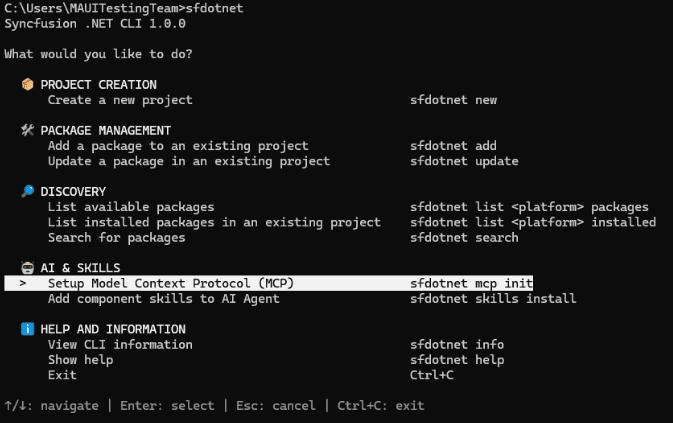
-
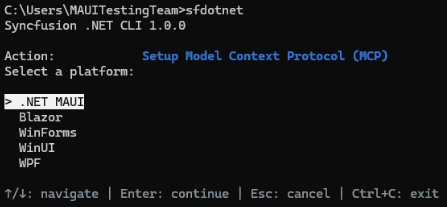
Select the platform. Choose .NET MAUI.
-
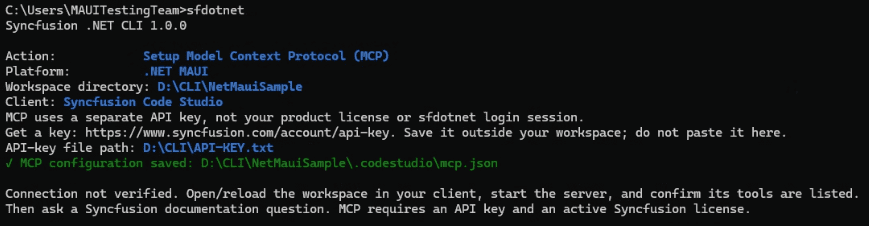
Enter the workspace directory. The default is the current directory. The workspace directory must already exist.
-
Select the MCP client: VS Code / GitHub Copilot, Cursor, Syncfusion Code Studio, or Claude Code.
-
Enter the API-key file path. The CLI prints the API-key download location, and the file must exist before setup. It must remain outside the workspace directory.
-
Open or reload the workspace in the selected client, start the server, and confirm that its tools are listed. Then ask a Syncfusion documentation question to verify the integration.
Saving the configuration does not verify the connection to the MCP server. The CLI does not start the server or contact it during setup.
Configure MCP using direct commands
sfdotnet mcp init maui --client vscode --key-file "%USERPROFILE%\.syncfusion\api-key.txt"
sfdotnet mcp init maui --client cursor --path ./MyApp --key-file "%USERPROFILE%\.syncfusion\api-key.txt"
sfdotnet mcp init maui --client codestudio --key-file "%USERPROFILE%\.syncfusion\api-key.txt" --dry-run
sfdotnet mcp init maui --client claude-code --key-file "%USERPROFILE%\.syncfusion\api-key.txt" --no-interactive --json
In a direct command, the platform is the positional argument. --path defaults to the current directory. With --no-interactive or --json, the platform, client, and key file must be provided explicitly.
MCP configuration file location
The CLI writes a project-local configuration file inside the workspace, next to the client’s expected location:
| Client | Configuration file | Server property |
|---|---|---|
| VS Code / GitHub Copilot | .vscode/mcp.json |
servers |
| Cursor | .cursor/mcp.json |
mcpServers |
| Syncfusion Code Studio | .codestudio/mcp.json |
servers |
| Claude Code | .mcp.json |
mcpServers |
The generated entry registers a server named sf-maui-mcp. For example, for VS Code the CLI adds the following entry to .vscode/mcp.json:
{
  "servers": {
    "sf-maui-mcp": {
      "type": "stdio",
      "command": "dotnet",
      "args": ["tool", "run", "syncfusion-maui-mcp"],
      "env": {
        "Syncfusion_API_Key_Path": "%USERPROFILE%\\.syncfusion\\api-key.txt"
      }
    }
  }
}
The CLI edits only the selected platform server entry. Unrelated JSON values, comments, and trailing commas in the file are preserved. Malformed files, duplicate JSON properties, and wrong-shaped configurations are rejected before any change is written. An identical existing entry is left untouched; a differing entry requires --force, which replaces only that platform’s server entry.
Runner modes
The MCP server runs as a .NET tool. The --runner option selects how the client starts it:
| Runner | Behavior |
|---|---|
auto (default) |
Checks the .NET SDK selected in the workspace (including global.json). SDK 10 or later uses dnx; SDK 8/9 uses the local tool mode. |
dnx |
Starts the server with dnx Syncfusion.Maui.MCP --yes. The package is downloaded when the client first starts the server. Requires .NET SDK 10 or later. |
local |
Creates a local tool manifest at .config/dotnet-tools.json if one does not exist, installs the Syncfusion.Maui.MCP tool into it, and configures dotnet tool run syncfusion-maui-mcp. |
When the local tool manifest already lists the MCP tool, the CLI restores the manifest’s tools instead of reinstalling. This may also download other tools listed in that manifest. Run the client from the configured workspace so local-tool resolution uses that manifest.
MCP API key configuration
The MCP server authenticates with a Syncfusion® API key that is different from the product license key. The CLI never reads, copies, or stores the key itself. It writes only the absolute file path into the configuration as the Syncfusion_API_Key_Path environment variable.
Create the API key file:
- Sign in to your Syncfusion® account and generate an API key at https://www.syncfusion.com/account/api-key.
- Save the key into a
.txtor.keyfile, such as%USERPROFILE%\.syncfusion\api-key.txtor~/.syncfusion/api-key.key. These are the only supported file extensions. - Keep the file outside the workspace directory. Setup rejects a key file located inside the workspace to prevent the credential from being committed to source control.
- Pass the file path through
--key-fileor enter it at the prompt. The CLI suggests the path stored in theSyncfusion_API_Key_Pathenvironment variable as the default.
Update or manage the key:
- To use a new key value, edit the existing file in place. The configuration stores the file path, not the key content, so no configuration change is needed.
- To use a different file, re-run
sfdotnet mcp initwith the new--key-filepath. - Symbolic links are rejected; pass the real file path.
Never commit the API-key file to source control, and never paste the key value directly into the terminal. Store the file in a location excluded from repositories, such as the user profile directory.
MCP options
| Option | Description |
|---|---|
<platform> |
The platform: maui, blazor, wpf, winforms, or winui
|
--client |
The MCP client: vscode, cursor, codestudio, or claude-code
|
--key-file |
Path to an existing API-key .txt/.key file outside the workspace |
--runner |
Server runner: auto (default), dnx, or local
|
-p, --path
|
The workspace directory. Defaults to the current directory. The directory must already exist |
--dry-run |
Validate inputs and preview the destination without writing files or running tools |
--force |
Replace an existing, differing platform server entry |
--json |
Emit one JSON document |
FAQs
Is the MCP API key the same as my product license key?
No. The MCP server uses a separate API key generated at https://www.syncfusion.com/account/api-key. Store it in a .txt or .key file outside the workspace, and pass the file path through --key-file. The CLI writes only the file path into the MCP configuration; it never reads or copies the key.
Does MCP setup verify the server connection?
No. Setup writes the client configuration and installs the required tool, but does not contact the server. Open or reload the workspace in the client, start the server, confirm its tools are listed, and then ask a Syncfusion documentation question.