Getting Started with Blazor WinForms App Smart PDF Viewer
14 Aug 20267 minutes to read
This section explains how to add the Syncfusion® Blazor Smart PDF Viewer component to a WinForms Blazor Hybrid App using Visual Studio or Visual Studio Code. The result is a desktop application (WinForms) that hosts Blazor UI inside a BlazorWebView control.
Prerequisites
Create a new WinForms app in Visual Studio
Create a WinForms application using Visual Studio 2022 with the WinForms project template. The app will later host Blazor components via BlazorWebView. For reference, see Microsoft Blazor tooling or the Syncfusion® Blazor Extension.
Install Blazor Smart PDF Viewer NuGet package in WinForms App
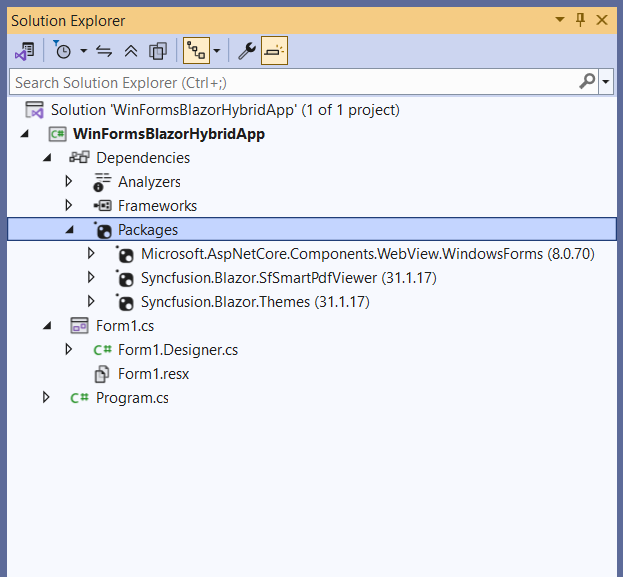
To add the Blazor Smart PDF Viewer component to the app, open the NuGet Package Manager in Visual Studio (Tools → NuGet Package Manager → Manage NuGet Packages for Solution), search for and install
- Syncfusion.Blazor.SfSmartPdfViewer
- Syncfusion.Blazor.Themes
- Microsoft.AspNetCore.Components.WebView.WindowsForms
Ensure that the package
Microsoft.AspNetCore.Components.WebView.WindowsFormsupdated to version8.0.16.
Prerequisites
Create a new WinForms app in Visual Studio Code
Create a WinForms desktop project (not a WinForms Blazor Hybrid App) using the .NET CLI in Visual Studio Code. This WinForms project will host Blazor UI through BlazorWebView. For guidance, see Microsoft templates or the Syncfusion® Blazor Extension.
dotnet new winforms -n WinFormsBlazorHybridAppInstall Blazor Smart PDF Viewer and Themes NuGet packages in the app
Install the required NuGet packages in the WinForms project that will host the Blazor UI.
- Press Ctrl+` to open the integrated terminal in Visual Studio Code.
- Ensure the current directory contains the WinForms project
.csprojfile. - Run the following commands to install Syncfusion.Blazor.SfSmartPdfViewer, Syncfusion.Blazor.Themes, and Microsoft.AspNetCore.Components.WebView.WindowsForms. These packages add the Smart PDF Viewer, theme, and the BlazorWebView host control to the project.
dotnet add package Syncfusion.Blazor.SfSmartPdfViewer -v 35.1.37
dotnet add package Syncfusion.Blazor.Themes -v 35.1.37
dotnet add package Microsoft.AspNetCore.Components.WebView.WindowsForms

dotnet restore
Syncfusion® Blazor components are available on nuget.org. See NuGet packages for the list of available packages and component details.
Ensure that the package
Microsoft.AspNetCore.Components.WebView.WindowsFormsupdated to version8.0.16.
Register Syncfusion® Blazor service
The WinForms project must target Windows and enable WinForms. A typical project file looks like the following.
<Project Sdk="Microsoft.NET.Sdk.Razor">

    ....

</Project>
Create a Components folder, add an _Imports.razor file in it, and include the required component namespaces within that folder.
@using Microsoft.AspNetCore.Components.Web
@using Syncfusion.Blazor.SmartPdfViewer
Create wwwroot folder and index.html file
-
Create a new folder named wwwroot in the WinForms project root.
-
Inside wwwroot, create an index.html host page for the Blazor UI. This host page is required by BlazorWebView to initialize the Blazor runtime and load static assets (themes and scripts). Use the following index.html:
<!DOCTYPE html>
<html>
<head>
    <meta charset="utf-8" />
    <meta name="viewport" content="width=device-width, initial-scale=1.0" />
    <title>WinForms Blazor Hybrid App</title>
    <base href="/" />
    <link href="_content/Syncfusion.Blazor.Themes/bootstrap5.css" rel="stylesheet" />
</head>
<body>
    <div id="app">Loading...</div>
    <script src="_framework/blazor.webview.js"></script>
    <script src="_content/Syncfusion.Blazor.SfSmartPdfViewer/scripts/syncfusion-blazor-sfsmartpdfviewer.min.js" type="text/javascript"></script>
</body>
</html>
Ensure that the Smart PDF Viewer static assets (themes and scripts) are loaded properly.
Configure Azure OpenAI Service
This section is required only when enabling AI-powered features in Smart PDF Viewer (such as document summarization, smart redaction, or smart fill). It is not required for basic PDF rendering.
In Visual Studio, Go to Tools → NuGet Package Manager → Package Manager Console. Run the following commands:
Install-Package Azure.AI.OpenAI
Install-Package Microsoft.Extensions.AI
Install-Package Microsoft.Extensions.AI.OpenAI
In Visual Studio Code, open the terminal and run these commands:
dotnet add package Azure.AI.OpenAI
dotnet add package Microsoft.Extensions.AI
dotnet add package Microsoft.Extensions.AI.OpenAI
Add the Syncfusion.Blazor namespace to the ~/Form1.cs file.
using Microsoft.AspNetCore.Components.WebView.WindowsForms;
using Microsoft.Extensions.DependencyInjection;
using Azure.AI.OpenAI;
using Microsoft.Extensions.AI;
using Syncfusion.Blazor;
using Syncfusion.Blazor.AI;
using System.ClientModel;
using WinFormsBlazorHybridApp.Components;
Register Syncfusion Blazor services and BlazorWebView in ~/Form1.cs after the BlazorWebView is initialized so that the WinForms window can host Blazor components.
ServiceCollection services = new ServiceCollection();
services.AddWindowsFormsBlazorWebView();
services.AddMemoryCache();
services.AddSyncfusionBlazor();
string azureOpenAiKey = "api-key";
string azureOpenAiEndpoint = "endpoint URL";
string azureOpenAiModel = "deployment-name";
AzureOpenAIClient azureOpenAIClient = new AzureOpenAIClient(new Uri(azureOpenAiEndpoint), new ApiKeyCredential(azureOpenAiKey));
IChatClient azureOpenAiChatClient = azureOpenAIClient.GetChatClient(azureOpenAiModel).AsIChatClient();
services.AddChatClient(azureOpenAiChatClient);
services.AddSingleton<IChatInferenceService, SyncfusionAIService>();
BlazorWebView blazorWebView = new BlazorWebView()
{
    HostPage = "wwwroot/index.html",
    Services = services.BuildServiceProvider(),
    Dock = DockStyle.Fill
};
blazorWebView.RootComponents.Add<YourRazorFileName>("#app");
// Replace 'YourRazorFileName' with the actual Razor component class (e.g., Main) in your project's namespace
this.Controls.Add(blazorWebView);
Adding Blazor Smart PDF Viewer component
Create a Razor component (for example, SmartPDFViewer.razor) in the project and add the Syncfusion® Smart PDF Viewer component to it within the Components folder
@using Syncfusion.Blazor.SmartPdfViewer

<SfSmartPdfViewer Height="100%" Width="100%" DocumentPath="https://cdn.syncfusion.com/content/pdf/http-succinctly.pdf">
</SfSmartPdfViewer>
Run the application
Run the WinForms application. The Syncfusion® Blazor Smart PDF Viewer renders inside the WinForms window.

See also
- Getting Started with Blazor Smart PDF Viewer Component in Blazor Web App
- Getting Started with Blazor Smart PDF Viewer Component in WPF Blazor Hybrid App
- Getting Started with Blazor Smart PDF Viewer Component in MAUI Blazor App
- Document Summarizer in Blazor Smart PDF Viewer
- Smart Redaction in Blazor Smart PDF Viewer
- Smart Fill in Blazor Smart PDF Viewer.