Getting Started with Blazor Web App Smart PDF Viewer
14 Aug 202610 minutes to read
This section explains how to include Blazor Smart PDF Viewer component in your Blazor Web App using Visual Studio and Visual Studio Code.
Check out the following video to learn how to get started with the Blazor Smart PDF Viewer.
Prerequisites
Blazor Smart PDF Viewer component is compatible with both
OpenAIandAzure OpenAI, and supports Server interactivity mode apps.
Create a new Blazor Web App in Visual Studio
Create a Blazor Web App using Visual Studio 2022 via Microsoft Templates or the Syncfusion® Blazor Extension.
Install Blazor Smart PDF Viewer and Themes NuGet in the App
To add the Blazor Smart PDF Viewer component, open the NuGet Package Manager in Visual Studio (Tools → NuGet Package Manager → Manage NuGet Packages for Solution), search for and install Syncfusion.Blazor.SfSmartPdfViewer and Syncfusion.Blazor.Themes.
Alternatively, use the following package manager commands.
Install-Package Syncfusion.Blazor.SfSmartPdfViewer -Version 35.1.37
Install-Package Syncfusion.Blazor.Themes -Version 35.1.37Syncfusion® Blazor components are available on nuget.org. Refer to the NuGet packages topic for the full package list and component details. A valid Syncfusion license key must be registered in the application.
Prerequisites
Blazor Smart PDF Viewer component is compatible with both
OpenAIandAzure OpenAI, and supports Server interactivity mode apps. Azure OpenAI is required only for AI-assisted features.
Create a new Blazor Web App in Visual Studio Code
Create a Blazor Web App using Visual Studio Code via Microsoft Templates or the Syncfusion® Blazor Extension.
Configure the appropriate Interactive render mode and Interactivity location when creating the Blazor Web App.
For example, in a Blazor Web App with the Server interactive render mode, use the following commands.
dotnet new blazor -o BlazorWebApp -int Server
cd BlazorWebApp
For more information on creating a Blazor Web App with various interactive modes and locations, refer to this guide.
Install Blazor Smart PDF Viewer and Themes NuGet in the App
When using the Server render mode in a Blazor Web App, install the Syncfusion® Blazor component packages in the server project where the components execute.
- Press Ctrl+` to open the integrated terminal in Visual Studio Code.
- Ensure the current directory contains the project
.csprojfile. - Run the following commands to install Syncfusion.Blazor.SfSmartPdfViewer and Syncfusion.Blazor.Themes, then restore the solution.
dotnet add package Syncfusion.Blazor.SfSmartPdfViewer -v 35.1.37
dotnet add package Syncfusion.Blazor.Themes -v 35.1.37
dotnet restoreSyncfusion® Blazor components are available on nuget.org. Refer to the NuGet packages topic for the full package list and component details.
Prerequisites
Install the latest version of .NET SDK. If you previously installed the SDK, you can determine the installed version by executing the following command in a command prompt (Windows) or terminal (macOS) or command shell (Linux).
dotnet --versionCreate a new Blazor Web App using .NET CLI
Run the following command to create a new Blazor Web App in a command prompt (Windows) or terminal (macOS) or command shell (Linux). For detailed instructions, refer to the Blazor Web App Getting Started documentation.
For example, in a Blazor Web App with the Server interactive render mode, use the following commands:
dotnet new blazor -o BlazorWebApp -int Server
cd BlazorWebApp
Install Syncfusion® Blazor SfSmartPdfViewer and Themes NuGet in the App
- Open a command prompt, terminal, or shell.
- Ensure you’re in the project root directory where your
.csprojfile is located (or the Client project if applicable). - Run the following command to install a Syncfusion.Blazor.SfSmartPdfViewer and Syncfusion.Blazor.Themes NuGet package and ensure all dependencies are installed.
dotnet add package Syncfusion.Blazor.SfSmartPdfViewer -v 35.1.37
dotnet add package Syncfusion.Blazor.Themes -v 35.1.37
dotnet restore
Register Syncfusion® Blazor Service
| Interactive Render Mode | Description |
|---|---|
| Server | Open ~/_Imports.razor file, which is located in the Components folder. |
Import the Syncfusion.Blazor and Syncfusion.Blazor.SmartPdfViewer namespaces.
@using Syncfusion.Blazor
@using Syncfusion.Blazor.SmartPdfViewer
If the Interactive Render Mode is set to Server, the project contains a single ~/Program.cs file. Register the Syncfusion® Blazor service in that ~/Program.cs file. The configured SignalR maximum message size and memory cache support large document streaming and caching for better performance. Ensure the Syncfusion license is registered during application startup.
Add the Syncfusion.Blazor namespace to the Program.cs file.
using Syncfusion.Blazor;Register the Syncfusion® Blazor service in the ~/Program.cs file after the builder is created in the Blazor Web App.
// Configure SignalR (with increased message size) and enable memory caching
builder.Services.AddSignalR(o => { o.MaximumReceiveMessageSize = 102400000; });
builder.Services.AddMemoryCache();
// Register Syncfusion Blazor service
builder.Services.AddSyncfusionBlazor();
To Configure Azure OpenAI Service
In Visual Studio, Go to Tools → NuGet Package Manager → Package Manager Console. Run these commands one by one:
Install-Package Azure.AI.OpenAI
Install-Package Microsoft.Extensions.AI
Install-Package Microsoft.Extensions.AI.OpenAI
In Visual Studio Code, open the terminal in VS Code and run the following commands:
dotnet add package Azure.AI.OpenAI
dotnet add package Microsoft.Extensions.AI
dotnet add package Microsoft.Extensions.AI.OpenAI
Add the AI service namespace to the Program.cs file.
using Azure.AI.OpenAI;
using Microsoft.Extensions.AI;
using Syncfusion.Blazor.AI;
using System.ClientModel;
To configure the AI service, add the following settings to the ~/Program.cs file in the Blazor Server app.
// Azure OpenAI configuration values
string azureOpenAiKey = "api-key";
string azureOpenAiEndpoint = "endpoint URL";
string azureOpenAiModel = "deployment-name";
// Configure Azure OpenAI client and register chat with Syncfusion AI services
AzureOpenAIClient azureOpenAIClient = new AzureOpenAIClient(new Uri(azureOpenAiEndpoint), new ApiKeyCredential(azureOpenAiKey));
IChatClient azureOpenAiChatClient = azureOpenAIClient.GetChatClient(azureOpenAiModel).AsIChatClient();
builder.Services.AddChatClient(azureOpenAiChatClient);
builder.Services.AddSingleton<IChatInferenceService, SyncfusionAIService>();
Here,
- apiKey: Azure OpenAI API key.
- deploymentName: Azure OpenAI deployment name.
- endpoint: Azure OpenAI deployment endpoint URL.
For Azure OpenAI, first deploy an Azure OpenAI Service resource and model; then the values for apiKey, deploymentName, and endpoint will be provided.
Add stylesheet and script resources
The theme stylesheet and script can be accessed from NuGet through Static Web Assets.
Include the stylesheet reference in the <head> section in the ~/Components/App.razor file.
<!-- Syncfusion Blazor Smart PDF Viewer control's theme style sheet -->
<link href="_content/Syncfusion.Blazor.Themes/fluent2.css" rel="stylesheet" />
Add script reference at the end of the <body> in the ~/Components/App.razor file as shown below.
<!-- Syncfusion Blazor Smart PDF Viewer control's scripts -->
<script src="_content/Syncfusion.Blazor.SfSmartPdfViewer/scripts/syncfusion-blazor-sfsmartpdfviewer.min.js" type="text/javascript"></script>
Review the Blazor Themes topic to discover various methods (Static Web Assets, CDN, and CRG) for referencing themes in a Blazor application. Also see Adding script reference for different approaches to include scripts.
Add Blazor Smart PDF Viewer component
If the interactivity location is set to Global and the render mode is set to Auto, WebAssembly, or Server, the render mode is configured in the
App.razorfile by default.
If the interactivity location is set to Per page/component, define a render mode at the top of the ~Pages/.razor component as follows:
@* Your App render mode define here *@
@rendermode InteractiveServer
Add the Blazor Smart PDF Viewer component in the ~Pages/Home.razor file.
@rendermode InteractiveServer

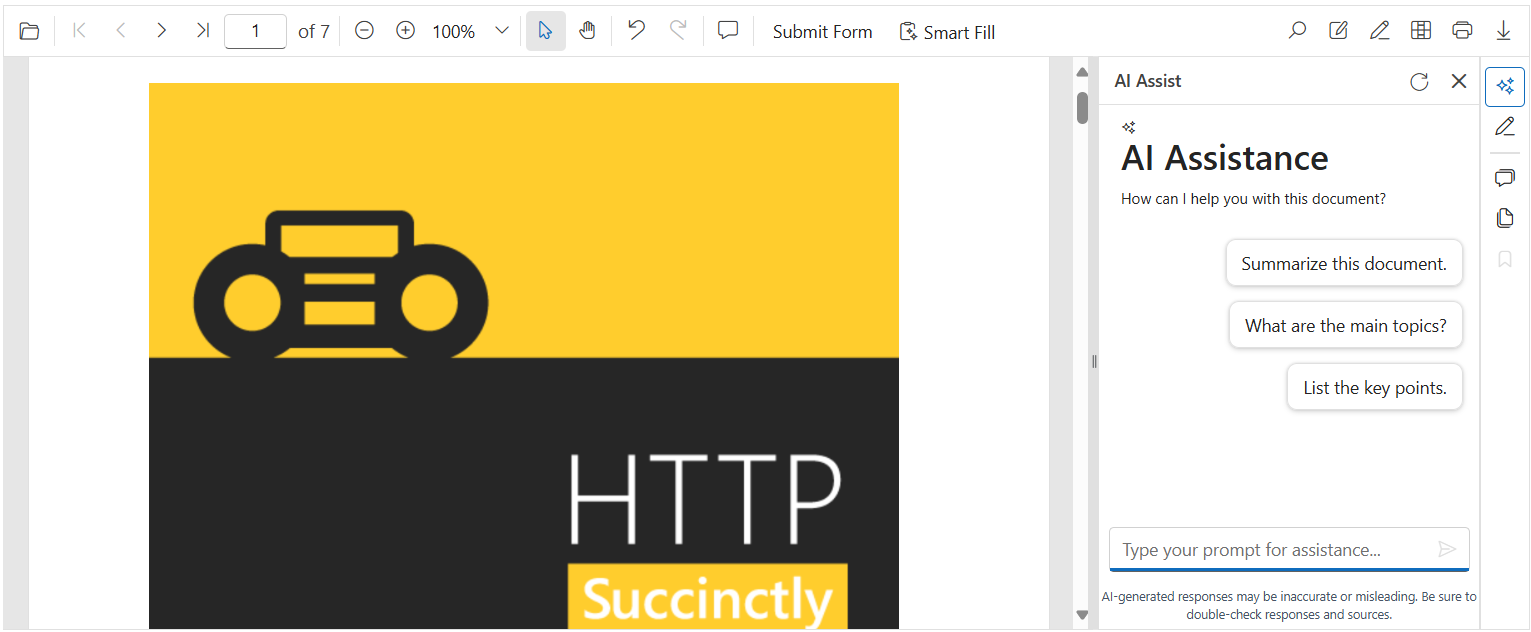
<SfSmartPdfViewer Height="100%" Width="100%" DocumentPath="https://cdn.syncfusion.com/content/pdf/http-succinctly.pdf">
</SfSmartPdfViewer>- Press Ctrl+F5 (Windows) or ⌘+F5 (macOS) to launch the application. This renders the Blazor Smart PDF Viewer component in the default web browser.