Comments in JavaScript (ES5) PDF Viewer
15 Aug 202610 minutes to read
The PDF Viewer provides options to add, edit, and delete comments for the following annotation types in PDF documents:
- Shape annotation
- Stamp annotation
- Sticky note annotation
- Measurement annotation
- Text markup annotation
- Free text annotation
- Ink annotation
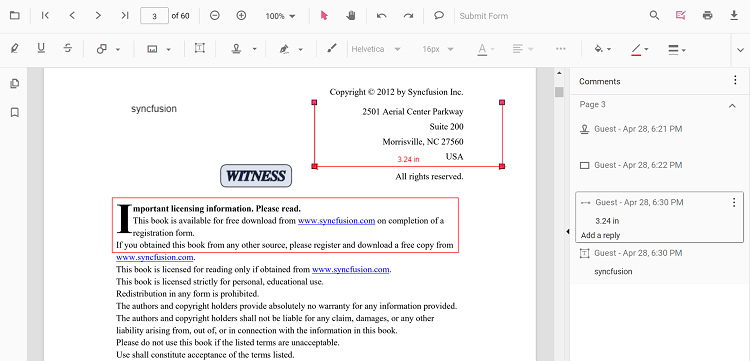
Adding a comment to the annotation in UI
Annotation comments, replies, and status can be managed in the PDF document using the comment panel.
Comment panel
Annotation comments can be added to the PDF using the comment panel. The comment panel can be opened in the following ways:
-
Using the annotation menu
- Select the Edit Annotation button in the PDF Viewer toolbar. A toolbar appears below it.
- Select the Comment Panel button to open the comment panel.
-
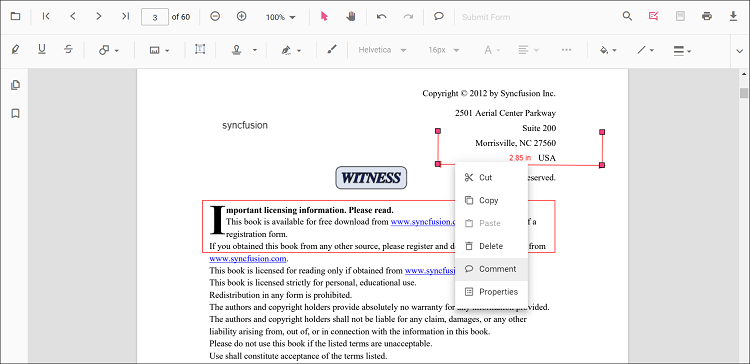
Using the context menu
- Select the annotation in the PDF document and right-click it.
- Choose Comment from the context menu.
-
Using a mouse click
- Select the annotation in the PDF document and double-click it to open the comment panel.
If the comment panel is already open, select the annotation and add comments using the panel.
Adding comments
- Select an annotation in the PDF document.
- The corresponding comment thread is highlighted in the comment panel.
- Add comments and replies using the comment panel.
Adding comment replies
- Multiple replies can be added to a comment.
- After adding a comment, add replies as needed.
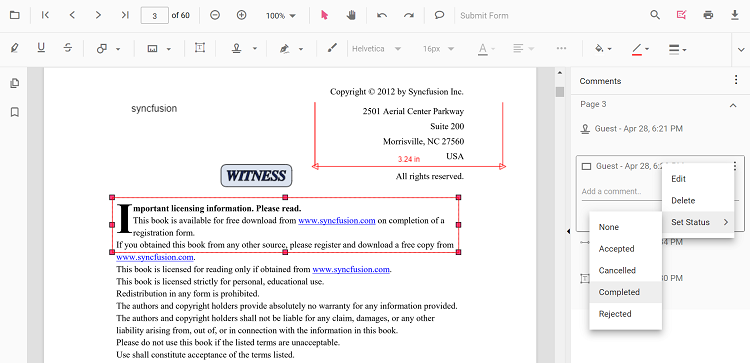
Adding comment or reply status
- Select the annotation comment in the comment panel.
- Click More options in the comment or reply container.
- Select Set Status from the context menu.
- Choose a status for the comment.
Editing comments and comment replies for annotations
Comments, replies, and status can be edited using the comment panel.
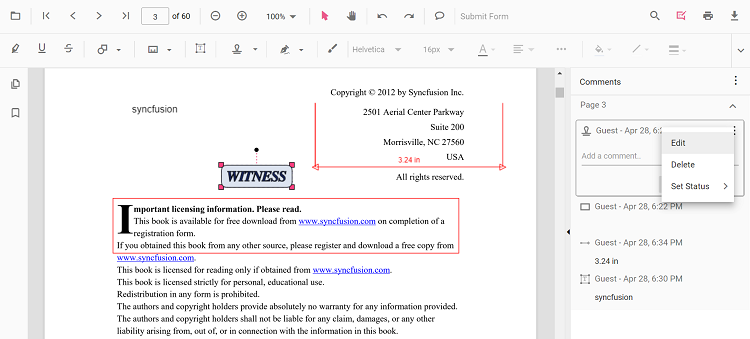
Editing a comment or comment reply
Edit comments and replies in the following ways:
-
Using the context menu
- Select the annotation comment in the comment panel.
- Click More options in the comment or reply container.
- Select Edit from the context menu.
- An editable text box appears; update the content of the comment or reply.
-
Using a mouse click
- Select the annotation comment in the comment panel.
- Double-click the comment or reply content.
- An editable text box appears; update the content of the comment or reply.
Editing comment or reply status
- Select the annotation comment in the comment panel.
- Click More options in the comment or reply container.
- Select Set Status from the context menu.
- Choose a status for the comment.
- None is the default state; selecting None clears the status indicator while the comment or reply remains visible.
Delete comment or comment replies
- Select the annotation comment in the comment panel.
- Click More options in the comment or reply container.
- Select Delete from the context menu.
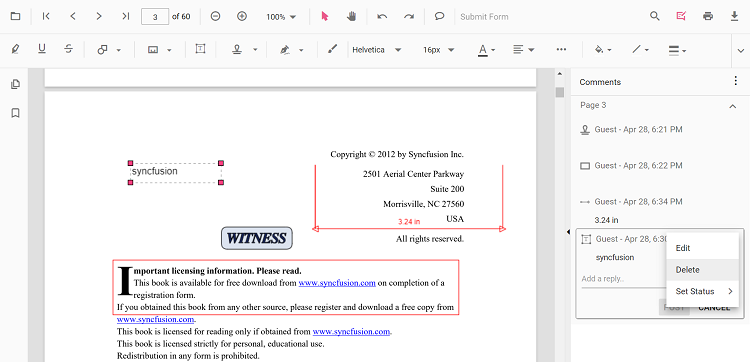
Deleting the root comment from the comment panel also deletes the associated annotation.
Add comments to an annotation programmatically
How to add comments and replies programmatically
Comments can be added to the PDF document programmatically using the editAnnotation method.
The following example shows how to add comments and a reply in response to a button click.
<button id="addComment">Add Comments</button>
<button id="addReply">Add Reply</button>ej.pdfviewer.PdfViewer.Inject(ej.pdfviewer.Toolbar, ej.pdfviewer.Magnification, ej.pdfviewer.Navigation, ej.pdfviewer.Annotation, ej.pdfviewer.LinkAnnotation, ej.pdfviewer.ThumbnailView, ej.pdfviewer.BookmarkView, ej.pdfviewer.TextSelection, ej.pdfviewer.TextSearch, ej.pdfviewer.FormFields, ej.pdfviewer.FormDesigner, ej.pdfviewer.PageOrganizer);
var pdfviewer = new ej.pdfviewer.PdfViewer();
pdfviewer.documentPath = 'https://cdn.syncfusion.com/content/pdf/pdf-succinctly.pdf';
pdfviewer.resourceUrl = 'https://cdn.syncfusion.com/ej2/31.1.23/dist/ej2-pdfviewer-lib';
pdfviewer.appendTo('#PdfViewer');
//for adding Comments programmatically
document.getElementById("addComment")?.addEventListener("click", function() {
let annot = pdfviewer.annotationCollection[0];
if (annot) {
annot.commentType = "add";
annot.note = "New Comment";
pdfviewer.annotation.editAnnotation(annot);
console.log(pdfviewer.annotationCollection[0]);
}
});
//for adding reply programmatically
document.getElementById("addReply")?.addEventListener("click", function() {
let annot = pdfviewer.annotationCollection[0];
if (annot) {
annot.commentType = "add";
annot.replyComment = ["Reply Comment"];
pdfviewer.annotation.editAnnotation(annot);
console.log(pdfviewer.annotationCollection[0]);
}
});ej.pdfviewer.PdfViewer.Inject(ej.pdfviewer.Toolbar, ej.pdfviewer.Magnification, ej.pdfviewer.Navigation, ej.pdfviewer.Annotation, ej.pdfviewer.LinkAnnotation, ej.pdfviewer.ThumbnailView, ej.pdfviewer.BookmarkView, ej.pdfviewer.TextSelection, ej.pdfviewer.TextSearch, ej.pdfviewer.FormFields, ej.pdfviewer.FormDesigner, ej.pdfviewer.PageOrganizer);
var pdfviewer = new ej.pdfviewer.PdfViewer();
pdfviewer.documentPath = 'https://cdn.syncfusion.com/content/pdf/pdf-succinctly.pdf';
pdfviewer.serviceUrl = 'https://document.syncfusion.com/web-services/pdf-viewer/api/pdfviewer/';
pdfviewer.appendTo('#PdfViewer');
//for adding Comments programmatically
document.getElementById("addComment")?.addEventListener("click", function() {
let annot = pdfviewer.annotationCollection[0];
if (annot) {
annot.commentType = "add";
annot.note = "New Comment";
pdfviewer.annotation.editAnnotation(annot);
console.log(pdfviewer.annotationCollection[0]);
}
});
//for adding reply programmatically
document.getElementById("addReply")?.addEventListener("click", function() {
let annot = pdfviewer.annotationCollection[0];
if (annot) {
annot.commentType = "add";
annot.replyComment = ["Reply Comment"];
pdfviewer.annotation.editAnnotation(annot);
console.log(pdfviewer.annotationCollection[0]);
}
});How to edit comments programmatically
Comments can be edited in the PDF document programmatically using the editAnnotation method.
The following example shows how to edit comments and a reply in response to a button click.
<button id="editComment">Edit Comments</button>
<button id="editReply">Edit Reply</button>ej.pdfviewer.PdfViewer.Inject(ej.pdfviewer.Toolbar, ej.pdfviewer.Magnification, ej.pdfviewer.Navigation, ej.pdfviewer.Annotation, ej.pdfviewer.LinkAnnotation, ej.pdfviewer.ThumbnailView, ej.pdfviewer.BookmarkView, ej.pdfviewer.TextSelection, ej.pdfviewer.TextSearch, ej.pdfviewer.FormFields, ej.pdfviewer.FormDesigner, ej.pdfviewer.PageOrganizer);
var pdfviewer = new ej.pdfviewer.PdfViewer();
pdfviewer.documentPath = 'https://cdn.syncfusion.com/content/pdf/pdf-succinctly.pdf';
pdfviewer.resourceUrl = 'https://cdn.syncfusion.com/ej2/31.1.23/dist/ej2-pdfviewer-lib';
pdfviewer.appendTo('#PdfViewer');
//for Editing Comments programmatically
document.getElementById("editComment")?.addEventListener("click", function() {
let annot = pdfviewer.annotationCollection[0];
if (annot) {
annot.commentType = "edit";
annot.note = "Edited Comment";
pdfviewer.annotation.editAnnotation(annot);
console.log(pdfviewer.annotationCollection[0]);
}
});
//for Editing reply programmatically
document.getElementById("editReply")?.addEventListener("click", function() {
let annot = pdfviewer.annotationCollection[0];
if (annot) {
annot.commentType = "edit";
annot.replyComment = ["Edited Reply Comment"];
pdfviewer.annotation.editAnnotation(annot);
console.log(pdfviewer.annotationCollection[0]);
}
});ej.pdfviewer.PdfViewer.Inject(ej.pdfviewer.Toolbar, ej.pdfviewer.Magnification, ej.pdfviewer.Navigation, ej.pdfviewer.Annotation, ej.pdfviewer.LinkAnnotation, ej.pdfviewer.ThumbnailView, ej.pdfviewer.BookmarkView, ej.pdfviewer.TextSelection, ej.pdfviewer.TextSearch, ej.pdfviewer.FormFields, ej.pdfviewer.FormDesigner, ej.pdfviewer.PageOrganizer);
var pdfviewer = new ej.pdfviewer.PdfViewer();
pdfviewer.documentPath = 'https://cdn.syncfusion.com/content/pdf/pdf-succinctly.pdf';
pdfviewer.serviceUrl = 'https://document.syncfusion.com/web-services/pdf-viewer/api/pdfviewer/';
pdfviewer.appendTo('#PdfViewer');
//for Editing Comments programmatically
document.getElementById("editComment")?.addEventListener("click", function() {
let annot = pdfviewer.annotationCollection[0];
if (annot) {
annot.commentType = "edit";
annot.note = "Edited Comment";
pdfviewer.annotation.editAnnotation(annot);
console.log(pdfviewer.annotationCollection[0]);
}
});
//for Editing reply programmatically
document.getElementById("editReply")?.addEventListener("click", function() {
let annot = pdfviewer.annotationCollection[0];
if (annot) {
annot.commentType = "edit";
annot.replyComment = ["Edited Reply Comment"];
pdfviewer.annotation.editAnnotation(annot);
console.log(pdfviewer.annotationCollection[0]);
}
});How to check comments added by users
Comments added to the PDF document can be read using the annotation’s comments property.
The following example logs comments in response to a button click.
<button id="checkComments">Check the Comments</button>var pdfviewer = new ej.pdfviewer.PdfViewer({
documentPath: "https://cdn.syncfusion.com/content/pdf/pdf-succinctly.pdf",
resourceUrl : "https://cdn.syncfusion.com/ej2/31.2.2/dist/ej2-pdfviewer-lib";
});
ej.pdfviewer.PdfViewer.Inject(ej.pdfviewer.TextSelection, ej.pdfviewer.TextSearch, ej.pdfviewer.Print, ej.pdfviewer.Navigation, ej.pdfviewer.Toolbar,
ej.pdfviewer.Magnification, ej.pdfviewer.Annotation, ej.pdfviewer.FormDesigner, ej.pdfviewer.FormFields, ej.pdfviewer.PageOrganizer);
pdfviewer.appendTo('#PdfViewer');var pdfviewer = new ej.pdfviewer.PdfViewer({
documentPath: "https://cdn.syncfusion.com/content/pdf/pdf-succinctly.pdf",
serviceUrl: 'https://document.syncfusion.com/web-services/pdf-viewer/api/pdfviewer'
});
ej.pdfviewer.PdfViewer.Inject(ej.pdfviewer.TextSelection, ej.pdfviewer.TextSearch, ej.pdfviewer.Print, ej.pdfviewer.Navigation, ej.pdfviewer.Toolbar,
ej.pdfviewer.Magnification, ej.pdfviewer.Annotation, ej.pdfviewer.FormDesigner, ej.pdfviewer.FormFields, ej.pdfviewer.PageOrganizer);
pdfviewer.appendTo('#PdfViewer');//Method to check the comments added in the PDF document.
document.getElementById('checkComments').addEventListener('click', function () {
var annotationCollections = pdfviewer.annotationCollection;
for (var x = 0; x < annotationCollections.length; x++) {
//Prints the annotation id in the console window.
console.log("annotation Id : " +annotationCollections[x].annotationId);
var comments = annotationCollections[x].comments;
for (var y = 0; y < comments.length; y++) {
var comment = comments[y];
//Prints the PDF document's comments in the console window.
console.log("comment" + "[" + y + "] :" + comment.note);
}
var note = annotationCollections[x].note;
console.log("note : " + note);
}
});