Form Designer in Angular PDF Viewer
21 Oct 20266 minutes to read
When Form Designer mode is enabled in the Syncfusion Angular PDF Viewer, a default Form Designer user interface (UI) is displayed. This UI includes a built-in toolbar for adding form fields such as text boxes, password fields, check boxes, radio buttons, drop down lists, list boxes, signature and initial fields, and DateTime picker.
Using the Form Designer UI, users can place form fields on the PDF, move and resize them, configure field and widget properties, preview the designed form, and remove fields when required. The Form Designer toolbar can also be shown or hidden and customized to control the available tools based on application requirements, enabling flexible and interactive form design directly within the viewer.
Key Features
Add Form Fields
You can add the following form fields to the PDF:
- Text box
- Password Field
- Check box
- Radio button
- Dropdown List
- List box
- Signature field
- Initial field
- DateTime picker
Edit Form Fields
You can move, resize, align, distribute, copy, paste, and undo or redo changes to form fields.
Set Field Properties
You can configure field properties such as name, value, font, color, border, alignment, visibility, tab order, and required or read only state.
Control Field Behavior
You can enable or disable read only mode, show or hide fields, and control whether fields appear when printing the document.
Manage Form Fields
You can select, group or ungroup, reorder, and delete form fields as needed.
Save and Print Forms
Designed form fields can be saved into the PDF document and printed with their appearances.
Form Designer with UI interaction
When Form Designer mode is enabled in the Syncfusion Angular PDF Viewer, a default Form Designer user interface (UI) is displayed. This UI provides a built-in toolbar for adding common form fields such as text boxes, check boxes, radio buttons, drop down lists, and signature fields. Users can place fields on the PDF, select them, resize or move them, and configure their properties using the available editing options, enabling interactive form creation directly within the viewer.
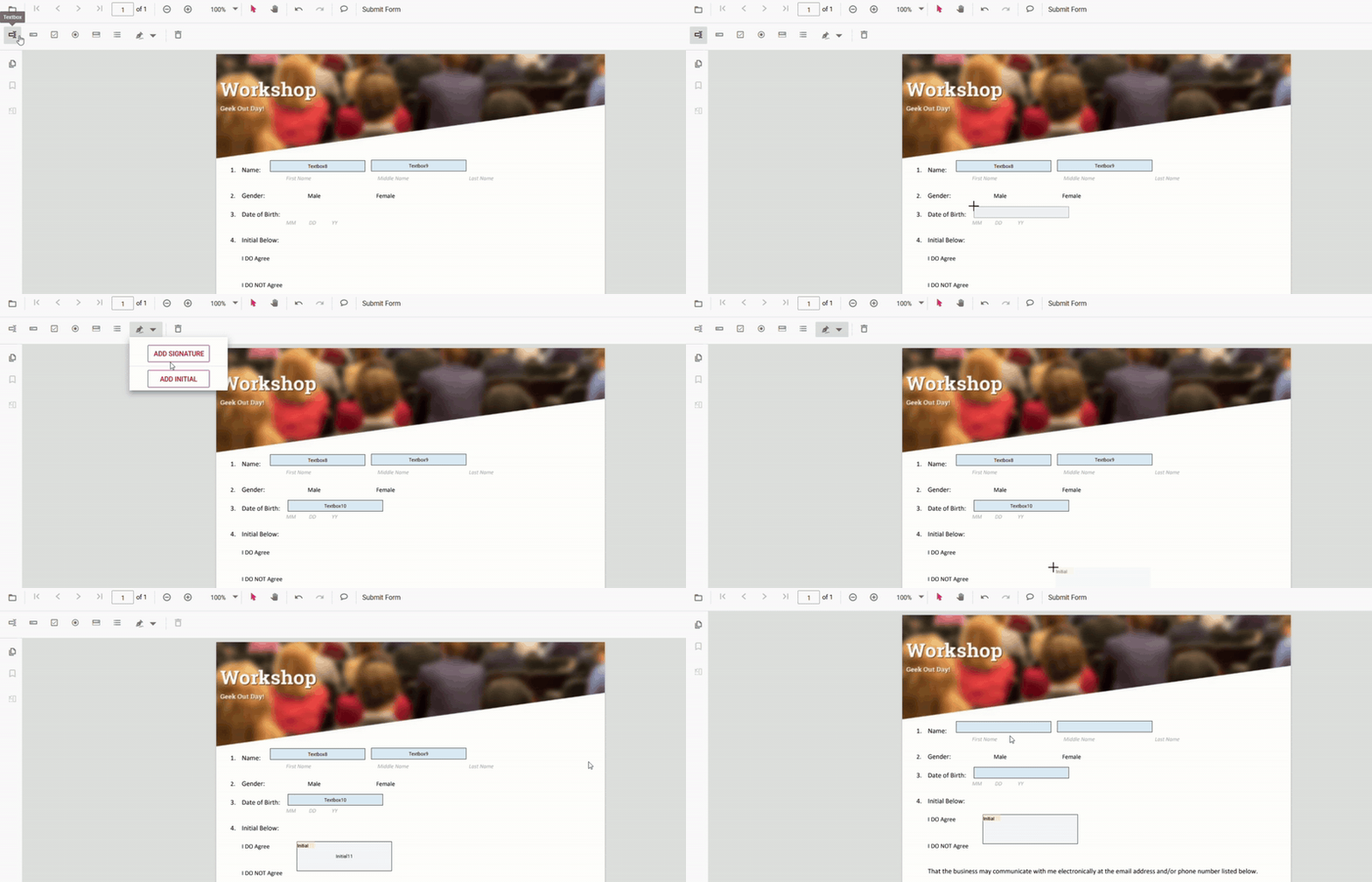
For more information about creating and editing form fields in the PDF Viewer, refer to the Form Creation in Angular PDF Viewer documentation.
Enable Form Designer
To enable form design features, inject the FormDesigner module into the PDF Viewer. After injecting the module, use the enableFormDesigner property or API to enable or disable the Form Designer option in the main toolbar (set to true to enable). Note: the standalone examples below show enableFormDesigner set to false; change this to true to enable form design in those samples.
import { Component, OnInit } from '@angular/core';
import {
  ToolbarService,
  MagnificationService,
  NavigationService,
  AnnotationService,
  TextSelectionService,
  TextSearchService,
  FormFieldsService,
  FormDesignerService,
  PdfViewerModule,
} from '@syncfusion/ej2-angular-pdfviewer';

@Component({
  selector: 'app-root',
  standalone: true,
  imports: [PdfViewerModule],
  template: `
    <div class="content-wrapper">
      <ejs-pdfviewer
        id="pdfViewer"
        [resourceUrl]="resourceUrl"
        [documentPath]="document"
        [enableFormDesigner]="false"
        style="height: 640px; display: block;">
      </ejs-pdfviewer>
    </div>
  `,
  providers: [
    ToolbarService,
    MagnificationService,
    NavigationService,
    AnnotationService,
    TextSelectionService,
    TextSearchService,
    FormFieldsService,
    FormDesignerService,
  ],
})
export class AppComponent implements OnInit {
  public document: string =
    'https://cdn.syncfusion.com/content/pdf/form-filling-document.pdf';
  public resourceUrl: string =
    'https://cdn.syncfusion.com/ej2/31.1.23/dist/ej2-pdfviewer-lib';

  ngOnInit(): void {}
}
Form Designer Toolbar
The Form Designer toolbar appears at the top of the PDF Viewer and provides quick access to form field creation tools. It includes frequently used field types such as:
- Text box
- Password Field
- Check box
- Radio button
- Dropdown List
- List box
- Signature field
- Initial field
- DateTime picker
Show or Hide the Built-in Form Designer Toolbar
The visibility of the Form Designer toolbar is controlled by the isFormDesignerToolbarVisible() method. This method enables the application to display or hide the Form Designer tools based on requirements. Refer to the code example here.
- The Form Designer toolbar is shown when form design is required.
- The toolbar can be hidden to provide a cleaner viewing experience.
Customize the Built-in Form Designer Toolbar
The Form Designer toolbar can be customized by specifying the tools to display and arranging them in the required order using the FormDesignerToolbarItems property.
This customization helps limit the available tools and simplify the user interface. A code example is available here.
Key Points
- Only the toolbar items listed are included, in the exact order specified.
- Any toolbar items not listed remain hidden, resulting in a cleaner and more focused UI.
Adding Form Fields
Each toolbar item in form designer toolbar allows users to place the corresponding form field by selecting the tool and clicking on the desired location in the PDF document.
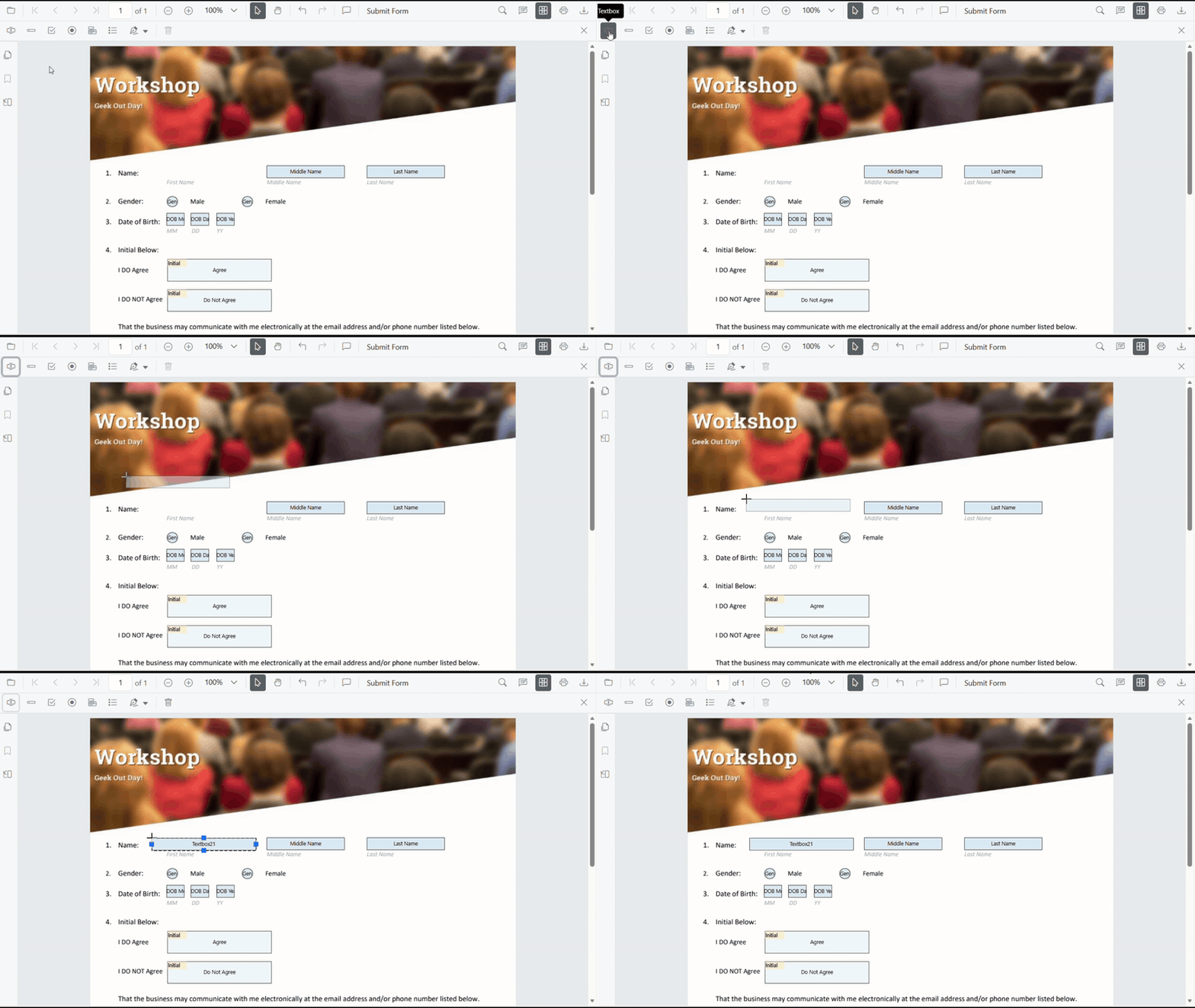
For more information about creating form fields in the PDF Viewer, refer to the Form Creation in Angular PDF Viewer documentation.
Move, Resize, and Edit Form Fields
Fields can be moved, resized, and edited directly in the PDF Viewer using the Form Designer.
-
A field is moved by selecting it and dragging it to the required position.
-
Fields are resized using the handles displayed on the field boundary.
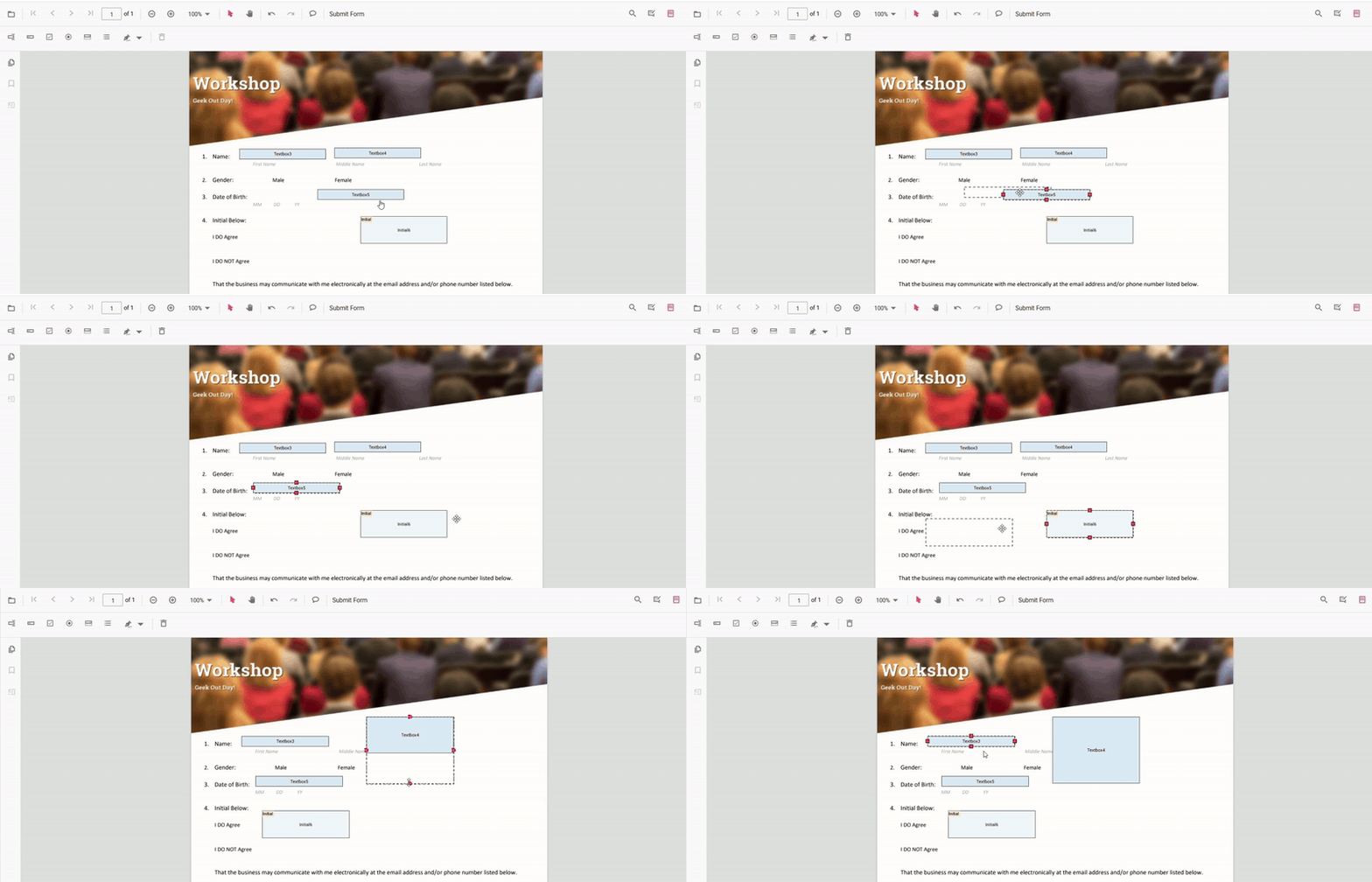
- Selecting a field opens the Form Field Properties popover, which allows modification of the form field and widget annotation properties. Changes are reflected immediately in the viewer and are saved when the properties popover is closed.
For more information, see Editing Form Fields
Edit Form Field Properties
The Properties panel lets you customize the styles of form fields. Open the panel by selecting the Properties option in a field’s context menu.
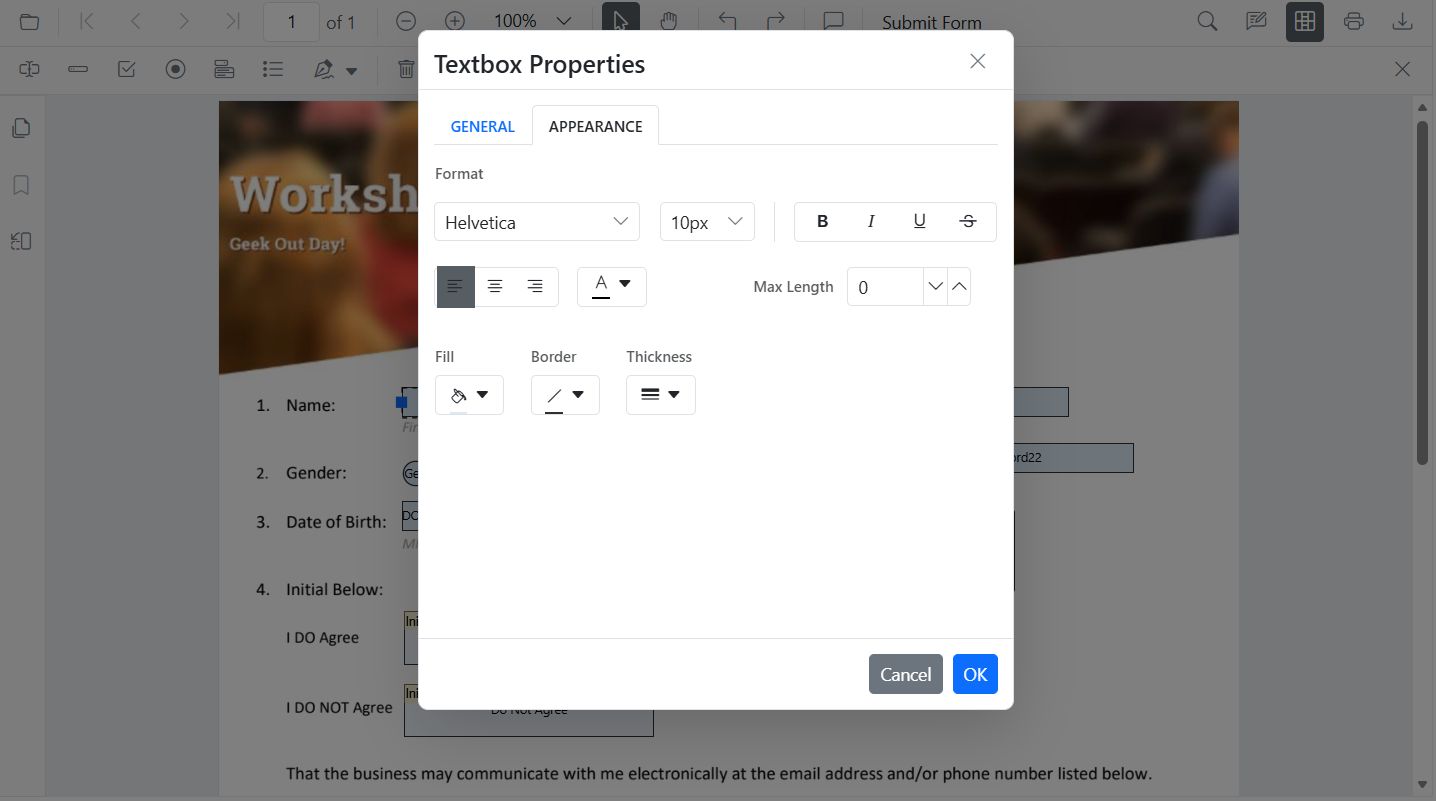
Deleting Form Fields
A form field is removed by selecting it and either clicking the Delete option in the Form Designer UI or pressing the Delete key on the keyboard. The selected form field and its associated widget annotation are permanently removed from the page.
For more information, see Deleting Form Fields