Digital Signature Workflows in Angular PDF Viewer
14 Aug 202610 minutes to read
This guide shows how to design signature fields, collect handwritten/typed e‑signatures in the browser, and apply digital certificate (PKI) signatures to PDF forms using the Angular PDF Viewer and the JavaScript PDF Library. Digital signatures provide authenticity and tamper detection, making them suitable for legally binding scenarios.
Overview
A digital signature is a cryptographic proof attached to a PDF that verifies the signer’s identity and flags any post‑sign changes. It differs from a simple electronic signature (handwritten image/typed name) by providing tamper‑evidence and compliance with standards like CMS/PKCS#7. The Syncfusion JavaScript PDF Library exposes APIs to create and validate digital signatures programmatically, while the Angular PDF Viewer lets you design signature fields and capture handwritten/typed signatures in the browser.
Quick Start
Follow these steps to add a visible digital signature to an existing PDF and finalize it.
- Render the Angular PDF Viewer with form services
import { Component, ViewChild } from '@angular/core';
import {
  PdfViewerComponent,
  PdfViewerModule,
  ToolbarService,
  MagnificationService,
  NavigationService,
  LinkAnnotationService,
  BookmarkViewService,
  ThumbnailViewService,
  PrintService,
  TextSelectionService,
  TextSearchService,
  AnnotationService,
  FormFieldsService,
  FormDesignerService,
  PageOrganizerService
} from '@syncfusion/ej2-angular-pdfviewer';

@Component({
  selector: 'app-root',
  standalone: true,
  template: `
    <div class="content-wrapper">
      <ejs-pdfviewer
        #pdfViewer
        id="pdfViewer"
        [documentPath]="document"
        [resourceUrl]="resource"
        style="height:640px;display:block">
      </ejs-pdfviewer>
    </div>
  `,
  imports: [PdfViewerModule],
  providers: [
    ToolbarService,
    MagnificationService,
    NavigationService,
    LinkAnnotationService,
    BookmarkViewService,
    ThumbnailViewService,
    PrintService,
    TextSelectionService,
    TextSearchService,
    AnnotationService,
    FormFieldsService,
    FormDesignerService,
    PageOrganizerService
  ]
})
export class AppComponent {

  @ViewChild('pdfViewer')
  public pdfViewer!: PdfViewerComponent;

  public document: string =
    'https://cdn.syncfusion.com/content/pdf/form-filling-document.pdf';

  public resource: string =
    'https://cdn.syncfusion.com/ej2/31.2.2/dist/ej2-pdfviewer-lib';
}
The Viewer requires FormFields and FormDesigner services for form interaction and design, and resourceUrl for proper asset loading in modern setups.
-
Place a signature field (UI or API)
-
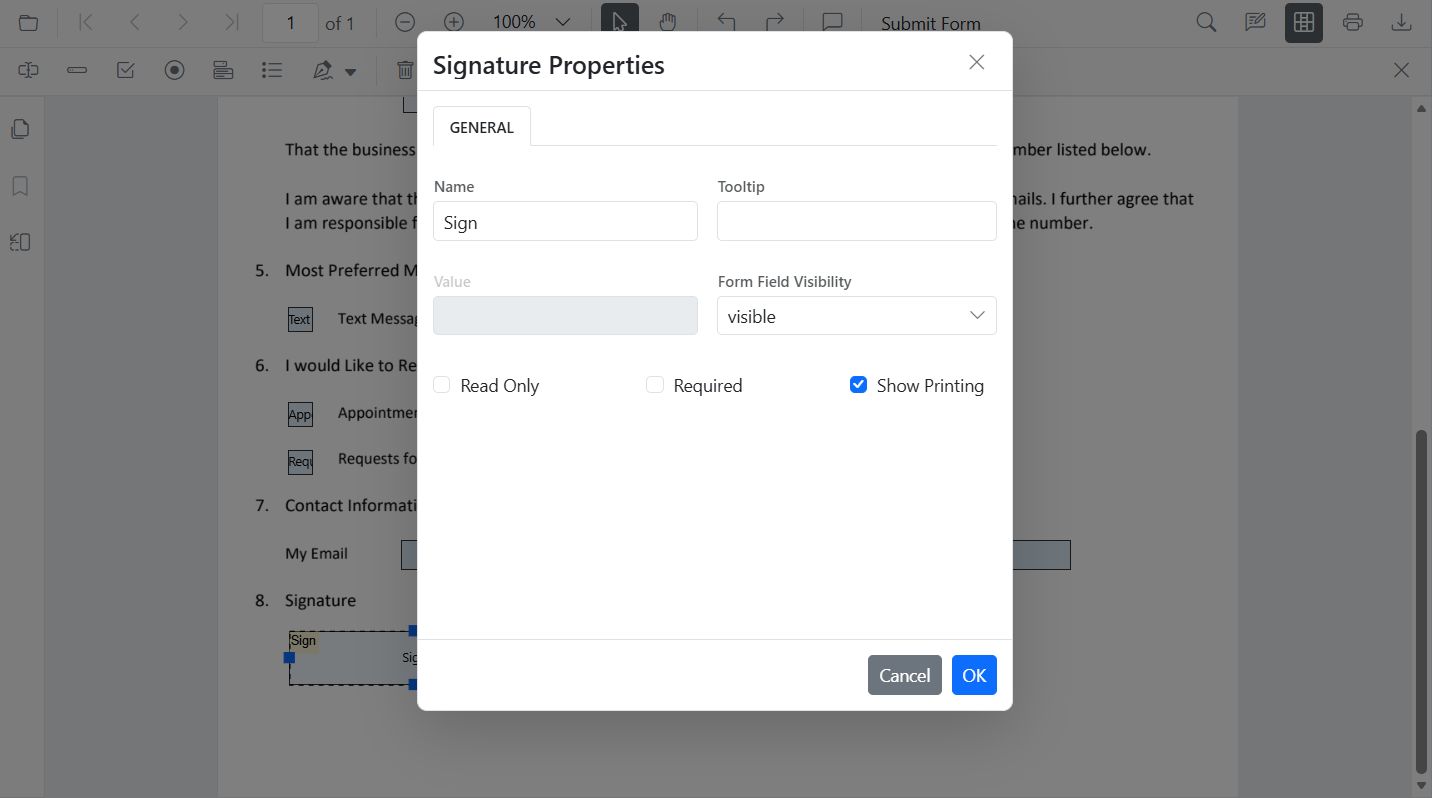
UI: Open Form Designer → choose Signature Field → click to place → configure properties like required, tooltip, and thickness.
-
API: Use
addFormField('SignatureField', options)to create a signature field programmatically.
-
UI: Open Form Designer → choose Signature Field → click to place → configure properties like required, tooltip, and thickness.
import { Component, ViewChild } from '@angular/core';
import {
  PdfViewerComponent,
  PdfViewerModule,
  ToolbarService,
  MagnificationService,
  NavigationService,
  LinkAnnotationService,
  BookmarkViewService,
  ThumbnailViewService,
  PrintService,
  TextSelectionService,
  TextSearchService,
  AnnotationService,
  FormFieldsService,
  FormDesignerService,
  PageOrganizerService
} from '@syncfusion/ej2-angular-pdfviewer';

@Component({
  selector: 'app-root',
  standalone: true,
  template: `
    <div class="content-wrapper">
      <ejs-pdfviewer
        #pdfViewer
        id="pdfViewer"
        [documentPath]="document"
        [resourceUrl]="resource"
        (documentLoad)="onDocumentLoad()"
        style="height:640px;display:block">
      </ejs-pdfviewer>
    </div>
  `,
  imports: [PdfViewerModule],
  providers: [
    ToolbarService,
    MagnificationService,
    NavigationService,
    LinkAnnotationService,
    BookmarkViewService,
    ThumbnailViewService,
    PrintService,
    TextSelectionService,
    TextSearchService,
    AnnotationService,
    FormFieldsService,
    FormDesignerService,
    PageOrganizerService
  ]
})
export class AppComponent {

  @ViewChild('pdfViewer')
  public pdfViewer!: PdfViewerComponent;

  public document: string =
    'https://cdn.syncfusion.com/content/pdf/form-filling-document.pdf';

  public resource: string =
    'https://cdn.syncfusion.com/ej2/31.2.2/dist/ej2-pdfviewer-lib';

  onDocumentLoad(): void {
    (this.pdfViewer as any).formDesignerModule.addFormField('SignatureField', {
      name: 'ApproverSignature',
      pageNumber: 1,
      bounds: { X: 72, Y: 640, Width: 220, Height: 48 },
      isRequired: true,
      tooltip: 'Sign here'
    });
  }
}- Apply a PKI digital signature (JavaScript PDF Library)
The library provides PdfSignatureField and PdfSignature.create(...) for PKI signing with algorithms such as SHA‑256.
import {
  PdfDocument, PdfSignatureField, PdfSignature,
  CryptographicStandard, DigestAlgorithm
} from '@syncfusion/ej2-pdf';

// Load existing PDF bytes (base64/ArrayBuffer)
const document = new PdfDocument(data);
const page = document.getPage(0);

// Create a visible signature field if needed
const field = new PdfSignatureField(page, 'ApproverSignature', {
  x: 72, y: 640, width: 220, height: 48
});

// Create a CMS signature using a PFX (certificate + private key)
const signature = PdfSignature.create(
  { cryptographicStandard: CryptographicStandard.cms, digestAlgorithm: DigestAlgorithm.sha256 },
  certData,
  password
);

field.setSignature(signature);
document.form.add(field);

const signedBytes = await document.save('signed.pdf');
document.destroy();
For sequential or multi‑user flows and digital signature appearances, see these live demos: eSigning PDF Form, Invisible Signature and Visible Signature in the Angular Sample Browser.
How‑to guides
Add a signature field (UI)
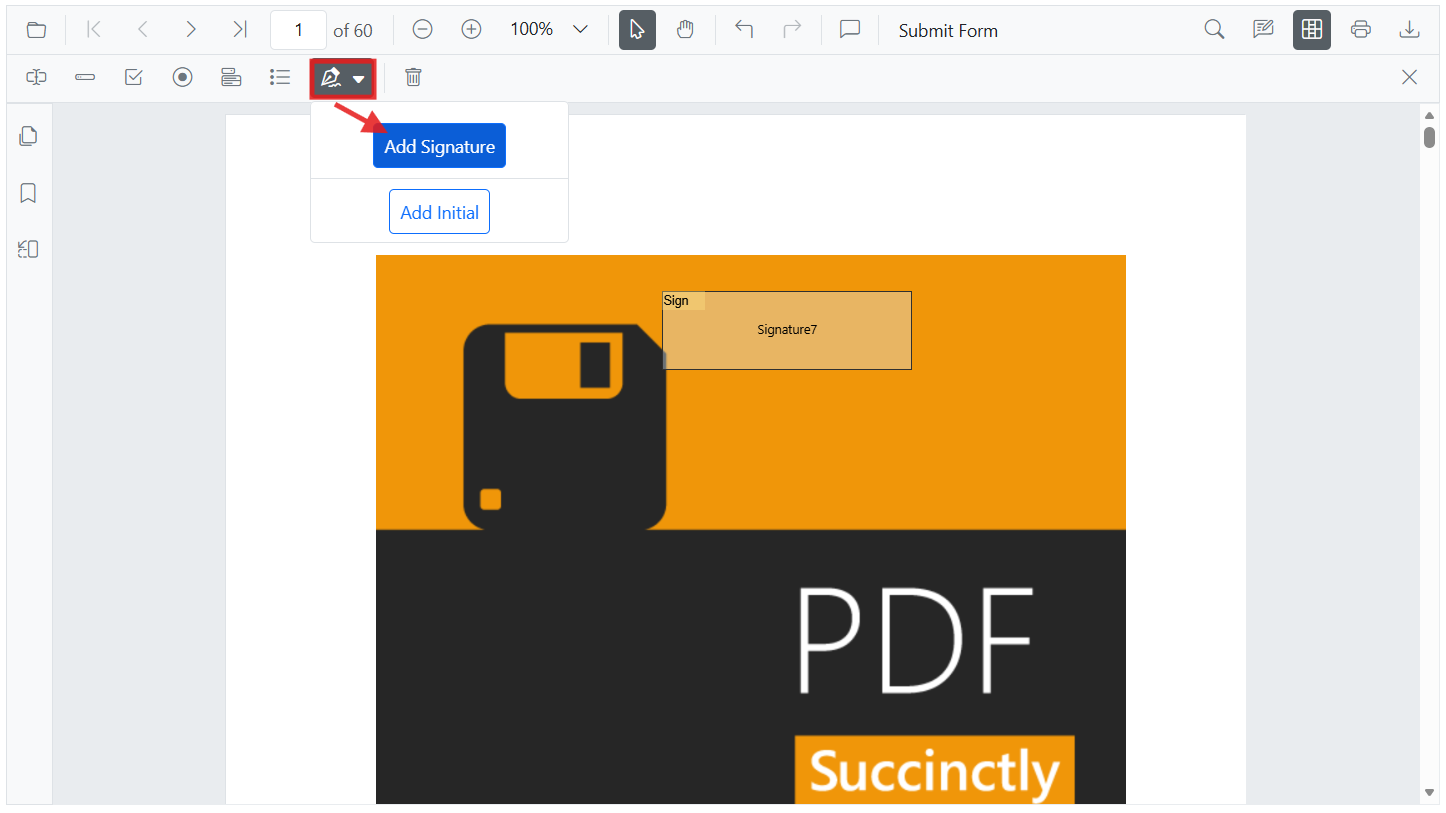
Use the Form Designer toolbar to place a Signature Field where signing is required. Configure indicator text, required state, and tooltip in the properties pane.
Add a signature field (API)
Adds a signature field programmatically at the given bounds.
(this.pdfViewer as any).formDesignerModule.addFormField('SignatureField', {
  name: 'CustomerSign',
  pageNumber: 1,
  bounds: { X: 56, Y: 700, Width: 200, Height: 44 },
  isRequired: true
});
Capture handwritten/typed signature in the browser
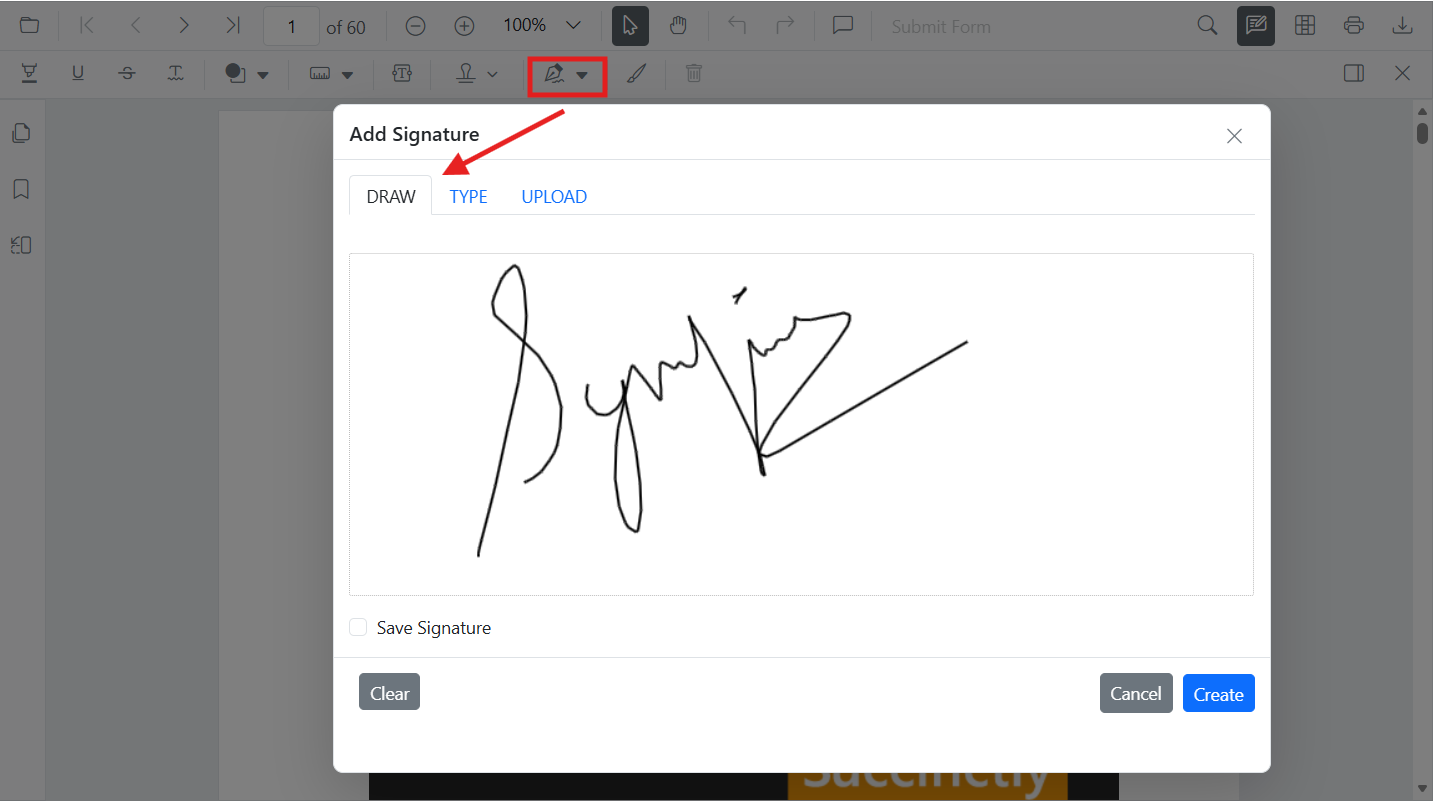
When users click a signature field at runtime, the Viewer’s dialog lets them draw, type, or upload a handwritten signature image—no plugin required—making it ideal for quick approvals.
For a ready‑to‑try flow that routes two users to sign their own fields and then finalize, open eSigning PDF Form in the sample browser.
Apply a PKI digital signature
Use the JavaScript PDF Library to apply a cryptographic signature on a field, with or without a visible appearance. See the Digital Signature documentation for additional options (external signing callbacks, digest algorithms, etc.).
To preview visual differences, check the Invisible Signature and Visible Signature in our Sample Browser.
Finalize a signed document (lock)
After collecting all signatures and passing validations, Lock the PDF (and optionally restrict permissions) to prevent further edits.
Signature Workflow Best Practices
Designing a well‑structured signature workflow ensures clarity, security, and efficiency when working with PDF documents. Signature workflows typically involve multiple participants—reviewers and approvers each interacting with the document at different stages.
Why structured signature workflows matter
A clear signature workflow prevents improper edits, guarantees document authenticity, and reduces bottlenecks during review cycles. When multiple stakeholders sign or comment on a document, maintaining order is crucial for compliance, traceability, and preventing accidental overwrites.
Choosing the appropriate signature type
Different business scenarios require different signature types. Consider the purpose, regulatory requirements, and level of trust demanded by the workflow.
-
Handwritten/typed (electronic) signature – Best for informal approvals, acknowledgments, and internal flows. (Captured via the Viewer’s signature dialog.)
-
Digital certificate signature (PKI) – Required for legally binding contracts and tamper detection with a verifiable signer identity. (Created with the JavaScript PDF Library.)
You can explore and try out live demos for Invisible Signature and Visible Signature in our Sample Browser.
Pre‑signing validation checklist
To prevent rework, validate the PDF before enabling signatures:
- Confirm all required form fields are completed (names, dates, totals). (See Form Validation.)
- Re‑validate key values (financial totals, tax calculations, contract amounts).
- Lock or restrict editing during review to prevent unauthorized changes.
- Use annotations and comments for clarifications before signing.
Role‑based authorization flow
-
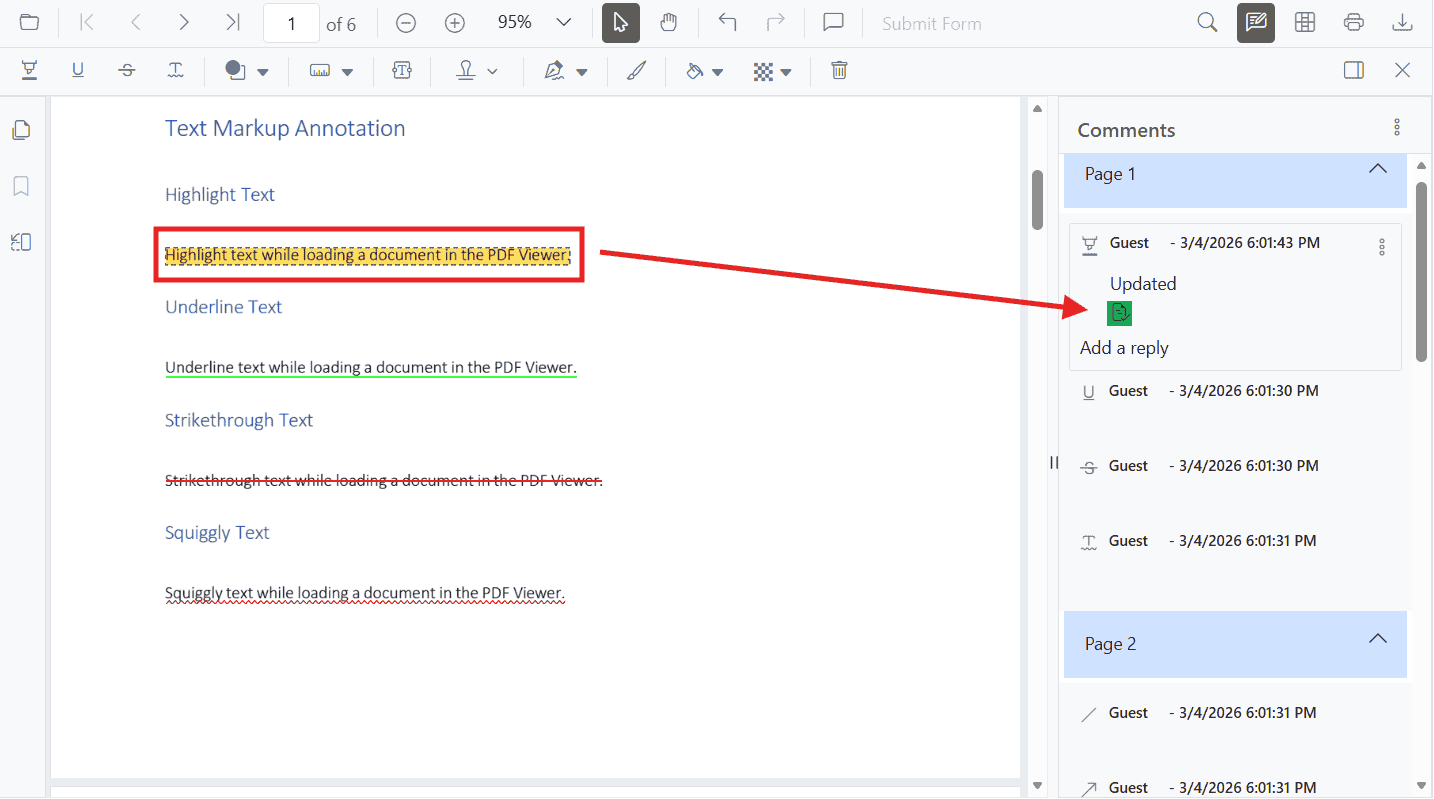
Reviewer – Reviews the document and adds comments/markups. Avoid placing signatures until issues are resolved.
-
Approver – Ensures feedback is addressed and signs when finalized.
- Final Approver – Verifies requirements, then Lock Signature to make signatures permanent and may restrict further edits.
Implementation tip: Use the PDF Library’s
flattenwhen saving to make annotations and form fields permanent before the last signature.
Multi‑signer patterns and iterative approvals
- Route the document through a defined sequence of signers.
- Use comments and replies for feedback without altering document content.
- For external participants, share only annotation data (XFDF/JSON) when appropriate instead of the full PDF.
- After all signatures, Lock to lock the file.
Refer to eSigning PDF Forms sample that shows two signers filling only their designated fields and finalizing the document.
Security, deployment, and audit considerations
- Restrict access: Enforce authentication and role‑based permissions.
- Secure endpoints: Protect PDF endpoints with token‑based access and authorization checks.
- Audit and traceability: Log signature placements, edits, and finalization events for compliance and audits.
- Data protection: Avoid storing sensitive PDFs on client devices; prefer secure server storage and transmission.
- Finalize: After collecting all signatures, lock to prevent edits.