Add Digital Signature in Angular PDF Viewer
14 Aug 20262 minutes to read
This section explains how to add signature fields using the Syncfusion Angular PDF Viewer and how to apply digital (PKI) signatures using the JavaScript PDF Library.
Use the Angular PDF Viewer only to add & place signature fields. Use the JavaScript PDF Library to apply the actual cryptographic digital signature.
Overview
A digital signature provides:
- Authenticity – confirms the signer’s identity.
- Integrity – detects modification after signing.
- Non‑repudiation – signer cannot deny signing.
Syncfusion supports a hybrid workflow:
- Viewer → Design signature fields, capture Draw/Type/Upload electronic signature.
- PDF Library → Apply PKCS#7/CMS digital signature using a certificate (PFX/P12).
Add a Signature Field
Using the UI
- Enable Form Designer mode in the PDF Viewer. See Form Designer overview.
- Open Form Designer.
- Select Signature Field.
- Click on the document to place the field.
- Configure Name, Tooltip, Required, etc.
Using the API
this.pdfviewer.formDesignerModule.addFormField('SignatureField', {
      name: 'ApproverSignature',
      pageNumber: 1,
      bounds: { X: 72, Y: 640, Width: 220, Height: 48 },
      isRequired: true,
      tooltip: 'Sign here'
    }as any);
Capture Electronic Signature (Draw / Type / Upload)
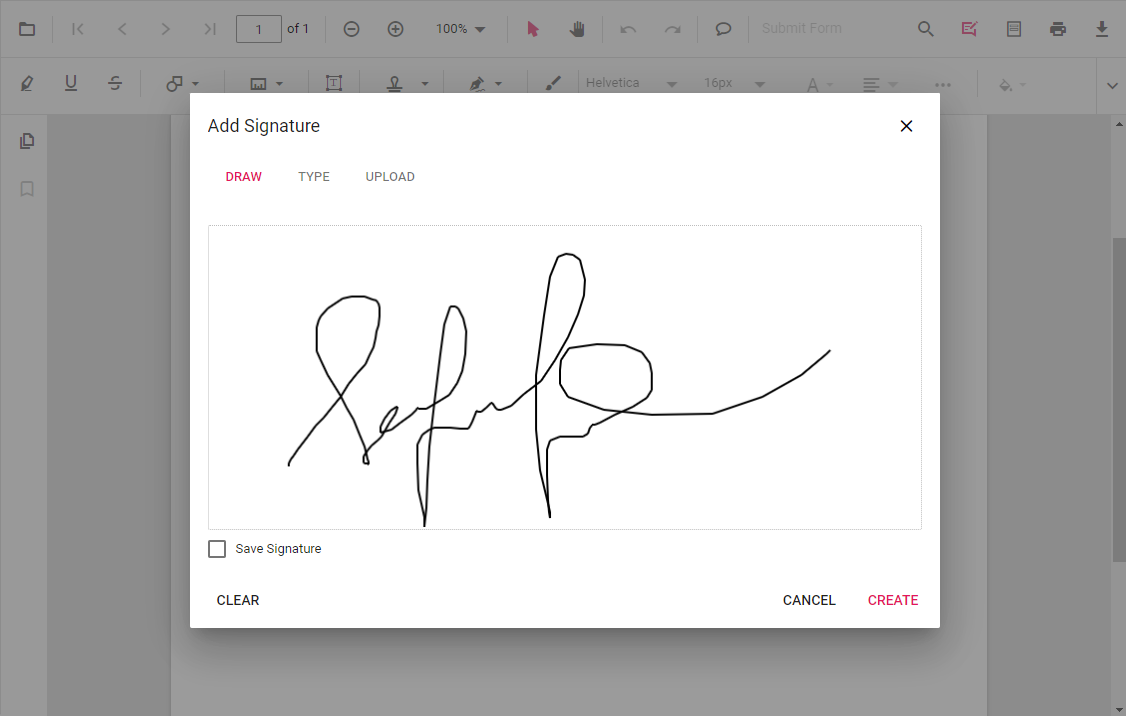
Users click the field → dialog appears → they can Draw, Type, or Upload a handwritten signature.
This creates a visual signature only (not cryptographically secure).
Apply PKI Digital Signature (JavaScript PDF Library)
Digital signature must be applied using @syncfusion/ej2-pdf.
import { PdfDocument, PdfSignature, PdfSignatureField, CryptographicStandard, DigestAlgorithm } from '@syncfusion/ej2-pdf';

const document = new PdfDocument(pdfBytes);
const page = document.getPage(0);

let field = new PdfSignatureField(page, 'ApproverSignature', {
  x: 72,
  y: 640,
  width: 220,
  height: 48
});
document.form.add(field);

const signature = PdfSignature.create(
  {
    cryptographicStandard: CryptographicStandard.cms,
    digestAlgorithm: DigestAlgorithm.sha256
  },
  pfxBytes,
  password
);

field.setSignature(signature);
const signedBytes = await document.save();
document.destroy();
See the PDF Library Digital signature to know more about Digital Signature in PDF Documents.
Important Notes
- Do all form edits first. Sign last. Any PDF modification after signing invalidates the signature.
- Self‑signed PFX will show Unknown / Untrusted until added to Trusted Certificates.
Best Practices
- Place signature fields via Viewer for accurate layout.
- Apply PKI signature using PDF Library only.
- Use CMS + SHA‑256 for compatibility.
- Avoid flattening after signing.