Nodes in .NET MAUI Diagram
Nodes are the primary visual elements used to represent processes, activities, decisions, documents, and other business entities in a diagram.
A node can be customized using built-in properties for position, size, rotation, annotations, ports, shape, and styling.
Prerequisites
Refer to the Getting started page to create a project, install the package, and register the handler.
Create node
A node can be created and added to the Diagram programmatically. Nodes are stacked on the Diagram area from bottom to top in the order they are added. A node is created using the Node class and added to the SfDiagram.Nodes collection.
using Syncfusion.Maui.Diagram;

Node node = new Node
{
    Id = "node1",
    OffsetX = 200,
    OffsetY = 150,
    Width = 120,
    Height = 60
};

diagram.Nodes.Add(node);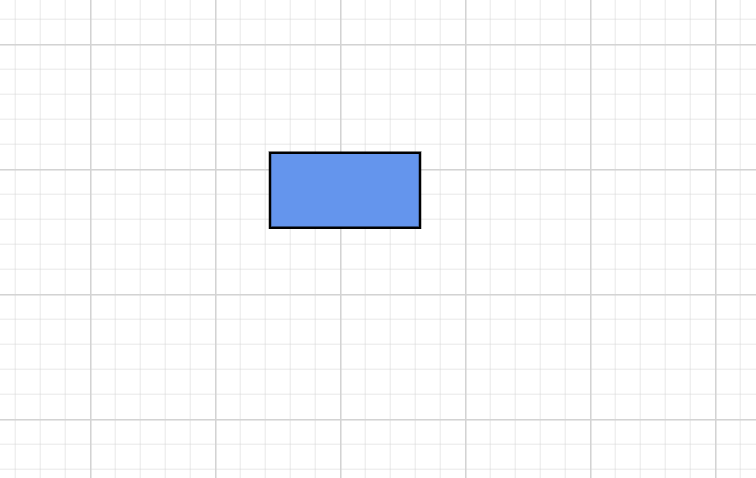
Node properties
| Property | Description |
|---|---|
Id |
Unique identifier for the node. |
OffsetX |
Horizontal center of the node inside the diagram surface. |
OffsetY |
Vertical center of the node inside the diagram surface. |
Width |
Node width. |
Height |
Node height. |
RotationAngle |
Rotation in degrees around the node center. |
Shape |
Built-in or custom shape assigned to the node. |
Style |
Visual style assigned through the ShapeStyle class. |
Ports |
Collection of PointPort connection points. |
Annotations |
Collection of ShapeAnnotation labels. |
IsSelected |
Used to select or unselect the node at runtime. |
Position
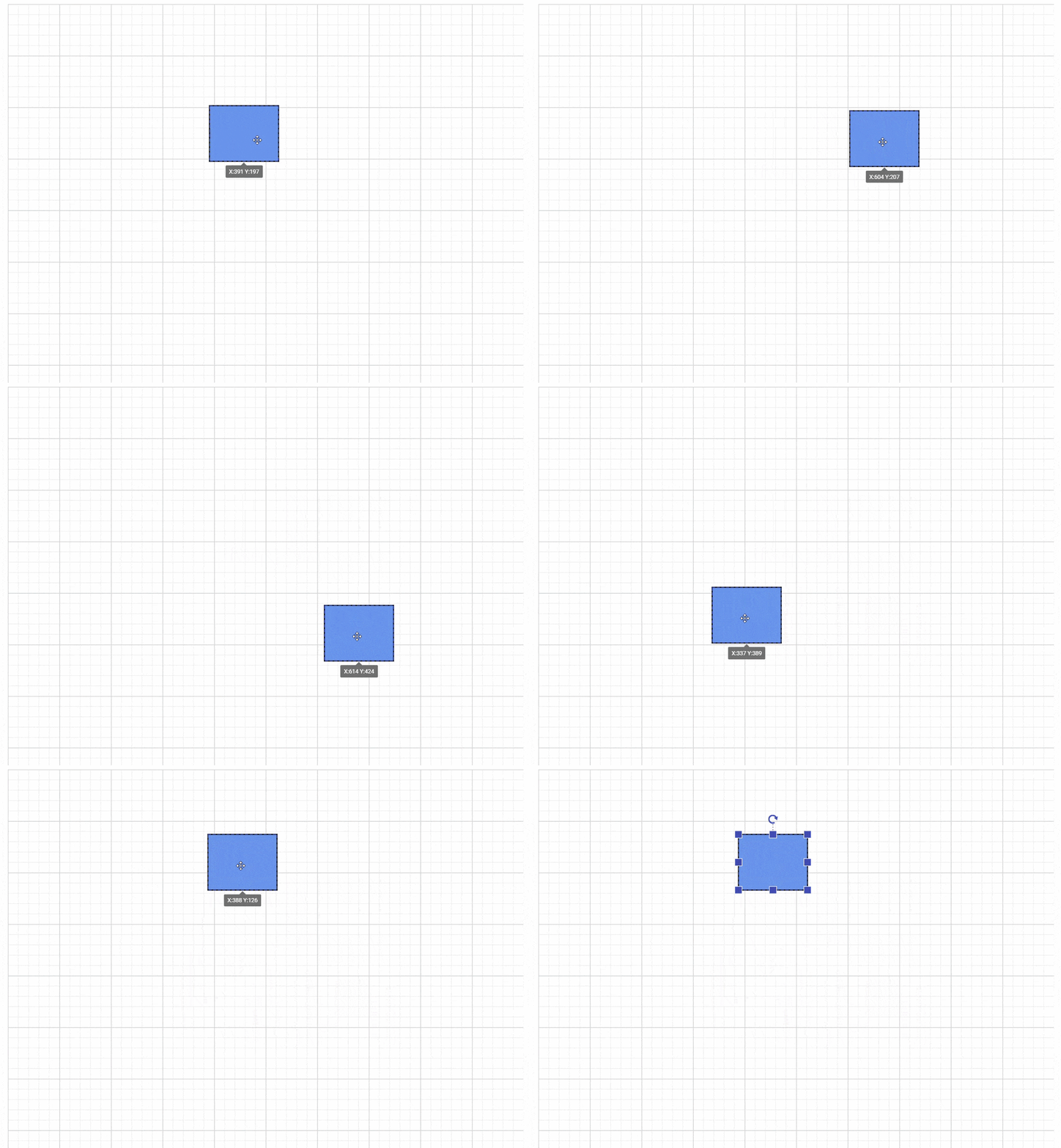
Position of a node is controlled by using its OffsetX and OffsetY properties. By default, these Offset properties represent the distance between origin of the diagram’s page and node’s center point.
node.OffsetX = 300;
node.OffsetY = 200;
Note
- Increasing
OffsetXmoves the node toward the right and decreasing theOffsetXmoves the node toward the left.- Increasing
OffsetYmoves the node downward and decreasingOffsetYmoves the node downward.
Resize
Use the Width and Height properties to size a node.
node.Width = 180;
node.Height = 90;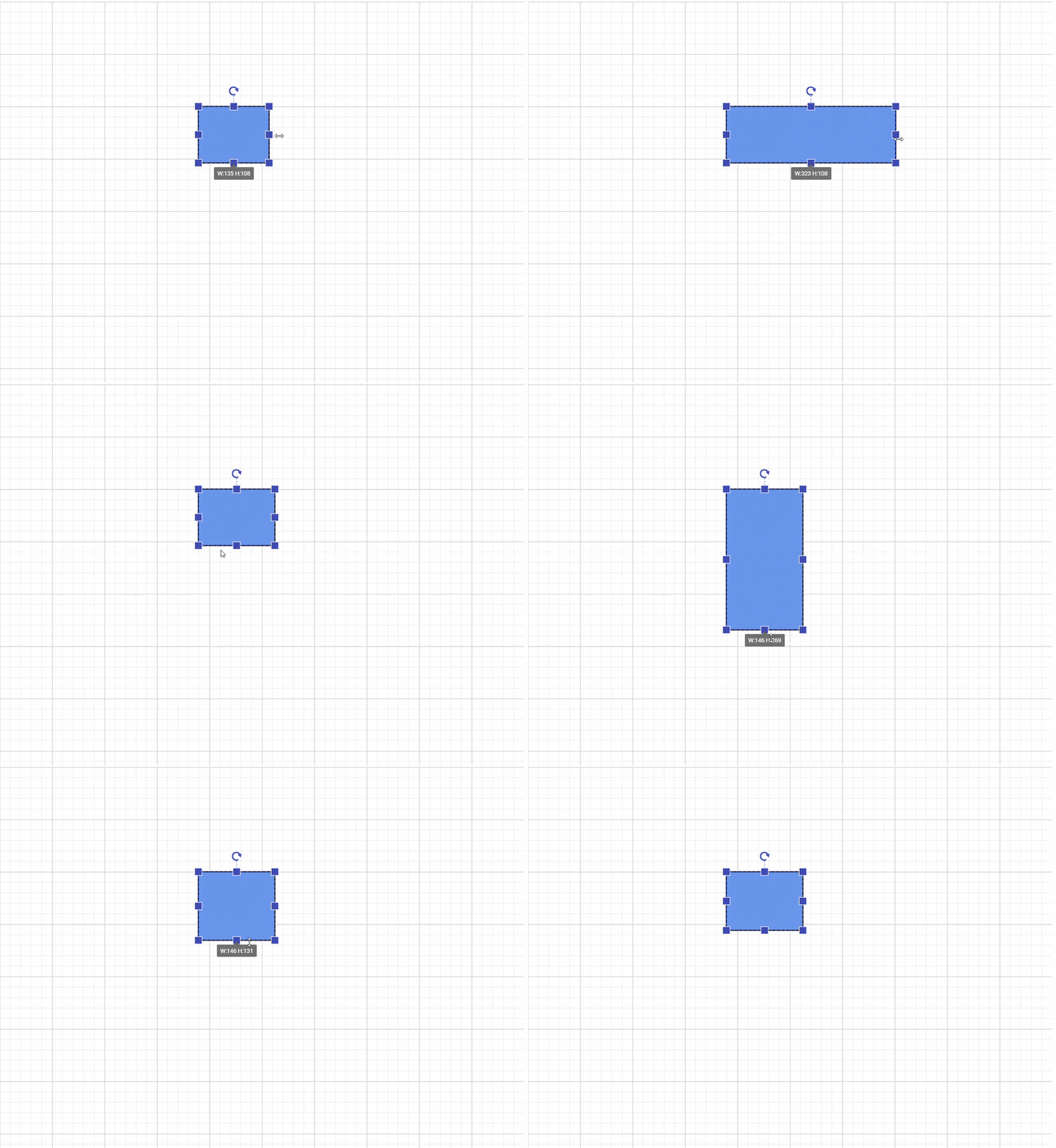
Rotate
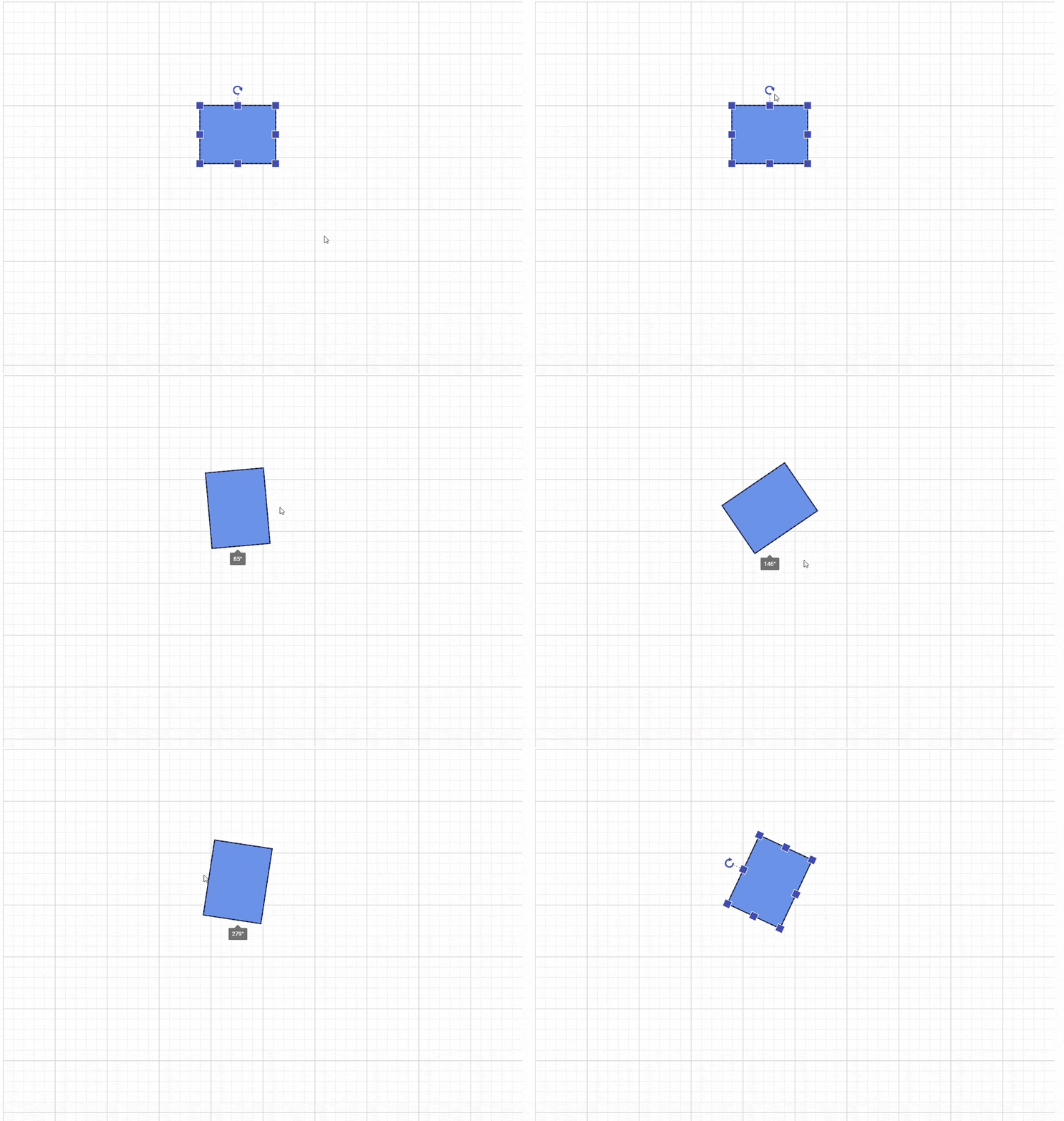
Use the RotationAngle property to rotate a node in degrees. A rotate handler is placed above the selector. Clicking and dragging the handler in a circular direction leads to rotate the node.
Node node = new Node
{
     Id = "node1",
     OffsetX = 150,
     OffsetY = 150,
     Width = 100,
     Height = 100
};

node.RotationAngle = 45;

diagram.Nodes.Add(node);
Note:
RotationAnglerotates the node around its center point.
Appearance
Use the Style property to customize a node’s appearance like fill, border, opacity, and dash pattern. The conceptual styling properties are listed below.
| Property | Description |
|---|---|
| Fill | Background color. |
| StrokeColor | Border color. |
| StrokeWidth | Border thickness. |
| Opacity | Transparency from 0 (transparent) to 1 (opaque). |
| StrokeDashArray | Dash pattern for the border. The accepted value format depends on the package version. |
For connector styling, see the Connectors topic.
 Node node = new Node
 {
     Id = "node1",
     OffsetX = 200,
     OffsetY = 150,
     Width = 120,
     Height = 60
 };

 ShapeStyle style = new ShapeStyle();
 style.Fill = Colors.LightBlue;
 style.StrokeColor = Colors.DarkBlue;
 style.StrokeWidth = 2;
 style.Opacity = 0.8;
 style.StrokeDashArray = "2,2";

 node.Style = style;

 diagram.Nodes.Add(node);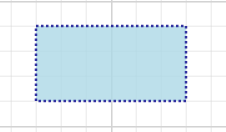
Shape
The Shape property defines the visual appearance of a node. You can use it to display either geometric shapes through the BasicShape type or flowchart symbols through the FlowShape type.
Basic shapes
The Diagram control provides built-in geometric shapes through the BasicShape type and the NodeBasicShapes enumeration.
 Node basicshapesnode = new Node
 {
     OffsetX = 200,
     OffsetY =200,
     Width = 80,
     Height = 80
 };

basicshapesnode.Shape = new BasicShape
{
    Shape = NodeBasicShapes.Rectangle,
    CornerRadius = 8
};

diagram.Nodes.Add(basicshapesnode);
Supported basic shapes:
- Rectangle
- Ellipse
- Hexagon
- Parallelogram
- Triangle
- Plus
- Star
- Pentagon
- Heptagon
- Octagon
- Trapezoid
- Decagon
- RightTriangle
- Cylinder
- Diamond
- Polygon
Flow shapes
The Diagram control provides built-in flowchart symbols through the FlowShape type and the NodeFlowShapes enumeration.
 Node flowshapesnode = new Node
 {
     OffsetX = 200,
     OffsetY =200,
     Width = 80,
     Height = 80
 };

flowshapesnode.Shape = new FlowShape
{
    Shape = NodeFlowShapes.Process
};

diagram.Nodes.Add(flowshapesnode);
Supported flow shapes:
- Terminator
- Process
- Decision
- Document
- PreDefinedProcess
- PaperTap
- DirectData
- SequentialData
- Sort
- MultiDocument
- Collate
- SummingJunction
- Or
- InternalStorage
- Extract
- ManualOperation
- Merge
- OffPageReference
- SequentialAccessStorage
- Annotation
- Annotation2
- Data
- Card
- Delay
- Preparation
- Display
- ManualInput
- LoopLimit
- StoredData