Getting Started with .NET MAUI Diagram
This guide shows how to add the Syncfusion .NET MAUI Diagram control to an application and create a simple diagram with two connected nodes.
Prerequisites
Before you begin, make sure that you have:
- A .NET MAUI development environment. See the official .NET MAUI installation guide.
- A supported version of the .NET SDK and Visual Studio for your Syncfusion release.
- A Syncfusion license key. See licensing.
Note: Review the release notes for the package version that you plan to install to confirm the supported .NET, .NET MAUI, Visual Studio, and target-platform versions.
Step 1: Create a .NET MAUI project
- Open Visual Studio.
- Select Create a new project.
- Choose .NET MAUI App, and then select Next.
- Enter a project name and location, and then select Create.
Step 2: Install the Diagram NuGet package
Install the Syncfusion.Maui.Diagram package in the project. You can use the NuGet Package Manager or run the following command in the Package Manager Console:
Install-Package Syncfusion.Maui.DiagramStep 3: Register Syncfusion controls
In MauiProgram.cs, add the Syncfusion hosting namespace and call ConfigureSyncfusionCore when building the application:
using Syncfusion.Maui.Core.Hosting;

namespace DiagramDemo;

public static class MauiProgram
{
    public static MauiApp CreateMauiApp()
    {
        var builder = MauiApp.CreateBuilder();

        builder
            .UseMauiApp<App>()
            .ConfigureSyncfusionCore();

        return builder.Build();
    }
}
Important: The Syncfusion core handler must be registered before the application uses Syncfusion controls.
Step 4: Register the license key
Register the license key during application startup, before the controls are used. Follow the instructions in the Syncfusion licensing guide.
Do not commit a license key to source control. Use the registration method and namespace required by the Syncfusion release used by your project.
Step 5: Add the Diagram control
Open MainPage.xaml and add the Diagram namespace and control:
<?xml version="1.0" encoding="utf-8" ?>
<ContentPage xmlns="http://schemas.microsoft.com/dotnet/2021/maui"
             xmlns:x="http://schemas.microsoft.com/winfx/2009/xaml"
             xmlns:diagram="clr-namespace:Syncfusion.Maui.Diagram;assembly=Syncfusion.Maui.Diagram"
             x:Class="DiagramDemo.MainPage">
    <diagram:SfDiagram x:Name="diagram" />
</ContentPage>
The x:Name value makes the control available from MainPage.xaml.cs.
Step 6: Add nodes and a connector
Open MainPage.xaml.cs. Add the required namespaces and assign the nodes and connector in the page constructor after InitializeComponent:
using System.Collections.ObjectModel;
using Syncfusion.Maui.Diagram;

namespace DiagramDemo;

public partial class MainPage : ContentPage
{
    public MainPage()
    {
        InitializeComponent();

        Node node1 = new Node
 {
     Id = "node1",
     OffsetX = 300,
     OffsetY = 60,
     Width = 120,
     Height = 40,
     Shape = new BasicShape()
     {
         Shape = NodeBasicShapes.Ellipse
     },
 };
 ShapeStyle style = new ShapeStyle();
 style.Fill = Colors.CornflowerBlue;
 style.StrokeColor = Colors.Black;
 style.StrokeWidth = 2;
 style.StrokeDashArray = "0,0";

 node1.Style = style;

 node1.Annotations.Add(
  new ShapeAnnotation
  {
      Id = "Begin",
      Content = "Begin",

  });
 diagram.Nodes.Add(node1);


 Node node2 = new Node
 {
     Id = "node2",
     OffsetX = 300,
     OffsetY = 160,
     Width = 120,
     Height = 60,
     Shape = new FlowShape()
     {
         Shape = NodeFlowShapes.PreDefinedProcess
     },
 };


 node2.Style = style;

 node2.Annotations.Add(
  new ShapeAnnotation
  {
      Id = "Process",
      Content = "Process",

  });

 diagram.Nodes.Add(node2);


 Node node3 = new Node
 {
     Id = "node3",
     OffsetX = 300,
     OffsetY = 245,
     Width = 40,
     Height = 40,
     Shape = new BasicShape()
     {
         Shape = NodeBasicShapes.Ellipse
     },
 };

 node3.Style = style;

 node3.Annotations.Add(
  new ShapeAnnotation
  {
      Id = "End",
      Content = "End",

  });

 diagram.Nodes.Add(node3);

 Connector connector1 = new Connector
 {
     Id = "connector1",
     SourceID = "node1",
     TargetID = "node2",


 };
 diagram.Connectors.Add(connector1);

 Connector connector2 = new Connector
 {
     Id = "connector2",
     SourceID = "node2",
     TargetID = "node3",


 };
 diagram.Connectors.Add(connector2);
    }
}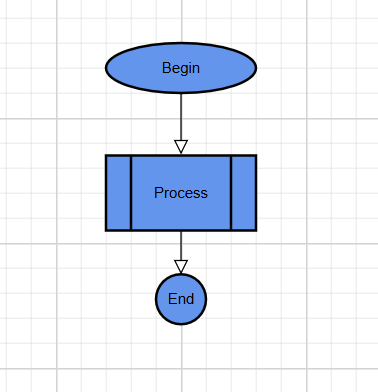
OffsetX and OffsetY position the nodes on the diagram surface. SourceID and TargetID connect the connector to the corresponding node IDs.
Expected result
When you run the application, the Diagram control displays two nodes positioned horizontally with a connector between them. The exact appearance can vary with the target platform and the control’s default styles.
Troubleshooting
The Diagram control is not displayed
- Confirm that the
Syncfusion.Maui.Diagrampackage is installed in the startup project. - Confirm that
ConfigureSyncfusionCoreis called inMauiProgram.cs. - Confirm that the XAML namespace uses the
Syncfusion.Maui.Diagramassembly. - Clean and rebuild the project after changing package or startup configuration.
The nodes are not visible
- Confirm that the nodes are assigned to
diagram.Nodes. - Check that the node offsets place them inside the visible diagram area.
- Confirm that every node has a unique
ID.
Next steps
- Learn about nodes and connectors.
- Connect nodes using ports.
- Save and restore a diagram with serialization.