Ports in .NET MAUI Diagram
Ports define specific connection points on a node. They provide precise control over where connectors begin and terminate, helping users build structured and visually organized diagrams.
Ports are commonly used in workflow designers, flowcharts, process diagrams, and node-based editors where connection locations must be predictable.
Prerequisites
Refer to the Getting started page to create a project, install the package, and register the handler. Port examples assume that the host node has been created in the diagram.
Port creation
A port is created using the PointPort class and added to the Node.Ports collection.
using Syncfusion.Maui.Diagram;

 Node node = new Node
 {
     Id = "node1",
     OffsetX = 500,
     OffsetY = 300,
     Width = 120,
     Height = 60
 };
 ShapeStyle style = new ShapeStyle();
 style.Fill = Colors.CornflowerBlue;
 style.StrokeColor = Colors.Black;
 style.StrokeWidth = 2;
 style.StrokeDashArray = "0,0";

 node.Style = style;
 node.Ports.Add(
 new PointPort
 {
     Id = "TopPort", Visibility = PortVisibility.Visible,
 });

 diagram.Nodes.Add(node);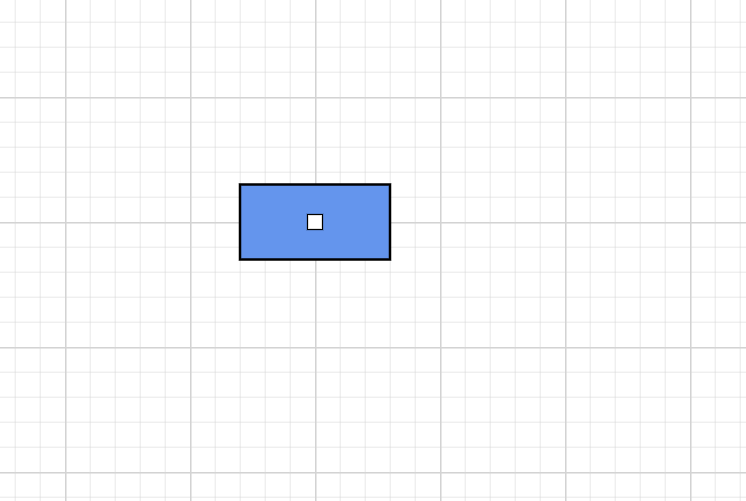
Port properties
| Property | Description |
|---|---|
| Id | Unique identifier for the port within the host node. |
| Offset | Port position. The accepted coordinate type depends on the package version. |
| Visibility | Controls when the port is visible through the PortVisibility enumeration. |
| Style | Visual style for the port based on the ShapeStyle class. |
Note: The
Offsettype is implemented in a different class thanDiagramPoint. Verify the supported type in the API reference for your package version.
Port Position
The Offset property defines the position of a port relative to its host node. The position is specified using normalized coordinates, where the values range from 0 to 1.
-
Offset.Xdetermines the horizontal position. -
Offset.Ydetermines the vertical position.
Coordinate reference
| Axis | 0 |
1 |
|---|---|---|
Offset.X |
Left edge | Right edge |
Offset.Y |
Top edge | Bottom edge |
Common port positions
| Position | Offset value |
|---|---|
| Top center | new DiagramPoint(0.5, 0) |
| Left center | new DiagramPoint(0, 0.5) |
| Right center | new DiagramPoint(1, 0.5) |
| Bottom center | new DiagramPoint(0.5, 1) |
| Center | new DiagramPoint(0.5, 0.5) |
For example, the following code places a port at the right-center of a node:
 Node node = new Node
 {
     Id = "node",
     OffsetX = 500,
     OffsetY = 300,
     Width = 120,
     Height = 60
 };
 ShapeStyle style = new ShapeStyle();
 style.Fill = Colors.CornflowerBlue;
 style.StrokeColor = Colors.Black;
 style.StrokeWidth = 2;
 style.StrokeDashArray = "0,0";

 node.Style = style;
 node.Ports.Add(
 new PointPort
 {
     Id = "Port", Visibility = PortVisibility.Visible,
     Offset = new DiagramPoint(0, 1),
 });

 diagram.Nodes.Add(node);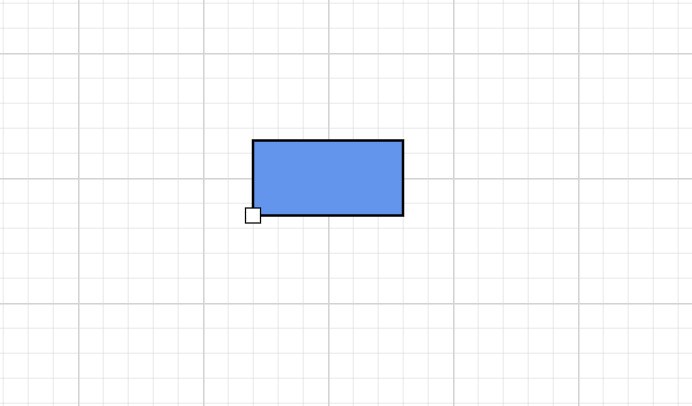
—
Port visibility
The Visibility property determines when a port is displayed.
| Visibility | Description |
|---|---|
| Visible | The port is always visible. |
| Hidden | The port is never displayed. |
| Hover | The port becomes visible when the pointer hovers over the node. |
| Connect | The port becomes visible during connection operations. |
Node node = new Node
{
    Id = "node",
    OffsetX = 500,
    OffsetY = 300,
    Width = 120,
    Height = 100
};
ShapeStyle style = new ShapeStyle();
style.Fill = Colors.Red;
style.StrokeColor = Colors.Black;
style.StrokeWidth = 2;
style.StrokeDashArray = "0,0";

node.Style = style;
PointPort port= new PointPort
{
    Id = "Port",
    Offset = new DiagramPoint(0,0.5),
};

port.Visibility = PortVisibility.Visible;

node.Ports(port);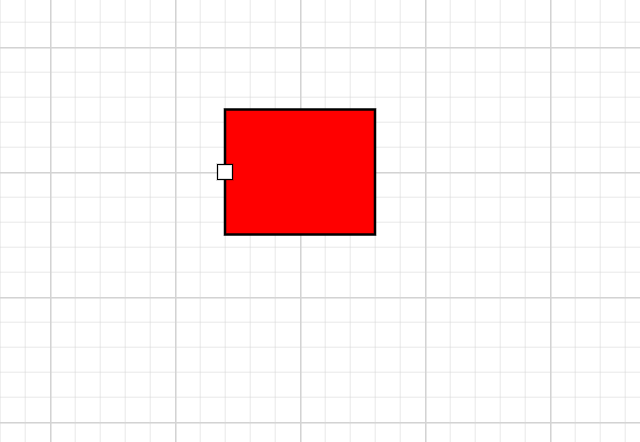
—
Appearance
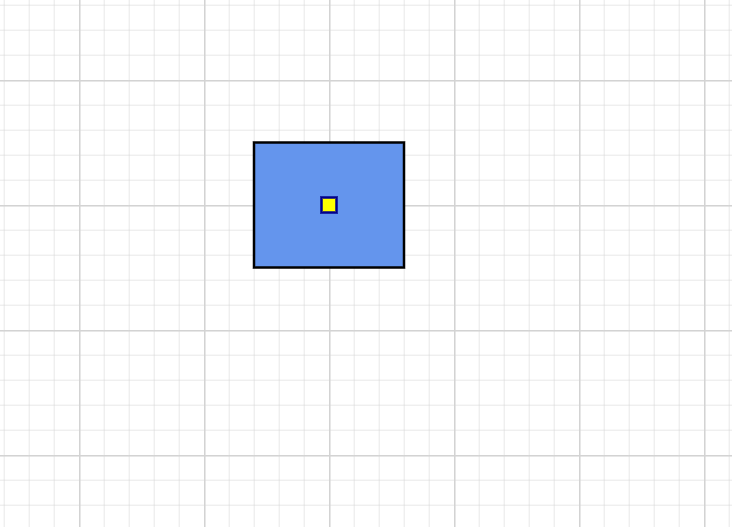
Port appearance is customized using the Style property of the Port class.
 PointPort port = new PointPort
 {
     Id = "Port",
 };

 port.Style = new ShapeStyle
 {
     Fill = Colors.Yellow,
     StrokeColor = Colors.DarkBlue,
     StrokeWidth = 2,
     Opacity = 1
 };
Properties
| Property | Description |
|---|---|
| Fill | Port background color. |
| StrokeColor | Port border color. |
| StrokeWidth | Border thickness. |
| Opacity | Port transparency from 0 to 1. |
| StrokeDashArray | Dash pattern for the border. The accepted value format depends on the package version. |
Connections with ports
The connection between any specific point of source and target nodes can be achieved with ports. Connectors reference source and target ports through SourcePortID and TargetPortID.
Node node1 = new Node
{
    Id="Node1",
    OffsetX = 200,
    OffsetY = 200,
    Width = 80,
    Height = 80
};
ShapeStyle style = new ShapeStyle();
style.Fill = Colors.CornflowerBlue;
style.StrokeColor = Colors.Black;
style.StrokeWidth = 2;
style.StrokeDashArray = "0,0";

node1.Style = style;
Node node2 = new Node
{
    Id = "Node2",
    OffsetX = 400,
    OffsetY = 400,
    Width = 80,
    Height = 80
};

node2.Style = style;
PointPort RightPort = new PointPort
{
    Id = "RightPort",
    Offset = new DiagramPoint(1, 0.5),
    Visibility = PortVisibility.Visible,
};
PointPort LeftPort = new PointPort
{
    Id = "LeftPort",
    Offset = new DiagramPoint(0.5, 0),
    Visibility = PortVisibility.Visible
};

node1.Ports.Add(RightPort);
node2.Ports.Add(LeftPort);

diagram.Nodes.Add(node1);
diagram.Nodes.Add(node2);

Connector connector = new Connector
{
    Id = "connector1",
    SourceID = "Node1",
    SourcePortID = "RightPort",
    TargetID = "Node2",
    TargetPortID = "LeftPort"
};

diagram.Connectors.Add(connector);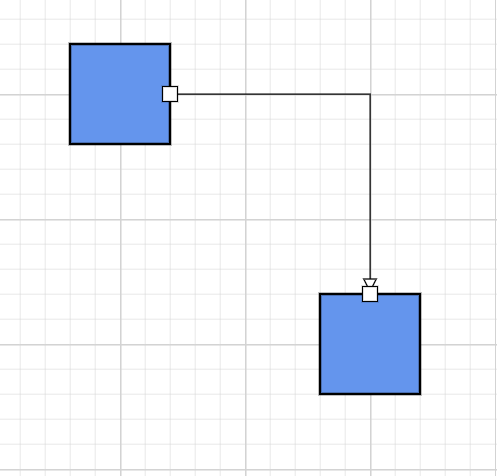
—
Multiple ports
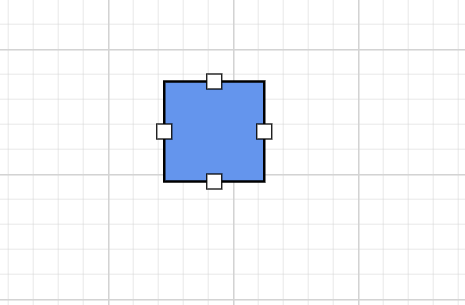
A node can contain any number of ports, each scoped to the host node by its Id.
 Node node = new Node
 {
     OffsetX = 200,
     OffsetY =200,
     Width = 80,
     Height = 80
 };

node.Ports.Add(new PointPort { Id = "TopPort",    Offset = new DiagramPoint { X = 0.5, Y = 0 }, Visibility = PortVisibility.Visible });
node.Ports.Add(new PointPort { Id = "BottomPort", Offset = new DiagramPoint { X = 0.5, Y = 1 }, Visibility = PortVisibility.Visible });
node.Ports.Add(new PointPort { Id = "LeftPort",   Offset = new DiagramPoint { X = 0,   Y = 0.5 }, Visibility = PortVisibility.Visible });
node.Ports.Add(new PointPort { Id = "RightPort",  Offset = new DiagramPoint { X = 1,   Y = 0.5 }, Visibility = PortVisibility.Visible });
Note:
DiagramPointis not implemented in the current release. Verify the supported coordinate type for port positioning before using this property.
Best practices
- Use the same
Idscheme (TopPort,BottomPort,LeftPort,RightPort) for ports across similar nodes so that connectors can be reused in symbol palettes. - Use
PortVisibility.HoverorPortVisibility.Connectto keep the diagram surface clean when ports are not actively used. - Combine ports with orthogonal connectors to keep workflow diagrams aligned and predictable.