Improving Code Maintainability with Automated Clean Code Refactoring
15 Jun 202612 minutes to read
Overview
Is your codebase getting harder to read, test, or extend? That’s a sign it’s time to refactor. Refactoring is the process of restructuring your existing code to improve its clarity, structure, and maintainability — without changing what it actually does.
Code Studio makes this process faster and more consistent through its built-in AI-powered tools. In this tutorial, you’ll walk through practical, real-world examples of how Code Studio automatically detects and fixes the most common code quality problems: repeated logic, bloated functions, and poor naming — all with just a few keystrokes.
By the end of this tutorial, you’ll have a concrete set of refactoring techniques you can apply immediately to your own projects.
Note: Refactoring changes the structure of your code, not its behavior. If your project has tests, run them before and after refactoring to confirm nothing has broken.
Prerequisites
Before beginning this tutorial, ensure the following:
- Basic familiarity with the programming language used in the examples (TypeScript is used throughout, but the techniques apply to JavaScript, Python, and Java as well).
What You Will Learn
By the end of this tutorial, you’ll be able to:
- Use Code Studio’s Inline Chat to understand unfamiliar or complex code instantly
- Eliminate repeated logic by extracting it into reusable functions
- Simplify verbose code to make it shorter and easier to read
- Break large, multi-purpose functions into focused, single-responsibility units
- Rename symbols intelligently across your entire project in one step
- Use Agent mode to perform multi-file, large-scale refactoring automatically
Understanding Code Studio’s AI-Features
Before you begin refactoring, it’s important to understand the two main AI-features you’ll use:
Inline Chat
Inline Chat is a lightweight AI assistant that appears directly in your code editor as an input box overlay. You open it with Ctrl+I (Windows/Linux) or Cmd+I (Mac). Once open, you can type natural language instructions or use slash commands (like /explain or /fix) to modify the code you’ve selected. Inline Chat works on a single file or selection at a time and shows you a side-by-side diff preview before applying any changes.
Chat Panel
The Chat Panel is a separate sidebar panel in Code Studio where you can have ongoing conversations with the AI. You can use it to ask questions, get explanations, or give instructions. It supports two modes:
- Ask mode: For questions, explanations, and single-file changes
- Agent mode: For complex, multi-file refactoring that requires the AI to autonomously plan and execute changes across multiple files
Tip: Use Inline Chat for quick, focused changes to code you’ve selected. Use Agent mode in the Chat Panel for larger refactoring tasks that involve multiple files.
Steps to Refactor Code
Step 1: Understand Code Before You Refactor
Before changing any code, you must understand what it does. Code Studio’s Inline Chat gives you an instant, plain-English explanation of any selected block of code — removing the guesswork before you begin.
Step 2: Eliminate Repeated Code with Extracted Functions
Code duplication — the same logic copy-pasted in multiple places — is one of the most common maintainability problems. When the same operation appears more than once, every bug fix or change must be applied in every location, which is time-consuming and error-prone.
Code Studio can detect duplicated logic and extract it into a single, reusable function automatically.
The following example calculates EMI (Equated Monthly Installment) for two different loans with duplicated calculation logic.
Example — Before Refactoring
// Before: Duplicated EMI calculation logic
let loanAmount1 = 300000;
let interestRate1 = 5.5;
let years1 = 15;
let monthlyPayment1 = loanAmount1 * (interestRate1 / 12 / 100) *
    Math.pow(1 + (interestRate1 / 12 / 100), years1 * 12) /
    (Math.pow(1 + (interestRate1 / 12 / 100), years1 * 12) - 1);

let loanAmount2 = 450000;
let interestRate2 = 6.0;
let years2 = 30;
let monthlyPayment2 = loanAmount2 * (interestRate2 / 12 / 100) *
    Math.pow(1 + (interestRate2 / 12 / 100), years2 * 12) /
    (Math.pow(1 + (interestRate2 / 12 / 100), years2 * 12) - 1);

console.log(monthlyPayment1);
console.log(monthlyPayment2);
Steps:
-
Select the entire file contents in the editor (
Ctrl+A/Cmd+A).Tip: When you select the entire file, Code Studio’s AI can analyze all the functions and automatically identify patterns where the same logic appears multiple times. You don’t need to manually highlight each duplicate — the AI does this detection for you.
- Open Inline Chat with
Ctrl+I(Windows/Linux) orCmd+I(Mac). The input box will appear over your editor. -
Type the following prompt and press Enter:
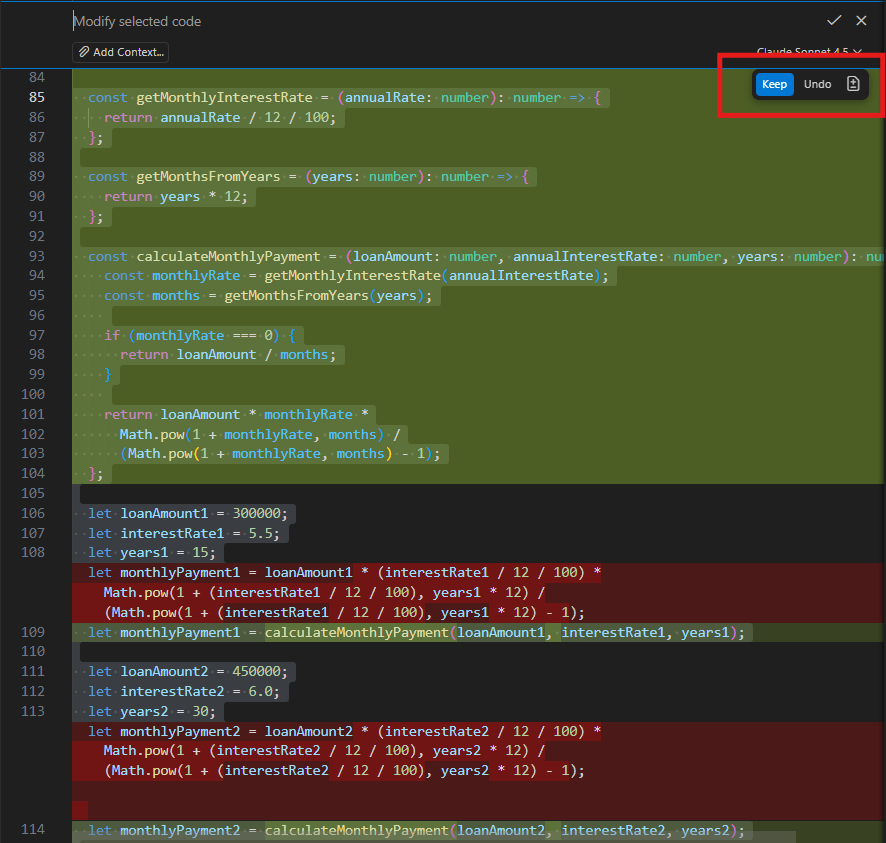
move repeated calculations into reusable functions -
Code Studio analyzes the entire file, identifies duplicate patterns, and suggests a refactored version:
- Review the suggestion and click Accept if you’re satisfied with the result.
Note: Always run your tests after accepting a refactoring suggestion to confirm the behavior has not changed.
Step 3: Make Verbose Code More Concise
Long-winded code with unnecessary variables, redundant checks, or outdated syntax is harder to scan and review. Code Studio can rewrite unnecessarily verbose code into a compact, idiomatic form — without removing any functionality.
Example — Before Refactoring
// Before: Verbose code with unnecessary intermediate variables and string concatenation
function formatLoanAmount(amount: number) {
  const formattedAmount = new Intl.NumberFormat('en-US', {
    style: 'currency',
    currency: 'USD',
    minimumFractionDigits: 0
  }).format(amount);
  return formattedAmount;
}

function formatInterestRate(rate: number) {
  const formattedRate = rate.toFixed(2) + '%';
  return formattedRate;
}

const principalAmount = 300000;
const formattedPrincipal = formatLoanAmount(principalAmount);
console.log('Loan Amount: ' + formattedPrincipal);

const interestRateValue = 5.5;
const formattedInterest = formatInterestRate(interestRateValue);
console.log('Interest Rate: ' + formattedInterest);
Steps:
- Select the entire file contents (
Ctrl+A/Cmd+A). - Open Inline Chat with
Ctrl+I(Windows/Linux) orCmd+I(Mac). - Type the following prompt and press Enter:
make this more concise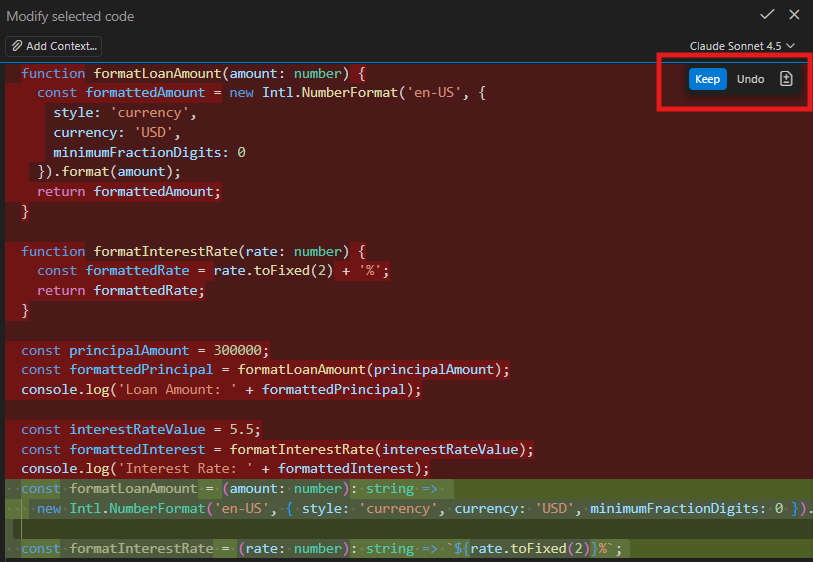
-
Code Studio suggests a cleaner version:

- Review the suggestion and click Accept if you’re satisfied.
Step 4: Split Large Functions into Focused Units
A function that does too many things at once is called a god function. It’s hard to test in isolation, difficult to reuse in other contexts, and slow to debug when something goes wrong.
The solution is the Single Responsibility Principle (SRP): each function should do exactly one thing. Code Studio can split a god function into smaller, focused units automatically.
Example — Before Refactoring
// Before: A "god function" that does too many things
function calculateLoanDetails(principal: number, rate: number, years: number): void {
  // Step 1: Calculate monthly rate and total months
  const monthlyRate = rate / 12 / 100;
  const months = years * 12;

  // Step 2: Calculate EMI
  const emi = principal * monthlyRate * Math.pow(1 + monthlyRate, months) /
    (Math.pow(1 + monthlyRate, months) - 1);

  // Step 3: Calculate total payment and interest
  const totalPayment = emi * months;
  const totalInterest = totalPayment - principal;

  // Step 4: Format and display results
  const formatter = new Intl.NumberFormat('en-US', { style: 'currency', currency: 'USD' });
  console.log(`Monthly Payment: ${formatter.format(emi)}`);
  console.log(`Total Interest: ${formatter.format(totalInterest)}`);
  console.log(`Total Payment: ${formatter.format(totalPayment)}`);
}

calculateLoanDetails(300000, 5.5, 15);
Steps:
- Place the cursor anywhere inside the large function (e.g.,
calculateLoanDetails). - Open Inline Chat with
Ctrl+I(Windows/Linux) orCmd+I(Mac). -
Type the following prompt and press Enter:
split into separate functions: one for calculating EMI, one for calculating totals, and one for formatting currency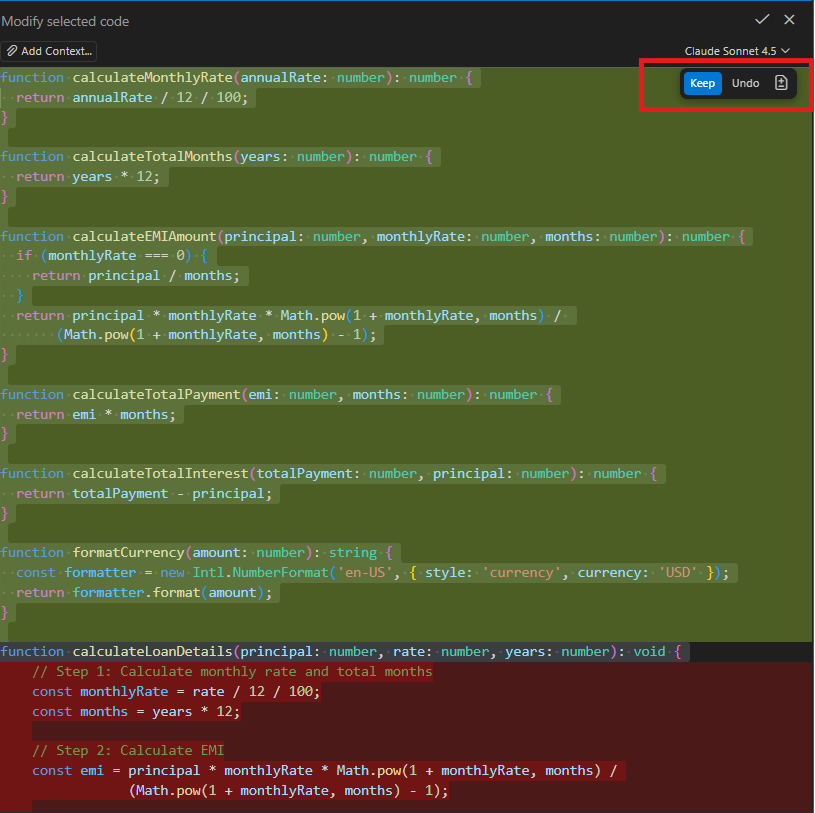
-
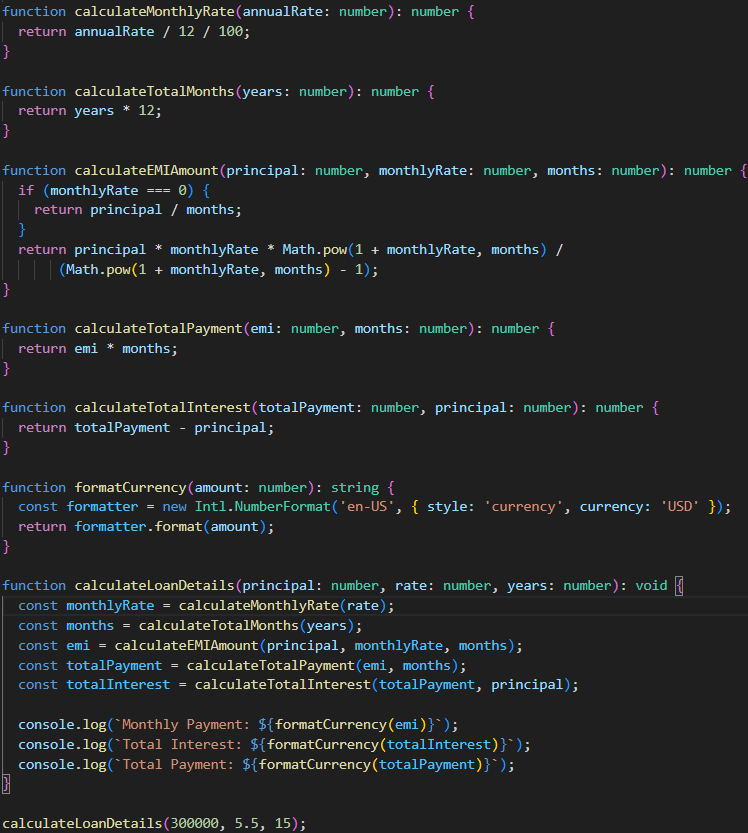
Code Studio suggests the refactored version with each concern separated:
- Review the suggestion and click Accept if you’re satisfied.
Step 5: Rename Symbols Across the Entire Project
Poor variable and function names silently reduce code quality over time. Names like d, tmp, fn, or process tell the next developer nothing about what they represent. Code Studio can suggest meaningful names and rename every reference across your entire project in a single action.
- Place the cursor on the symbol you want to rename — this can be a variable, function name, class, or parameter.
- Press
F2to trigger the rename action. -
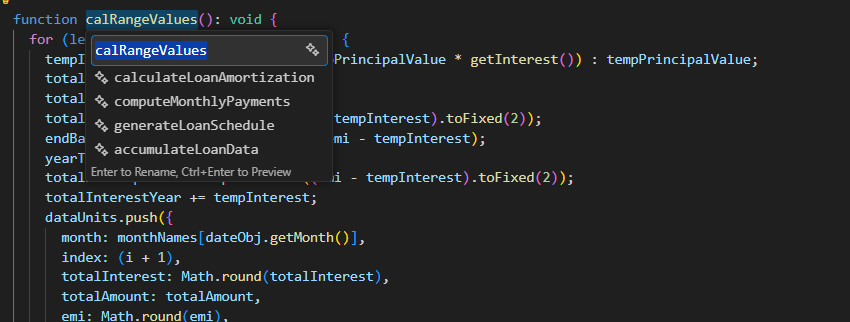
Code Studio displays a list of AI-suggested alternative names in a dropdown.
-
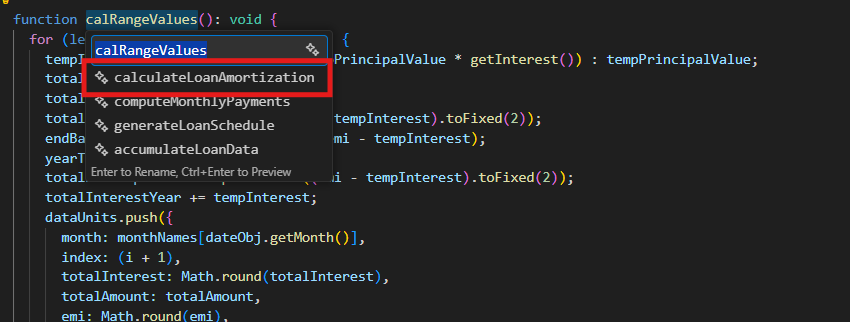
Select the name you prefer from the list, or type your own replacement name.
-
Press Enter to confirm. The symbol is automatically renamed everywhere it is used in the project — across all files.
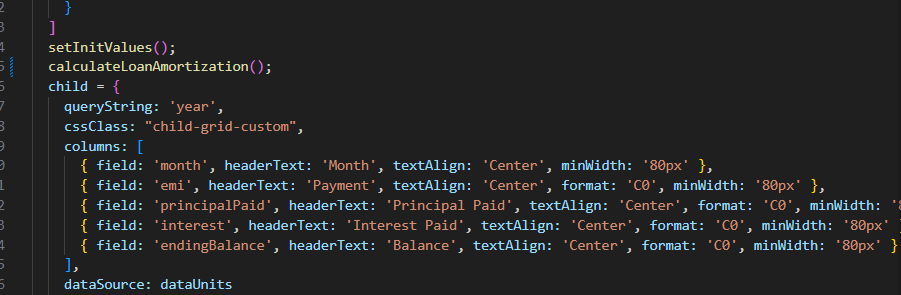
Note: The rename operation is scope-aware — it only affects the specific symbol you selected, not other variables that happen to have the same name elsewhere in your code.
Step 6: Large-Scale Refactoring with Agent Mode
For bigger refactoring jobs that span multiple files — such as standardizing error handling patterns, migrating to a new API, or updating deprecated library methods across your entire codebase — Agent mode is the right tool.
Example: Standardize Error Handling Across Multiple Files
Suppose your codebase has inconsistent error handling — some functions use try-catch blocks, others silently swallow errors, and error messages lack context. The goal is to apply a single, consistent error handling pattern across all service files.
Steps:
-
Clone the sample repository and open it in Code Studio:
git clone https://github.com/syncfusion/ej2-showcase-react-loan-calculator cd ej2-showcase-react-loan-calculator - Open your project in Code Studio.
- Open the Chat Panel (if it’s not already visible, press
Ctrl+Shift+P(Windows/Linux) orCmd+Shift+P(Mac) to open the Command Palette — a search box that appears at the top of the editor — then type “Chat: Focus on Chat View” and press Enter). - Select Agent from the mode selector dropdown.
-
Type the following prompt in the chat input and press Enter:
Refactor error handling across all files in src/services to use a consistent pattern: wrap all async operations in try-catch blocks, log errors using console.error with meaningful messages, and return standardized error objects with status and message properties. - Watch Agent mode work. It will automatically:
- Scan all relevant files in the
srcfolder - Identify functions that are missing or have inconsistent error handling
- Plan the changes needed across each file
- Propose edits to each file in sequence
- Create automatic checkpoints as it works — these are restore points you can return to if you want to undo all changes from the Agent session
- Scan all relevant files in the
-
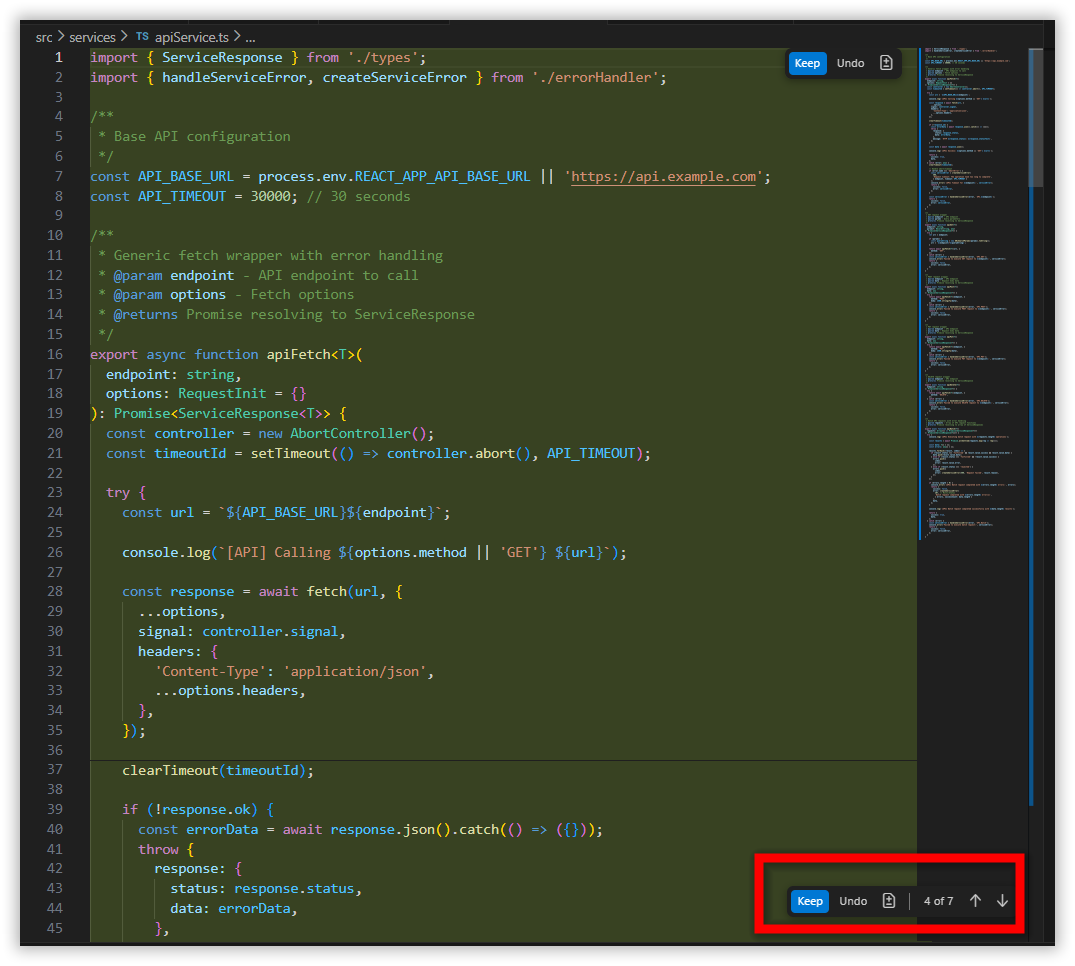
Review each proposed change in the side-by-side diff view — click Keep to accept or Undo to reject individual file changes.
What’s Next
- Generate Your First Code Change Using Agent — Let AI write new code for you.
- Quick Fix Error Guide — Catch and fix bugs early with AI assistance.
- Agent Mode — Explore advanced Agent workflows and capabilities.