Quick Fix Your Errors
15 Jun 20263 minutes to read
This guide covers two distinct workflows in Syncfusion Code Studio: Quick Fix for fast, one-click corrections, and Explain for understanding the root cause with rationale and a proposed fix. Use them independently based on your goal—fix immediately, or learn why before you change code.
When to Use
Use the Quick Fix feature when:
- Your code contains syntax errors flagged by the editor.
- You encounter compiler or linter warnings highlighted in the code editor.
- You need quick resolution to unblock your development workflow.
- You want AI-powered suggestions to understand and fix code problems.
- You are working with unfamiliar syntax or language features.
Steps to Fix Error
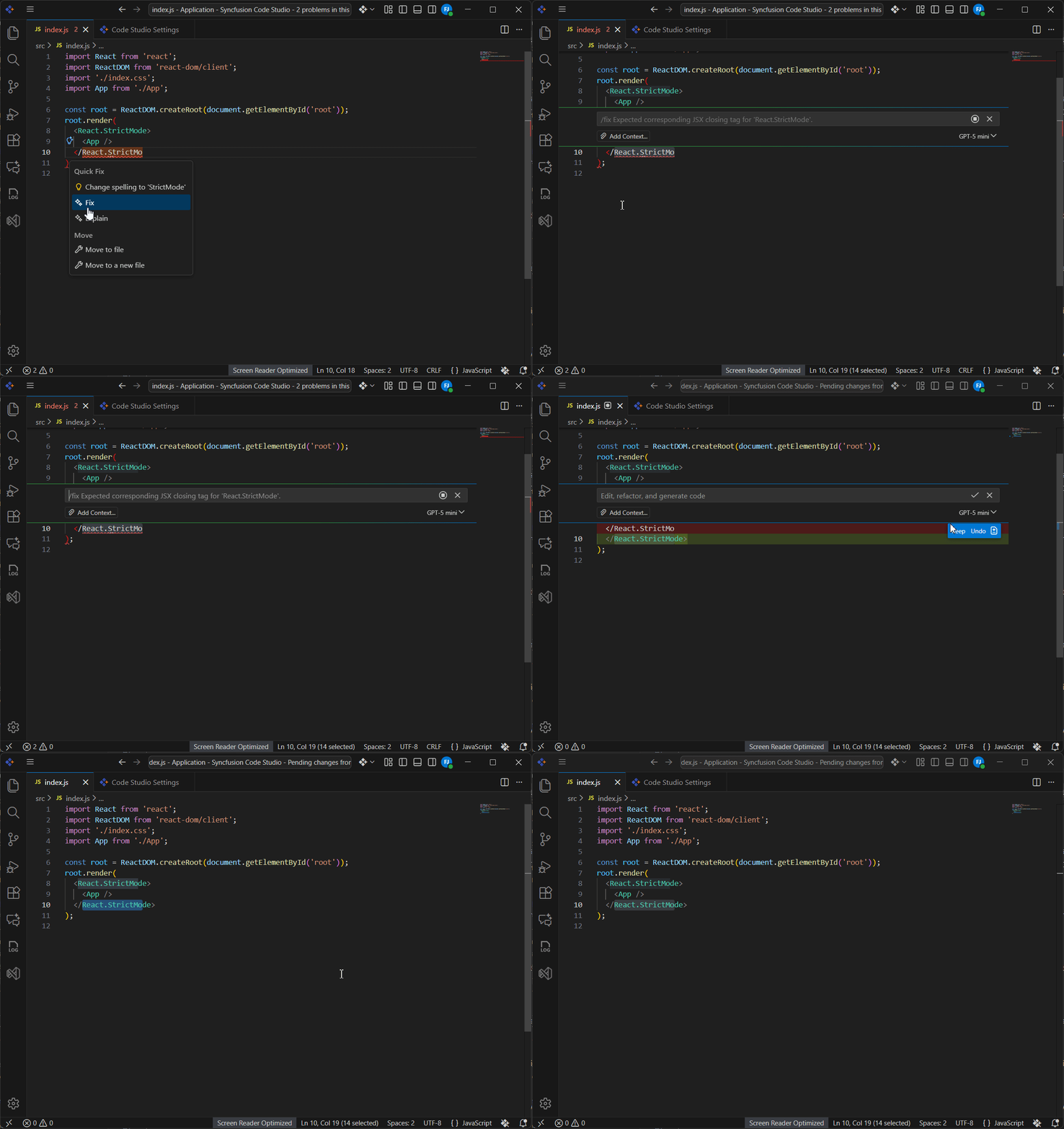
Step 1: Identify the Error
Open your project in Code Studio.
Code Studio automatically highlights errors with:
- Red squiggly underlines beneath problematic code.
- Error icons in the editor gutter or problems panel.
- Descriptive error messages on hover.
Locate the error you wish to fix in your code file.
Step 2: Open the Quick Fix Menu
- Click directly on the highlighted error or the error icon in your code.
- A Quick Fix icon (lightbulb) appears adjacent to the error.
- Click the Quick Fix icon to open the Quick Fix panel.
Step 3: Select the Fix
- Review the suggested fix displayed in the Quick Fix panel.
- The suggestion shows the proposed correction and a brief explanation.
- Click keep to apply it. The AI analyzes the error context and applies the correction.
Step 4: Apply the Fix
The selected fix is applied immediately to your code:
- The error highlighting disappears.
- The corrected code replaces the problematic code.
- The file is marked as modified.
Step 5: Verify the Correction
Review the corrected line to ensure:
- The syntax is now valid.
- The correction aligns with your intended code logic.
- No new errors were introduced.
Demonstration
Steps for Explain
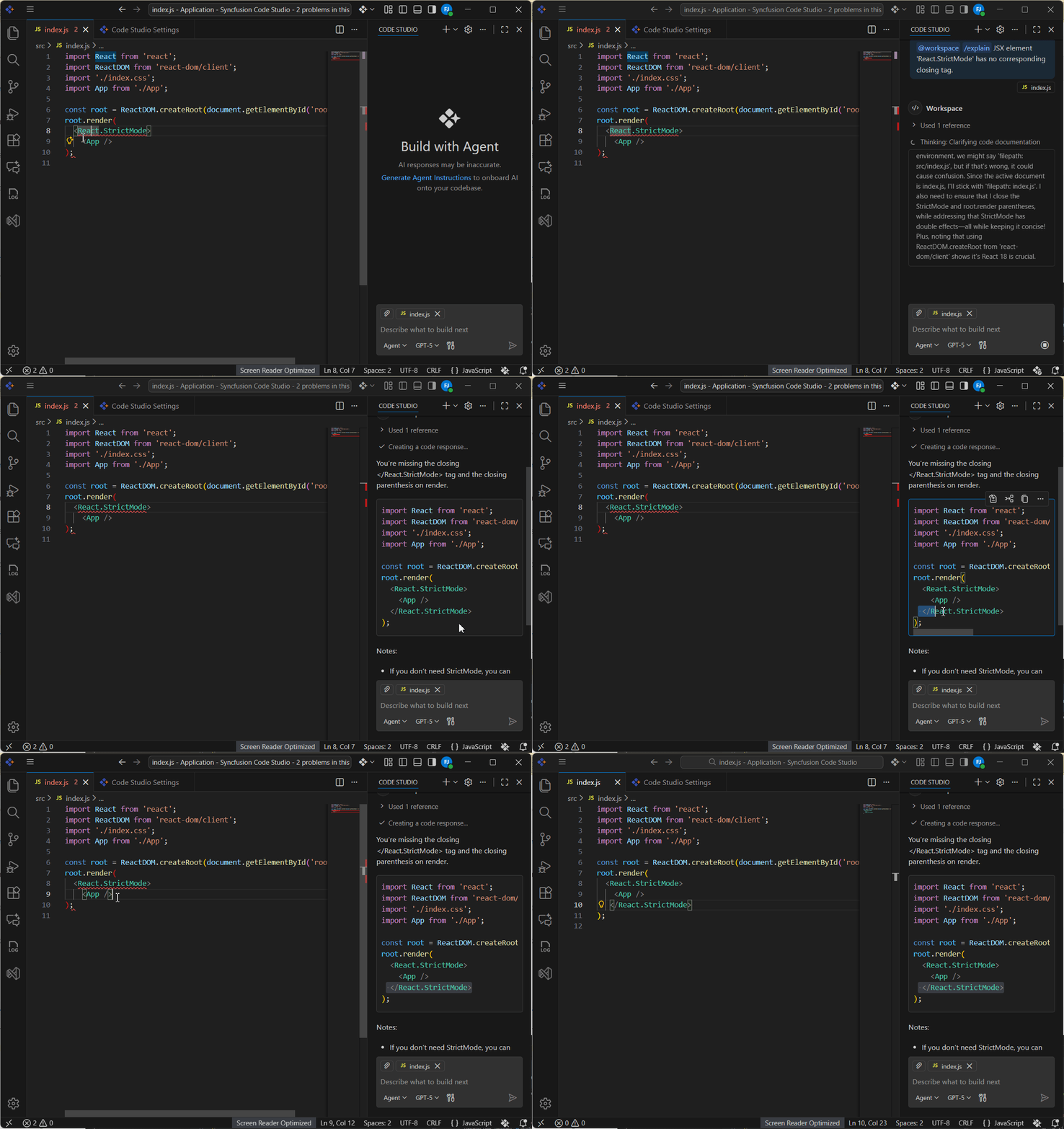
- Open the Quick Fix menu (lightbulb) for the highlighted error and select Explain.
- Review the AI analysis in the chat panel. It includes:
- A concise root-cause explanation.
- A corrected code snippet.
- Rationale describing why the fix works and any trade-offs.
- Apply or adapt the fix:
- Apply directly if the proposal matches your intent.
- Copy and paste the suggestion, then adjust to fit your code style or constraints.
Demonstration
Expected Outcomes
Quick Fix
After completing these steps:
- All highlighted errors on the corrected line are resolved.
- The code syntax is valid and recognized by the editor.
- The file remains in the correct state for compilation or further editing.
- The problems panel no longer flags the corrected line.
- Development workflow resumes without blocking issues.
Explain
- You understand the underlying cause of the error.
- You have a proposed fix with rationale.
- You can apply a correction confidently or adapt it to your constraints.
Troubleshooting
The applied fix resolves the syntax error but changes the code logic unintentionally
Solution: Manually revert the change using Ctrl+Z (or Cmd+Z on Mac) and select a different suggestion that better preserves your intended logic.
New errors appear after applying a fix
Solution: The fix may have dependencies on other code sections. Review the newly highlighted errors and apply Quick Fix to each in sequence, or consult the error descriptions for context.
Quick Fix option does not appear when clicking the error
Solution: Ensure Code Studio has fully analyzed the file. Wait a moment, then click the error again. If the issue persists, reload the file or restart Code Studio.
The Explain analysis does not match the surrounding context
Solution: Provide more context by selecting a larger code region before invoking Explain, then re-run. Optionally, ask for an alternative with specific constraints in chat.
Note: For complex errors involving multiple interdependent issues, consider using Agent mode for more comprehensive code analysis and refactoring. See Agent Mode for details.