How can I help you?
Customization
8 Jan 202512 minutes to read
The TreeMap control supports color customization to determine the exact combination of colors for the tree nodes displayed and provides tooltip support to display additional information of TreeMap data.
Color
You can customize the colors of leaf nodes using the ColorMapping support.
The ColorMapping is categorized into the following three different types:
- UniColorMapping
- RangeColorMapping
- DesaturationColorMapping
UniColorMapping
You can color all the leaf nodes with the same color by setting a value to the Color property of UniColorMapping.
SFUniColorMapping uniColorMapping = new SFUniColorMapping();
            uniColorMapping.Color = UIColor.Red;
            treeMap.LeafItemColorMapping = uniColorMapping;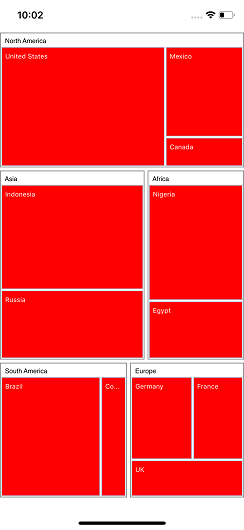
RangeColorMapping
You can group the leaf nodes based on the range of color values of data. You can set a unique color for every range. To achieve this, specify the To and From values as range bound and specify the Color value to fill the leaf nodes of a particular range using the RangeColorMapping property of TreeMap. You must specify value to ColorValuePath since the ranges From and To depend on the under bound value of ColorValuePath.
SFRangeColorMapping colorMapping = new SFRangeColorMapping();

            SFRange range1 = new SFRange();
            range1.LegendLabel = (NSString)"1 % Growth";
            range1.From = 0;
            range1.To = 1;
            range1.Color = UIColor.FromRGB(119, 216, 216);

            SFRange range2 = new SFRange();
            range2.LegendLabel = (NSString)"2 % Growth";
            range2.From = 0;
            range2.To = 2;
            range2.Color = UIColor.FromRGB(174, 217, 96);

            SFRange range3 = new SFRange();
            range3.LegendLabel = (NSString)"3 % Growth";
            range3.From = 0;
            range3.To = 3;
            range3.Color = UIColor.FromRGB(255, 175, 81);

            SFRange range4 = new SFRange();
            range4.LegendLabel = (NSString)"4 % Growth";
            range4.From = 0;
            range4.To = 4;
            range4.Color = UIColor.FromRGB(243, 210, 64);

            colorMapping.Ranges.Add(range1);
            colorMapping.Ranges.Add(range2);
            colorMapping.Ranges.Add(range3);
            colorMapping.Ranges.Add(range4);

            treeMap.LeafItemColorMapping = colorMapping;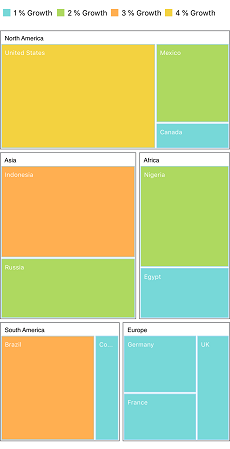
DesaturationColorMapping
You can differentiate all the leaf nodes using the DesaturationColorMapping property of TreeMap. Differentiation can be achieved even when the same color is applied for all the leaf nodes by varying the opacity of the leaf nodes based on the Color value specified. You can also change the opacity range by setting the From) and To properties of DesaturationColorMapping.
SFDesaturationColorMapping desaturationColorMapping = new SFDesaturationColorMapping();
            desaturationColorMapping.From = 1;
            desaturationColorMapping.To = 0.2f;
            desaturationColorMapping.Color = UIColor.FromRGB(65, 184, 196);
            treeMap.LeafItemColorMapping = desaturationColorMapping;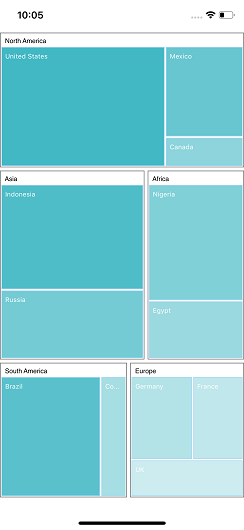
Palette color mapping
Leaf nodes were colored based on the colors mentioned in the Colors collection of the PaletteColorMapping.
SFPaletteColorMapping paletteColorMapping = new SFPaletteColorMapping();
            paletteColorMapping.Colors.Add(UIColor.FromRGB(189, 142, 194));
            paletteColorMapping.Colors.Add(UIColor.FromRGB(255, 211, 78));
            paletteColorMapping.Colors.Add(UIColor.FromRGB(85, 185, 73));
            paletteColorMapping.Colors.Add(UIColor.FromRGB(0, 178, 218));
            paletteColorMapping.Colors.Add(UIColor.FromRGB(116, 74, 148));
            paletteColorMapping.Colors.Add(UIColor.FromRGB(161, 166, 22));
            paletteColorMapping.Colors.Add(UIColor.FromRGB(7, 83, 161));
            treeMap.LeafItemColorMapping = paletteColorMapping;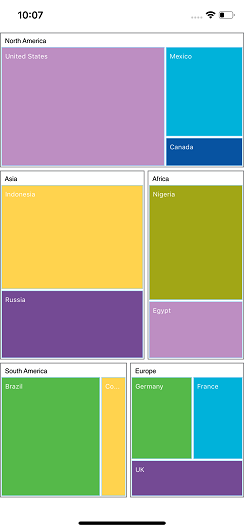
Tooltip
You can enable the tooltip support for TreeMap by setting the ShowTooltip property to true. By default, it takes the property of bound object referenced in GroupPath and displays its content when the corresponding node is tapped.
treeMap.ShowTooltip = true;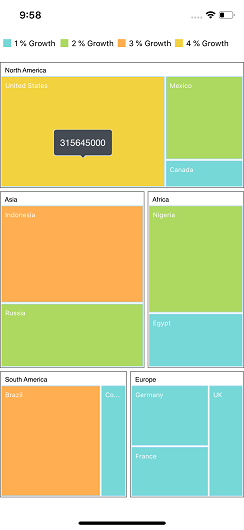
Tooltip customization
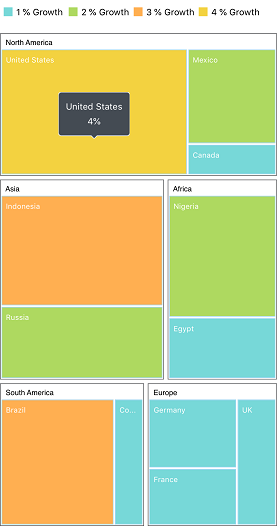
Tooltip can be customized by inheriting TooltipSetting. Tooltip defines our own customized view.
treeMap.ShowTooltip = true;
            CustomTooltipSetting tooltipSetting = new CustomTooltipSetting();
            treeMap.TooltipSettings = tooltipSetting;
Refer to the following code snippet for defining custom tooltip.
public class CustomTooltipSetting : TooltipSetting
    {
        public CustomTooltipSetting()
        {

        }
        public override UIView GetView(object shapeData)
        {
            NSArray array = (NSArray)shapeData;
            NSDictionary dic = new NSDictionary();

            for (nuint i = 0; i < array.Count; i++)
            {
                dic = array.GetItem<NSDictionary>(i);
            }
            UIView view = new UIView();
            NSString topText = (NSString)(dic["Region"]);
            NSString bottomText = (NSString)(dic["Growth"].ToString() + "%");

            UILabel topLabel = new UILabel();
            topLabel.Text = topText;
            topLabel.Font = UIFont.SystemFontOfSize(12);
            topLabel.TextColor = UIColor.White;
            topLabel.TextAlignment = UITextAlignment.Center;

            UILabel bottomLabel = new UILabel();
            bottomLabel.Text = bottomText;
            bottomLabel.Font = UIFont.SystemFontOfSize(12);
            bottomLabel.TextColor = UIColor.White;
            bottomLabel.TextAlignment = UITextAlignment.Center;

            view.AddSubview(topLabel);
            view.AddSubview(bottomLabel);

            CGSize expectedLabelSize1 = topText.GetSizeUsingAttributes(new UIStringAttributes() { Font = topLabel.Font });
            CGSize expectedLabelSize2 = bottomText.GetSizeUsingAttributes(new UIStringAttributes() { Font = bottomLabel.Font });

            view.Frame = new CGRect(0.0f, 0.0f, Math.Max(expectedLabelSize1.Width, expectedLabelSize2.Width), 35.0f);
            topLabel.Frame = new CGRect(0.0f, 0.0f, Math.Max(expectedLabelSize1.Width, expectedLabelSize2.Width), 15.0f);
            bottomLabel.Frame = new CGRect(0.0f, 20.0f, Math.Max(expectedLabelSize1.Width, expectedLabelSize2.Width), 15.0f);

            return view;
        }
    }
Selection
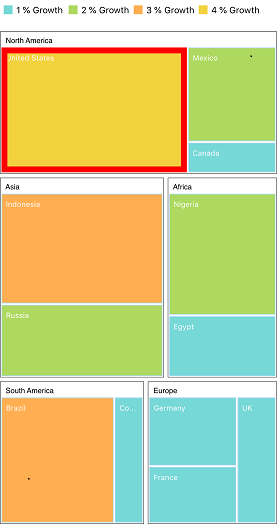
The TreeMap control provides selection support, which allows you to select the tree map items. The selection can be enabled by setting the HightlightOnSelection property to true in TreeMap. You can specify the highlight color and border width using the HighlightColor and HighlightBorderWidth properties, respectively.
treeMap.HightlightOnSelection = true;
            treeMap.HighlightColor = UIColor.Red;
            treeMap.HighlightBorderWidth = 8;