Cell Customization in Windows Forms Calendar
SfCalendar cells can be customized for mentioning some special or important days.
Special dates
The SpecialDates property holds a collection of special dates with icons and descriptions for dates that need to be highlighted. The SpecialDates contains the following properties to customize the cells:]()
- BackColor: The background color for the special date to fill the cell.
- Value: The value for the special date.
- ForeColor: The foreground color for the special date to draw the text.
- Image: Image to display on special date cell.
- Font: The font that is used to draw the special date.
- IsDateVisible: A value indicates whether the date text will be visible in the special date cell or not.
- Description: The description for special date.
- ImageAlign: Aligns an image in the special date.
- TextAlign: Aligns the date text in the special date.
- TextImageRelation: Aligns the date text and the image relative to each other in the special date.
To customize the dates, use the following code example:
using Syncfusion.WinForms.Input;

SpecialDate specialDate1 = new SpecialDate();

SpecialDate specialDate2 = new SpecialDate();

SpecialDate specialDate3 = new SpecialDate();

SpecialDate specialDate4 = new SpecialDate();

List<SpecialDate> SpecialDates = new List<SpecialDate>();

specialDate1.BackColor = System.Drawing.Color.White;

specialDate1.Font = new System.Drawing.Font("Segoe UI", 11.25F, System.Drawing.FontStyle.Italic,
                                    System.Drawing.GraphicsUnit.Point, ((byte)(0)));

specialDate1.ForeColor = System.Drawing.Color.Magenta;

specialDate1.Image = Properties.Resources.icons_Womens_day;

specialDate1.Description = "International Women’s Day";

specialDate1.ImageAlign = System.Drawing.ContentAlignment.MiddleCenter;

specialDate1.IsDateVisible = false;

specialDate1.TextAlign = System.Drawing.ContentAlignment.MiddleCenter;

specialDate1.TextImageRelation = System.Windows.Forms.TextImageRelation.TextBeforeImage;

specialDate1.Value = new System.DateTime(2018, 3, 8, 0, 0, 0, 0);

specialDate2.BackColor = System.Drawing.Color.White;

specialDate2.Font = new System.Drawing.Font("Segoe UI", 11.25F, System.Drawing.FontStyle.Italic,
                                    System.Drawing.GraphicsUnit.Point, ((byte)(0)));

specialDate2.ForeColor = System.Drawing.Color.Magenta;

specialDate2.Description = "World Forestry Day";

specialDate2.Image = Properties.Resources.Icon_World_Forestry_Day;

specialDate2.ImageAlign = System.Drawing.ContentAlignment.MiddleCenter;

specialDate2.IsDateVisible = false;

specialDate2.TextAlign = System.Drawing.ContentAlignment.MiddleCenter;

specialDate2.TextImageRelation = System.Windows.Forms.TextImageRelation.TextBeforeImage;

specialDate2.Value = new System.DateTime(2018, 3, 21, 0, 0, 0, 0);

specialDate3.BackColor = System.Drawing.Color.White;

specialDate3.Font = new System.Drawing.Font("Segoe UI", 11.25F, System.Drawing.FontStyle.Italic,
                                    System.Drawing.GraphicsUnit.Point, ((byte)(0)));

specialDate3.ForeColor = System.Drawing.Color.Magenta;

specialDate3.Image = Properties.Resources.Icon_Water_day;

specialDate3.Description = "World Day for Water";

specialDate3.ImageAlign = System.Drawing.ContentAlignment.MiddleCenter;

specialDate3.IsDateVisible = false;

specialDate3.TextAlign = System.Drawing.ContentAlignment.MiddleCenter;

specialDate3.TextImageRelation = System.Windows.Forms.TextImageRelation.TextBeforeImage;

specialDate3.Value = new System.DateTime(2018, 3, 24, 0, 0, 0, 0);

specialDate4.BackColor = System.Drawing.Color.White;

specialDate4.Font = new System.Drawing.Font("Segoe UI", 11.25F, System.Drawing.FontStyle.Italic,
                                    System.Drawing.GraphicsUnit.Point, ((byte)(0)));

specialDate4.ForeColor = System.Drawing.Color.Magenta;

specialDate4.Image = Properties.Resources.Icon_Healthy_day;

specialDate4.Description = "World Health Day";

specialDate4.ImageAlign = System.Drawing.ContentAlignment.MiddleCenter;

specialDate4.IsDateVisible = false;

specialDate4.TextAlign = System.Drawing.ContentAlignment.MiddleCenter;

specialDate4.TextImageRelation = System.Windows.Forms.TextImageRelation.TextBeforeImage;

specialDate4.Value = new System.DateTime(2018, 4, 7, 0, 0, 0, 0);

SpecialDates.Add(specialDate1);

SpecialDates.Add(specialDate2);

SpecialDates.Add(specialDate3);

SpecialDates.Add(specialDate4);

this.sfCalendar.SpecialDates = SpecialDates;
Imports Syncfusion.WinForms.Input
Private Sub InitializeComponent()
Me.components = New System.ComponentModel.Container
Dim specialDate1 As SpecialDate = New SpecialDate
Dim specialDate2 As SpecialDate = New SpecialDate
Dim specialDate3 As SpecialDate = New SpecialDate
Dim specialDate4 As SpecialDate = New SpecialDate
Dim SpecialDates As List(Of SpecialDate) = New List(Of SpecialDate)
specialDate1.BackColor = System.Drawing.Color.White
specialDate1.Font = New System.Drawing.Font("Segoe UI", 11.25!, System.Drawing.FontStyle.Italic,
System.Drawing.GraphicsUnit.Point, CType(0,Byte))
specialDate1.ForeColor = System.Drawing.Color.Magenta
specialDate1.Image = Properties.Resources.icons_Womens_day
specialDate1.Description = "International Womens Day"
specialDate1.ImageAlign = System.Drawing.ContentAlignment.MiddleCenter
specialDate1.IsDateVisible = false
specialDate1.TextAlign = System.Drawing.ContentAlignment.MiddleCenter
specialDate1.TextImageRelation = System.Windows.Forms.TextImageRelation.TextBeforeImage
specialDate1.Value = New Date(2018, 3, 8, 0, 0, 0, 0)
specialDate2.BackColor = System.Drawing.Color.White
specialDate2.Font = New System.Drawing.Font("Segoe UI", 11.25!, System.Drawing.FontStyle.Italic,
System.Drawing.GraphicsUnit.Point, CType(0,Byte))
specialDate2.ForeColor = System.Drawing.Color.Magenta
specialDate2.Description = "World Forestry Day"
specialDate2.Image = Properties.Resources.Icon_World_Forestry_Day
specialDate2.ImageAlign = System.Drawing.ContentAlignment.MiddleCenter
specialDate2.IsDateVisible = false
specialDate2.TextAlign = System.Drawing.ContentAlignment.MiddleCenter
specialDate2.TextImageRelation = System.Windows.Forms.TextImageRelation.TextBeforeImage
specialDate2.Value = New Date(2018, 3, 21, 0, 0, 0, 0)
specialDate3.BackColor = System.Drawing.Color.White
specialDate3.Font = New System.Drawing.Font("Segoe UI", 11.25!, System.Drawing.FontStyle.Italic,
System.Drawing.GraphicsUnit.Point, CType(0,Byte))
specialDate3.ForeColor = System.Drawing.Color.Magenta
specialDate3.Image = Properties.Resources.Icon_Water_day
specialDate3.Description = "World Day for Water"
specialDate3.ImageAlign = System.Drawing.ContentAlignment.MiddleCenter
specialDate3.IsDateVisible = false
specialDate3.TextAlign = System.Drawing.ContentAlignment.MiddleCenter
specialDate3.TextImageRelation = System.Windows.Forms.TextImageRelation.TextBeforeImage
specialDate3.Value = New Date(2018, 3, 24, 0, 0, 0, 0)
specialDate4.BackColor = System.Drawing.Color.White
specialDate4.Font = New System.Drawing.Font("Segoe UI", 11.25!, System.Drawing.FontStyle.Italic,
System.Drawing.GraphicsUnit.Point, CType(0,Byte))
specialDate4.ForeColor = System.Drawing.Color.Magenta
specialDate4.Image = Properties.Resources.Icon_Healthy_day
specialDate4.Description = "World Health Day"
specialDate4.ImageAlign = System.Drawing.ContentAlignment.MiddleCenter
specialDate4.IsDateVisible = false
specialDate4.TextAlign = System.Drawing.ContentAlignment.MiddleCenter
specialDate4.TextImageRelation = System.Windows.Forms.TextImageRelation.TextBeforeImage
specialDate4.Value = New Date(2018, 4, 7, 0, 0, 0, 0)
SpecialDates.Add(specialDate1)
SpecialDates.Add(specialDate2)
SpecialDates.Add(specialDate3)
SpecialDates.Add(specialDate4)
Me.sfCalendar.SpecialDates = SpecialDates
End Sub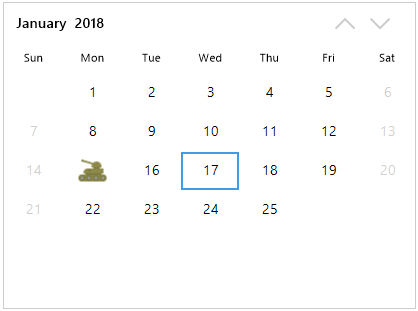
ToolTip
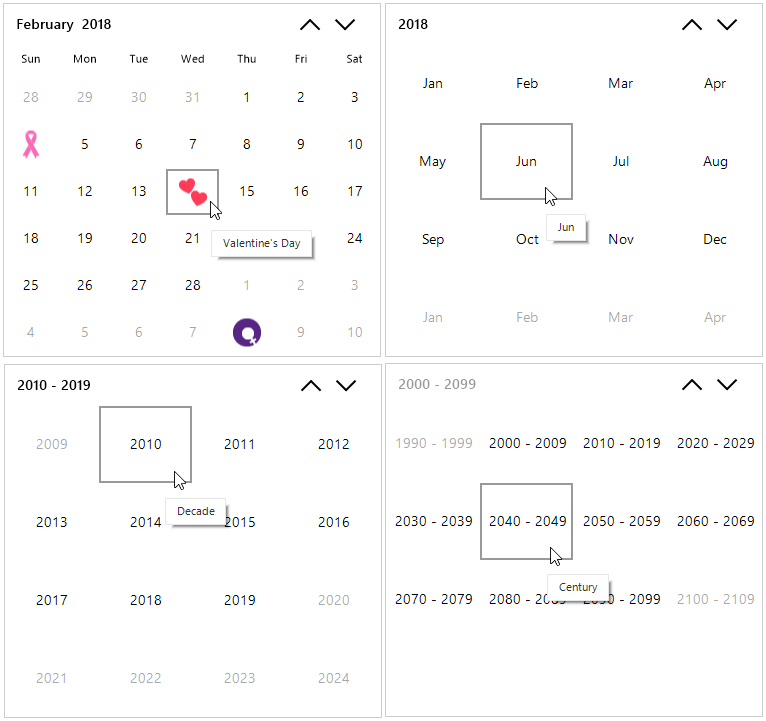
This feature is used to display additional information such as text or image about a cell in the calendar in the form of a tooltip.The ToolTipOpeningEventArgs provides the following data for the ToolTipOpening event of the calendar. All the customization with tooltip will be reflected in tooltip of cell in SfCalendar.
-
ToolTipInfo: This option helps to set more information such as text or image about cell in calendar.
-
Value: Identifies the date value of the cell to handle tooltip in the calendar.
-
IsSpecialDate: Indicates whether the date of the cell is special date in the calendar.
-
IsTrailingDate: Indicates whether the date of cell is trailing date for the current month.
-
IsBlackoutDate: Indicates whether the date of cell is BlackoutDate.
-
ColumnIndex: Gets the column index of cell to show tooltip in the calendar.
-
RowIndex: Gets the row index of cell to show tooltip in the calendar.
-
Handled: This option is used to handle the tooltip opening event. It will restrict to visibility of tooltip, and you can set own text or image as tooltip.
-
ViewType: This option helps to represent the ViewType of calendar, whether it is month view, year view, decade view, or century view.
using Syncfusion.WinForms.Input;

// Invoking the ToolTipOpening Event.

this.sfCalendar.ToolTipOpening += SfCalendar_ToolTipOpening;

//To show ToolTip

private void SfCalendar_ToolTipOpening(SfCalendar sender, ToolTipOpeningEventArgs e)
{
    if (e.ViewType == CalendarViewType.Month && e.Value.Value.Date == new DateTime(2018, 02, 14))
    {
        e.ToolTipInfo.Items[0].Text = "Valentine's Day";
    }
    if (e.ViewType == CalendarViewType.Year && e.Value.Value.Month == DateTime.Now.Month)
    {
        e.ToolTipInfo.Items[0].Text = e.Value.Value.Date.ToString("MMM");
    }
    if (e.ViewType == CalendarViewType.Decade && e.RowIndex == 0)
    {
        e.ToolTipInfo.Items[0].Text = "Decade";
    }
    if (e.ViewType == CalendarViewType.Century && e.ColumnIndex == 1)
    {
        e.ToolTipInfo.Items[0].Text = "Century";
    }
}
Imports Syncfusion.WinForms.Input
' Invoking the ToolTipOpening Event.
AddHandler Me.sfCalendar.ToolTipOpening, AddressOf SfCalendar_ToolTipOpening
' To show ToolTip
Private Sub SfCalendar_ToolTipOpening(ByVal sender As SfCalendar, ByVal e As ToolTipOpeningEventArgs)
If e.ViewType = CalendarViewType.Month AndAlso e.Value.Value.Date = New Date(2018,02,14) Then
e.ToolTipInfo.Items(0).Text = "Valentine's Day"
End If
If e.ViewType = CalendarViewType.Year AndAlso e.Value.Value.Month = Date.Now.Month Then
e.ToolTipInfo.Items(0).Text = e.Value.Value.Date.ToString("MMM")
End If
If e.ViewType = CalendarViewType.Decade AndAlso e.RowIndex = 0 Then
e.ToolTipInfo.Items(0).Text = "Decade"
End If
If e.ViewType = CalendarViewType.Century AndAlso e.ColumnIndex = 1 Then
e.ToolTipInfo.Items(0).Text = "Century"
End If
End Sub- Note: This event fires only when ShowToolTip property value is true.
Render cell on-demand
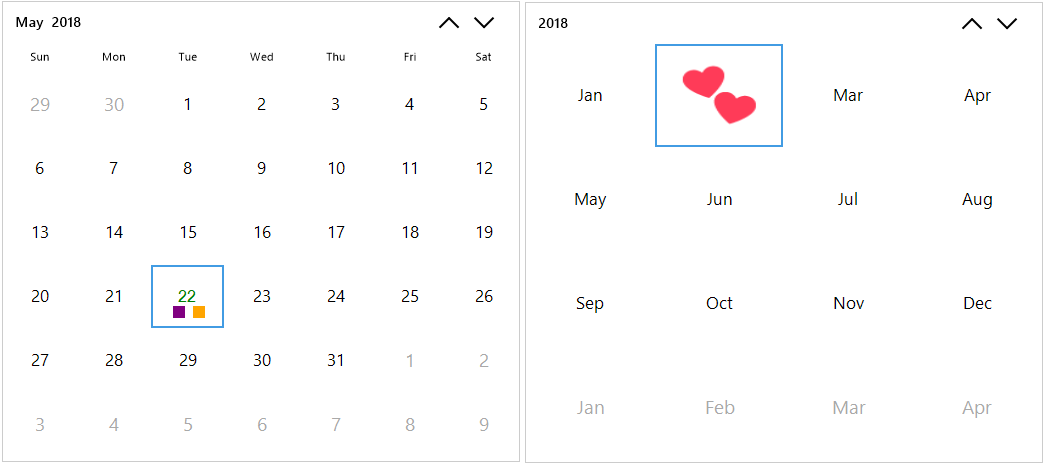
This feature is used to highlight or customize dates on-demand to mark special dates. The DrawCellEventArgs provides the following data for the DrawCell event of the calendar.
-
BackColor: Changes the background color of the date cell to draw in the calendar.
-
ForeColor: Changes the foreground color of the date cell to draw in the calendar.
-
Value: Identifies the date value of the cell to draw in the calendar.
-
IsSpecialDate: Indicates whether the date of the cell is special date in the calendar.
-
IsTrailingDate: Indicates whether the date of cell is trailing date for the current month.
-
IsWeekNumber: Indicates whether the value of cell is week number in the SfCalendar.
-
VerticalAlignment: Changes the vertical alignment of date text of the cell in the calendar.
-
HorizontalAlignment: Changes the horizontal alignment of the date text of the cell in the calendar.
-
ColumnIndex: Gets the column index of cell to draw in the calendar.
-
RowIndex: Gets the row index of cell to draw in the calendar.
-
CellBounds: Gets the cell bounds of the date cell to draw in the calendar.
-
Image: Changes the image for the date cell to draw in the calendar.
-
ImageBounds: Changes the image bounds of the date cell to draw in the calendar.
-
Handled: This option is used to handle the draw cell event. It will restrict to draw default text, and you can draw own text within the bounds of the cell.
-
ViewType: This option helps to represent the ViewType of calendar, whether it is month view, year view, decade view, or century view.
The following code example illustrates how to customize the cell on-demand:
using Syncfusion.WinForms.Input;

// Invoking the DrawCell Event.

this.sfCalendar1.DrawCell += SfCalendar1_DrawCell;


// To Draw the Cell

private void SfCalendar1_DrawCell(SfCalendar sender, DrawCellEventArgs e)

{
    //Image for year view cell
    Image image = null;
    //Month View
    if (e.ViewType == CalendarViewType.Month && e.Value.Value.Date == DateTime.Now.Date)
    {
        e.Handled = true;
        TextRenderer.DrawText(e.Graphics, e.Value.Value.ToString("dd"), new Font("Segoe UI Bold",
                                this.sfCalendar1.Style.Cell.CellFont.Size), e.CellBounds, Color.Green);

        e.Graphics.FillRectangle(new SolidBrush(Color.Purple), new Rectangle((e.CellBounds.X +
                                (e.CellBounds.Width - e.CellBounds.Width / 2)) - 15,
                                (e.CellBounds.Y + (e.CellBounds.Height - 20)) - 2, 12, 12));

        e.Graphics.FillRectangle(new SolidBrush(Color.Orange), new Rectangle((e.CellBounds.X +
                                (e.CellBounds.Width - e.CellBounds.Width / 2)) + 5,
                                (e.CellBounds.Y + (e.CellBounds.Height - 20)) - 2, 12, 12));
    }

    //Year View
    if (e.ViewType == CalendarViewType.Year && e.Value.Value.Month == new DateTime(2018, 02, 14).Month
                                && e.Value.Value.Year == new DateTime(2018, 02, 14).Year)
    {
        e.Handled = true;
        image = Properties.Resources.Icon_Valentines_day;
        e.Graphics.DrawImage(image, e.CellBounds);
    }

}
Imports Syncfusion.WinForms.Input
' Invoking the DrawCell Event.
AddHandler Me.SfCalendar1.DrawCell, AddressOf SfCalendar1_DrawCell
' To Draw the Cell
Private Sub SfCalendar1_DrawCell(ByVal sender As SfCalendar, ByVal e As DrawCellEventArgs)
'Image for year view cell
Dim image As Image = Nothing
'Month View
If e.ViewType = CalendarViewType.Month AndAlso e.Value.Value.Date = Date.Now.Date Then
e.Handled = True
TextRenderer.DrawText(e.Graphics, e.Value.Value.ToString("dd"), New Font("Segoe UI Bold",
Me.sfCalendar1.Style.Cell.CellFont.Size), e.CellBounds, Color.Green)
e.Graphics.FillRectangle(New SolidBrush(Color.Purple), New Rectangle((e.CellBounds.X +
(e.CellBounds.Width - e.CellBounds.Width \ 2)) - 15,
(e.CellBounds.Y + (e.CellBounds.Height - 20)) - 2, 12, 12))
e.Graphics.FillRectangle(New SolidBrush(Color.Orange), New Rectangle((e.CellBounds.X +
(e.CellBounds.Width - e.CellBounds.Width \ 2)) + 5,
(e.CellBounds.Y + (e.CellBounds.Height - 20)) - 2, 12, 12))
End If
If e.ViewType = CalendarViewType.Year AndAlso e.Value.Value.Month = (New Date(2018, 02, 14)).Month
AndAlso e.Value.Value.Year = (New Date(2018, 02, 14)).Year Then
e.Handled = True
image = My.Resources.Icon_Valentines_day
e.Graphics.DrawImage(image, e.CellBounds)
End If
End Sub