Globalization and Localization in Blazor Scheduler
Blazor Scheduler can be localized. Refer to the Blazor Localization topic for more details on localizing Blazor components.
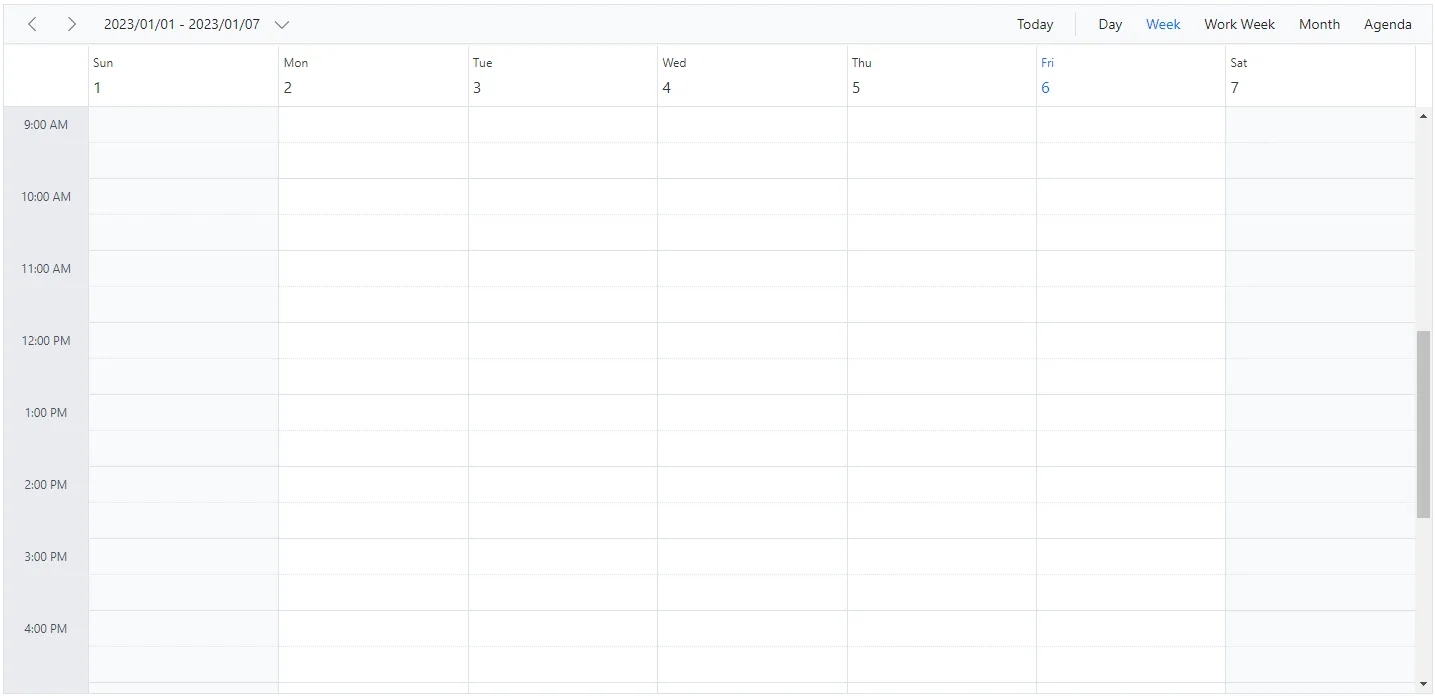
Setting date format
Scheduler supports all valid date formats and, by default, uses the universal date format “MM/dd/yyyy”. If the DateFormat property is not specified, the Blazor Scheduler uses the system culture. Because the default system culture is “en-US”, the date format follows the “MM/dd/yyyy” pattern.
@using Syncfusion.Blazor.Schedule

<SfSchedule TValue="AppointmentData" Height="650px" DateFormat="yyyy/MM/dd">
    <ScheduleViews>
        <ScheduleView Option="View.Day"></ScheduleView>
        <ScheduleView Option="View.Week"></ScheduleView>
        <ScheduleView Option="View.WorkWeek"></ScheduleView>
        <ScheduleView Option="View.Month"></ScheduleView>
        <ScheduleView Option="View.Agenda"></ScheduleView>
    </ScheduleViews>
</SfSchedule>
@code{
    public class AppointmentData
    {
        public int Id { get; set; }
        public string Subject { get; set; }
        public string Location { get; set; }
        public DateTime StartTime { get; set; }
        public DateTime EndTime { get; set; }
        public string Description { get; set; }
        public bool IsAllDay { get; set; }
        public string RecurrenceRule { get; set; }
        public string RecurrenceException { get; set; }
        public Nullable<int> RecurrenceID { get; set; }
    }
}
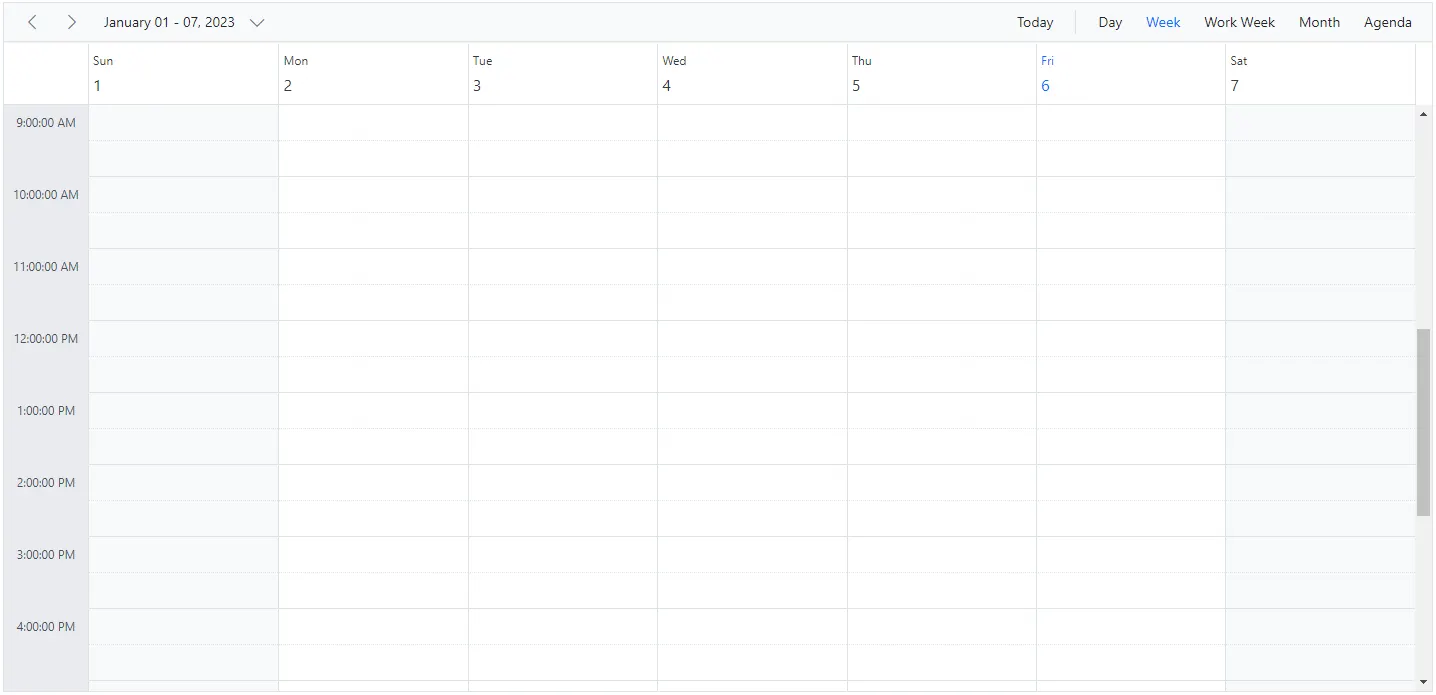
Time mode
The Blazor Scheduler time format can be either 12-hour or 24-hour based on the system culture. You can also customize the time format by using the TimeFormat property.
@using Syncfusion.Blazor.Schedule

<SfSchedule TValue="AppointmentData" Height="650px" TimeFormat="T">
    <ScheduleViews>
        <ScheduleView Option="View.Day"></ScheduleView>
        <ScheduleView Option="View.Week"></ScheduleView>
        <ScheduleView Option="View.WorkWeek"></ScheduleView>
        <ScheduleView Option="View.Month"></ScheduleView>
        <ScheduleView Option="View.Agenda"></ScheduleView>
    </ScheduleViews>
</SfSchedule>

@code{
    public class AppointmentData
    {
        public int Id { get; set; }
        public string Subject { get; set; }
        public string Location { get; set; }
        public DateTime StartTime { get; set; }
        public DateTime EndTime { get; set; }
        public string Description { get; set; }
        public bool IsAllDay { get; set; }
        public string RecurrenceRule { get; set; }
        public string RecurrenceException { get; set; }
        public Nullable<int> RecurrenceID { get; set; }
    }
}
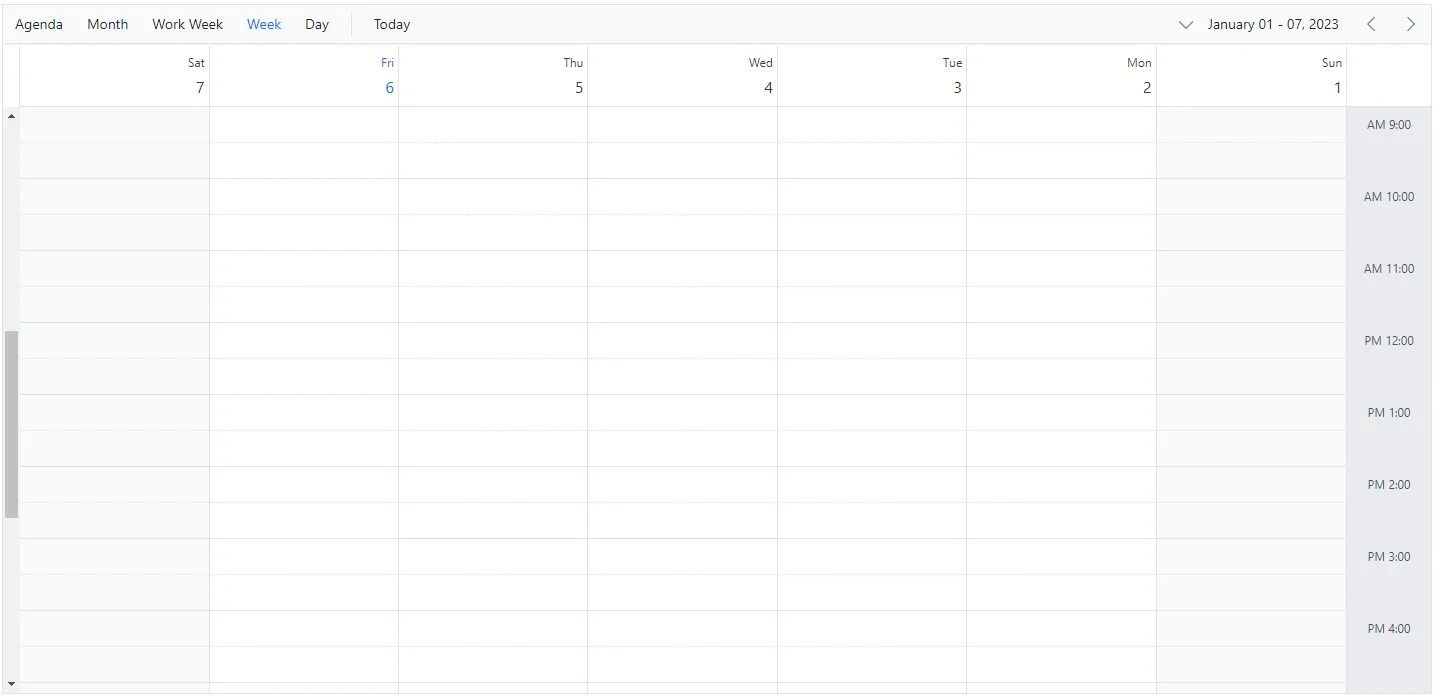
Displaying Blazor Scheduler in RTL mode
You can change the Blazor Scheduler layout and behavior to follow RTL (Right-to-Left) conventions by setting EnableRtl to true. This displays the Blazor Scheduler layout from right to left. Its default value is false.
@using Syncfusion.Blazor.Schedule

<SfSchedule TValue="AppointmentData" Height="650px" EnableRtl="true">
    <ScheduleViews>
        <ScheduleView Option="View.Day"></ScheduleView>
        <ScheduleView Option="View.Week"></ScheduleView>
        <ScheduleView Option="View.WorkWeek"></ScheduleView>
        <ScheduleView Option="View.Month"></ScheduleView>
        <ScheduleView Option="View.Agenda"></ScheduleView>
    </ScheduleViews>
</SfSchedule>

@code {
    public class AppointmentData
    {
        public int Id { get; set; }
        public string Subject { get; set; }
        public string Location { get; set; }
        public DateTime StartTime { get; set; }
        public DateTime EndTime { get; set; }
        public string Description { get; set; }
        public bool IsAllDay { get; set; }
        public string RecurrenceRule { get; set; }
        public string RecurrenceException { get; set; }
        public Nullable<int> RecurrenceID { get; set; }
    }
}