Working Days and Hours in Blazor Scheduler
The Blazor Scheduler can be customized in several ways, and it inherits almost all calendar-specific features such as:
- To set custom time range display on Scheduler
- To set different working hours
- To set different working days
- To set different first day of week
- To show/hide weekend days
- To show the week number
To get started quickly with customizing working days and hours in Scheduler, watch this video:
Set working days
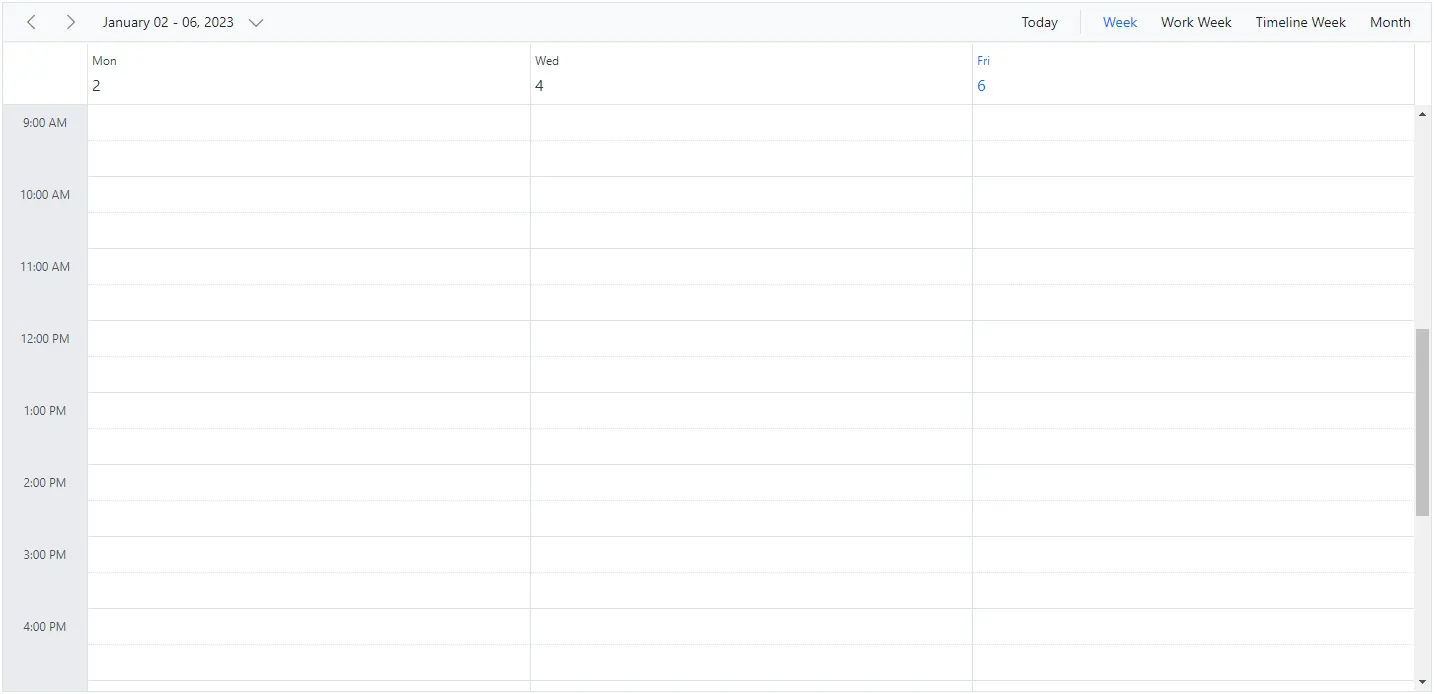
By default, Blazor Scheduler considers Monday through Friday as WorkDays and therefore uses [1, 2, 3, 4, 5], where 1 represents Monday, 2 represents Tuesday, and so on. Days that are not included in this collection are treated as non-working days. Therefore, when weekend days are hidden in Scheduler, those non-working days are also hidden from the layout.
The Work Week and Timeline Work Week views display only the defined working days in the Blazor Scheduler layout, whereas the other views display all days and simply differentiate non-working days in the UI with an inactive cell color.
Working or business hours in Blazor Scheduler are usually valid only on the specified working days.
The following code example shows how to set Blazor Scheduler to display Monday, Wednesday, and Friday as the working days of the week.
@using Syncfusion.Blazor.Schedule

<SfSchedule TValue="AppointmentData" Height="650px" ShowWeekend="false" WorkDays="@WorkingDays">
    <ScheduleViews>
        <ScheduleView Option="View.Week"></ScheduleView>
        <ScheduleView Option="View.WorkWeek"></ScheduleView>
        <ScheduleView Option="View.TimelineWeek" MaxEventsPerRow="10"></ScheduleView>
        <ScheduleView Option="View.Month" MaxEventsPerRow="2"></ScheduleView>
    </ScheduleViews>
</SfSchedule>

@code{
    public int[] WorkingDays { get; set; } = { 1, 3, 5 };
    public class AppointmentData
    {
        public int Id { get; set; }
        public string Subject { get; set; }
        public string Location { get; set; }
        public DateTime StartTime { get; set; }
        public DateTime EndTime { get; set; }
        public string Description { get; set; }
        public bool IsAllDay { get; set; }
        public string RecurrenceRule { get; set; }
        public string RecurrenceException { get; set; }
        public Nullable<int> RecurrenceID { get; set; }
    }
}
Dynamically setting work days
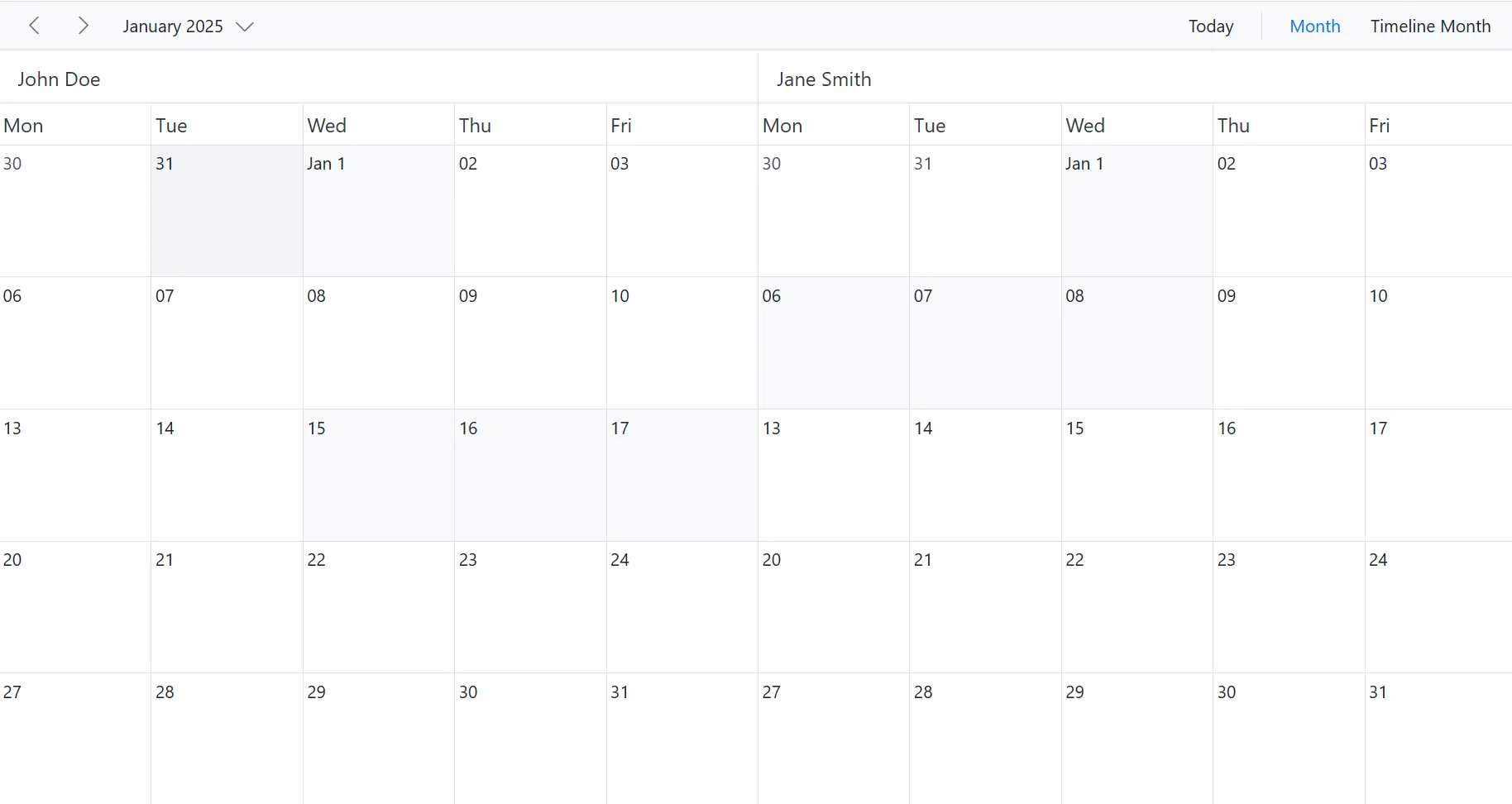
The SetWorkDaysAsync and ResetWorkDaysAsync methods can be used to dynamically set and reset work days in Scheduler. The SetWorkDaysAsync method accepts a list of dates to be set as working days, whereas ResetWorkDaysAsync resets the specified work days when dates are passed and resets all days in the current view to non-working days when called without any dates.
Before setting up custom working days, you need to reset the default work days by using the ResetWorkDaysAsync method. Note that both methods do not accept dates with an unspecified kind.
In this example, we retrieve the current view dates during initial rendering, date navigation, and view navigation, then reset all days to non-working days by using ResetWorkDaysAsync. Next, we remove common holiday dates from the current view dates. Then we loop through each resource, exclude resource-specific leave dates from the working dates, and set the available days as working days by using the SetWorkDaysAsync method.
@using Syncfusion.Blazor.Schedule

<SfSchedule @ref="ScheduleRef" TValue="AppointmentData" ShowWeekend="false" Height="650px" @bind-SelectedDate="@CurrentDate">
    <ScheduleGroup Resources="@Resources"></ScheduleGroup>
    <ScheduleResources>
        <ScheduleResource TItem="ResourceData" TValue="int"
        DataSource="@Employees" Field="EmployeeID" Title="Employee"
        Name="Employees" TextField="Text" IdField="Id" ColorField="Color"></ScheduleResource>
    </ScheduleResources>
    <ScheduleEvents TValue="AppointmentData" Created="OnCreated" ActionCompleted="OnActionCompleted"></ScheduleEvents>
    <ScheduleViews>
        <ScheduleView Option="View.Month"></ScheduleView>
        <ScheduleView Option="View.TimelineMonth"></ScheduleView>
    </ScheduleViews>
</SfSchedule>

@code {
    public SfSchedule<AppointmentData> ScheduleRef;
    DateTime CurrentDate = new DateTime(2025, 1, 31);
    public string[] Resources { get; set; } = { "Employees" };
    public List<ResourceData> Employees { get; set; } = new List<ResourceData> {
        new ResourceData{ Text = "John Doe", Id= 1, Color = "#df5286" },
        new ResourceData{ Text = "Jane Smith", Id= 2, Color = "#7fa900" }
    };
    private List<DateTime> Holidays { get; set; } = new List<DateTime>
    {
            new DateTime(2025, 1, 1),
            new DateTime(2025, 1, 26),
            new DateTime(2025, 4, 18),
            new DateTime(2025, 5, 1),
            new DateTime(2025, 8, 15),
            new DateTime(2025, 11, 12),
            new DateTime(2025, 12, 25)
    };
    private Dictionary<int, List<DateTime>> EmployeeLeaves { get; set; } = new Dictionary<int, List<DateTime>>
    {
        { 1, new List<DateTime> {
            new DateTime(2025, 1, 15),
            new DateTime(2025, 1, 16),
            new DateTime(2025, 1, 17)
        }},
        { 2, new List<DateTime> {
            new DateTime(2025, 1, 6),
            new DateTime(2025, 1, 7),
            new DateTime(2025, 1, 8)
        }}
    };
    private async Task OnCreated()
    {
        await SetWorkDays();
    }
    private async void OnActionCompleted(ActionEventArgs<AppointmentData> args)
    {
        if (args.ActionType == ActionType.ViewNavigate || args.ActionType == ActionType.DateNavigate)
        {
            await SetWorkDays();
        }
    }
    private async Task SetWorkDays()
    {
        await ScheduleRef.ResetWorkDaysAsync();

        List<DateTime> currentViewDates = ScheduleRef.GetCurrentViewDates();
        List<DateTime> workDates = currentViewDates.Except(Holidays).ToList();

        foreach (var employee in Employees)
        {
            if (EmployeeLeaves.TryGetValue(employee.Id, out var leaveDates))
            {
                List<DateTime> resourceWorkDays = workDates
                    .Except(leaveDates)
                    .Select(d => DateTime.SpecifyKind(d, DateTimeKind.Utc))
                    .ToList();
                int employeeIndex = ScheduleRef.GetGroupIndex(employee.Id, Resources[Resources.Length - 1]);
                await ScheduleRef.SetWorkDaysAsync(resourceWorkDays, employeeIndex);
            }
        }
    }
    public class AppointmentData
    {
        public int Id { get; set; }
        public string? Subject { get; set; }
        public string? Location { get; set; }
        public DateTime StartTime { get; set; }
        public DateTime EndTime { get; set; }
        public string? Description { get; set; }
        public bool IsAllDay { get; set; }
        public string? RecurrenceRule { get; set; }
        public string? RecurrenceException { get; set; }
        public Nullable<int> RecurrenceID { get; set; }
        public int EmployeeID { get; set; }
    }
    public class ResourceData
    {
        public int Id { get; set; }
        public string? Text { get; set; }
        public string? Color { get; set; }
    }
}
Hiding weekend days
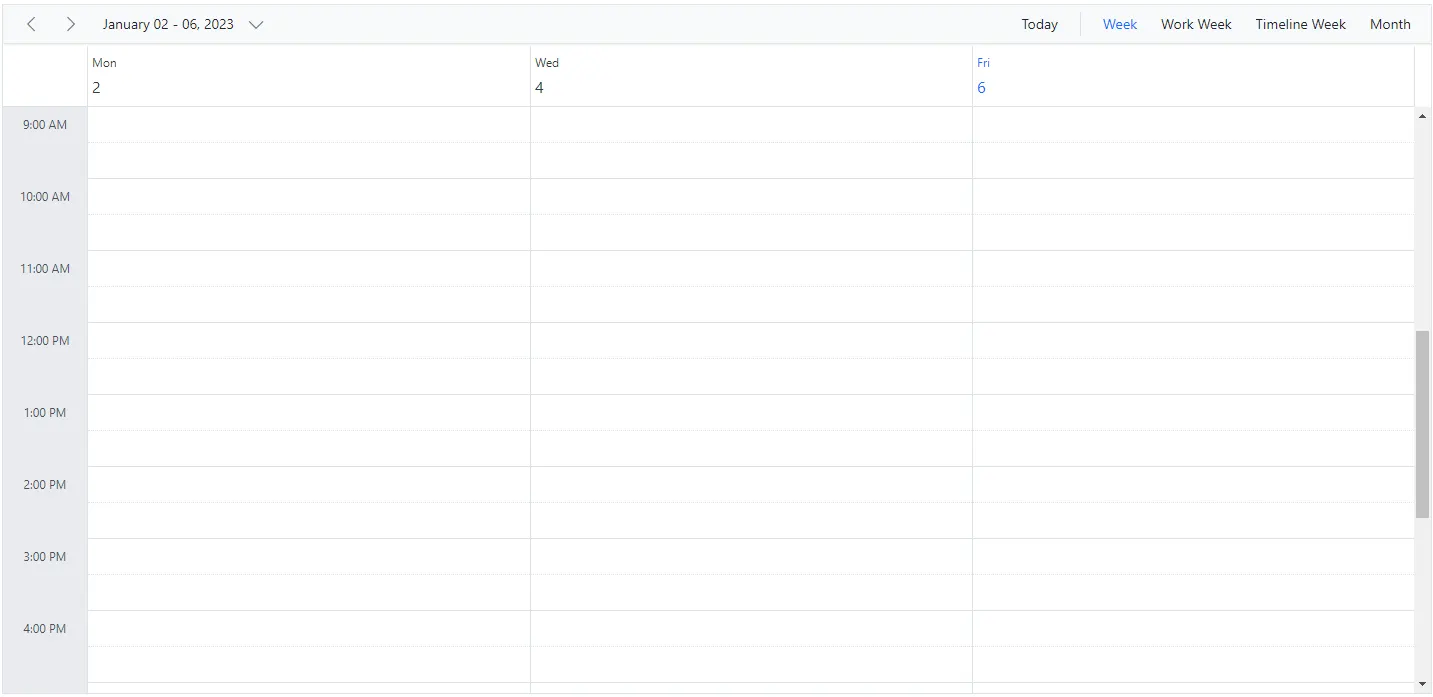
The ShowWeekend property is used to show or hide weekend days in a week, and it is not applicable to Work Week view because non-working days are usually not displayed there. By default, it is set to true. Days that are not part of the working days collection are treated as non-working or weekend days.
Here, the working days are defined as [1, 3, 4, 5] in Scheduler, so the remaining days (0, 2, 6 — Sunday, Tuesday, and Saturday) are considered non-working or weekend days and are hidden from all views when the ShowWeekend property is set to false.
@using Syncfusion.Blazor.Schedule

<SfSchedule TValue="AppointmentData" Height="650px" ShowWeekend=false WorkDays="@WorkingDays">
    <ScheduleViews>
        <ScheduleView Option="View.Week"></ScheduleView>
        <ScheduleView Option="View.WorkWeek"></ScheduleView>
        <ScheduleView Option="View.TimelineWeek" MaxEventsPerRow="10"></ScheduleView>
        <ScheduleView Option="View.Month" MaxEventsPerRow="2"></ScheduleView>
    </ScheduleViews>
</SfSchedule>

@code{
    public int[] WorkingDays { get; set; } = { 1, 3, 5 };
    public class AppointmentData
    {
        public int Id { get; set; }
        public string Subject { get; set; }
        public string Location { get; set; }
        public DateTime StartTime { get; set; }
        public DateTime EndTime { get; set; }
        public string Description { get; set; }
        public bool IsAllDay { get; set; }
        public string RecurrenceRule { get; set; }
        public string RecurrenceException { get; set; }
        public Nullable<int> RecurrenceID { get; set; }
    }
}
Show week numbers
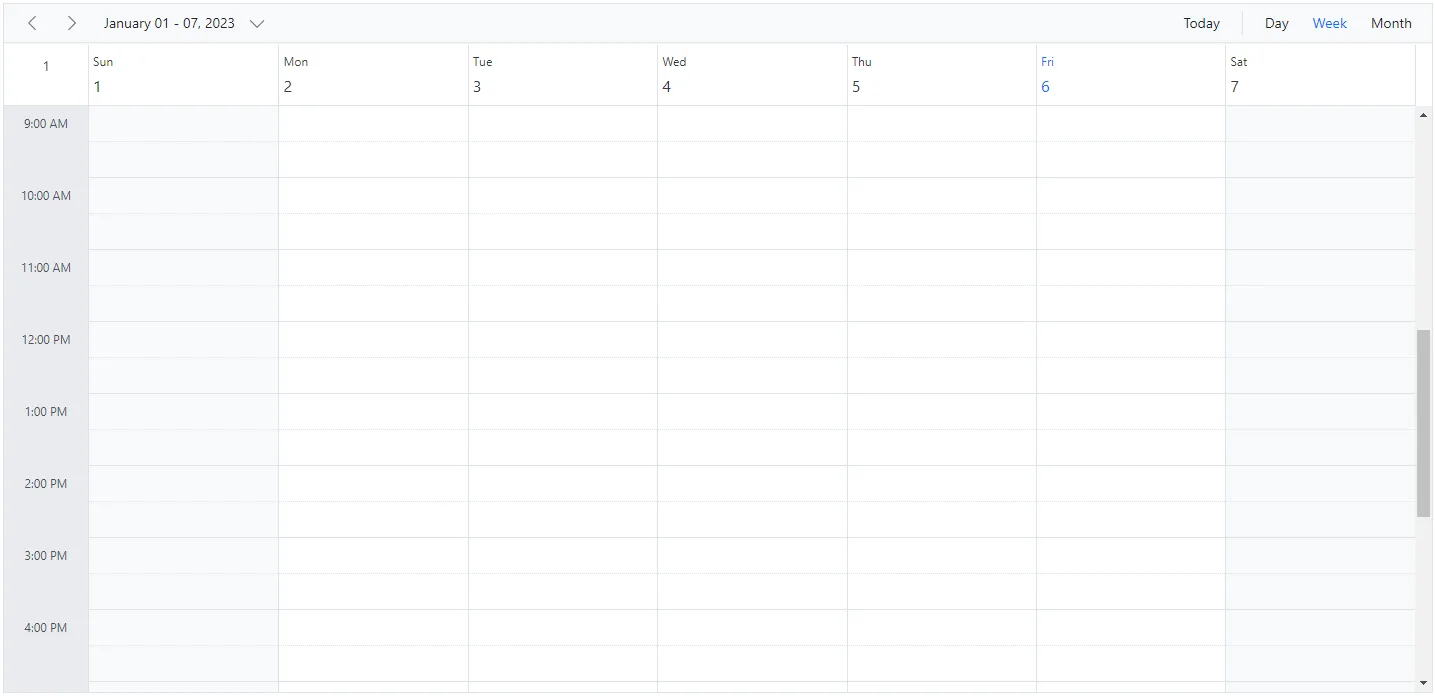
It is possible to show the week number count in the Blazor Scheduler header bar by setting the ShowWeekNumber property to true. By default, its value is false. In Month view, the week numbers are displayed in the first column.
The
ShowWeekNumberproperty is not applicable to Timeline views because the equivalent HeaderRows property handles this requirement with additional customization.
@using Syncfusion.Blazor.Schedule

<SfSchedule TValue="AppointmentData" Height="650px" ShowWeekNumber=true>
    <ScheduleViews>
        <ScheduleView Option="View.Day"></ScheduleView>
        <ScheduleView Option="View.Week"></ScheduleView>
        <ScheduleView Option="View.Month" MaxEventsPerRow="2"></ScheduleView>
    </ScheduleViews>
</SfSchedule>
@code{
    public class AppointmentData
    {
        public int Id { get; set; }
        public string Subject { get; set; }
        public string Location { get; set; }
        public DateTime StartTime { get; set; }
        public DateTime EndTime { get; set; }
        public string Description { get; set; }
        public bool IsAllDay { get; set; }
        public string RecurrenceRule { get; set; }
        public string RecurrenceException { get; set; }
        public Nullable<int> RecurrenceID { get; set; }
    }
}
Different options in showing week numbers
By default, week numbers are shown in Blazor Scheduler based on the first day of the year. However, week numbers can also be determined by setting the WeekRule property with the CalendarWeekRule enumeration.
FirstDay – The first week of the year is calculated based on the first day of the year.
FirstFourDayWeek – The first week of the year begins from the first week with four or more days.
FirstFullWeek – The first week of the year begins when meeting the first day of the week (firstDayOfWeek) and the first day of the year.
For more details, refer to this link.
@using Syncfusion.Blazor.Schedule

<SfSchedule TValue="AppointmentData" Height="650px" @bind-SelectedDate="@CurrentDate" ShowWeekNumber=true WeekRule="System.Globalization.CalendarWeekRule.FirstFourDayWeek">
    <ScheduleViews>
        <ScheduleView Option="View.Day"></ScheduleView>
        <ScheduleView Option="View.Week"></ScheduleView>
        <ScheduleView Option="View.Month" MaxEventsPerRow="2"></ScheduleView>
    </ScheduleViews>
</SfSchedule>
@code{
    DateTime CurrentDate = new DateTime(2023, 2, 28);
    public class AppointmentData
    {
        public int Id { get; set; }
        public string Subject { get; set; }
        public string Location { get; set; }
        public DateTime StartTime { get; set; }
        public DateTime EndTime { get; set; }
        public string Description { get; set; }
        public bool IsAllDay { get; set; }
        public string RecurrenceRule { get; set; }
        public string RecurrenceException { get; set; }
        public Nullable<int> RecurrenceID { get; set; }
    }
}
Set working hours
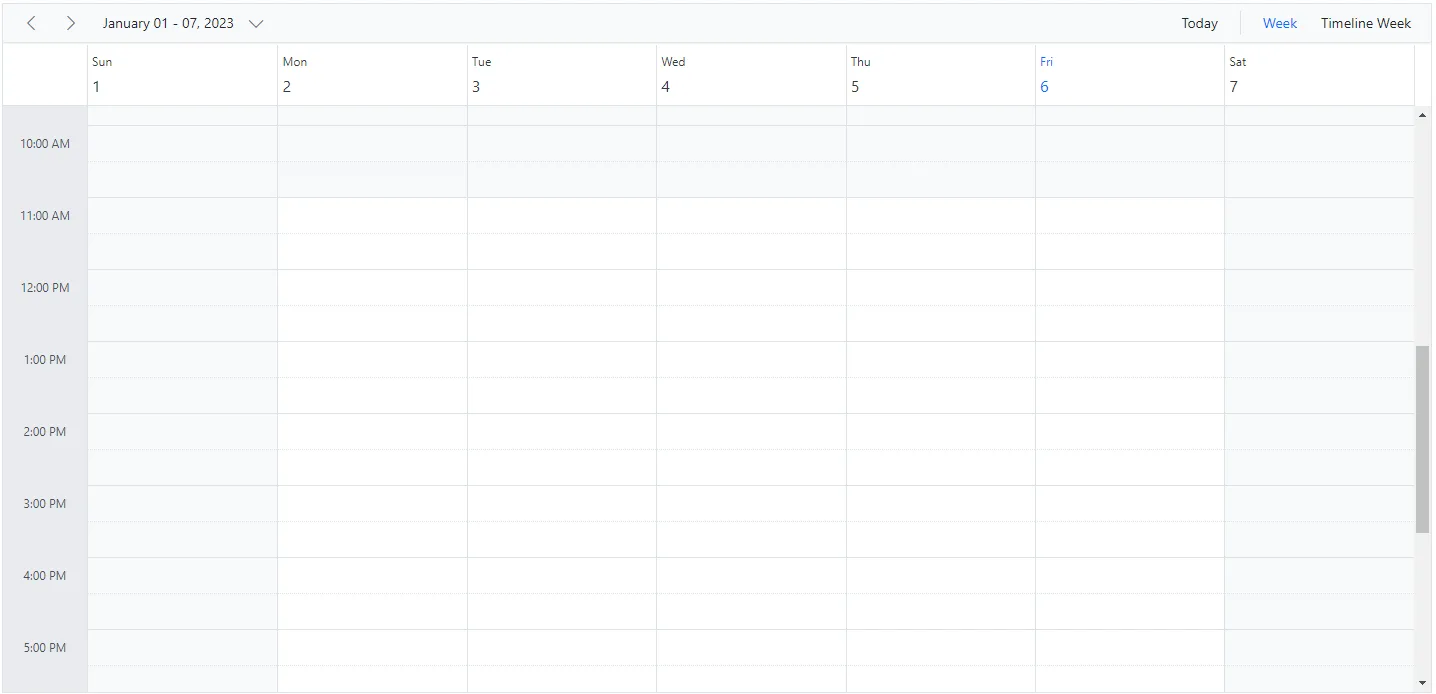
Working hours indicate the work-hour limit within Scheduler, and the work cells are visually highlighted with an active color. The working hours can be set in Blazor Scheduler by using the ScheduleWorkhours component, which includes the following sub-options:
-
Highlight– enables/disables the highlighting of work hours. -
Start- sets the start time of the working/business hour of a day. -
End- sets the end time limit of the working/business hour of a day.
@using Syncfusion.Blazor.Schedule

<SfSchedule TValue="AppointmentData" Height="650px">
    <ScheduleWorkHours Highlight="true" Start="11:00" End="20:00"></ScheduleWorkHours>
    <ScheduleViews>
        <ScheduleView Option="View.Week"></ScheduleView>
        <ScheduleView Option="View.TimelineWeek" MaxEventsPerRow="10"></ScheduleView>
    </ScheduleViews>
</SfSchedule>
@code{
    public class AppointmentData
    {
        public int Id { get; set; }
        public string Subject { get; set; }
        public string Location { get; set; }
        public DateTime StartTime { get; set; }
        public DateTime EndTime { get; set; }
        public string Description { get; set; }
        public bool IsAllDay { get; set; }
        public string RecurrenceRule { get; set; }
        public string RecurrenceException { get; set; }
        public Nullable<int> RecurrenceID { get; set; }
    }
}
Blazor Scheduler displaying custom hours
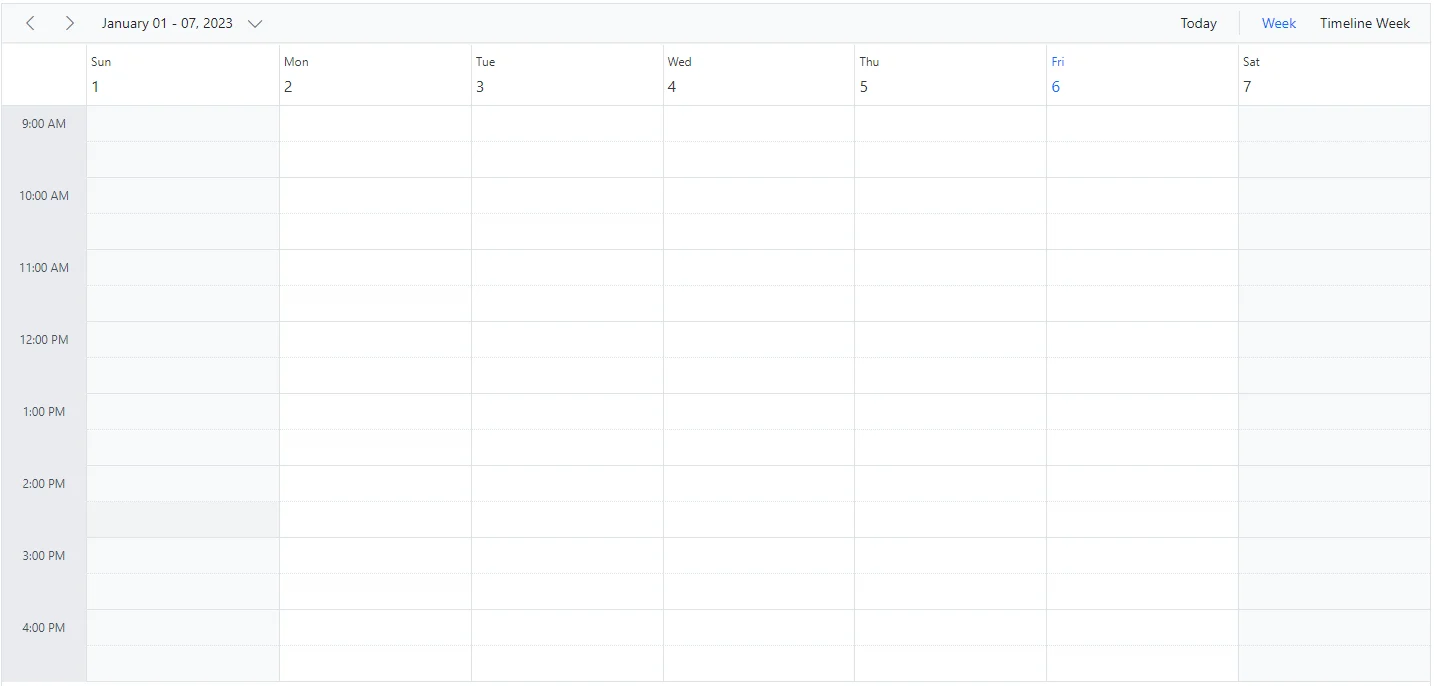
It is possible to display Blazor Scheduler with specific time durations by hiding unwanted hours. To do so, set the start and end hours by using the StartHour and EndHour properties.
The following code example displays Blazor Scheduler from 7:00 AM to 6:00 PM, and the remaining hours are hidden in the UI.
@using Syncfusion.Blazor.Schedule

<SfSchedule TValue="AppointmentData" Height="650px" StartHour="07:00" EndHour="18:00">
    <ScheduleViews>
        <ScheduleView Option="View.Week"></ScheduleView>
        <ScheduleView Option="View.TimelineWeek" MaxEventsPerRow="10"></ScheduleView>
    </ScheduleViews>
</SfSchedule>
@code{
    public class AppointmentData
    {
        public int Id { get; set; }
        public string Subject { get; set; }
        public string Location { get; set; }
        public DateTime StartTime { get; set; }
        public DateTime EndTime { get; set; }
        public string Description { get; set; }
        public bool IsAllDay { get; set; }
        public string RecurrenceRule { get; set; }
        public string RecurrenceException { get; set; }
        public Nullable<int> RecurrenceID { get; set; }
    }
}
Setting start day of the week
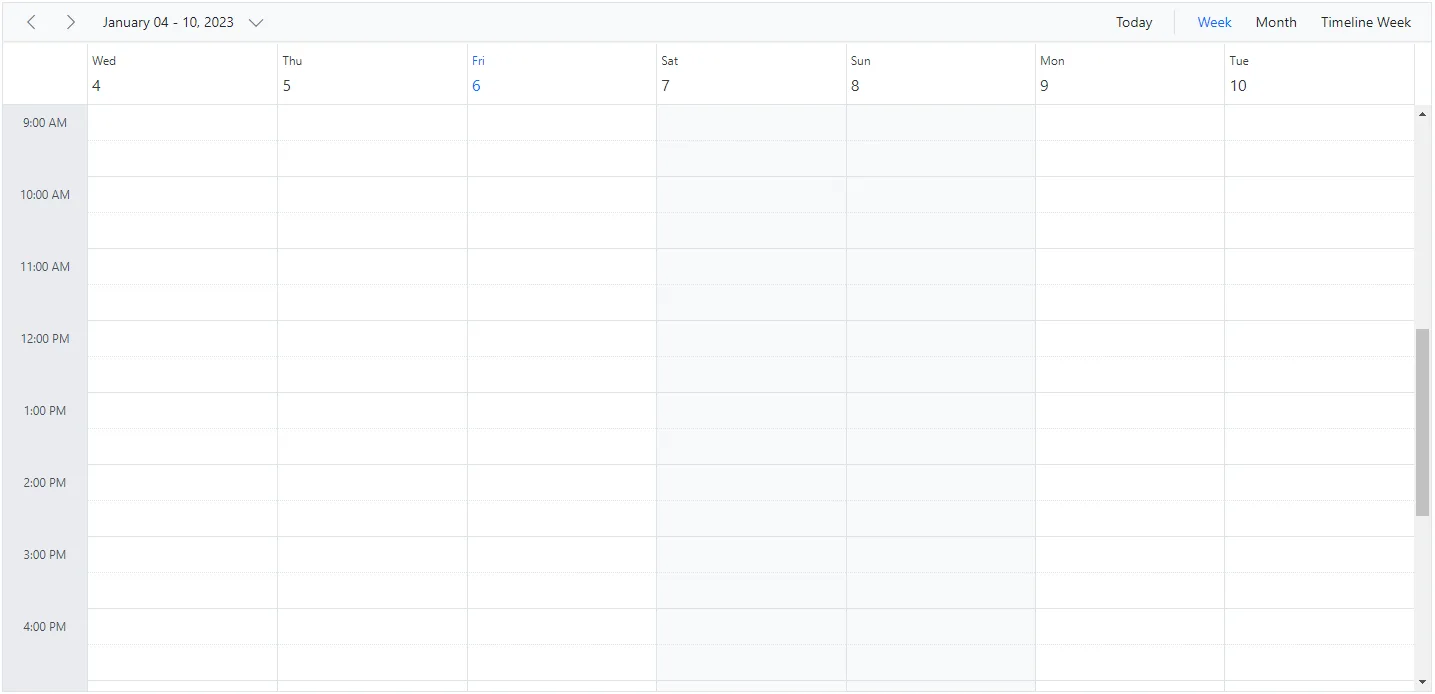
By default, Blazor Scheduler uses Sunday as the first day of the week. To change Scheduler’s starting day to a different day, set the FirstDayOfWeek property with values from 0 to 6.
Here, Sunday is always denoted as 0, Monday as 1, and so on.
@using Syncfusion.Blazor.Schedule

<SfSchedule TValue="AppointmentData" Height="650px" FirstDayOfWeek=3>
    <ScheduleViews>
        <ScheduleView Option="View.Week"></ScheduleView>
        <ScheduleView Option="View.Month" MaxEventsPerRow="2"></ScheduleView>
        <ScheduleView Option="View.TimelineWeek" MaxEventsPerRow="10"></ScheduleView>
    </ScheduleViews>
</SfSchedule>
@code{
    public class AppointmentData
    {
        public int Id { get; set; }
        public string Subject { get; set; }
        public string Location { get; set; }
        public DateTime StartTime { get; set; }
        public DateTime EndTime { get; set; }
        public string Description { get; set; }
        public bool IsAllDay { get; set; }
        public string RecurrenceRule { get; set; }
        public string RecurrenceException { get; set; }
        public Nullable<int> RecurrenceID { get; set; }
    }
}
Scroll to specific time and date
You can manually scroll to a specific time in Blazor Scheduler by using the ScrollToAsync method, as shown in the following code example.
@using Syncfusion.Blazor.Schedule
@using Syncfusion.Blazor.Calendars

<div>
    <span>Scroll To</span>
    <SfTimePicker TValue="DateTime?" Width="100px" Format="HH:mm" @bind-Value="TimeValue">
        <TimePickerEvents TValue="DateTime?" ValueChange="OnValueChange"></TimePickerEvents>
    </SfTimePicker>

</div>
<SfSchedule TValue="AppointmentData" @ref="ScheduleRef" Width="100%" Height="550px" @bind-SelectedDate="@CurrentDate">
    <ScheduleViews>
        <ScheduleView Option="View.Day"></ScheduleView>
        <ScheduleView Option="View.Week"></ScheduleView>
        <ScheduleView Option="View.WorkWeek"></ScheduleView>
    </ScheduleViews>
    <ScheduleEventSettings DataSource="@DataSource"></ScheduleEventSettings>
</SfSchedule>

@code{
    DateTime CurrentDate { get; set; } = new DateTime(2020, 1, 31);
    SfSchedule<AppointmentData> ScheduleRef;
    public DateTime? TimeValue { get; set; } = new DateTime(DateTime.Today.Year, DateTime.Today.Month, DateTime.Today.Day, 9, 0, 0);
    public async Task OnValueChange(ChangeEventArgs<DateTime?> args)
    {
        await ScheduleRef.ScrollToAsync(args.Text);
    }

    List<AppointmentData> DataSource = new List<AppointmentData>
{
    new AppointmentData { Id = 1, Subject = "Meeting", StartTime = new DateTime(2020, 1, 31, 9, 30, 0) , EndTime = new DateTime(2020, 1, 31, 11, 0, 0) }
};
    public class AppointmentData
    {
        public int Id { get; set; }
        public string Subject { get; set; }
        public string Location { get; set; }
        public DateTime StartTime { get; set; }
        public DateTime EndTime { get; set; }
        public string Description { get; set; }
        public bool IsAllDay { get; set; }
        public string RecurrenceRule { get; set; }
        public string RecurrenceException { get; set; }
        public Nullable<int> RecurrenceID { get; set; }
    }
}